Connect Robot Vacuum to Wi-Fi: A Simple Guide
Connecting your robot vacuum to Wi-Fi is usually a straightforward process. Most robot vacuums require you to download a specific app and follow the on-screen prompts to get them online. This connection allows you to control your vacuum remotely and access smart features.
Once connected, your robot vacuum can do more than just clean floors. You can schedule cleanings, set virtual boundaries, and even view cleaning maps. Many users find this connectivity makes robot vacuums much more convenient and efficient.
- Download your vacuum’s app.
- Follow in-app setup instructions.
- Ensure your Wi-Fi is 2.4GHz compatible.
- Have your Wi-Fi password ready.
Let’s walk through exactly how to connect your robot vacuum to your home Wi-Fi network.
Getting Your Robot Vacuum Online: A Simple Guide
Connecting your robot vacuum to your home Wi-Fi network is your ticket to a smarter, more automated clean. It’s usually a straightforward process. We’ve found that most manufacturers aim to make this as user-friendly as possible. This connection allows you to control your robot from anywhere. It also opens the door to advanced features.
Essential Preparations Before You Connect
Before you dive into the app, let’s make sure you have everything ready. A little preparation goes a long way. This will help ensure a smooth and quick setup process. You don’t want to get halfway through and realize you’re missing a key piece of information.
What You’ll Need to Have Handy
Most robot vacuums will need a few specific things from you during the setup. Having these items ready will prevent interruptions. Think of it like packing for a trip; you wouldn’t want to forget your passport!
- Your home Wi-Fi network name (SSID).
- Your Wi-Fi password.
- A smartphone or tablet with Bluetooth enabled.
- The charging dock for your robot vacuum.
Understanding Your Wi-Fi Network
This is a really important step, and it trips up a lot of people. Robot vacuums, especially older models, often only work with a 2.4GHz Wi-Fi network. They typically can’t connect to a 5GHz network. You might have a dual-band router that broadcasts both. If you’re unsure, check your router’s settings or your internet service provider’s documentation.
Why the 2.4GHz? This band offers a longer range and better penetration through walls, which is ideal for a device that moves around your home. While 5GHz is faster, its range is shorter. For a robot vacuum, reliability over distance is usually the priority.
| Wi-Fi Band | Pros | Cons | Robot Vacuum Compatibility |
|---|---|---|---|
| 2.4GHz | Longer range, better wall penetration | Slower speeds, more susceptible to interference | Most common requirement |
| 5GHz | Faster speeds, less interference | Shorter range, struggles with obstacles | Less common, some newer models support it |
If your router broadcasts both bands under the same name, you might need to separate them temporarily during setup. You can usually do this in your router’s administrative settings. Once connected, you can often merge them back, or keep them separate if you prefer.
Downloading and Installing the App
The manufacturer’s app is your command center. It’s where you’ll guide your robot vacuum through the connection process. Think of it as the translator between you and your robot.
Finding the Right App
Each robot vacuum brand has its own app. You’ll find the name of the app in your vacuum’s user manual. It’s also usually printed on the vacuum itself or its packaging. Search for the app in your device’s app store (Apple App Store or Google Play Store).
Once you find it, download and install it. Make sure you’re downloading the official app from the correct developer. This is important for security and to ensure you have all the necessary features.
Creating Your Account
After installation, you’ll likely need to create an account. This is standard practice for most smart home devices. You’ll usually need an email address and to create a password. Some apps may offer options to sign up using social media accounts, like Google or Apple.
This account helps the app keep track of your specific robot vacuum. It also enables cloud-based features like remote control and firmware updates. It’s generally a good idea to use a strong, unique password for these accounts.
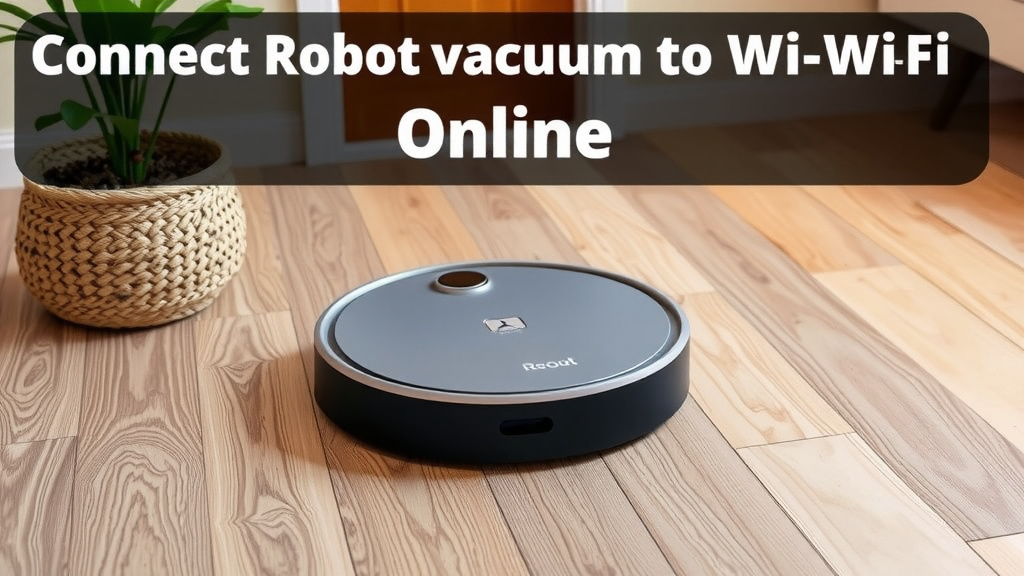
Connecting Your Robot Vacuum to Wi-Fi
Now for the main event! This is where you’ll link your robot vacuum to your home network. The app will guide you step-by-step, but here’s a general overview of what to expect.
Initiating the Connection Process
Open the app and look for an option to “Add Device,” “Add Vacuum,” or something similar. The app will then usually ask you to put your robot vacuum into pairing mode. This often involves pressing and holding a specific button on the vacuum itself until you hear a beep or see a flashing light.
Make sure your robot vacuum is charged and placed on its charging dock. Many vacuums require a stable power source during the initial setup. Some apps might also ask you to enable Bluetooth on your phone, as this can help the app discover the robot vacuum more easily.
Entering Your Wi-Fi Credentials
The app will prompt you to select your home Wi-Fi network from a list of available networks. Remember, it needs to be the 2.4GHz band if your vacuum has that requirement. Once you select your network, you’ll need to carefully enter your Wi-Fi password.
Double-check this password for typos. It’s the most common reason for connection failures. Passwords are case-sensitive, so an uppercase ‘A’ is different from a lowercase ‘a’. Many users find it helpful to momentarily show the password as they type it to ensure accuracy.
The Pairing and Connection Phase
After entering your Wi-Fi details, the app will attempt to connect your robot vacuum to your network. This can take a few minutes. You might see progress indicators in the app. The vacuum itself might also give auditory or visual cues.
If the connection fails, don’t panic! We’ve found that re-checking your Wi-Fi password and ensuring you’re on the 2.4GHz band are the most common fixes. Sometimes, moving the robot vacuum closer to the router for the initial setup can help. You might need to repeat the pairing steps.
Post-Connection Checklist: What Now?
Congratulations, your robot vacuum is now online! But what can you do with this newfound connectivity? The possibilities are pretty exciting for simplifying your cleaning routine.
Exploring Smart Features
With your vacuum connected to Wi-Fi, you can now access all its smart capabilities through the app. These often include:
- Scheduling Cleanings: Set specific days and times for your robot to clean automatically.
- Remote Start/Stop: Start or stop a cleaning cycle from anywhere using your phone.
- Cleaning Maps: View a map of your home showing where the robot has cleaned.
- Virtual Boundaries: Draw “no-go” zones on the map to prevent the robot from entering certain areas.
- Room Selection: Tell your robot to clean only specific rooms.
We found that using these features can drastically cut down on the time you spend thinking about cleaning. You can set it and forget it!
Keeping Your Robot Updated
Manufacturers regularly release software updates for robot vacuums. These updates can improve performance, add new features, or fix bugs. When your robot is connected to Wi-Fi, it can often download and install these updates automatically.
It’s a good idea to check the app periodically for any manual update prompts. Keeping your robot’s firmware up-to-date ensures you have the best and most secure cleaning experience. Many experts suggest performing these updates when you’re not actively using the vacuum.
Troubleshooting Common Connection Issues
Even with the best setup, occasional hiccups can occur. If your robot vacuum loses its Wi-Fi connection, here are a few things to try:
- Restart your robot vacuum and its charging dock.
- Restart your Wi-Fi router.
- Ensure your Wi-Fi password hasn’t changed.
- Verify your robot is still within range of your Wi-Fi signal.
- Check the app for any error messages or troubleshooting tips.
Conclusion
You’ve successfully navigated the steps to connect your robot vacuum to your Wi-Fi! By preparing your network and following the app’s guidance, you’ve opened up a world of smart cleaning. Remember that a stable 2.4GHz connection is often key, and having your Wi-Fi password ready saves time. With your robot online, you can now enjoy automated scheduling, remote control, and advanced mapping features that make home maintenance easier than ever.
Take a moment to explore all the smart features your app offers. Now is the perfect time to set your first cleaning schedule and truly experience the convenience you’ve just set up!
Frequently Asked Questions
My robot vacuum won’t connect to Wi-Fi. What’s the first thing I should check?
The most common reason for connection failure is an incorrect Wi-Fi password. Double-check that you’ve entered it exactly as it appears, paying close attention to capitalization. Also, ensure your robot is within good range of your router during setup.
Do I really need to use a 2.4GHz Wi-Fi network?
Most robot vacuums require a 2.4GHz network because it offers a better range and signal penetration through walls, which is ideal for a device that moves around your home. While some newer models support 5GHz, older ones often do not.
Can I control my robot vacuum when I’m not home?
Yes, once your robot vacuum is connected to your home Wi-Fi, you can typically control it remotely using its dedicated smartphone app. This allows you to start, stop, or schedule cleanings from anywhere with an internet connection.
What should I do if my robot vacuum disconnects from Wi-Fi unexpectedly?
If your robot loses its connection, try restarting both the vacuum and your Wi-Fi router. Ensure your Wi-Fi password hasn’t changed recently and that the vacuum is still within your Wi-Fi signal’s range.
Is it safe to create an account for my robot vacuum app?
Creating an account is generally safe and necessary for most smart features. We recommend using a strong, unique password for your account to protect your data. Always download the official app from the manufacturer’s verified app store.
![7 Best Robot Vacuum For Pet Hair [2026]](https://robotvacuumfact.com/wp-content/uploads/2026/06/7-best-robot-vacuum-for-pet-hair-2026-featured-768x432.jpg)