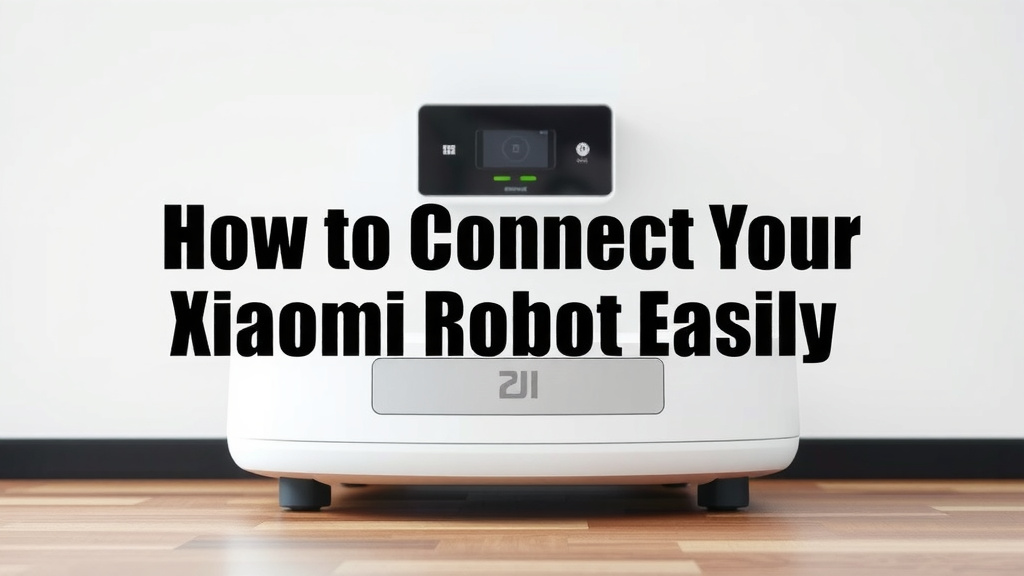
How to Connect Your Xiaomi Robot Vacuum Easily
Connecting your Xiaomi robot vacuum is a straightforward process that usually takes just a few minutes. You’ll typically need the Mi Home app to get started. This app guides you through the setup, letting you control and schedule your vacuum from anywhere.
Getting your robot online means you can enjoy automated cleaning without lifting a finger. It also unlocks advanced features like mapping your home and setting up virtual boundaries. Many users find this connectivity transforms how they manage household chores.
- Download the Mi Home app.
- Ensure your vacuum is charged and nearby.
- Follow in-app instructions to connect to Wi-Fi.
- Pair your vacuum with your smartphone.
Ready to get your smart vacuum up and running? Let’s walk through exactly how to connect your Xiaomi robot vacuum step by step.
Getting Your Xiaomi Robot Vacuum Connected
Connecting your Xiaomi robot vacuum to your home Wi-Fi is the key to unlocking its smart features. Once online, you can control it from your phone, set schedules, and even see where it’s cleaned. It’s like giving your vacuum a tiny brain! We’ll guide you through the simple steps to get it up and running.
Preparation: What You’ll Need Before You Start
Before you dive into the connection process, a little preparation goes a long way. Think of it like getting your ingredients ready before you start cooking. This ensures a smooth and hassle-free setup.
Ensure Your Robot is Ready
First things first, make sure your Xiaomi robot vacuum has enough power. Place it on its charging dock and let it charge for at least an hour, or until the indicator light shows it’s fully charged. A low battery can interrupt the connection process. You’ll want your little cleaning buddy to have plenty of juice for its first online adventure!
Download and Install the Mi Home App
The Mi Home app is your central command center for all Xiaomi smart devices, including your robot vacuum. You can download it for free from the App Store for iOS devices or the Google Play Store for Android devices. Make sure you download the correct app; searching for “Mi Home” should do the trick.
Once downloaded, open the app. You’ll likely need to create a Mi account or log in if you already have one. This account links all your Xiaomi devices together.
Check Your Wi-Fi Network
Your Xiaomi robot vacuum typically connects to a 2.4GHz Wi-Fi network. Most homes have both 2.4GHz and 5GHz bands, but older or simpler robot models might not support the faster 5GHz band. During setup, ensure you are trying to connect to your 2.4GHz network.
It’s also a good idea to have your Wi-Fi password handy. You’ll need it to grant your robot access to your home network. For the initial setup, it’s best to have your robot vacuum and your smartphone close to your Wi-Fi router. This can help ensure a strong and stable connection.
Connecting Your Robot Vacuum: Step-by-Step
Now that you’re prepared, let’s get your robot vacuum online. This is where the magic happens!
Adding Your Device in the Mi Home App
Open the Mi Home app and tap the ‘+’ icon, usually found in the top right corner of the screen. This is how you’ll start adding a new device. The app will then prompt you to scan a QR code or to select the device from a list.
If your robot vacuum has a QR code printed on it, you can scan it. Alternatively, you can manually search for your robot vacuum model in the app. Xiaomi has a wide range of robot vacuums, so look for a model name that matches yours. Once you select your robot, the app will begin the pairing process.
Putting Your Robot in Pairing Mode
Some Xiaomi robot vacuums require you to put them into pairing mode manually. This usually involves pressing and holding a specific button or combination of buttons on the vacuum itself for a few seconds. You’ll often hear a voice prompt or see a flashing light indicating that it’s ready to connect.
Consult your robot vacuum’s user manual if you’re unsure how to activate pairing mode for your specific model. The manual is your best friend here, offering model-specific instructions.
Connecting to Wi-Fi
The Mi Home app will ask you to select your home Wi-Fi network and enter the password. Double-check that you’ve selected the correct network (remember, usually 2.4GHz) and that the password is typed correctly. Passwords are case-sensitive, so be careful!
The app will then attempt to connect your robot vacuum to your network. This might take a minute or two. You’ll usually see a progress indicator in the app. Patience is key here!
Confirming the Connection
Once the connection is successful, the app will notify you. Your robot vacuum might also make a sound or announce that it’s connected. You can then give your robot a custom name, like “Dusty” or “Roomba-wannabe.” This helps if you have multiple smart devices.
After connecting, the app often guides you through a quick firmware update. It’s important to let these updates complete, as they can improve performance and add new features.
Exploring Your Robot Vacuum’s Smart Features
Congratulations, your Xiaomi robot vacuum is now online! But what can you do with it? Lots of cool things!
Setting Cleaning Schedules
One of the best parts of a connected robot vacuum is scheduling cleanings. You can set specific days and times for your vacuum to automatically start cleaning. Imagine waking up to a clean floor every morning!
In the Mi Home app, navigate to your robot vacuum’s control panel. You should find an option to set up cleaning schedules. You can often choose specific rooms or zones for scheduled cleanings, too. This is a huge time-saver and keeps your home consistently tidy.
Mapping and Virtual Boundaries
Many Xiaomi robot vacuums create a map of your home as they clean. This map allows you to see where the robot has been and where it can go. It’s like giving your robot a bird’s-eye view of your living space.
With this map, you can set virtual boundaries. For example, you can tell your robot to avoid certain areas, like a pet’s food bowls or a play area for kids. This prevents the vacuum from getting stuck or making a mess. Some advanced models even let you set up no-go zones or virtual walls directly in the app.
Controlling Your Vacuum Remotely
No more forgetting to run the vacuum before you leave the house! With the Mi Home app, you can start, stop, pause, and send your robot vacuum back to its dock from anywhere. All you need is an internet connection on your phone.
This remote control feature is incredibly convenient. If unexpected guests are coming over, you can initiate a quick cleaning session with just a few taps on your screen.
Understanding Different Models and App Versions
It’s worth noting that the exact steps and available features might vary slightly between different Xiaomi robot vacuum models and Mi Home app versions. Some older models might have a simpler app interface, while newer ones offer more advanced customization.
If you encounter any discrepancies, always refer to your specific robot vacuum’s user manual. The manual is the definitive guide for your device.
Troubleshooting Common Connection Issues
Sometimes, things don’t go perfectly the first time. Don’t worry, most connection issues are solvable!
Wi-Fi Password Errors
The most common hiccup is an incorrect Wi-Fi password. Double-check your password for typos and capitalization. If you’ve recently changed your Wi-Fi password, you’ll need to update it in the Mi Home app for your vacuum.
Incorrect Wi-Fi Band
Remember, most Xiaomi robot vacuums need a 2.4GHz network. If you’re trying to connect to a 5GHz band, the connection will likely fail. Ensure your phone is connected to the 2.4GHz network during setup, and select that network for your vacuum.
Router Distance and Signal Strength
If your Wi-Fi signal is weak where your robot is located, it might struggle to connect. Try moving the robot vacuum closer to your router for the initial setup. You can also try resetting your router by unplugging it for 30 seconds and plugging it back in.
App or Robot Reset
If all else fails, you might need to reset the robot vacuum to its factory settings. This usually involves holding down specific buttons on the vacuum until you hear a reset confirmation. After resetting, you’ll need to go through the entire connection process again from scratch.
Here’s a quick checklist to ensure a smooth connection:
- Verify your robot vacuum is charged.
- Confirm you’re using the Mi Home app.
- Ensure you’re connecting to a 2.4GHz Wi-Fi network.
- Have your Wi-Fi password ready and accurate.
- Place your robot near the Wi-Fi router for setup.
- Follow the in-app prompts carefully.
Conclusion
You’ve successfully navigated the steps to connect your Xiaomi robot vacuum! We’ve walked through everything from app downloads and Wi-Fi checks to pairing and troubleshooting. Now, you can enjoy the convenience of automated cleaning and advanced features like scheduling and virtual boundaries. This connectivity truly transforms how you manage your home’s cleanliness. Your next step is to open the Mi Home app and set your first cleaning schedule. Happy cleaning!
Frequently Asked Questions
What if my Xiaomi robot vacuum won’t connect to Wi-Fi?
First, double-check your Wi-Fi password for any typos or capitalization errors. Ensure you are trying to connect to a 2.4GHz network, as most Xiaomi vacuums do not support 5GHz. If problems persist, try moving your robot closer to your router for setup.
Can I connect my Xiaomi robot vacuum to a 5GHz Wi-Fi network?
Generally, no. Most Xiaomi robot vacuum models are designed to connect exclusively to a 2.4GHz Wi-Fi band. Your smartphone should be connected to the 2.4GHz network during the setup process, and you’ll select this network for your vacuum.
How do I put my Xiaomi robot vacuum into pairing mode?
This process varies by model. Often, you need to press and hold a specific button or combination of buttons on the vacuum itself for several seconds until you hear a voice prompt or see a flashing indicator light. Refer to your robot vacuum’s user manual for exact instructions.
What should I do if the Mi Home app can’t find my robot vacuum?
Make sure your robot vacuum is powered on and within range of your Wi-Fi router. Try closing and reopening the Mi Home app, or restarting your phone. If your vacuum has a QR code, ensure you are scanning it clearly, or try searching for your model manually within the app.
Will connecting my robot vacuum allow me to control it when I’m not home?
Yes, absolutely! Once your Xiaomi robot vacuum is connected to your home Wi-Fi and linked to your Mi Home app account, you can control it remotely from anywhere. As long as your smartphone has an internet connection, you can start, stop, pause, and schedule cleanings for your robot.
![7 Best Robot Vacuum And Mop Self Cleaning [2026]](https://robotvacuumfact.com/wp-content/uploads/2026/08/7-best-robot-vacuum-and-mop-self-cleaning-2026-featured-768x432.jpg)