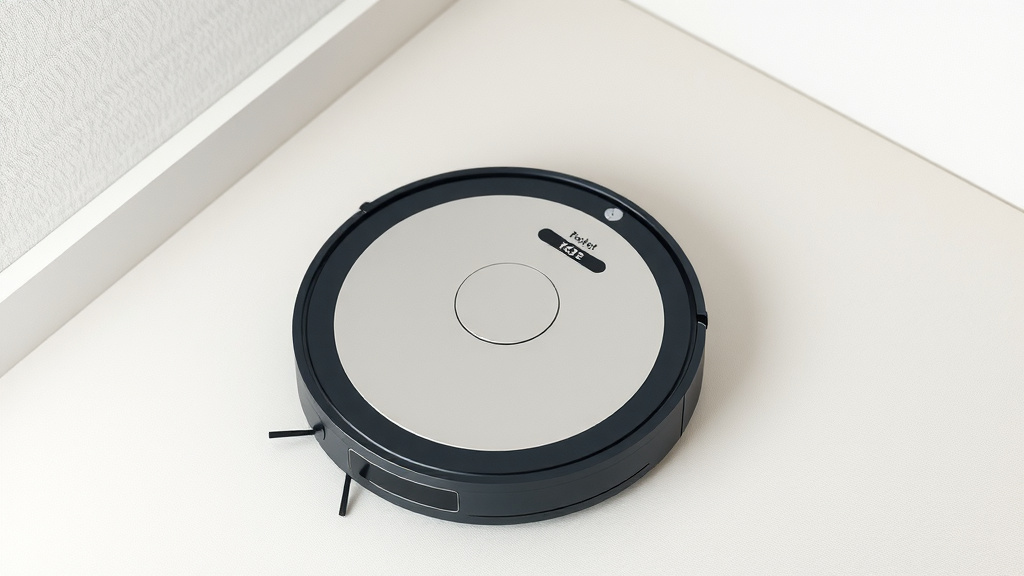
How to Factory Reset Your Robot Vacuum Easily
You can factory reset your robot vacuum to fix software glitches or prepare it for a new owner. This process typically involves holding down a specific button or combination of buttons. It’s often the quickest way to solve persistent issues that a simple reboot won’t fix. We’ll show you how.
Sometimes, your robot vacuum just needs a fresh start. Think of it like restarting your computer when it acts up. A factory reset wipes all custom settings and data, returning the device to its original, out-of-the-box state. This can resolve connectivity problems or forgotten Wi-Fi passwords.
- Locate the reset button.
- Press and hold it for the required time.
- Wait for the vacuum to reboot.
- Reconnect to Wi-Fi and reconfigure settings.
- This can fix many software bugs.
Let’s walk through exactly how to get your robot vacuum back to its factory settings, step by step.
Resetting Your Robot Vacuum to Factory Settings
So, your robot vacuum is acting a little… robotic? Maybe it’s stuck in a loop, refusing to connect to your Wi-Fi, or just being generally stubborn. Before you start thinking about giving it a new life as a stylish paperweight, a factory reset might be exactly what it needs. This process returns your device to its original state, like when you first unboxed it.
Why You Might Need to Factory Reset Your Robot Vacuum
There are several good reasons why you might find yourself needing to perform this digital deep clean. Think of it as a fresh start for your automated cleaning assistant.
Troubleshooting Software Glitches and Bugs
Robot vacuums are sophisticated little machines, packed with sensors, maps, and algorithms. Sometimes, these software components can get a bit jumbled. A factory reset is often the go-to solution for persistent software glitches that a simple restart can’t fix. We’ve found that it can clear out corrupted data that might be causing erratic behavior. This is a bit like clearing the cache on your computer when things start to slow down.
Resolving Connectivity Issues
Is your robot vacuum stubbornly refusing to connect to your Wi-Fi network? Did you change your Wi-Fi password and now it’s lost its digital marbles? A factory reset can wipe out old network settings, forcing it to reconnect as if it were brand new. This is a common fix for Wi-Fi connection problems that leave your vacuum isolated from its smart features.
Preparing for a New Owner
If you’re selling, donating, or giving away your robot vacuum, a factory reset is essential. You wouldn’t want your personal Wi-Fi passwords or mapping data to fall into the wrong hands, right? Performing a reset ensures that all your information is completely erased. This respects your privacy and provides a clean slate for the next user. It’s a simple step that offers peace of mind.
Wiping Out Custom Settings
Maybe you’ve experimented with different cleaning schedules, zone settings, or virtual boundaries. If these settings are causing unexpected issues, or if you simply want to start over with a clean configuration, a factory reset is the way to go. It’s the ultimate “undo” button for your vacuum’s smart features.
How to Perform a Factory Reset on Your Robot Vacuum
The exact method for a factory reset varies slightly between brands and models, but the core principle is usually the same: you’ll need to find a specific button or combination of buttons and hold it down. We’ve researched the general steps.
Locating the Reset Button
The reset button is typically small and sometimes recessed. You might need a paperclip or a similar pointed object to press it. Common locations include:
- Underneath a removable panel or cover.
- On the back or side of the robot.
- Sometimes integrated into a larger button (like the power button, but requiring a longer press).
- In some cases, the reset function is accessed through the vacuum’s mobile app settings.
Your best bet is to consult your robot vacuum’s user manual. If you don’t have it handy, a quick online search for “[Your Robot Vacuum Brand] [Your Model Number] reset button” usually does the trick. Many manufacturers provide digital versions of their manuals on their websites.
The Reset Button Press – Timing is Everything
Once you’ve found the button, it’s time for the main event. Here’s where you need to pay attention to the instructions specific to your model.
Standard Button Hold Method
For most vacuums, you’ll need to press and hold the designated reset button for a specific amount of time. This is often somewhere between 10 to 30 seconds. You might hear a beep, see lights flash, or the vacuum might simply power off and then back on again to indicate the reset is complete. Don’t let go too early!
Button Combination Method
Some models require you to press and hold a combination of buttons simultaneously. This could be the power button plus another button, or two specific function buttons. Again, check your manual for the exact sequence. The key is that the robot must be powered on for this to work.
Reset via the Mobile App
If your robot vacuum has a companion app, the reset option might be accessible there. Look for sections like “Device Settings,” “Advanced Settings,” or “About Device.” You’ll usually find an option labeled “Factory Reset” or “Restore Default Settings.” This method is often the easiest if your vacuum is otherwise functional enough to connect to the app.
What Happens During a Factory Reset?
During the reset, your robot vacuum will essentially go back to its factory default state. This means:
- All custom maps of your home will be erased.
- Wi-Fi network information will be deleted.
- Paired devices (like smart assistants) will be disconnected.
- Any saved cleaning schedules will be removed.
- User preferences and settings will be reset.
It’s a complete digital wipe, so be prepared to re-establish your preferences afterward. Think of it like getting a new phone and having to set everything up from scratch.
After the Reset: Getting Back Online
Once your robot vacuum has completed its reset and rebooted, it will be like a brand-new device. You’ll need to go through the initial setup process again.
Reconnect to Wi-Fi
This is usually the first step. Open your robot vacuum’s mobile app and follow the prompts to connect your vacuum to your home Wi-Fi network. You’ll likely need your Wi-Fi password ready.
Reconfigure Settings and Maps
After reconnecting, you’ll need to re-create any cleaning zones, virtual walls, or no-go areas you had set up. You’ll also want to set up your cleaning schedules again. Many apps will guide you through re-mapping your home on the first run after a reset.
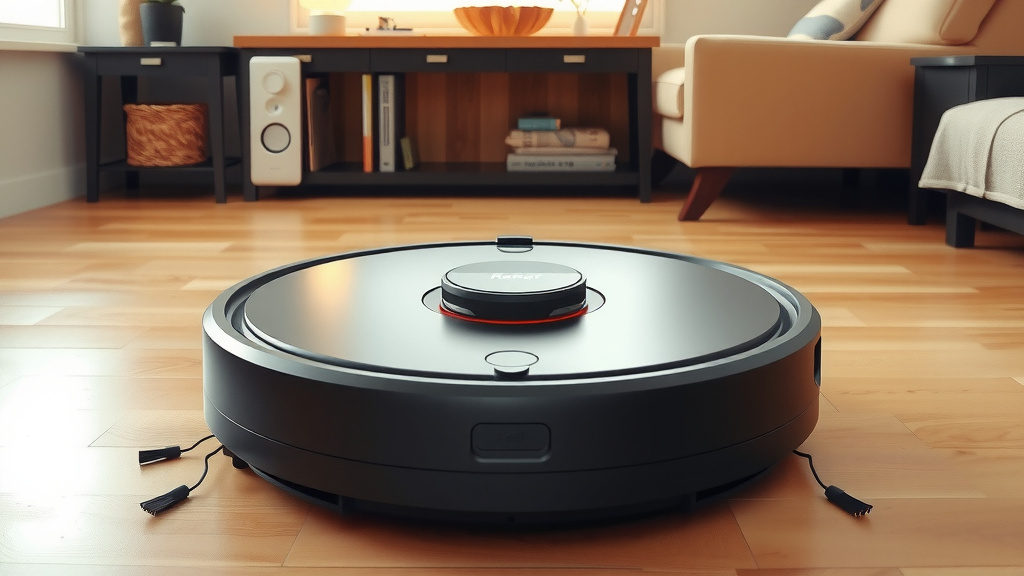
A Quick Checklist for Your Reset
To make sure you don’t miss a step, here’s a handy checklist:
- Find your robot vacuum’s user manual.
- Locate the reset button (or app setting).
- Press and hold the correct button(s) for the required duration.
- Wait for confirmation that the reset is complete.
- Open the mobile app and reconnect to your Wi-Fi.
- Reconfigure all your custom settings and maps.
When a Factory Reset Isn’t Enough
While a factory reset is a powerful troubleshooting tool, it’s not a magic wand for every problem. If you’ve performed a factory reset and your robot vacuum is still malfunctioning, it might indicate a hardware issue. In such cases, contacting the manufacturer’s customer support is your next best step. They can help diagnose hardware problems or guide you through warranty claims. We found that many users get their issues resolved by simply reaching out to support when software fixes don’t work.
Conclusion
You’ve learned that a factory reset is a powerful tool for your robot vacuum. It can fix frustrating software glitches, resolve stubborn connectivity issues, and ensure your personal data is secure when selling or gifting your device. Remember, while this process can solve many problems, it does wipe all your custom settings and maps. Be prepared to reconfigure everything afterward.
Your next step is to grab your user manual or search online for your specific model’s instructions. Then, confidently perform the reset to give your robot vacuum a fresh start. If problems persist, don’t hesitate to contact the manufacturer for further assistance.
Frequently Asked Questions
Will a factory reset erase my robot vacuum’s maps?
Yes, a factory reset will erase all custom maps of your home. Your robot vacuum will lose its learned floor plans and will need to create them again after the reset. You’ll also need to re-establish any virtual walls or no-go zones.
Can I factory reset my robot vacuum through its mobile app?
Many robot vacuums allow you to perform a factory reset directly through their companion mobile app. Look for options like “Device Settings” or “Restore Default Settings.” This is often the easiest method if your vacuum is still able to connect to the app.
How long do I need to hold the reset button?
The duration for holding the reset button typically ranges from 10 to 30 seconds. Always check your specific robot vacuum’s user manual for the exact time required. Holding it for too short a period may not initiate the reset.
What should I do if the factory reset doesn’t fix my robot vacuum’s problem?
If your robot vacuum continues to malfunction after a factory reset, it may indicate a hardware issue. Your next best step is to contact the manufacturer’s customer support. They can help diagnose hardware problems or guide you through warranty service options.
Do I need to reconnect my robot vacuum to Wi-Fi after a factory reset?
Absolutely. A factory reset erases all network information, so you will need to reconnect your robot vacuum to your Wi-Fi network. You will likely need your Wi-Fi password handy to complete this step through the mobile app.
![7 Best Robot Vacuum And Mop Pet Hair [2026]](https://robotvacuumfact.com/wp-content/uploads/2026/08/7-best-robot-vacuum-and-mop-pet-hair-2026-featured-768x432.jpg)