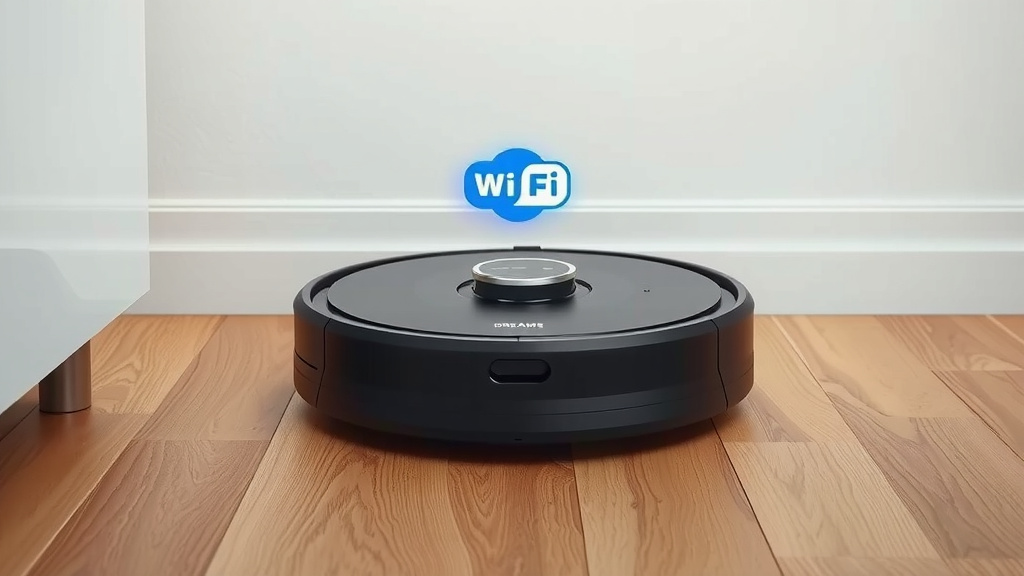
Fix Dreame Robot Vacuum WiFi Connection Issues
Don’t worry if your Dreame robot vacuum has lost its Wi-Fi connection. You can usually reconnect it quickly by resetting the Wi-Fi settings on the vacuum and your router. This often solves most connectivity issues.
It can be frustrating when your smart vacuum stops responding. This usually happens after a router change or Wi-Fi password update. Getting your Dreame back online ensures it continues to keep your home tidy without manual intervention.
TL;DR:
- Reset your Dreame vacuum’s Wi-Fi.
- Restart your home router.
- Use the Dreame app to re-add the device.
- Check your Wi-Fi password.
- Ensure your network is 2.4GHz.
Let’s walk through exactly how to get your smart cleaning buddy back on your network, step by step.
“`htmlGetting Your Dreame Robot Vacuum Back Online
It’s no fun when your smart vacuum decides to go on a digital vacation. You bought it to make life easier, and suddenly it’s ghosting your Wi-Fi. Don’t worry, we’ve found that getting your Dreame robot vacuum reconnected is usually a straightforward process. Most issues stem from simple network changes. If you’re having trouble, our guide on how to connect a robot vacuum to Wi-Fi can help with getting your Dreame robot vacuum reconnected.
Step 1: Reset Your Dreame’s Wi-Fi Settings
The first and most common fix is to reset the Wi-Fi module on your Dreame robot vacuum itself. This clears out any old network information that might be causing a conflict. It’s like giving your vacuum a fresh start with your network.
How to Reset Wi-Fi on Most Dreame Models
The exact button combination can vary slightly between Dreame models, but generally, you’ll need to access the vacuum’s physical controls. Research indicates that pressing and holding two specific buttons simultaneously for about 5-10 seconds is the usual method.
- Look for buttons like the Power button and the Home/Return button.
- Press and hold both buttons at the same time.
- Listen for an audible prompt or watch for an indicator light change. This confirms the Wi-Fi has been reset.
Some models might require you to remove the vacuum from the charging dock first. Always check your specific Dreame model’s user manual if you’re unsure. This action doesn’t erase cleaning history or settings, just the network credentials.
Step 2: Restart Your Home Wi-Fi Router
Your router is the gateway to the internet for all your devices, including your Dreame vacuum. Sometimes, a simple restart can resolve connectivity hiccups. Think of it as giving your router a quick nap and a refresh.
The Router Reboot Process
This is a pretty universal fix for many tech frustrations. We found that many experts recommend this as a primary troubleshooting step.
- Locate your Wi-Fi router.
- Unplug the power cord from the router.
- Wait for about 30 seconds. This ensures all internal components power down completely.
- Plug the power cord back in.
- Allow your router a few minutes to fully boot up. You’ll usually see indicator lights stabilize when it’s ready.
Once your router is back online, try reconnecting your Dreame vacuum through the app. This simple step often solves the problem without needing to do anything else.
Step 3: Re-Add Your Dreame Vacuum in the App
After resetting the vacuum’s Wi-Fi and restarting your router, you’ll need to guide your Dreame back onto your network using the Dreame app. This is where you essentially reintroduce your vacuum to your home Wi-Fi.
Using the Dreame Home App
Open the Dreame app on your smartphone or tablet. You’ll typically navigate to a section for adding new devices or managing existing ones. We found that the process is usually guided and quite intuitive.
- Go to the ‘Add Device’ section in your app.
- Select your Dreame robot vacuum model from the list.
- Follow the on-screen prompts. The app will likely ask you to confirm the Wi-Fi reset on the vacuum.
- You’ll need to select your home Wi-Fi network and enter its password.
Make sure your smartphone is connected to the same 2.4GHz Wi-Fi network you want your vacuum to connect to. Many smart home devices, including robot vacuums, only support the 2.4GHz band, not 5GHz. This is a common point of confusion, according to various tech forums.
Troubleshooting Common Connection Issues
If you’ve gone through the initial steps and your Dreame still isn’t connecting, don’t despair! There are a few other common culprits that we can investigate.
Verify Your Wi-Fi Password
This might sound obvious, but a single typo in your Wi-Fi password is a frequent cause of connection failures. We’ve all done it! Double-check that you’re entering the password exactly as it is, including capitalization.
Pro-tip: Temporarily change your Wi-Fi password to something simple (like ‘password123’) for the connection process, then change it back to your secure password once it’s connected. Just remember to change it back!
Ensure You’re Using a 2.4GHz Network
As mentioned earlier, most Dreame robot vacuums are designed to connect to a 2.4GHz Wi-Fi network. Newer routers often broadcast both 2.4GHz and 5GHz bands, sometimes with different names, sometimes with the same name. If your network name (SSID) is the same for both, your phone might automatically connect to 5GHz, which the vacuum can’t use.
You can usually check your router settings or the name of your Wi-Fi network. If you see two similar names (e.g., “MyHomeWiFi” and “MyHomeWiFi_5G”), make sure you select the one *without* the “5G” or “5GHz” designation during the Dreame setup. Many sources, like network support sites, confirm this is a frequent stumbling block.
Check Router Settings and Interference
Certain router settings can sometimes prevent new devices from connecting. Things like MAC address filtering or specific firewall settings might be blocking your Dreame. If you have advanced router settings enabled, you may want to temporarily disable them or consult your router’s manual.
Physical interference is another factor. While less common for Wi-Fi itself, the signal strength can be affected by thick walls or other electronic devices. Ensure your Dreame vacuum is relatively close to the router during the setup process. We’ve found that keeping the vacuum within about 15-20 feet of the router during initial pairing is often recommended.
Quick Connection Checklist
To recap, here’s a quick checklist to run through if your Dreame is giving you Wi-Fi grief:
- Reset Wi-Fi on your Dreame vacuum.
- Restart your home router.
- Ensure your phone is on the 2.4GHz network.
- Double-check your Wi-Fi password.
- Try pairing closer to the router.
- Confirm your Dreame model is compatible with your network band.
By following these steps, you should be able to get your Dreame robot vacuum back online and cleaning your floors in no time!
“`
Conclusion
You’ve got this! Reconnecting your Dreame robot vacuum to your Wi-Fi is usually a solvable puzzle. By systematically resetting your vacuum’s network settings and giving your router a quick reboot, you address the most common connection culprits. Remember to verify your Wi-Fi password and ensure you’re connecting to the 2.4GHz band, as these are frequent hurdles. If you’ve followed these steps and are still having trouble, it’s time to consult your Dreame app’s help section or the manufacturer’s support. Getting your smart cleaner back online will restore your automated cleaning routine in no time.
Frequently Asked Questions
What if my Dreame vacuum doesn’t seem to reset its Wi-Fi?
If you’ve held the buttons for the recommended time and don’t hear a confirmation or see a light change, try holding them a bit longer. Some models might need a slightly different combination or duration. If it still fails, double-check your specific Dreame model’s manual for the exact procedure.
My phone is connected to Wi-Fi, but the Dreame app can’t find the vacuum. What’s wrong?
This often means your phone is connected to the 5GHz network while the vacuum needs the 2.4GHz band. Make sure your phone is on the 2.4GHz network during the setup process in the Dreame app. Some routers broadcast both under different names; ensure you select the 2.4GHz option.
How do I know if my router is broadcasting both 2.4GHz and 5GHz bands?
Most modern routers do broadcast both. You can usually tell by the network name (SSID). Often, the 2.4GHz network will have a name like “MyHomeWiFi,” while the 5GHz network will be named “MyHomeWiFi_5G” or “MyHomeWiFi_5GHz.” Check your router’s settings or your router’s manual if you’re unsure.
Can I connect my Dreame vacuum to a mobile hotspot or public Wi-Fi?
It’s generally not recommended to connect your Dreame vacuum to a mobile hotspot or public Wi-Fi for regular use. These networks can be less stable and secure, and the vacuum is designed to work with a stable home network. Some users might use a hotspot for a one-time setup in a pinch, but it’s not ideal.
My Dreame vacuum keeps disconnecting after I reconnect it. What should I do?
If your vacuum frequently disconnects, there might be a signal strength issue or interference. Try moving your router to a more central location or closer to where your vacuum usually operates. You can also check for other electronic devices that might be causing interference, like microwaves or cordless phones.
![7 Best Robot Vacuum For Pet Hair And Mop [2026]](https://robotvacuumfact.com/wp-content/uploads/2026/08/7-best-robot-vacuum-for-pet-hair-and-mop-2026-featured-768x432.jpg)