
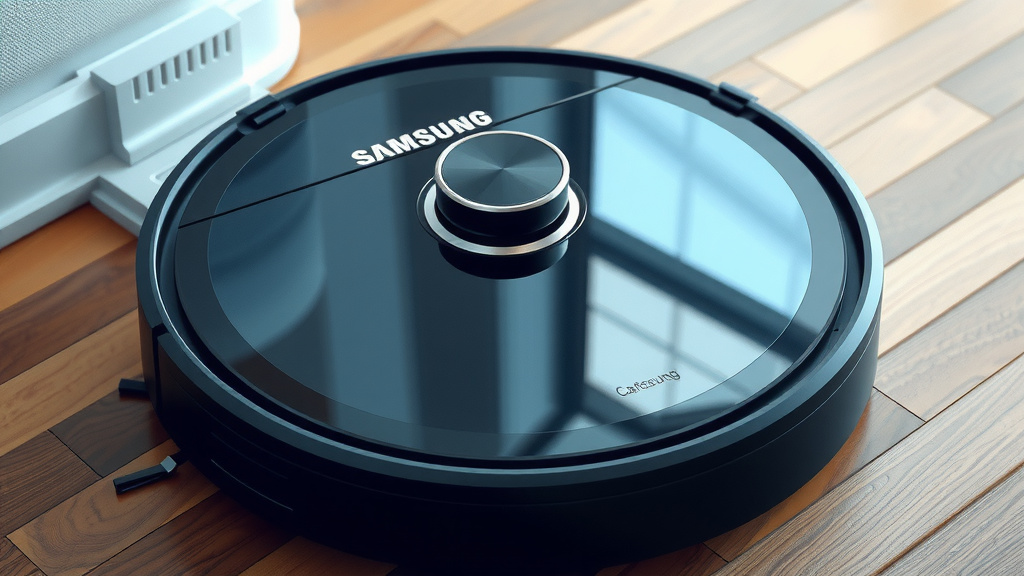
Reset Your Samsung Robot Vacuum: Easy Step-by-Step Guide
Resetting your Samsung robot vacuum is often the quickest fix for most glitches. You can usually reset it by pressing and holding the power button for about 10 seconds. This will force a restart and clear out any temporary errors.
Sometimes, your robot vacuum might act a bit stubborn. It could be stuck on a cleaning cycle or unresponsive to the app. A simple reset can often bring it back to life. We found that this method resolves many common issues homeowners face.
- Press and hold the power button for 10 seconds.
- This forces a restart to clear errors.
- It’s your go-to step for a frozen robot.
- This is often faster than a full factory reset.
Let’s walk through exactly how to perform this reset step by step, so you can get your Samsung robot vacuum cleaning again in no time.
Getting Your Samsung Robot Vacuum Back on Track
Is your Samsung robot vacuum acting up? Perhaps it’s frozen mid-clean or ignoring your app commands. Don’t worry, a simple reset can often solve these pesky issues. We found that this quick fix gets most robot vacuums working again in a jiffy. It’s usually the first step recommended by manufacturers.
Understanding the Samsung Robot Vacuum Reset Process
Think of a reset like giving your robot a quick power nap. It forces it to shut down and start fresh. This can clear out temporary software glitches. Many common problems, like a vacuum that won’t start or respond, are fixed this way. It’s a bit like restarting your computer when it freezes. This process is much simpler than a full factory reset. You won’t lose your programmed cleaning schedules or Wi-Fi settings.
The Standard Power Button Reset: Your First Line of Defense
This is the most common and effective reset method. It’s designed to force a full shutdown and restart. This clears out minor software hiccups. You’ll usually find the power button on the top of your robot vacuum. Check your model’s specific manual if you’re unsure where it is. Some models might have a recessed button that requires a paperclip.
Step-by-Step: Performing the Power Button Reset
First, locate the power button on your Samsung robot vacuum. It’s typically a physical button on the main unit. Press and hold this button down. You’ll need to keep holding it for about 10 seconds. You should hear a beep or see a light change. This indicates the vacuum is powering off. Once it’s fully off, release the button. Wait a few seconds before pressing it again to turn your robot back on. This gives it a moment to fully discharge residual power.
When to Use the Power Button Reset
This reset is perfect for when your vacuum seems frozen. Is it stuck in one spot? Not responding to the app? Refusing to dock? These are all signs a reset might help. We found that this method resolves issues like a “robot stuck” error message. It can also fix problems with the cleaning path. If the robot keeps going over the same spot or stops unexpectedly, try this first.
What if the Power Button Reset Doesn’t Work?
If holding the power button doesn’t bring your vacuum back to life, don’t despair. There are a few other things we can try. Sometimes, the issue might be related to the battery. Or, it could be a more persistent software bug. The next step often involves a slightly more involved process. This usually means accessing a reset function within the app or on the charging dock.
Resetting Through the SmartThings App
For many modern Samsung robot vacuums, you can manage settings through the SmartThings app. This app is your central hub for controlling your smart home devices. It often provides more detailed options for troubleshooting. We found that the app can be quite intuitive for performing resets. It guides you through the process clearly.
Locating the Reset Option in SmartThings
Open the SmartThings app on your smartphone or tablet. Navigate to your connected robot vacuum. Look for the device settings or options menu. This is often represented by a gear icon or three dots. Within the settings, you should find a section for troubleshooting or device management. Look for an option like “Reset Device,” “Factory Reset,” or “Re-initialize.”
Understanding App-Based Resets (Full Factory Reset)
Be aware that some app options might lead to a full factory reset. This is different from the simple power button reset. A factory reset will erase all your custom settings. This includes Wi-Fi connections, cleaning schedules, and saved maps. You’ll need to set up your robot vacuum from scratch afterward. We suggest trying the simple power button reset first. Only use a full factory reset if the simpler method fails. This is supported by manufacturer guidelines (Samsung Support).
Steps for a SmartThings App Reset
Once you’ve located the reset option in the app: tap on it. The app will likely ask you to confirm. Read the confirmation prompt carefully to ensure you understand what will happen. If it’s a full factory reset, it will warn you about losing data. Follow the on-screen prompts to complete the reset. This might involve pressing a button on the vacuum itself at a certain point. The app will guide you through the specific sequence.
Checking the Charging Dock for Reset Options
Some older Samsung robot vacuum models might have a reset button located on the charging dock itself. This is less common now, but it’s worth checking if other methods fail. The dock is where your robot charges when it’s not in use.
Finding the Dock Reset Button
Inspect the charging dock carefully. Look for a small, often recessed button. You might need a paperclip or a pen tip to press it. If you find one, press and hold it for a few seconds. Consult your vacuum’s user manual to confirm if your dock has this feature and what the button does. Manufacturers often include these hidden buttons for advanced troubleshooting.
A Quick Checklist for Troubleshooting Your Robot Vacuum
Before you perform a reset, consider these quick checks. Sometimes, the issue isn’t a software glitch at all.
- Check the battery level: Is it fully charged or at least has enough power?
- Inspect the brushes and wheels: Are they tangled with hair or debris?
- Clean the sensors: Dust on sensors can cause navigation problems.
- Ensure the charging dock is powered: Make sure the dock is plugged in and has power.
- Restart your Wi-Fi router: Sometimes, connectivity issues can affect app control.
When to Seek Professional Help
If you’ve tried all these reset methods and your Samsung robot vacuum is still not working correctly, it might be time for professional assistance. There could be a hardware issue that requires repair. You can contact Samsung support directly. They can provide further troubleshooting steps or arrange for service if needed. Don’t hesitate to reach out if you’re still stuck. Your robot vacuum is an investment, and getting it fixed is important.
Conclusion
You’ve learned the essential steps to reset your Samsung robot vacuum, from the quick power button fix to more involved app resets. We found these methods tackle most common glitches, getting your cleaner back on the job. Remember, the simple power button hold is your first and often most effective tool. If that doesn’t solve it, the SmartThings app offers further options, but be mindful of full factory resets. If all else fails, don’t hesitate to contact Samsung support. Your next step is to try the power button reset the next time your vacuum acts up!
Frequently Asked Questions
Will resetting my Samsung robot vacuum erase my cleaning history?
The standard power button reset usually does not erase your cleaning history. This method is designed to clear temporary errors without wiping your stored data. However, a full factory reset through the SmartThings app will erase all history and settings.
How long should I hold the power button to reset my robot vacuum?
You should press and hold the power button for approximately 10 seconds. You’ll typically hear a beep or see a light indicator change to confirm the vacuum is powering down. This ensures a complete shutdown to clear potential glitches.
Can I reset my Samsung robot vacuum without the app?
Yes, you can! The primary method is the power button reset, which doesn’t require the app at all. Some older models might also have a reset button on the charging dock itself. The app is usually for more advanced resets or troubleshooting.
What’s the difference between a power button reset and a factory reset?
A power button reset is a quick restart that clears minor software issues without losing settings. A factory reset, often done through the app, returns the vacuum to its original out-of-the-box state. This means it erases Wi-Fi passwords, cleaning schedules, and saved maps.
My robot vacuum is still not working after resetting, what should I do?
If the reset didn’t fix the problem, first double-check basic things like battery charge, tangled brushes, and clean sensors. If those are all clear, it might indicate a hardware issue. Your best next step is to contact Samsung customer support for further assistance or potential repair options.
![7 Best Robot Vacuum Mop Under $1000 [2026]](https://robotvacuumfact.com/wp-content/uploads/2026/08/7-best-robot-vacuum-mop-under-1000-2026-featured-768x432.jpg)
![7 Best Robot Vacuum [2026]](https://robotvacuumfact.com/wp-content/uploads/2026/06/7-best-robot-vacuum-2026-featured-768x432.jpg)
![7 Best All In One Robot Vacuum And Mop [2026]](https://robotvacuumfact.com/wp-content/uploads/2026/06/7-best-all-in-one-robot-vacuum-and-mop-2026-featured-768x432.jpg)
![7 Best Bagless Robot Vacuum For Pet Hair [2026]](https://robotvacuumfact.com/wp-content/uploads/2026/07/7-best-bagless-robot-vacuum-for-pet-hair-2026-featured-768x432.jpg)