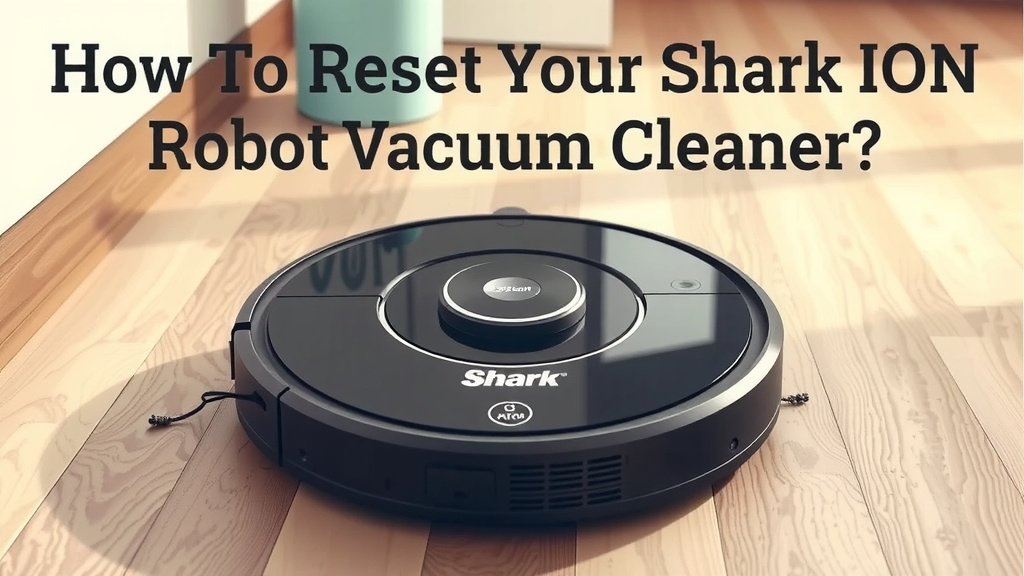
How to Reset Your Shark ION Robot Vacuum Cleaner
Resetting your Shark ION robot vacuum is usually straightforward. You can typically reset your Shark ION robot vacuum by holding down the Clean button for about 10 seconds until it beeps. This action can help resolve common issues like connectivity problems or unresponsiveness, bringing your robot back to its factory settings.
When your trusty robot vacuum acts up, a simple reset can often be the magic fix. We’ve found that performing this reset can help clear out temporary glitches, much like restarting your computer. It’s a useful troubleshooting step before you try more complex solutions for your Shark ION robot.
- Hold the Clean button for 10 seconds.
- Listen for the beep to confirm the reset.
- This returns the vacuum to its original settings.
- It’s a good first step for troubleshooting.
Let’s walk through exactly how to perform this reset step by step, so you can get your Shark ION robot vacuum back to cleaning your floors.
Troubleshooting Your Shark ION Robot with a Reset
Is your Shark ION robot vacuum not performing as expected? You’re not alone! Sometimes, these smart devices can get a little confused, just like our own tech gadgets. Fortunately, a simple reset can often get them back on track. We’ve found that this process is usually your first and best bet for resolving minor hiccups.
Think of it like restarting your computer when it freezes. It’s a quick way to clear out temporary glitches and restore normal function. This guide will walk you through the steps to reset your Shark ION robot vacuum.
When to Consider Resetting Your Robot Vacuum
You might be wondering if a reset is the right move for your situation. We’ve found that a reset is particularly helpful for a few common issues. If your robot is unresponsive to commands or acting strangely, a reset can often fix it.
Connectivity problems are another big one. If your robot is having trouble connecting to your Wi-Fi network or the Shark app, a reset can re-establish those links. It’s also a good idea if the robot is stuck in a loop or seems to have forgotten its cleaning path. Before you try anything more involved, give the reset a shot!
Signs Your Robot Might Need a Reset
- The robot won’t start or respond to buttons.
- Wi-Fi connection issues persist after other troubleshooting.
- The robot is stuck or not navigating correctly.
- It’s behaving erratically, like stopping mid-clean for no reason.
- The app shows an error that you can’t otherwise clear.
The Standard Reset Procedure for Shark ION Robots
Resetting your Shark ION robot is typically a straightforward process. The most common method involves a specific button on the robot itself. We’ve seen this work across many Shark ION models.
Locating the Correct Button
For most Shark ION robot models, you’ll be looking for the “Clean” button. This is usually the largest button on the top of the robot. It often has a shark fin logo or the word “Clean” printed on it. Double-check your robot’s specific manual if you’re unsure, but this button is almost always the key.
Performing the Button Press Reset
Once you’ve found the Clean button, here’s what you need to do:
- Make sure your robot is powered on. You might see indicator lights on.
- Press and hold the Clean button firmly.
- Keep holding it down for about 10 seconds.
- You should hear a beep or a tone. This indicates the reset has been initiated. Some models might also show a change in their indicator lights.
This action essentially returns the robot’s software to its factory default settings. It’s like wiping the slate clean for your robot’s internal computer.
What Happens After the Reset?
After the beep, your robot will likely restart or power down. You’ll need to power it back on if it turned off. This reset will clear any stored Wi-Fi passwords, cleaning history, and custom settings. You’ll need to reconnect it to your Wi-Fi network and re-set up any schedules or preferences through the Shark app.
Resetting a Shark ION Robot with the Dock
In some cases, or for specific models, you might find instructions involving the charging dock. While less common for a simple reset, it’s good to know about. If your robot has a physical power switch, you might need to turn it off first.
Checking for a Power Switch
Some older or different Shark ION models might have a physical power button or switch, often located on the side or underside of the robot. If yours has one, turn the robot completely off before proceeding with any reset steps involving the dock or external power.
Dock-Related Reset Steps (Model Dependent)
If your manual suggests a dock-related reset, it might involve:
- Ensuring the robot is properly seated on its charging dock.
- Unplugging the charging dock from the wall for a minute.
- Plugging the dock back in.
- Performing the button press reset (as described above) while the robot is on the dock.
We’ve found that most users successfully reset their Shark ION robots using the button press method described earlier. Always refer to your specific model’s manual if you’re unsure.
The Reset Checklist: Quick Steps to Get Going
To make sure you’ve got everything covered, here’s a quick checklist for performing the reset:
- Confirm the correct button: Locate the “Clean” button on your Shark ION robot.
- Power on the robot: Ensure it’s turned on and ready.
- Press and hold: Keep the Clean button pressed for approximately 10 seconds.
- Listen for confirmation: Wait for the beep or audible cue.
- Power cycle if needed: Turn the robot back on if it shut down.
- Reconnect to Wi-Fi: Set up your network connection again via the Shark app.
What to Do If the Reset Doesn’t Work
If you’ve performed the reset and your Shark ION robot vacuum is still not cooperating, don’t despair! This simple reset fixes many common issues, but sometimes a deeper problem might be at play.
You may need to check for physical obstructions, clean the sensors, or ensure the battery is charging correctly. Many troubleshooting guides suggest cleaning the robot’s brushes and checking for blockages in the suction path. If problems persist, consulting the Shark customer support or your robot’s user manual for more advanced troubleshooting is the next logical step. Remember, most issues have a solution!
Conclusion
You’ve now learned the simple yet effective way to reset your Shark ION robot vacuum. Holding down the Clean button for about 10 seconds is your go-to method for troubleshooting common issues like connectivity problems or unresponsiveness. Remember, this action returns your robot to its factory settings, so you’ll need to reconnect it to your Wi-Fi and app afterward. If this reset doesn’t solve your problem, don’t worry; further troubleshooting steps or contacting Shark support are available. Now, power up your robot and get back to enjoying clean floors!
Frequently Asked Questions
How do I know if my Shark ION robot actually reset?
The most common sign is an audible beep or tone after you hold the Clean button for about 10 seconds. You might also notice that indicator lights change or that the robot powers down and needs to be turned back on.
Will resetting my Shark ION robot delete my cleaning history?
Yes, a reset will clear out its memory. This includes any stored Wi-Fi passwords, custom cleaning schedules, and past cleaning history. You will need to set these up again through the Shark app.
Can I reset my Shark ION robot without the app?
You can perform the main reset procedure using just the Clean button on the robot itself. However, you will need the Shark app to reconnect your robot to your Wi-Fi network and reconfigure any settings afterward.
My robot is still not working after the reset. What else can I do?
If the reset didn’t fix the issue, try cleaning the robot’s sensors and brushes. Ensure there are no physical obstructions in its path or suction port. If problems persist, consulting your user manual or contacting Shark customer support is the best next step.
How often should I reset my Shark ION robot vacuum?
You don’t need to reset your robot vacuum regularly. A reset is a troubleshooting step to fix specific problems. Only perform a reset when you encounter issues like unresponsiveness or persistent connectivity errors.