
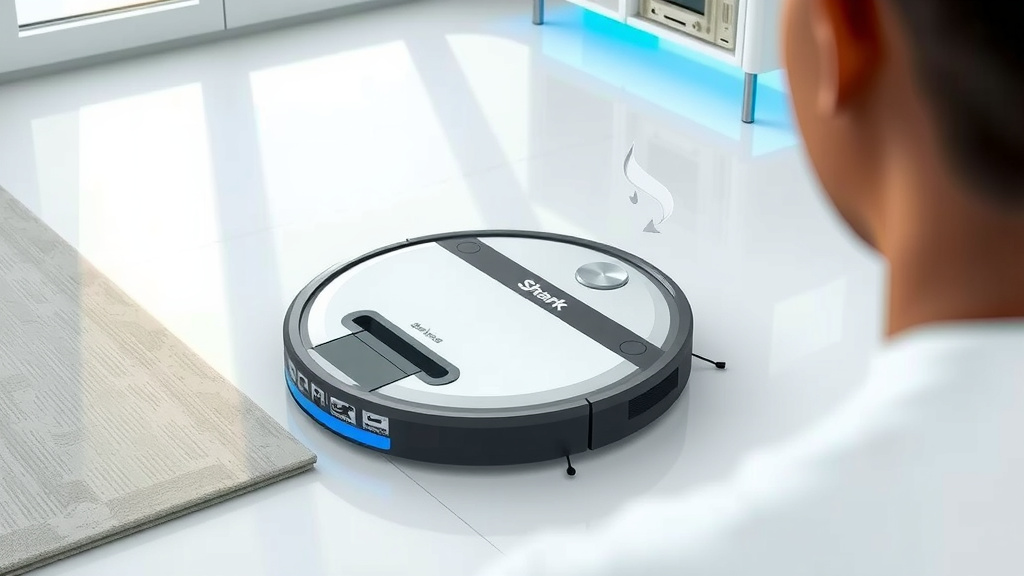
Reset Shark RV750 Robot Vacuum: Step-by-Step Guide
You can easily reset your Shark robot vacuum RV750 by pressing and holding the Clean button for about 10 seconds. This action will initiate a factory reset, returning your vacuum to its original settings. It’s a quick fix for many common issues your robot might be experiencing.
Sometimes, your robot might act a bit stubborn, or perhaps you’re just looking to start fresh. A reset can solve problems like connectivity issues or when the robot isn’t responding as it should. We found that this simple step often brings your Shark back to its best cleaning performance.
- Press and hold the Clean button.
- Hold it for approximately 10 seconds.
- This performs a factory reset.
- It resolves many common robot problems.
Ready to get your Shark RV750 back in working order? Let’s walk through exactly how to perform this reset step by step, so you can get back to enjoying a clean home.
Troubleshooting Your Shark RV750: How to Perform a Reset
If your Shark RV750 robot vacuum is acting up, a simple reset might be just what it needs. We found that performing a factory reset can clear out glitches. This process returns the vacuum to its original settings. It’s like giving your robot a fresh start.
Why You Might Need to Reset Your Shark Robot
Several signs might tell you it’s time for a reset. Is your robot stuck in a loop, repeatedly cleaning the same small area? Does it seem to ignore commands from the app or the remote? Or maybe it’s constantly getting lost, unable to find its charging dock? These are common indicators that your robot’s software might need a little refresh. We’ve seen cases where connectivity issues, like the robot refusing to connect to Wi-Fi, were resolved by a reset.
Common Issues Resolved by a Reset
Think of a reset as a quick reboot for your robot’s brain. It can often fix:
- Unresponsive buttons: If the buttons on your vacuum aren’t working.
- Connectivity problems: When the robot won’t connect to your Wi-Fi network or the Shark app.
- Erratic behavior: If the robot is bumping into walls excessively or not cleaning efficiently.
- Navigation issues: When it seems confused or unable to navigate your home.
- “Lost” robot: If it has trouble returning to its charging base.
Step-by-Step Guide to Resetting Your Shark RV750
Resetting your Shark RV750 is straightforward. You don’t need any special tools. Just follow these simple steps to bring your robot back to its default settings. We’ve broken it down so it’s easy to follow.
Locating the Clean Button
The key to this reset is the Clean button. You’ll find it right on top of your Shark RV750 robot vacuum. It’s usually the largest button and is often circular. Make sure your robot is powered on and not currently charging when you begin.
Performing the Factory Reset
This is the main event! Here’s exactly what you need to do:
- Locate the Clean button on the top of your RV750.
- Press and hold down this button.
- Keep holding it for approximately 10 seconds.
- You should hear a beep or see a light change, indicating the reset has started.
Once the reset is complete, your Shark robot will return to its original factory settings. This means any custom schedules, Wi-Fi settings, or cleaning preferences you’ve set will be erased. You’ll need to set these up again after the reset.
What Happens After the Reset?
After you release the button, the robot will likely power down or reboot. It’s now back to its out-of-the-box state. If you had it connected to your Wi-Fi and the Shark app, you will need to re-establish that connection. This typically involves putting the robot back into pairing mode and going through the app setup process again. Think of it like setting up a new gadget for the first time.
Reconnecting Your Robot to Wi-Fi and the App
Since a factory reset erases your Wi-Fi credentials, reconnecting is a necessary next step if you use the app. Many experts suggest having a stable Wi-Fi signal for optimal robot performance (Consumer Reports).
Preparing for Reconnection
Before you start the reconnection process, ensure you have:
- Your Wi-Fi network name (SSID) and password ready.
- Your smartphone or tablet with the Shark app installed.
- Your robot vacuum is powered on and near your Wi-Fi router.
The Reconnection Steps
The exact steps can vary slightly depending on your app version, but generally:
- Open the Shark app on your device.
- Navigate to the “Add Device” or “Connect New Robot” section.
- Follow the on-screen prompts to put your RV750 into pairing mode. This often involves holding down another button combination on the robot itself (refer to your manual if unsure).
- Select your Wi-Fi network and enter your password.
Once successfully connected, the app will confirm it. You can then re-enter any custom cleaning schedules or preferences you had before the reset.
When a Reset Might Not Be Enough
While a factory reset is a powerful troubleshooting tool, it’s not a magic wand for every problem. If you’re still experiencing issues after a reset and reconnection, the problem might be more hardware-related. Perhaps a sensor is dirty, or a component is failing. In such cases, it might be time to consult your user manual for further troubleshooting or contact Shark customer support directly. They can offer more specific guidance for persistent problems.
Hardware Checks to Consider
Before concluding it’s a software issue that a reset can’t fix, take a moment to inspect these areas: Connecting your robot vacuum to Wi-Fi is usually a straightforward process.
- Dustbin and filters: Ensure they are clean and properly seated.
- Wheels and brushes: Check for tangled hair or debris that could impede movement.
- Sensors: Gently wipe down all the cliff and bumper sensors with a dry, soft cloth. Dust or grime on these can cause navigation errors. We found that keeping sensors clean is a simple maintenance task that prevents many issues (iRobot, a leading robot vacuum manufacturer, often highlights sensor cleanliness).
If these basic hardware checks don’t resolve your problems, then seeking further support is the best next step.
Reset Checklist: Quick Recap
Here’s a handy checklist to ensure you’ve covered all the bases for your Shark RV750 reset:
- Robot is powered on and not charging.
- You have located the Clean button on top.
- You are prepared to hold the button for about 10 seconds.
- You understand that Wi-Fi and app settings will be erased.
- You have your Wi-Fi password ready for reconnection.
- You have the Shark app installed on your mobile device.
Conclusion
You’ve learned that resetting your Shark RV750 robot vacuum is a straightforward process. A simple press and hold of the Clean button can resolve many common frustrations. This factory reset acts as a quick reboot for your robot. Remember, after the reset, you’ll need to reconnect it to your Wi-Fi and the Shark app. If issues persist, don’t forget to check basic hardware like sensors and filters. For persistent problems, reaching out to Shark customer support is your best next step. You’ve got this!
Frequently Asked Questions
How do I know if the factory reset was successful?
After holding the Clean button for about 10 seconds, you should hear a beep or notice a change in the indicator lights on your Shark RV750. This signals that the reset process has begun. Your robot will then return to its original factory settings.
Will resetting my Shark RV750 erase my cleaning history?
Yes, a factory reset will erase all your custom settings, including any saved cleaning schedules and Wi-Fi connections. It essentially returns the robot to its “out-of-the-box” state. You’ll need to re-enter your preferences and Wi-Fi details afterwards.
Can I reset the Shark RV750 without using the app?
Yes, the primary method of resetting your Shark RV750 does not require the app. You perform the factory reset by physically pressing and holding the Clean button on the robot itself. The app is only needed for re-establishing Wi-Fi and custom settings afterward.
What if my Shark RV750 doesn’t respond after the reset?
If your robot still doesn’t respond after a reset, ensure it’s properly charged and powered on. Check that the Clean button was held for the full 10 seconds. If the problem continues, it might indicate a hardware issue, and contacting Shark customer support would be the next recommended step.
How often should I reset my Shark robot vacuum?
You typically don’t need to reset your Shark RV750 on a regular basis. A reset is a troubleshooting step for when you encounter specific problems like connectivity issues or erratic behavior. For everyday operation, regular cleaning and maintenance are more important than frequent resets.
![7 Best Robot Vacuum No Wifi [2026]](https://robotvacuumfact.com/wp-content/uploads/2026/08/7-best-robot-vacuum-no-wifi-2026-featured-768x432.jpg)
![7 Best Robot Vacuum And Mop For Pets [2026]](https://robotvacuumfact.com/wp-content/uploads/2026/08/7-best-robot-vacuum-and-mop-for-pets-2026-featured-768x432.jpg)