Reset Xiaomi Robot Vacuum Wi-Fi: Simple Steps
You can reset your Xiaomi robot vacuum’s Wi-Fi connection by performing a factory reset. This process will You can reset your Xiaomi robot vacuum’s Wi-Fi connection by performing a factory reset.clear all current network settings and allow you to reconnect it to a new Wi-Fi network. It’s the most straightforward way to resolve connection issues and get your robot vacuum back online, so you can enjoy a clean home without the hassle.
Sometimes, your robot vacuum might struggle to maintain a stable connection. This can happen after changing your Wi-Fi password or router. A reset ensures that your device is prepared to establish a fresh link to your home network. We found that this step often resolves a variety of connectivity problems.
- Resetting your Xiaomi robot vacuum’s Wi-Fi usually means performing a factory reset.
- This clears previous network information, letting you reconnect easily.
- It’s a common fix for connection glitches.
- The process is generally straightforward.
Let’s walk through exactly how to reset your Xiaomi robot vacuum’s Wi-Fi step by step, so you can get it connected and cleaning again in no time.
Troubleshooting Your Xiaomi Robot Vacuum’s Wi-Fi Connection
If your Xiaomi robot vacuum is having trouble connecting to your Wi-Fi, you’re not alone. Many users experience these connectivity hiccups from time to time. Thankfully, a straightforward reset often does the trick. This guide will walk you through how to get your smart cleaner back online and doing its job.
Understanding Why a Wi-Fi Reset is Needed
Your robot vacuum relies on a stable Wi-Fi connection to communicate with its app. This connection is how you control it, set schedules, and receive notifications. When this link breaks, your robot can feel like a very expensive, very dumb dust collector.
Common Reasons for Connection Loss
We’ve found that several common scenarios can lead to Wi-Fi connection problems. Knowing these might help you prevent future issues.
- Changing your Wi-Fi password: This is perhaps the most frequent culprit. If your password changes, your vacuum won’t know the new one.
- Switching internet providers or routers: A new network means new credentials for your robot. It’s like moving to a new neighborhood and expecting the mailman to know your new address without telling him.
- Router interference or weak signal: Sometimes, the network itself might be the issue. Thick walls or other electronic devices can disrupt the signal.
- Software glitches: Like any smart device, your vacuum can occasionally experience a software hiccup that affects its network connectivity.
Preparing for the Wi-Fi Reset Process
Before you start pressing buttons, a little preparation can make the process smoother. Think of it as gathering your tools before you start building something.
What You’ll Need
It’s pretty simple, really. You won’t need much more than what you already have.
- Your Xiaomi robot vacuum, charged and accessible.
- Your smartphone or tablet with the Xiaomi Home app installed.
- Your Wi-Fi network name (SSID) and password. Make sure you have the *correct* ones.
- A stable 2.4GHz Wi-Fi network. Most Xiaomi robot vacuums work best on this band.
Why 2.4GHz is Usually Required
Many smart home devices, including robot vacuums, connect using the 2.4GHz Wi-Fi frequency. This band offers a wider range and better penetration through walls compared to 5GHz. While 5GHz is faster, it has a shorter range. If your router broadcasts both, ensure you’re selecting the 2.4GHz option during setup. We found that using the 5GHz network often leads to connection failures for these devices (Xiaomi Community Forums). A stable 2.4GHz Wi-Fi network is crucial for many smart home devices. Many sources suggest using the 2.4GHz band for robot vacuums.
Step-by-Step Guide to Resetting Your Xiaomi Robot Vacuum’s Wi-Fi
Here’s where we get down to business. The exact steps might vary slightly depending on your specific Xiaomi robot vacuum model, but the general principle is the same. We’re aiming to perform a factory reset, which will wipe its memory and allow you to set it up like new.
Locating the Reset Button
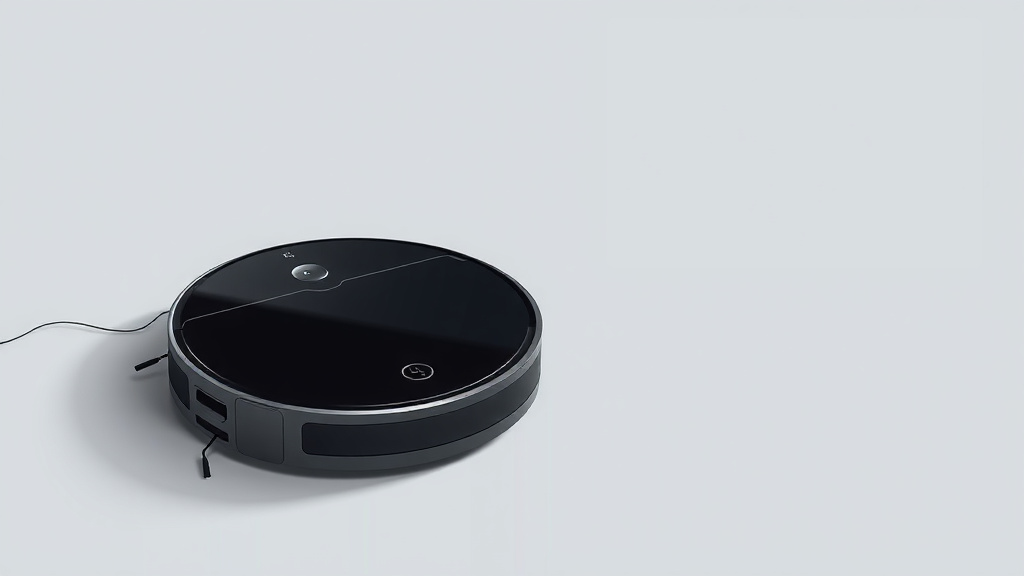
The reset button is usually hidden to prevent accidental presses. You might need to use a paperclip or a similar pointed object to access it.
- Check the top or back: Look for a small pinhole button. It’s often located under a panel or a removable cover.
- Consult your manual: If you’re struggling to find it, your robot’s user manual is your best friend. It will show you the exact location.
Performing the Factory Reset
This is the core of the Wi-Fi reset. You’re essentially telling your robot to forget everything and start fresh.
- Power on your robot: Ensure it’s turned on and not docked at its charging station.
- Press and hold the reset button: Use a paperclip or pin to press and hold the reset button. You’ll usually need to hold it for about 5-10 seconds.
- Listen for confirmation: Your robot will typically make a sound or give a voice prompt confirming that it’s resetting. This might be a beep, a jingle, or a spoken phrase.
- Wait for reboot: The robot will likely restart. Let it complete this process.
We found that sometimes you need to press and hold until you hear a specific confirmation sound. Don’t be afraid to try holding it a bit longer if the first attempt doesn’t seem to work.
Reconnecting Through the Xiaomi Home App
Once the reset is complete, it’s time to re-establish the connection using the app.
- Open the Xiaomi Home app: Make sure you’re logged into your account.
- Add a new device: Look for an option like “Add Device” or a “+” icon.
- Select your robot vacuum: The app should prompt you to select the type of device you’re adding. Choose your Xiaomi robot vacuum model.
- Follow on-screen instructions: The app will guide you through the pairing process. This usually involves connecting to a temporary Wi-Fi network broadcast by the robot itself.
- Enter your home Wi-Fi details: You’ll be asked to select your home Wi-Fi network and enter its password.
- Wait for connection: The robot will attempt to connect to your Wi-Fi network. This can take a minute or two.
If the app shows an error, don’t panic! It’s a common part of the process. Double-check that you entered your Wi-Fi password correctly. Typos are sneaky!
What to Do If the Reset Doesn’t Work
Sometimes, even after a reset, your robot might stubbornly refuse to connect. Let’s explore a few more troubleshooting steps.
Checking Router Settings
Your router’s settings play a big role in how devices connect. A few things to check can make a world of difference.
- Restart your router: A simple router reboot can resolve many network issues. Unplug it, wait 30 seconds, and plug it back in.
- Ensure 2.4GHz is enabled: As mentioned, your robot likely needs this band. Check your router’s settings to confirm it’s active.
- MAC address filtering: If you have MAC address filtering enabled on your router, you’ll need to add your robot vacuum’s MAC address to the allowed list. You can usually find this in the robot’s settings or on a sticker on the device. Many sources suggest disabling this temporarily if you’re unsure (TechRadar).
App and Firmware Updates
Keeping your software up-to-date is essential for smooth operation.
- Update the Xiaomi Home app: Ensure you have the latest version of the app from your device’s app store.
- Check robot firmware: Once connected, go into the robot’s settings within the app and look for any available firmware updates. Install them promptly.
Contacting Support
If you’ve tried everything and your robot still won’t connect, it might be time to reach out for help. You can contact Xiaomi customer support or consult your robot’s specific user manual for further assistance. They may have model-specific troubleshooting tips.
Checklist: Getting Your Xiaomi Vacuum Back Online
Let’s quickly recap the essential steps to get your robot vacuum connected again.
- Confirm you have the correct Wi-Fi password.
- Ensure your router is broadcasting a 2.4GHz network.
- Locate the physical reset button on your robot.
- Press and hold the reset button until you hear a confirmation sound.
- Add the robot as a new device in the Xiaomi Home app.
- Follow the app’s prompts to connect to your Wi-Fi.
Conclusion
You’ve now got the roadmap to get your Xiaomi robot vacuum’s Wi-Fi back on track. Remember, a factory reset is usually the key to reconnecting, clearing old settings for a fresh start. We’ve covered what to do if you change your password, your router, or just encounter a glitch. Always double-check your 2.4GHz network and password. If the reset itself doesn’t do the trick, a quick router reboot or checking app updates can often resolve stubborn issues. Your next step is to grab that paperclip and start the reset process, getting your smart cleaner back to its dust-busting duties.
Frequently Asked Questions
How long should I hold the reset button on my Xiaomi robot vacuum?
You’ll typically need to press and hold the reset button for about 5 to 10 seconds. Listen for a confirmation sound or voice prompt from your robot indicating that the reset process has begun. If you don’t hear anything, try holding it a little longer.
What does a factory reset actually do to my Xiaomi robot vacuum’s Wi-Fi?
A factory reset wipes all stored network configurations from your robot vacuum. This means it forgets any previously connected Wi-Fi networks and passwords. It allows you to set up the connection as if it were a brand-new device.
Can I reset the Wi-Fi without using the Xiaomi Home app?
No, you cannot fully reset and reconnect your Xiaomi robot vacuum’s Wi-Fi without the Xiaomi Home app. While the physical reset button on the vacuum initiates the network clearing process, you need the app to guide the robot through connecting to your new Wi-Fi network.
My robot vacuum won’t connect to my 5GHz Wi-Fi network after resetting. Why?
Most Xiaomi robot vacuums are designed to connect to the 2.4GHz Wi-Fi band. This band offers better range and penetration through walls, which is ideal for these devices. Ensure your router has a 2.4GHz network enabled and that you are selecting it during the setup process in the app.
What should I do if my robot vacuum’s reset button isn’t working or is hard to find?
If you’re having trouble finding the reset button, consult your specific Xiaomi robot vacuum model’s user manual. It will show you the exact location. If the button seems unresponsive, ensure your robot is powered on and try using a different pointed object, like a sturdy toothpick, to press it firmly.
![7 Best Robot Vacuum And Mop Under $250 [2026]](https://robotvacuumfact.com/wp-content/uploads/2026/08/7-best-robot-vacuum-and-mop-under-250-2026-featured-768x432.jpg)