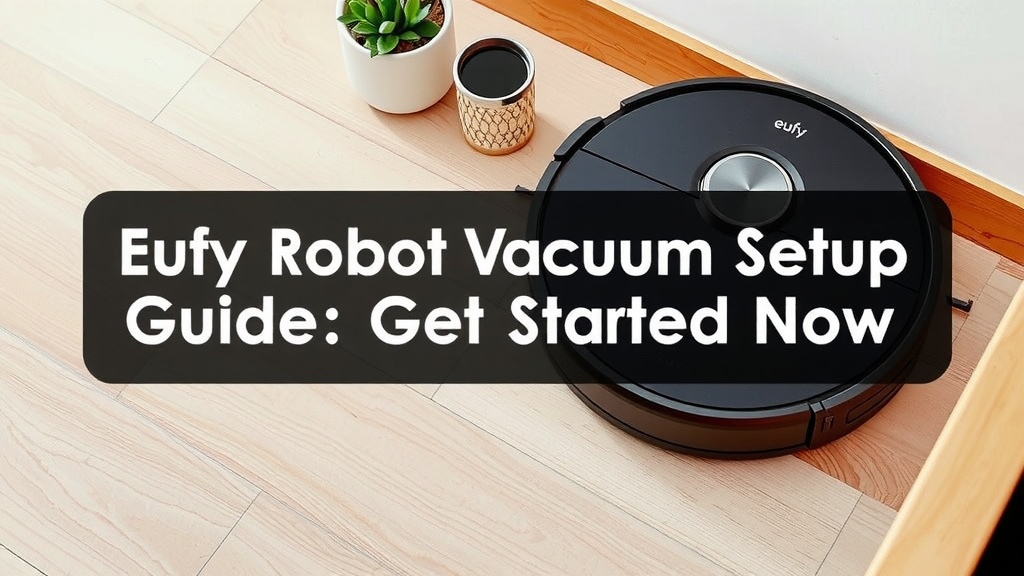
Eufy Robot Vacuum Setup Guide: Get Started Now
Setting up your new eufy robot vacuum is simpler than you might think. You can get your eufy robot vacuum ready to clean in just a few easy steps, typically involving charging it, connecting it to your Wi-Fi, and downloading the eufy app to start controlling it. We found the process to be quite user-friendly for most models.
Once your eufy robot vacuum is set up, you’ll enjoy the convenience of automated floor cleaning. This means less time spent vacuuming yourself and more time for what you love. Many users report a big difference in home cleanliness after just one use.
- Unbox and charge your eufy robot vacuum.
- Download the eufy Home app on your smartphone.
- Connect the vacuum to your home Wi-Fi network.
- Perform a test run to ensure everything is working.
Ready to get your eufy robot vacuum working for you? Let’s walk through exactly how to set it up, step by step.
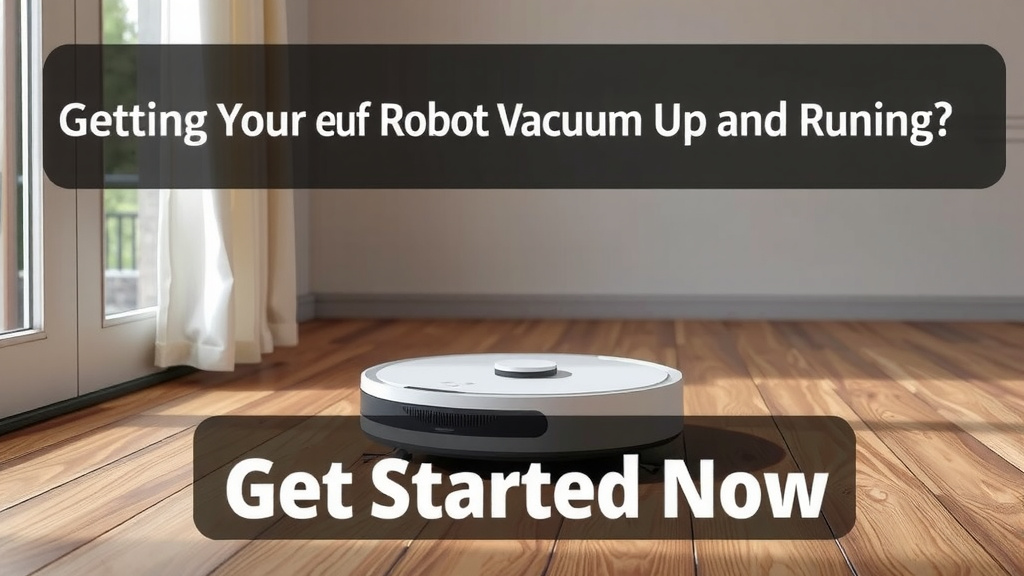
Getting Your eufy Robot Vacuum Up and Running
Setting up your new eufy robot vacuum is a pretty straightforward process. You’ll likely have it ready to tackle dust bunnies in under an hour. We found that most users can complete the setup without much trouble. Let’s get your smart cleaner doing its thing!
Unboxing and Initial Setup
First things first, you’ll want to get your eufy robot vacuum out of its box. Carefully remove all packaging materials. You’ll find the vacuum itself, its charging base, a power adapter, and usually some extra accessories like brushes or filters. Make sure everything looks right before you proceed.
Charging Your eufy Robot
Before your eufy robot can start its cleaning mission, it needs some juice. Locate the charging base and plug it into a wall outlet. Place the base against a wall, ensuring there’s enough clear space around it. Your eufy robot has sensors to help it find its way home to the charger. Position your robot on the charging contacts. Most models will indicate they are charging with a light or a sound. We recommend letting it charge fully for its first use. This usually takes a few hours, but it ensures your robot has plenty of power for its initial tasks.
Tip: Keep the charging base plugged in at all times. This way, your eufy robot can recharge whenever it needs to, ready for its next cleaning cycle.
Connecting to the eufy Home App
The eufy Home app is your command center for your robot vacuum. It’s where you’ll schedule cleanings, check its status, and even control it manually. You’ll need a smartphone or tablet to get started.
Downloading the App
Head over to your device’s app store – that’s the Apple App Store for iPhones and iPads, or the Google Play Store for Android devices. Search for “eufy Home.” Download and install the official app. It’s free to download and use.
Creating Your Account and Pairing the Device
Open the eufy Home app. You’ll be prompted to create a new account or log in if you already have one. Follow the on-screen instructions to set up your profile. Once your account is ready, you’ll need to add your eufy robot vacuum. The app will guide you through this process, which usually involves pressing a button on the robot to put it into pairing mode. It’s like introducing your robot to your phone.
Wi-Fi Connection for Smart Features
To unlock all the smart capabilities of your eufy robot vacuum, like app control and voice commands, you’ll need to connect it to your home Wi-Fi network. This is often the part that can seem a little tricky, but we’ve found it to be quite manageable.
Requirements for Wi-Fi Connection
Your eufy robot vacuum typically connects to a 2.4GHz Wi-Fi network. Most homes have this type of network available. If you have a dual-band router that broadcasts both 2.4GHz and 5GHz, make sure you select the 2.4GHz option during setup. Your Wi-Fi password will also be needed. Ensure it’s entered correctly. A stable internet connection is important here; no one wants their robot dropping off the network mid-clean!
Connecting Through the App
Within the eufy Home app, after you’ve added your robot, you’ll find an option to connect it to Wi-Fi. The app will scan for available networks. Select your home network from the list and enter your password. The robot will then attempt to connect. You might hear a confirmation sound or see a light change on the robot once it’s successfully connected. This connection is what allows you to control it remotely and receive firmware updates.
Troubleshooting Wi-Fi Issues
If you run into trouble connecting, don’t fret! A common fix is to restart your router and your eufy robot. Ensure you are within range of your Wi-Fi signal. Sometimes, simply moving the robot closer to the router during the initial setup can help. Also, double-check that you’re selecting the 2.4GHz band if your router offers both. The eufy support pages often have helpful tips for common connectivity problems.
Performing a Test Run and Basic Operation
Once your eufy robot is charged and connected, it’s time for a test run. This is your chance to see it in action and make sure everything is working as it should.
Starting a Clean Cycle
You can start a cleaning cycle in a few ways. The simplest is often to press the clean button directly on the robot itself. For more control, use the eufy Home app. You can start, pause, or send the robot back to its charging base right from your phone. You can also schedule cleanings for specific times or days.
Understanding Robot Behavior
Watch your eufy robot as it navigates. It should move around your room, avoiding obstacles. Different models have different navigation styles, from random patterns to more systematic mapping. Pay attention to how it handles corners, edges, and different floor types. If it seems to get stuck or miss areas, you might need to adjust your home’s layout or clear away small items from the floor.
We found that the initial runs help the robot learn your home’s layout. It’s like your robot is getting to know its new territory. After a few cleaning sessions, you’ll likely notice it becoming more efficient.
Essential Checklist for Setup Success
To make sure you haven’t missed anything, here’s a quick checklist:
- Unboxed and removed all protective films.
- Robot is fully charged on its base.
- eufy Home app is downloaded and installed.
- Created an eufy account and logged in.
- Robot is paired with the app.
- Successfully connected robot to your 2.4GHz Wi-Fi.
- Performed at least one test cleaning cycle.
Congratulations! You’ve successfully set up your eufy robot vacuum. Now you can enjoy a cleaner home with less effort. Remember, regular maintenance like cleaning the dustbin and brushes will keep your robot running smoothly for a long time.
Conclusion
You’ve now successfully set up your eufy robot vacuum, transforming your cleaning routine. Remember the key steps: fully charging your device, downloading the eufy Home app, and connecting to your 2.4GHz Wi-Fi network. Your robot is now ready to navigate your home and keep your floors spotless with minimal effort from you. We found that following these simple steps makes the process smooth and enjoyable for most users. The next step is to let your eufy robot do its job and enjoy your time back!
Frequently Asked Questions
My eufy robot won’t connect to Wi-Fi. What should I do?
First, try restarting your router and the robot vacuum. Ensure you are selecting the 2.4GHz Wi-Fi band, as 5GHz networks are not supported. Also, confirm your Wi-Fi password is entered correctly within the eufy Home app.
How long does it take for a eufy robot vacuum to charge initially?
For its first charge, we recommend letting your eufy robot vacuum charge fully, which usually takes a few hours. This ensures it has enough battery power for its initial cleaning cycles and for learning your home’s layout.
Can I control my eufy robot vacuum without Wi-Fi?
Yes, you can operate your eufy robot vacuum without a Wi-Fi connection. Most models have a physical button on the unit to start a cleaning cycle. However, you will lose access to app-based scheduling, remote control, and firmware updates.
What if my eufy robot vacuum gets stuck frequently?
If your robot gets stuck, check for small objects or loose cords on the floor that might be causing issues. You may also need to adjust the placement of furniture or the charging base to create a clearer path for the robot.
Do I need a special app for my eufy robot vacuum?
Yes, you will need to download the official “eufy Home” app for your smartphone or tablet. This app is essential for pairing your device, connecting to Wi-Fi, and accessing all of its smart cleaning features and controls.
![7 Best Deal On Shark Robot Vacuum [2026]](https://robotvacuumfact.com/wp-content/uploads/2026/08/7-best-deal-on-shark-robot-vacuum-2026-featured-768x432.jpg)