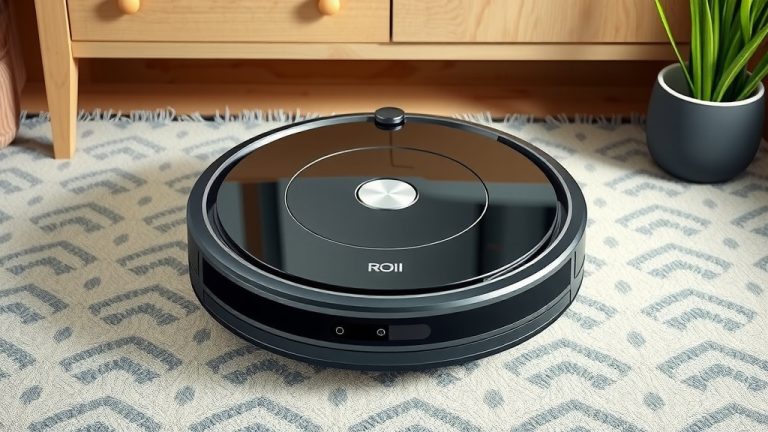
Set Up Your Robot Vacuum: A Simple Step-by-Step Guide
Setting up your new robot vacuum is easier than you might think! You just need to follow a few simple steps to get your little cleaning buddy working its magic. Most robot vacuums are designed for a quick and straightforward setup, so you can get back to relaxing in no time.
Getting your robot vacuum ready involves connecting it to your home Wi-Fi and downloading its companion app. This app is key to controlling your vacuum, scheduling cleanings, and even setting up virtual boundaries. Many users find the app makes managing their robot vacuum incredibly convenient.
- Unpack your robot vacuum and accessories.
- Charge the robot vacuum fully before its first use.
- Connect to your home Wi-Fi network using the app.
- Map your home or set cleaning zones if applicable.
- Start your first automated clean!
Let’s walk through exactly how to get your robot vacuum up and running, so you can enjoy a cleaner home with minimal effort.
Getting Your Robot Vacuum Up and Running
So, you’ve got a shiny new robot vacuum. Exciting stuff! Getting it set up is the first step to a cleaner home without lifting a finger. Most of these smart cleaners are designed with simplicity in mind. You’ll typically unbox it, give it a good charge, and connect it to your home Wi-Fi. This Wi-Fi connection is usually the key to unlocking all its smart features via a mobile app. Ready to dive in? Let’s make this setup a breeze.
Unboxing and Initial Inspection
First things first, let’s see what’s inside the box. You’ll find your robot vacuum, of course, along with its charging dock. There might also be extra side brushes, a filter, a cleaning tool, and a power adapter. Carefully unpack everything. Check for any visible damage that might have happened during shipping. Sometimes, a quick look is all you need to ensure everything is present and accounted for.
Charging Up Your Robot Vacuum
Before your robot vacuum can start its cleaning journey, it needs a full charge. Most manufacturers recommend charging it for several hours before the very first use. Locate the charging dock and plug it in. Then, place your robot vacuum onto the dock, making sure it connects properly. You’ll usually see indicator lights that show it’s charging. Think of it like giving your little helper a good long nap so it’s full of energy for its first big task.
Connecting to Your Home Wi-Fi and App
This is where the “smart” in your smart vacuum really comes into play. You’ll need to download the manufacturer’s companion app onto your smartphone or tablet. You can usually find this app by searching your device’s app store. Once downloaded, open the app and follow the on-screen instructions to create an account or log in. The app will then guide you through connecting your robot vacuum to your home Wi-Fi network. This process often involves entering your Wi-Fi password.
Troubleshooting Wi-Fi Connection Issues
Sometimes, Wi-Fi connections can be a bit finicky. If you run into trouble, here are a few things to check. Make sure your robot vacuum is close enough to your Wi-Fi router. Also, confirm that you’re connecting to a 2.4GHz network, as many robot vacuums aren’t compatible with 5GHz networks. Double-check your Wi-Fi password for typos. Restarting your router and the robot vacuum can also resolve many common connection hiccups. Many users found that simply moving the dock closer to the router solved their problem.
Setting Up Cleaning Preferences Through the App
Once your robot vacuum is connected, the app becomes your command center. You can typically set cleaning schedules, choosing specific days and times for it to automatically start cleaning. This is fantastic for maintaining a tidy home without even thinking about it. Imagine waking up to clean floors every morning! You can often select different cleaning modes too, like edge cleaning or spot cleaning.
Understanding Virtual Boundaries and No-Go Zones
Many advanced robot vacuums allow you to set up virtual boundaries or “no-go zones” directly through the app. This is incredibly useful if you have areas you don’t want the robot to go, like a pet’s food bowls or a room with delicate items. You can often draw these zones directly on a map of your home within the app. This feature prevents your robot from bumping into things it shouldn’t or getting stuck. We found this feature particularly helpful for protecting fragile decorations.
Your Robot Vacuum’s First Cleaning Mission
With everything set up, it’s time for the moment of truth: the first clean! You can either start it manually through the app or let it run on its scheduled time. It’s a good idea to watch its first few cleaning cycles. This helps you get a feel for how it navigates your home. You can also identify any potential problem areas or furniture it struggles with.
Mapping Your Home for Efficient Cleaning
Many newer robot vacuums will create a map of your home during their initial cleaning runs. This mapping process allows the robot to navigate more efficiently in the future. It learns the layout of your rooms, identifying walls, furniture, and obstacles. The map usually appears in your app once it’s generated. You can then use this map to direct the robot to clean specific rooms or areas. This smart navigation means it won’t miss spots and will cover your home systematically.
Post-Cleaning Checks and Maintenance
After its first cleaning, you’ll want to check on your robot vacuum. Empty the dustbin into your trash can. Most robot vacuums have a small dustbin that fills up quickly. You’ll also want to check the brushes for any tangled hair or debris. Regular maintenance, like cleaning the brushes and filters, is key to keeping your robot vacuum running smoothly. We recommend doing this after every few cleaning cycles. This simple habit can **extend the life** of your device.
Checklist for a Smooth Setup
Here’s a quick checklist to ensure your setup goes perfectly:
- Unpack all components and check for damage.
- Charge the robot vacuum fully before the first use.
- Download the companion app and create an account.
- Connect the robot vacuum to your home Wi-Fi network.
- Familiarize yourself with the app’s features and settings.
- Run the first cleaning cycle and observe its navigation.
Conclusion
You’ve successfully set up your robot vacuum! By following these simple steps, you’re now ready to enjoy a cleaner home with less effort. Remember that charging it fully, connecting it to Wi-Fi, and exploring the app’s features are key. You’ve learned how to manage cleaning schedules and set virtual boundaries for smarter operation. Your robot vacuum is now prepared for its first cleaning mission. Take the next step by observing its initial clean and performing basic post-cleaning checks to ensure peak performance.
Frequently Asked Questions
How long does a robot vacuum typically need to charge before its first use?
Most robot vacuums require several hours for their initial full charge. Refer to your owner’s manual for the exact recommended charging time. This ensures your robot has enough power for its first cleaning cycle.
What if my robot vacuum won’t connect to my Wi-Fi?
Check that you are using a 2.4GHz network, as many robot vacuums are not compatible with 5GHz bands. Ensure your Wi-Fi password is entered correctly and that the robot is reasonably close to your router. Restarting both your router and the robot vacuum often resolves connection issues.
Can I set up my robot vacuum without Wi-Fi?
While some basic functions might work without Wi-Fi, you’ll miss out on most smart features like scheduling and app control. For full functionality, a Wi-Fi connection is generally required.
How do I ensure my robot vacuum doesn’t get stuck or fall down stairs?
Most robot vacuums have built-in cliff sensors to prevent falls. For areas you want it to avoid, use the app to set up virtual boundaries or “no-go zones.” Watching its first few cleaning runs can help you identify potential problem areas.
How often should I empty the dustbin and clean the brushes?
It’s best to empty the dustbin after every cleaning cycle, especially if you have pets. Cleaning the brushes for tangled hair and debris should be done every few cleaning sessions to maintain efficiency.
![7 Best Robot Vacuum For Small Apartment [2026]](https://robotvacuumfact.com/wp-content/uploads/2026/08/7-best-robot-vacuum-for-small-apartment-2026-featured-768x432.jpg)
![7 Best Robot Vacuum For Home Assistant [2026]](https://robotvacuumfact.com/wp-content/uploads/2026/08/7-best-robot-vacuum-for-home-assistant-2026-featured-768x432.jpg)
![7 Best Bare Floor Robot Vacuum [2026]](https://robotvacuumfact.com/wp-content/uploads/2026/07/7-best-bare-floor-robot-vacuum-2026-featured-768x432.jpg)