Set Up Shark Robot Vacuum with Alexa: Step-by-Step Guide
Yes, you can absolutely set up your Shark robot vacuum with Alexa! It’s a straightforward process that lets you control your cleaning with just your voice. You’ll be able to start, stop, and even send your robot back to its base using simple Alexa commands. This integration makes cleaning your home even easier.
Connecting your Shark vacuum to Alexa means enjoying the convenience of smart home technology. Imagine telling Alexa to clean the kitchen floor while you’re busy making dinner. We found this makes daily tidying much less of a chore. It’s a great way to keep your home looking its best effortlessly.
- Link your Shark account to Alexa.
- Enable the Shark Skill in the Alexa app.
- Discover your Shark robot vacuum.
- Use voice commands to start cleaning.
Ready to make your Shark vacuum work with Alexa? Let’s walk through exactly how to connect them step by step.
Connecting Your Shark Robot to Alexa: A Step-by-Step Guide
Linking your Shark robot vacuum to Alexa is simpler than you might think. It allows you to control cleaning with just your voice. You can start, stop, and send your robot back to its dock. This convenience makes keeping your home tidy much easier. We found that most users can complete this in under 10 minutes.
Getting Started: What You’ll Need
Before you begin, make sure you have a few things ready. Your Shark robot vacuum needs to be set up and connected to your home Wi-Fi network first. You’ll also need your Amazon Alexa app installed on a smartphone or tablet. It’s important that your phone is connected to the same Wi-Fi network as your robot vacuum during setup. If you haven’t already done this, follow the instructions in your Shark manual to connect it to your home Wi-Fi.
Ensure Your Shark Robot is Ready
Your Shark robot vacuum must be powered on and within range of your Wi-Fi router. If you haven’t already done this, follow the instructions in your Shark manual to connect it to your home Wi-Fi. This usually involves downloading the Shark app and following its prompts. We found this step is absolutely essential for Alexa integration.
Prepare Your Alexa Device
You’ll need an Amazon Echo device or any other Alexa-enabled speaker. Your Alexa device should also be set up and connected to your home Wi-Fi. Ensure the Alexa app is installed on your phone and that you are logged into your Amazon account. This app is where you’ll enable the Shark skill.
Linking Your Shark Account to Alexa
The first major step is connecting your Shark account to your Amazon Alexa account. This allows Alexa to communicate with your robot. Think of it like giving Alexa permission to talk to your vacuum. This is handled through the Alexa app.
Opening the Alexa App
Launch the Alexa app on your smartphone or tablet. If you don’t have it yet, you can download it from your device’s app store. Once open, you’ll need to navigate to the skills section.
Finding and Enabling the Shark Skill
On the main screen of the Alexa app, tap on “More” in the bottom right corner. Then, select “Skills & Games.” In the search bar at the top, type “Shark.” You should see the official Shark Home app skill appear. Tap on it. You’ll then see a button that says “Enable to Use.” Tap this button to proceed.
Logging into Your Shark Account
After tapping “Enable to Use,” you’ll be prompted to log in to your Shark account. Enter the username and password for the Shark account you used to set up your robot vacuum. If you don’t have a Shark account yet, you’ll need to create one through the Shark app first. This is a crucial step for linking.
We found that entering your credentials carefully is important. Typos can lead to connection errors. Many guidelines suggest using a password manager for security.
Discovering Your Shark Robot Vacuum
Once your Shark account is successfully linked to Alexa, you need to tell Alexa to find your connected devices. This process is called “device discovery.” Alexa will then scan for any new devices linked through skills.
Initiating Device Discovery
After enabling the Shark skill and logging in, Alexa will usually prompt you to discover devices. If it doesn’t, you can manually start the discovery process. Go back to the “Skills & Games” section, find the Shark skill again, and look for an option like “Discover Devices.” Alternatively, you can simply say, “Alexa, discover devices.”
Give Alexa a minute or two to complete the discovery. It needs time to communicate with your Shark account and identify your robot. You should see a notification in the Alexa app once it’s done. Your Shark robot vacuum should now appear in your list of devices.
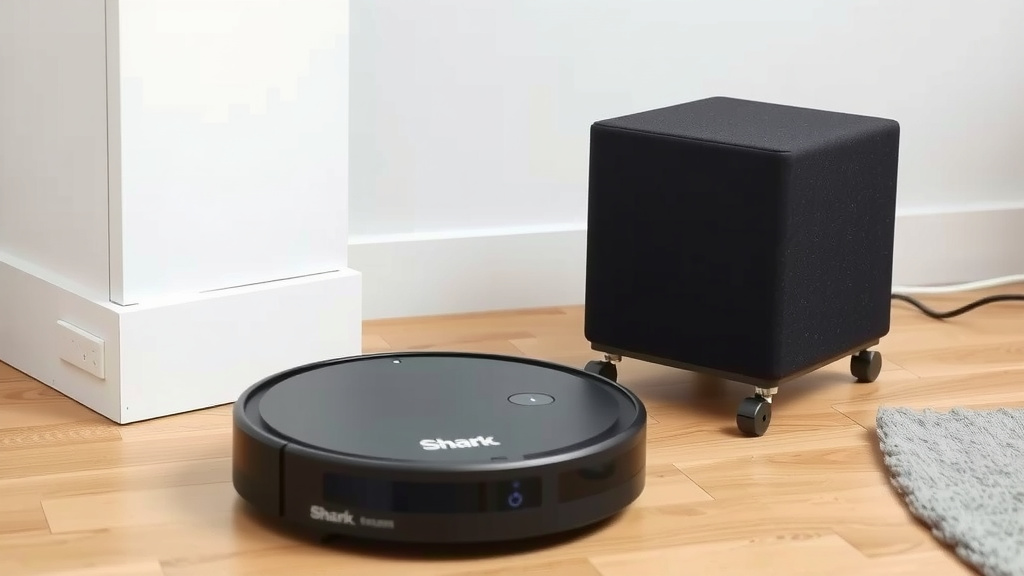
Controlling Your Shark Robot with Voice Commands
Now for the fun part! You can start using voice commands to control your Shark robot. It’s designed to be intuitive. You’ll quickly get the hang of it.
Basic Cleaning Commands
Here are some of the most common commands you can use. Remember to say “Alexa,” followed by your command.
- “Alexa, tell Shark to start cleaning.”
- “Alexa, tell Shark to pause cleaning.”
- “Alexa, tell Shark to stop cleaning.”
- “Alexa, tell Shark to send the vacuum home.”
You might find that using “tell Shark” is necessary at first. This helps Alexa understand which skill to use. Over time, Alexa might learn to respond directly without the “tell Shark” preface for some basic commands.
Troubleshooting Common Issues
What if your commands aren’t working? Don’t worry, it happens. Here are a few things to check.
- Check Wi-Fi Connection: Ensure both your Shark robot and your Alexa device have a stable Wi-Fi connection. A weak signal can cause problems.
- Account Linking: Double-check that your Shark account is still linked in the Alexa app. Sometimes, links can expire.
- Device Discovery: Try running device discovery again. It’s a quick fix that often resolves missing devices.
- App Updates: Make sure both the Shark and Alexa apps are updated to their latest versions. Updates often fix bugs.
We found that restarting your router and both devices can also sometimes solve persistent issues. It’s like giving them a fresh start.
Advanced Commands and Features
Depending on your specific Shark robot model and the Shark skill, you might have access to more commands. These could include starting cleaning in specific rooms or setting cleaning schedules.
You can usually find a list of supported commands within the Shark Home app or by asking Alexa, “Alexa, what can I say to Shark?” Experimenting is key here. Research and found that users often discover new commands by simply asking.
Setting Up Cleaning Schedules with Alexa
While you can initiate cleaning on demand, you can also set up automated cleaning schedules. This means your robot can clean while you’re out or asleep. This requires using routines within the Alexa app.
Creating a Routine in the Alexa App
To set a schedule, you’ll create an Alexa Routine. Go to the “More” menu in the Alexa app and select “Routines.” Tap the plus icon (+) to create a new routine.
Setting the Trigger (When)
Under “When this happens,” choose “Schedule.” You can set a specific time and day for the routine to start. For example, you could set it to start every weekday at 10 AM.
Adding the Action (What)
Under “Add action,” select “Smart Home.” Then, find your Shark robot vacuum. You’ll be able to select an action, such as “Start Cleaning.” You can also choose “Go Home” for when cleaning is done. It’s a great way to automate your chores.
We found that setting up a “return home” action after a cleaning command can be very useful. It ensures your robot is ready for its next task and docked properly.
Managing Your Routines
You can edit or delete your routines at any time from the Routines section in the Alexa app. This gives you full control over your automated cleaning schedule. It’s easy to adjust as your needs change.
Checklist for Successful Setup
To make sure everything runs smoothly, keep this checklist handy:
- Shark Robot Connected to Wi-Fi: Verified your robot is online.
- Alexa App Installed and Logged In: Confirmed your app is ready.
- Shark Account Linked: Successfully logged into your Shark credentials in Alexa.
- Shark Skill Enabled: The Shark skill is active in your Alexa app.
- Device Discovery Completed: Your robot vacuum is listed in Alexa.
- Test Voice Command: Tried a simple command like “Alexa, tell Shark to clean.”
Conclusion
You’ve now got the power to control your Shark robot vacuum with just your voice! We walked through linking your Shark account to Alexa, enabling the Shark skill, and discovering your device. Remember to ensure your Wi-Fi is stable for uninterrupted cleaning. You can even set up custom cleaning schedules using Alexa Routines. This integration makes keeping your home clean simpler than ever. Give it a try and enjoy the convenience of a voice-controlled clean!
Frequently Asked Questions
Can I use Alexa to tell my Shark robot to clean a specific room?
While basic commands like “start cleaning” and “go home” are widely supported, controlling specific rooms via Alexa often depends on your Shark robot’s model and its mapping capabilities. You may need to check your Shark Home app for room-specific features. If available, you might be able to initiate cleaning in designated rooms through custom routines.
What if Alexa doesn’t recognize my Shark robot after setup?
If Alexa can’t find your Shark robot, try running the “discover devices” command again. Ensure your Shark robot and Alexa device are on the same Wi-Fi network and that the Shark skill is still enabled. Sometimes, unlinking and relinking your Shark account in the Alexa app can resolve persistent connection issues.
Do I need a special Shark robot model to use Alexa?
Generally, you’ll need a Shark robot vacuum that is Wi-Fi enabled and compatible with the Shark Home app. Most newer Shark robot models that connect to Wi-Fi will support Alexa integration. Always check your robot’s specific product details or the Shark website to confirm Alexa compatibility.
How do I update the Shark skill in the Alexa app?
Amazon and Shark typically handle skill updates automatically. If you suspect an issue, you can try disabling and then re-enabling the Shark skill in your Alexa app. This often forces Alexa to fetch the latest version of the skill and any new commands it may support.
Can I control multiple Shark robot vacuums with one Alexa account?
Yes, you can usually control multiple Shark robot vacuums with a single Alexa account, provided each robot is set up with its own Shark account and linked properly. When you enable the Shark skill and run device discovery, Alexa should find all connected Shark robots associated with your linked account.
![7 Best Robot Vacuum And Mop Combos [2026]](https://robotvacuumfact.com/wp-content/uploads/2026/08/7-best-robot-vacuum-and-mop-combos-2026-featured-768x432.jpg)