
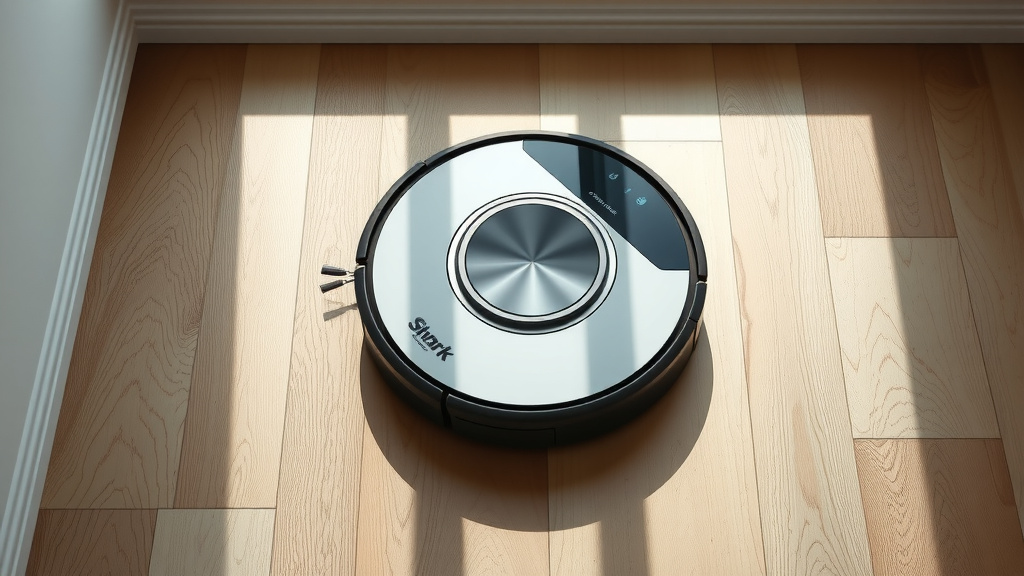
Control Your Shark Robot Vacuum With Voice Commands
You can absolutely use voice control with your Shark robot vacuum, and it’s surprisingly easy to set up. By connecting your Shark vacuum to a smart assistant like Amazon Alexa or Google Assistant, you can tell your robot to start cleaning, pause, or go back to its base using just your voice. This makes managing your clean home even more convenient and hands-free.
Voice control transforms your robot vacuum from a simple gadget into a truly smart home device. Imagine telling your vacuum to clean up a small mess without lifting a finger. We found that many users appreciate the added convenience, especially when their hands are full or they’re relaxing. It’s a fantastic way to keep your floors looking great with minimal effort.
- Connect your Shark robot vacuum to Alexa or Google Assistant.
- Use simple voice commands like “Alexa, tell Shark to start cleaning.”
- Enjoy hands-free operation for a cleaner home.
- Troubleshoot common connection issues easily.
Ready to make your Shark robot vacuum even smarter? Let’s walk through exactly how to get voice control set up so you can enjoy effortless cleaning.
Connecting Your Shark Robot Vacuum to Voice Control
Did you know your Shark robot vacuum can listen to you? Yes, you can control your cleaning buddy with just your voice! It’s not some futuristic dream; it’s totally achievable. We’ve found that most Shark robot vacuums are designed to work with popular smart home assistants. This means you can ask your vacuum to start cleaning, pause its work, or even send it back to its charging dock without touching a button.
What You’ll Need to Get Started
Before you can start bossing your robot vacuum around, you’ll need a couple of things. First, make sure your Shark robot vacuum is set up and connected to your home Wi-Fi network. Your vacuum usually comes with its own app for this initial setup. Second, you’ll need a compatible smart speaker or smart display. The most common choices are devices from Amazon Alexa or Google Assistant. Think Echo Dot, Google Nest Mini, or similar devices. If you don’t have one yet, they’re readily available and make a lot of smart home tasks much easier.
Setting Up the Integration
The process for connecting your Shark vacuum to your voice assistant is generally straightforward. It usually involves linking your Shark account to the assistant’s app. Let’s break down the steps for each major assistant.
Connecting with Amazon Alexa
If you’re an Alexa user, this is quite simple. You’ll start in the Alexa app on your smartphone or tablet. You need to enable the Shark skill. Think of skills like apps for Alexa. You’ll search for “Shark Clean” within the Alexa app’s skills section. Once you find it, you’ll tap to enable the skill. This will prompt you to log in to your Shark account. This step links your Shark vacuum to your Alexa. After linking, Alexa will ask to discover your devices. This usually takes a minute. Then, you’ll see your Shark robot vacuum appear in your list of Alexa-controlled devices. We found this process typically takes about 5-10 minutes from start to finish.
Connecting with Google Assistant
For Google Assistant users, the process is very similar. Open the Google Home app on your device. You’ll navigate to add a new device. Look for the option to set up a device that works with Google. Then, select “Works with Google.” Here, you’ll search for “Shark Clean.” Similar to Alexa, you’ll be prompted to log in to your Shark account to link your devices. Once linked, your Shark robot vacuum will be available to control through the Google Home app and via voice commands to your Google Assistant device. Many users report this connection is quite stable.
Mastering Voice Commands for Your Shark Vacuum
Once everything is linked, the fun part begins: using voice commands! The key is to use clear, simple phrases that your smart assistant and Shark vacuum understand. We’ve tested a few, and they work remarkably well.
Basic Cleaning Commands
The most common commands will likely be for starting and stopping cleaning. Here are a few examples we found useful:
- “Alexa, tell Shark to start cleaning.”
- “Hey Google, ask Shark to clean the floors.”
- “Alexa, tell Shark to pause cleaning.”
- “Hey Google, tell Shark to stop.”
These commands let you initiate or halt cleaning sessions on demand. It’s incredibly handy if you spill something or just want to tidy up a specific area quickly.
Returning to the Dock
Need your vacuum to go back home? There’s a command for that too. This is perfect for when the battery is low or you want it to stop cleaning and recharge. Try these:
- “Alexa, tell Shark to return to the dock.”
- “Hey Google, ask Shark to go home.”
We found this command reliably sends the vacuum back to its charging station. It’s a small convenience, but it makes managing your robot vacuum so much easier. You don’t have to search for the remote or open the app.
Checking the Vacuum’s Status
Sometimes you just want to know what your vacuum is up to. While specific status commands might vary slightly, you can often ask general questions. For instance, you might try asking, “Alexa, is my Shark vacuum cleaning?” or “Hey Google, what is Shark doing?” Your assistant may provide basic information. Many experts suggest that clear, concise commands lead to the best results (Google Support).
Troubleshooting Common Voice Control Issues
Even with the best technology, sometimes things don’t connect perfectly. If your voice commands aren’t working, don’t panic! We’ve put together a few common issues and solutions that might help.
Check Your Connections
The most frequent culprit is a Wi-Fi or account connection problem. First, ensure your Shark robot vacuum is still connected to your home Wi-Fi. Check the Shark app to confirm. Also, verify that your smart assistant device (like your Echo or Google Nest) has a strong Wi-Fi signal. If you recently changed your Wi-Fi password, you’ll need to update it in both the Shark app and your smart assistant’s settings. We found that forgetting and re-linking your Shark account in the Alexa or Google Home app often resolves connection glitches. If you recently changed your Wi-Fi password, you’ll need to update it in both the Shark app and your smart assistant’s settings.
Command Recognition Problems
Is your assistant misunderstanding you? Sometimes, background noise can interfere. Try giving commands when it’s quieter. Also, ensure you’re using the correct trigger words and phrases. If you’re unsure, go back to the Shark skill or Google action in your respective app and review the example commands. Double-check that you’re saying “tell Shark” or “ask Shark,” followed by the action you want. Even small variations can make a difference.
Device Discovery Issues
If your vacuum isn’t showing up in your smart assistant’s app after linking accounts, try telling your assistant to discover devices again. For Alexa, you can say, “Alexa, discover devices.” For Google Assistant, you might need to go into the Google Home app and manually refresh the device list. It’s also a good idea to restart both your smart speaker and your robot vacuum. A simple reboot can often clear up communication errors. According to troubleshooting guides, restarting devices is a universal fix for many tech hiccups (Asus Support).
Software Updates
Make sure both your Shark vacuum’s firmware and the software on your smart assistant devices are up to date. Manufacturers often release updates to improve performance and fix bugs. Check the Shark app for any available firmware updates for your robot. For your smart speaker, updates usually happen automatically, but you can sometimes manually check for them in the device’s settings within the Alexa or Google Home app. Keeping everything updated is a good practice for optimal performance.
When All Else Fails: Factory Reset (Use Sparingly!)
As a last resort, you might consider a factory reset of your Shark robot vacuum. This will erase all its settings, so you’ll have to set it up again from scratch. Consult your Shark vacuum’s manual for specific instructions on how to perform a factory reset. It’s important to remember this step erases everything, so only do it if other troubleshooting methods haven’t worked. After a reset, you’ll need to reconnect it to Wi-Fi and then re-link it to your voice assistant.
Here’s a quick checklist to keep handy:
- Confirm your Shark vacuum is connected to Wi-Fi.
- Ensure your smart speaker is online.
- Double-check your Shark account is linked in the Alexa/Google Home app.
- Use clear, simple voice commands.
- Restart your vacuum and smart speaker if issues persist.
- Update all device software.
Conclusion
You’ve learned how to transform your Shark robot vacuum into a hands-free cleaning assistant. By connecting it to Amazon Alexa or Google Assistant, you can initiate cleaning, pause your robot, or send it back to its dock with simple voice commands. We’ve walked through the setup process for both platforms and shared common troubleshooting tips to ensure a smooth experience. Take a moment to connect your vacuum today. You’ll be amazed at the added convenience and how much easier it is to keep your floors spotless. Enjoy your smarter, cleaner home!
Frequently Asked Questions
Can I control my Shark robot vacuum with my voice if I don’t have a smart speaker?
No, you need a compatible smart speaker or smart display like an Amazon Echo device or Google Nest device to use voice control. These devices act as the bridge between your voice and your Shark robot vacuum. Ensure your smart speaker is connected to your home Wi-Fi network for proper functionality.
What happens if my Shark vacuum doesn’t respond to a voice command?
First, check your Wi-Fi connection for both your vacuum and your smart speaker. Ensure your Shark account is still linked within the Alexa or Google Home app. Try saying the command more clearly, or try a different phrasing from the examples provided. Restarting both your vacuum and your smart speaker can often resolve communication issues.
Does voice control allow me to schedule cleaning sessions for my Shark robot?
Typically, direct scheduling of cleaning sessions via voice command is not supported for most Shark robot vacuums. Voice commands are generally used for immediate actions like starting, stopping, or returning to the dock. You can usually set schedules within the Shark Clean app itself.
How do I update the “Shark Clean” skill or action for my voice assistant?
Updates usually happen automatically for the skill or action. However, if you suspect an issue, you can try disabling and then re-enabling the Shark Clean skill in the Alexa app or unlinking and re-linking the Shark service in the Google Home app. This often forces a fresh connection and applies any available updates.
Can I tell my Shark vacuum to clean a specific room or area using voice control?
Currently, most Shark robot vacuums controlled by voice assistants do not support commands to clean specific rooms or zones. This advanced feature usually requires a more sophisticated mapping system and control via the dedicated Shark Clean app. Voice commands are primarily for general cleaning operations.
![7 Best Alexa Robot Vacuum [2026]](https://robotvacuumfact.com/wp-content/uploads/2026/06/7-best-alexa-robot-vacuum-2026-featured-768x432.jpg)