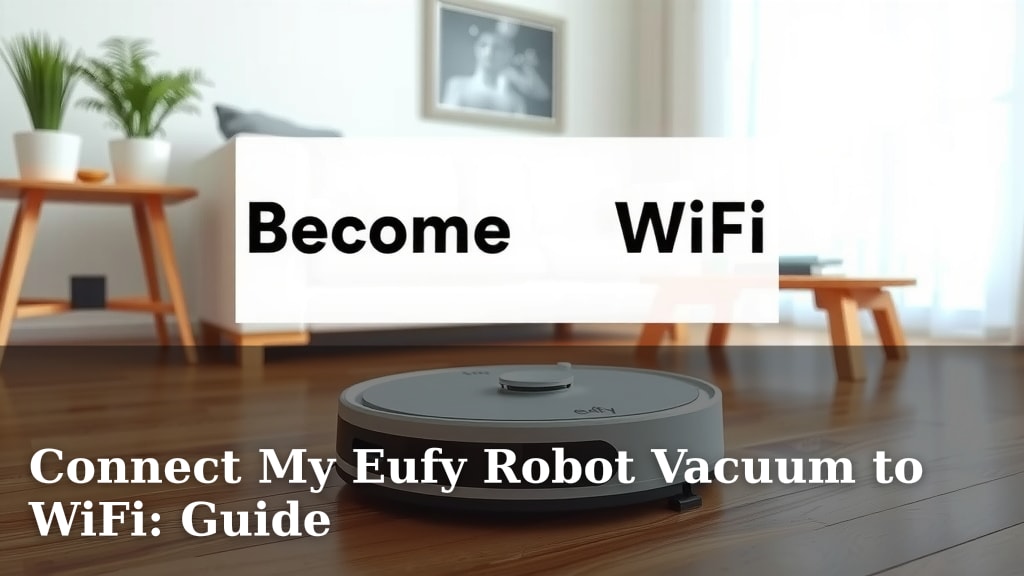
Connect My Eufy Robot Vacuum to WiFi: Guide
Connecting your Eufy robot vacuum to WiFi is straightforward. You’ll need the EufyHome app and your home network password to get started. This connection allows for smart control and firmware updates.
Once connected, you can control your Eufy robot remotely. This means you can start, stop, or schedule cleanings from anywhere. You’ll also receive important notifications about your vacuum’s status and any potential issues.
TL;DR:
- Connect your Eufy vacuum to WiFi using the EufyHome app.
- You will need your WiFi name and password.
- WiFi connection enables remote control and updates.
- It makes managing your robot vacuum much easier.
Let’s walk through exactly how to connect your Eufy robot vacuum to your WiFi, step by step, so you can enjoy its smart features without any hassle.
Getting Your Eufy Robot Vacuum Online
Connecting your Eufy robot vacuum to your home WiFi network is your ticket to a smarter, more convenient cleaning experience. It’s like giving your robot a direct line to your smartphone. This connection allows you to command your device from afar. We’ll guide you through each step. You’ll be up and running in no time.
Pre-Connection Checklist: What You Need
Before we dive into the setup, let’s make sure you have everything ready. A little preparation goes a long way here. It ensures a smooth and frustration-free process. Think of it like packing for a trip; you don’t want to forget anything important!
Essential Items for Setup
You won’t need a toolbox or a degree in engineering. The requirements are quite simple. These are the things that will make the process of getting your Eufy online much easier:
- Your Eufy Robot Vacuum: Make sure it’s charged and ready to go.
- The EufyHome App: You’ll need this on your smartphone or tablet.
- Your Home WiFi Network Name (SSID): Know what your network is called.
- Your WiFi Password: This is usually case-sensitive, so type it carefully.
- A 2.4GHz WiFi Network: Most Eufy models connect to this band.
Understanding the 2.4GHz Requirement
Many smart home devices, including Eufy robot vacuums, prefer the 2.4GHz WiFi band. This band offers a longer range than the 5GHz band. This means it can penetrate walls and obstacles better. While 5GHz is faster, 2.4GHz is often more reliable for devices that aren’t stationary. If your router broadcasts both, select the 2.4GHz option. Some routers combine them into one network name. In that case, your Eufy should connect automatically.
Step-by-Step Connection Guide
Now that you’re prepared, let’s get your Eufy connected. We’ll break this down into easy-to-follow steps. You’ll be controlling your robot with your phone soon!
Downloading and Installing the EufyHome App
First things first, you need the EufyHome app. If you don’t have it yet, head to your device’s app store. For Apple users, it’s the App Store. For Android users, it’s the Google Play Store. Search for “EufyHome”. Download and install the app. It’s free, of course!
Creating or Logging into Your Eufy Account
Once the app is installed, open it. You’ll be prompted to create a new account or log in if you already have one. Follow the on-screen instructions to set up your account. This account is how Eufy identifies your devices. It also stores your settings and preferences.
Putting Your Eufy Vacuum into Pairing Mode
This is a critical step. Your robot needs to be in a special mode to “listen” for the WiFi signal. How you do this can vary slightly by model.
- Common Method: Most Eufy vacuums have a button or area on the device. Press and hold the “Home” or “Power” button for about 5 seconds. You should hear a beep or see a flashing light indicating it’s in pairing mode.
- Check Your Manual: If you’re unsure, consult your Eufy robot vacuum’s specific user manual. It will have precise instructions for your model.
Connecting the App to Your Robot
With your robot in pairing mode, the app will now search for it.
- In the EufyHome app, tap the “+” icon, usually found in the top corner.
- Select “Add Device” or “Scan for Devices”.
- Choose your specific Eufy robot vacuum model from the list.
Entering Your WiFi Network Details
This is where your WiFi name and password come into play.
- The app will ask you to select your WiFi network. Choose your 2.4GHz network name from the list.
- Carefully enter your WiFi password. Double-check it for typos.
- Tap “Connect” or “Next”.
Confirmation and Setup Completion
Once the connection is successful, you’ll receive a confirmation message within the app. Your Eufy robot vacuum should now be online! You can often name your robot, like “Dusty” or “Roomba-be-gone” (though Eufy isn’t Roomba, you get the idea!). You can also assign it to a specific room if your model supports that feature.
Troubleshooting Common Connection Issues
Sometimes, things don’t go as smoothly as planned. Don’t worry, most connection problems are easily fixable. Here are a few common hiccups and how to solve them.
Incorrect WiFi Password
This is the most frequent culprit. WiFi passwords are case-sensitive. Make sure you’re entering it exactly as it is. Try typing it into a notepad first, then copy and paste it into the app. This helps avoid typos.
Wrong WiFi Band (5GHz vs. 2.4GHz)
As mentioned, your Eufy likely needs a 2.4GHz network. If you accidentally selected a 5GHz network, the connection will fail. Go back and choose the correct one. If your router has a single network name for both, you might need to temporarily disable the 5GHz band in your router settings, or create a separate 2.4GHz network. Many experts suggest keeping them separate for smart devices (TechTarget).
Router Distance or Obstructions
Is your robot vacuum too far from your WiFi router? Walls and other electronic devices can interfere with the signal. Try moving your robot closer to the router during the setup process. Once connected, you can test its range. If you have weak signal areas, consider a WiFi extender. These devices boost your WiFi signal strength.
Router Settings or Firewalls
Some advanced router settings can block new devices from connecting. Check your router’s firewall settings. Ensure that it’s not blocking new MAC addresses or specific device types. Consulting your router’s manual or ISP can help here.
Eufy Home App or Robot Needs a Restart
Sometimes, a simple reboot solves the problem. Try closing the EufyHome app completely and reopening it. You can also try powering off your Eufy robot vacuum, waiting 30 seconds, and then turning it back on. Then, attempt the connection process again.
What to Do After Connecting Your Eufy Robot
Congratulations, your Eufy is now online! The fun is just beginning. This connection opens up a world of smart cleaning possibilities.
Exploring the EufyHome App Features
Take some time to explore the EufyHome app. You can typically:
- Start/Stop Cleanings: Initiate or pause a cleaning cycle from anywhere.
- Schedule Cleanings: Set up daily or weekly cleaning routines. Let your robot do the work while you’re busy.
- View Cleaning History: See where your robot has cleaned and for how long.
- Adjust Suction Power: Some models allow you to change cleaning intensity.
- Receive Notifications: Get alerts about battery levels, cleaning completion, or any errors.
Keeping Your Robot’s Software Updated
Eufy regularly releases firmware updates. These updates can improve performance, add new features, and fix bugs. The EufyHome app will notify you when an update is available. It’s best to keep your robot connected to WiFi and install these updates promptly. Think of it like updating your phone’s apps to get the latest improvements.
Understanding Your Eufy’s Status
With the app, you can always check on your robot. Is it charging? Is it currently cleaning? Is it stuck somewhere? The app gives you real-time status updates. This peace of mind is one of the biggest benefits of a connected robot vacuum.
Here’s a quick checklist to ensure you’re ready for that first smart clean:
- EufyHome app downloaded and installed.
- Eufy account created or logged in.
- Robot vacuum in pairing mode.
- Correct 2.4GHz WiFi network selected.
- Accurate WiFi password entered.
- Connection successfully confirmed in the app.
Conclusion
You’ve successfully navigated the steps to connect your Eufy robot vacuum to your WiFi. This connection transforms your cleaning device into a smart assistant. You can now enjoy the convenience of remote control and automatic updates, making your home maintenance simpler. Remember to explore the EufyHome app’s full features to get the most out of your robot. Your next step is to schedule your first automated cleaning session through the app!
Frequently Asked Questions
What if my Eufy robot vacuum doesn’t enter pairing mode?
If your robot isn’t entering pairing mode, first ensure it has sufficient battery charge. Try unplugging the charging base and turning the vacuum off completely for 30 seconds before attempting again. Always double-check your specific model’s manual for the exact button combination required.
Can I connect my Eufy robot vacuum to a 5GHz WiFi network?
Most Eufy robot vacuums are designed to connect exclusively to a 2.4GHz WiFi band. While 5GHz offers faster speeds, 2.4GHz provides a more stable connection over longer distances and through obstacles. You may need to ensure your router is broadcasting a separate 2.4GHz network or temporarily disable the 5GHz band during setup if they are combined.
My Eufy robot vacuum can’t find my WiFi network in the app. What should I do?
First, make sure your robot is within range of your WiFi router during the setup process. If the network is still not appearing, try restarting both your robot vacuum and your WiFi router. Ensure your WiFi network name (SSID) is set to be visible and not hidden.
How do I change my WiFi password after connecting my Eufy robot?
When you change your home WiFi password, you will need to reconnect your Eufy robot vacuum. You’ll typically need to put the robot back into pairing mode and then go through the setup process in the EufyHome app again, entering your new WiFi password.
Is it safe to use my Eufy robot vacuum on a guest WiFi network?
While technically possible, it’s generally not recommended for security reasons. Guest networks are often more restricted and might not allow the robot to receive firmware updates or communicate properly with the Eufy servers. Connecting to your main, secure 2.4GHz network is the best practice.
![7 Best Robot Vacuum For Hardwood Floors Reddit [2026]](https://robotvacuumfact.com/wp-content/uploads/2026/08/7-best-robot-vacuum-for-hardwood-floors-reddit-2026-featured-768x432.jpg)

![7 Best And Cheap Robot Vacuum Cleaner [2026]](https://robotvacuumfact.com/wp-content/uploads/2026/07/7-best-and-cheap-robot-vacuum-cleaner-2026-featured-768x432.jpg)