
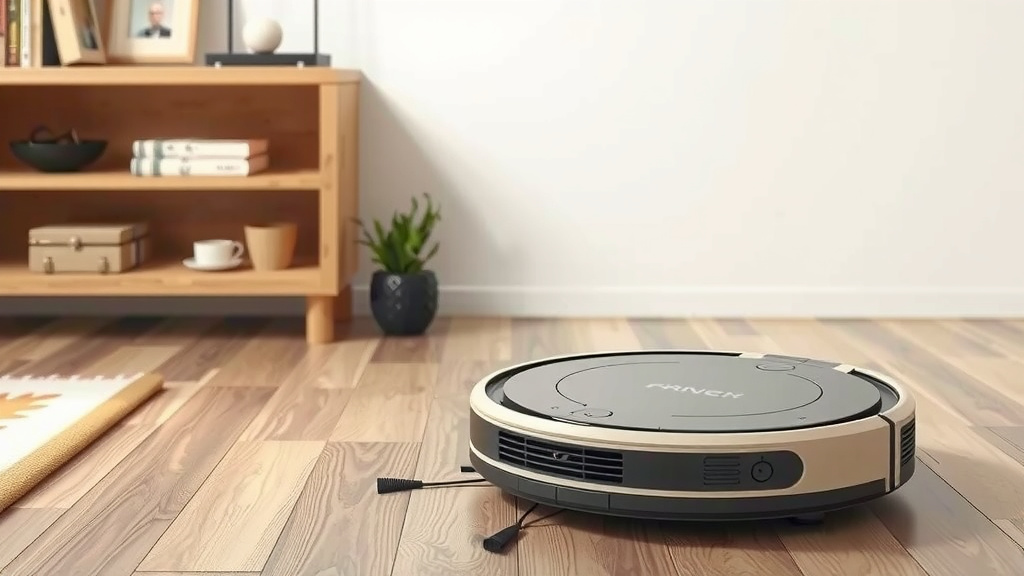
Coredy Robot Vacuum: Your Easy Setup & Use Guide
Using your Coredy robot vacuum cleaner is straightforward, and you can get it cleaning your floors in just a few simple steps. Most models start with a single button press on the unit itself. You can also use the handy remote control to initiate cleaning, pause it, or send your robot back to its charging dock. Getting your Coredy vacuum ready is easier than you might think.
Beyond the basic start button, your Coredy robot vacuum cleaner offers more options for a cleaner home. Many models connect to your Wi-Fi for app control. This allows you to schedule cleanings, select cleaning modes, and even direct the vacuum manually from your smartphone. Understanding these features can make keeping your floors spotless much simpler.
- Press the main button on the robot to start.
- Use the remote control for basic commands.
- Connect to Wi-Fi for app control and scheduling.
- Explore different cleaning modes for best results.
- Ensure the charging dock is set up correctly.
Let’s walk through exactly how to get your Coredy robot vacuum cleaner up and running, and how to use all its smart features.
Getting Your Coredy Robot Vacuum Started and Running Smoothly
So, you’ve unboxed your new Coredy robot vacuum. Exciting! Let’s get it cleaning without any fuss. Most Coredy models are designed for super easy setup. You’re probably just a button press away from cleaner floors.
The Basic Startup: Powering On and First Clean
Your Coredy robot has a main power button. It’s usually located on the top of the unit. You’ll often see a symbol like a circle with a line through it, or just a “power” icon. Pressing this button will typically wake up your robot.
Once it’s on, look for a “Clean” or “Start” button. This is your go-to for initiating a standard cleaning cycle. Just press it, and your Coredy will begin its work. It’s like magic, but it’s just smart engineering!
Understanding Your Remote Control
Most Coredy robot vacuums come with a remote control. Think of this as your personal command center. It gives you control without needing to touch the robot directly. This is handy if you’re lounging on the couch.
Key Remote Functions
On your remote, you’ll find buttons for various functions. There’s usually a large button to start or pause cleaning. You’ll also see directional arrows. These allow you to manually steer the robot. It’s like driving a tiny, automated car around your house.
There will also be buttons for specific cleaning modes. We’ll touch on those later. Crucially, there’s a button to send your Coredy back to its charging dock. This is super useful when a cleaning is done or if the battery is low.
Setting Up the Charging Dock
Before your robot can roam freely, it needs a home base. This is its charging dock. Proper placement is key for your robot to find its way back home reliably.
Ideal Dock Placement
Find a spot with plenty of open space around it. We found that about 3 feet clear on each side and 6 feet clear in front works well. Also, make sure the wall outlet is nearby. Keep it away from any stairs or edges where the robot might fall. Your Coredy’s manual will have specific dimensions, but this general rule helps it dock successfully.
Ensure the charging contacts on the dock and the robot are clean. A quick wipe with a dry cloth usually does the trick. This ensures a good connection for charging.
Unlocking Advanced Features with App Control
Ready to take your Coredy experience to the next level? Many Coredy models offer Wi-Fi connectivity and smartphone app control. This opens up a world of convenience and customization.
Connecting Your Robot to Wi-Fi
The first step is to download the Coredy app. You can find it by searching for “Coredy” in your smartphone’s app store. Once downloaded, you’ll need to create an account or log in.
Follow the in-app instructions to connect your robot. This usually involves putting the robot into pairing mode. You might need to press and hold a button on the robot for a few seconds. The app will then guide you through selecting your home Wi-Fi network and entering the password. We found the process to be quite straightforward in most cases.
Navigating the Coredy App
Once connected, the app becomes your command center. You can initiate cleaning cycles, pause or stop them, and send the robot to its dock, all from your phone. This is a real lifesaver when you’re not home.
Scheduling Cleanings
One of the best features is scheduling. You can set specific days and times for your Coredy to clean automatically. Imagine waking up to clean floors every morning without lifting a finger! Research shows that consistent cleaning schedules help maintain a dust-free environment.
Manual Control and Spot Cleaning
Many apps offer a manual control option. You can use on-screen directional controls to guide the robot precisely where you want it to go. This is perfect for targeting a specific mess, like a spill in the kitchen. Just steer it over the spot and let it work its magic.
Exploring Different Cleaning Modes
Your Coredy robot isn’t just a one-trick pony. It comes with various cleaning modes to tackle different situations. Using the right mode can significantly improve cleaning efficiency.
Standard/Auto Mode
This is the default mode. The robot will navigate your home using its sensors, covering as much floor space as possible. It’s great for general, everyday cleaning.
Edge Cleaning Mode
As the name suggests, this mode focuses on cleaning along the edges of your rooms and around furniture legs. Your robot will travel along walls and baseboards to capture dust and debris that tend to accumulate there.
Spot Cleaning Mode
This mode is for concentrated cleaning. When activated, the robot will spin in a tight spiral pattern. It’s designed to tackle heavily soiled areas or spills. Just place the robot on the mess and select this mode.
Max/High Power Mode
For those tougher jobs or when you have particularly dirty floors, this mode increases the suction power. It’s excellent for carpets or areas with more embedded dirt. Just remember, it will use more battery life.
You can usually switch between these modes using the remote control or the Coredy app. Experimenting with them will help you find the best settings for your home.
Essential Maintenance for Peak Performance
To keep your Coredy robot vacuum running like a champ, a little regular maintenance goes a long way. Think of it like giving your car an oil change. It’s not complicated, but it makes a big difference.
Cleaning the Dustbin
After each cleaning cycle, it’s a good practice to empty the dustbin. A full dustbin can reduce suction power. Simply detach the bin, open it over a trash can, and empty the contents. Easy peasy.
Maintaining the Brushes and Filters
Your Coredy has brushes that sweep debris into the suction path, and filters to trap fine dust. We found that hair and debris can sometimes get tangled around the brushes. You’ll want to inspect them regularly and remove any blockages. A small cleaning tool often comes with your vacuum for this purpose.
The filters also need attention. Depending on your model, you might be able to rinse the filter or simply tap it to remove dust. Always refer to your manual for the exact cleaning or replacement schedule. A clean filter means better air quality in your home, which is always a win (NCBI).
Wiping Down Sensors
Your robot uses sensors to navigate and avoid obstacles. Keeping these sensors clean is vital. Use a soft, dry cloth to gently wipe them down every so often. This helps prevent the robot from getting confused and bumping into things.
Here’s a quick checklist to keep your Coredy in top shape:
- Empty the dustbin after every use.
- Check brushes for tangled hair or debris weekly.
- Clean or replace filters as recommended by the manual.
- Wipe down sensors with a dry cloth monthly.
- Ensure charging contacts are clean for good charging.
- Perform a full system check every few months.
Conclusion
You’re now equipped to use your Coredy robot vacuum like a pro! We’ve covered the basics from powering on and using the remote to mastering app control and scheduling cleanings. Remember to also keep up with simple maintenance like emptying the dustbin and cleaning brushes. These steps ensure your Coredy consistently delivers spotless floors. Ready to enjoy your newly automated cleaning routine? Give your Coredy a spin using its different modes today and experience the difference!
Frequently Asked Questions
How do I set up my Coredy robot vacuum if I don’t want to use the app?
No problem! You can easily start cleaning using the main power button on the robot itself. The included remote control also allows you to initiate cleaning cycles, pause, and send it back to its charging dock without needing a smartphone. This makes basic operation very straightforward.
My Coredy robot isn’t returning to its charging dock. What should I check?
Ensure the charging dock is placed in an open area with at least 3 feet of clear space on each side and 6 feet in front. Also, make sure there are no obstructions and that the charging contacts on both the robot and the dock are clean. A clear path and clean contacts are essential for successful docking.
What’s the best way to get my Coredy robot to clean a specific messy spot?
For targeted cleaning, you can use the manual control feature in the Coredy app to steer the robot directly over the messy area. Alternatively, you can place the robot on the spot and select the “Spot Cleaning” mode. This mode makes the robot clean in a tight spiral pattern, focusing its efforts.
How often should I clean the brushes and filters on my Coredy robot vacuum?
It’s a good idea to check the brushes weekly for tangled hair or debris and remove it promptly. For filters, consult your Coredy manual for the specific cleaning or replacement schedule. Keeping these parts clean helps maintain strong suction power and better air quality.
Can I use my Coredy robot vacuum on different types of flooring?
Yes, most Coredy robot vacuums are designed to clean various floor types, including hardwood, tile, and low-to-medium pile carpets. You can often switch to “Max/High Power Mode” for carpets to increase suction. Just ensure you remove any loose cords or small items that could get tangled.
![7 Best Affordable Self Emptying Robot Vacuum [2026]](https://robotvacuumfact.com/wp-content/uploads/2026/06/7-best-affordable-self-emptying-robot-vacuum-2026-featured-768x432.jpg)
![7 Best Robot Vacuum Under $250 [2026]](https://robotvacuumfact.com/wp-content/uploads/2026/09/7-best-robot-vacuum-under-250-2026-featured-768x432.jpg)