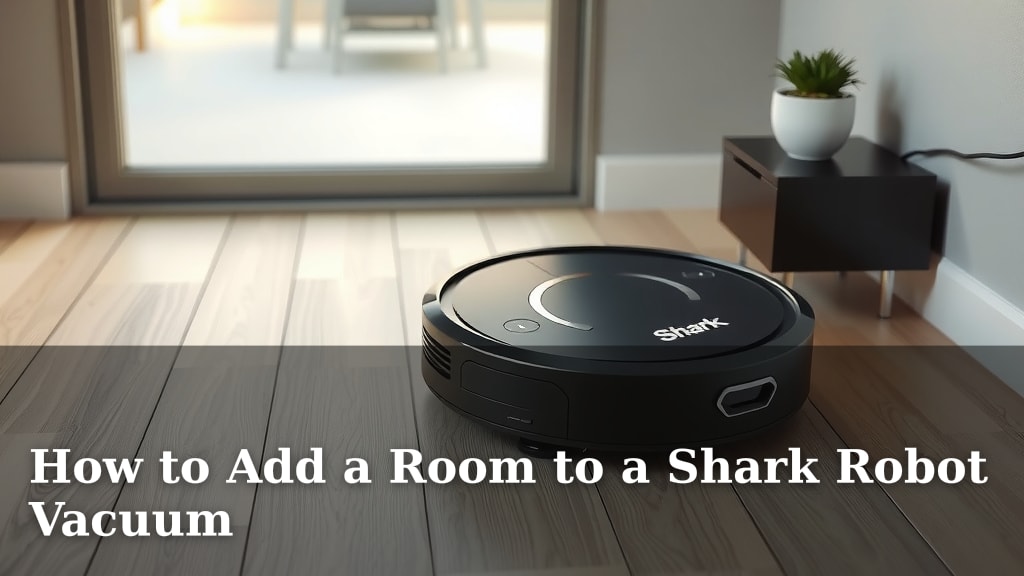
How to Add a Room to a Shark Robot Vacuum
You can easily add a room to your Shark robot vacuum’s cleaning routine by creating a virtual barrier or using the no-go zone feature in the Shark app. This allows you to customize your robot’s cleaning map, ensuring it focuses on the areas you want cleaned and avoids places like pet bowls or high-traffic hallways. It’s a simple way to control where your robot goes.
Many Shark robot vacuums come with smart mapping technology. This technology lets you define specific areas for cleaning. You can also set up virtual walls to keep the robot out of certain rooms. Understanding how to manage these features will greatly improve your cleaning experience and save you time.
TL;DR:
- Add rooms by setting virtual barriers or no-go zones in the Shark app.
- Use the app to customize your robot’s cleaning map.
- Prevent your robot from entering specific areas like pet feeding zones.
- Smart mapping helps you control where your robot cleans.
Let’s walk through exactly how to add or exclude rooms from your Shark robot vacuum’s cleaning path.
Customizing Your Shark Robot’s Cleaning Zones
Did you know your Shark robot vacuum can learn your home’s layout? This smart mapping tech lets you tell it exactly where to clean. You can add specific rooms to its schedule. Or, you can tell it to avoid certain areas. It’s like giving your robot a personalized to-do list for each cleaning cycle. This helps it work smarter, not harder. Let’s get your robot cleaning the areas you want most.
Mapping Your Home with the Shark App
Most modern Shark robot vacuums use a feature called Smart-Mapping. The first time your robot cleans your home, it creates a map. You’ll see this map in the Shark app on your smartphone. This map is divided into different areas. These areas can be individual rooms. You can label these rooms for easier identification. For instance, you might label one area “Living Room” and another “Kitchen.”
How the Map is Created
Your robot uses its sensors and cameras to navigate. It builds a digital representation of your floors. This process usually happens during its initial runs. You might need to let it complete a few full cleaning cycles. This allows the robot to accurately map out walls, furniture, and doorways. Think of it as your robot getting acquainted with its new workspace.
Accessing and Editing Your Map
Once the map is ready, you’ll find it within the Shark app. Open the app, and you should see your home’s layout. There will be options to edit this map. You can rename rooms or merge areas that were incorrectly split. Sometimes, a doorway might be mapped as a wall. You can correct these errors easily. This ensures your robot understands your home’s true layout.
Adding a Specific Room to Your Cleaning Plan
So, you want your robot to clean a particular room? It’s simpler than you might think. Once your map is established and rooms are defined, you can select them for cleaning.
Selecting Rooms for a Cleaning Session
In the Shark app, you’ll often see an option to “Clean Specific Rooms” or “Create a Cleaning Task.” You can then tap on the rooms you want cleaned for that particular run. If you always want the robot to clean the family room and dining room every Tuesday, you can set up a schedule. This is super handy for routine cleanings. You’re essentially telling your robot, “Today, I only need you to focus on these areas.”
Scheduling Regular Cleanings for Specific Rooms
Many users find scheduling their robot’s cleanings incredibly useful. You can set a recurring schedule for the entire home. Or, you can create separate schedules for different zones. For example, you might want the robot to do a quick sweep of the kitchen every night after dinner. You can set this up directly in the app. This takes the guesswork out of daily tidying. You can even set different cleaning power levels for different rooms, if your model supports it.
Keeping Your Shark Robot Out of Certain Areas
What about those places you don’t want your robot venturing into? We’re talking about things like pet food bowls, delicate floor lamps, or that one corner where the charging cables always seem to gather. Shark provides tools for this too!
Using Virtual Barriers
Your Shark robot can create virtual barriers. These are invisible walls that tell your robot not to cross. You draw these barriers on the map in the Shark app. Imagine a doorway you want to keep closed to the robot. You simply draw a line across that doorway on the map. The robot will not go past this line. This is a great way to section off areas without needing physical gates.
Setting Up No-Go Zones
A no-go zone is similar to a virtual barrier, but it’s a designated area. Instead of a line, you draw a box or a circle on your map. The robot will completely avoid entering this marked zone. This is perfect for areas like a pet’s feeding station. You don’t want your robot accidentally bumping bowls or spreading kibble. You can adjust the size and placement of these zones as needed. We found that no-go zones are excellent for protecting delicate items on the floor too.
Where to Place No-Go Zones
Think about common problem areas. Is there a rug your robot sometimes gets stuck on? Create a small no-go zone around it. Do you have a collection of shoes by the front door? A no-go zone can keep your robot from nudging them around. Many users find these zones essential for pet owners. They prevent messes and keep pet supplies untouched. Just remember, the robot will not enter the zone at all, so make sure you’re not blocking a necessary pathway.
Tips for Effective Zone Management
Getting the most out of your Shark robot’s mapping features takes a little practice. Here are some helpful tips we’ve gathered:
- Keep your app updated: Software updates often bring new features or improvements to the mapping.
- Regularly review your map: Furniture can move, or new items might be placed on the floor. Check your map periodically.
- Be precise with barriers: Draw virtual barriers and no-go zones carefully. Zoom in on the map for accuracy.
- Test your settings: After setting up a new zone or barrier, run a short cleaning cycle. Watch to see if the robot respects the boundaries.
- Label rooms clearly: Use simple, descriptive names for your rooms. This makes selecting them for cleaning much easier.
By using virtual barriers and no-go zones effectively, you gain incredible control. You can ensure your Shark robot cleans where you want it to. And just as importantly, you can prevent it from going where you don’t. This smart approach to cleaning saves time and keeps your home running smoothly.
Conclusion
You’ve learned how to give your Shark robot vacuum a clear cleaning agenda. By using the Shark app’s smart mapping, you can easily define which rooms get cleaned and which areas to avoid. Setting up virtual barriers and no-go zones ensures your robot works efficiently, staying clear of pet bowls or delicate items. This control means less manual intervention for you. Start today by opening your Shark app and fine-tuning your robot’s cleaning map for a smarter, tidier home.
Frequently Asked Questions
Can I change a room’s name after it’s been mapped?
Yes, you absolutely can! Once your Shark robot has mapped your home, you can rename any of the identified rooms within the Shark app. This makes it easier for you to select specific rooms for cleaning or to understand your robot’s reports.
What happens if my furniture layout changes?
If you move furniture or redecorate, it’s a good idea to review your robot’s map in the app. Sometimes, significant changes might require the robot to re-map an area. You can usually adjust room boundaries or re-draw no-go zones to account for new furniture arrangements.
Will virtual barriers stop my robot from cleaning a whole floor?
Virtual barriers and no-go zones are typically used to block off smaller areas or specific doorways within a mapped floor. They don’t usually prevent the robot from cleaning an entire floor. For multi-story homes, you might need to carry the robot to different floors and initiate cleaning from there, as most models don’t autonomously navigate stairs.
How precise are the virtual barriers and no-go zones?
The precision of these zones depends on your robot’s mapping accuracy and your own drawing in the app. We recommend zooming in on the map when setting up these boundaries for better accuracy. Testing a short cleaning cycle after setup helps confirm the robot respects the boundaries you’ve set.
Can I schedule different cleaning times for different rooms?
Many Shark robot vacuum models allow you to create custom cleaning schedules. This means you can set specific times for the robot to clean certain rooms or groups of rooms. For example, you might schedule the kitchen for a daily clean after dinner and the living room for a weekly deep clean.
![7 Best Robot Vacuum With App [2026]](https://robotvacuumfact.com/wp-content/uploads/2026/09/7-best-robot-vacuum-with-app-2026-featured-768x432.jpg)