How to Reprogram Your Shark Robot Vacuum: A Quick Guide
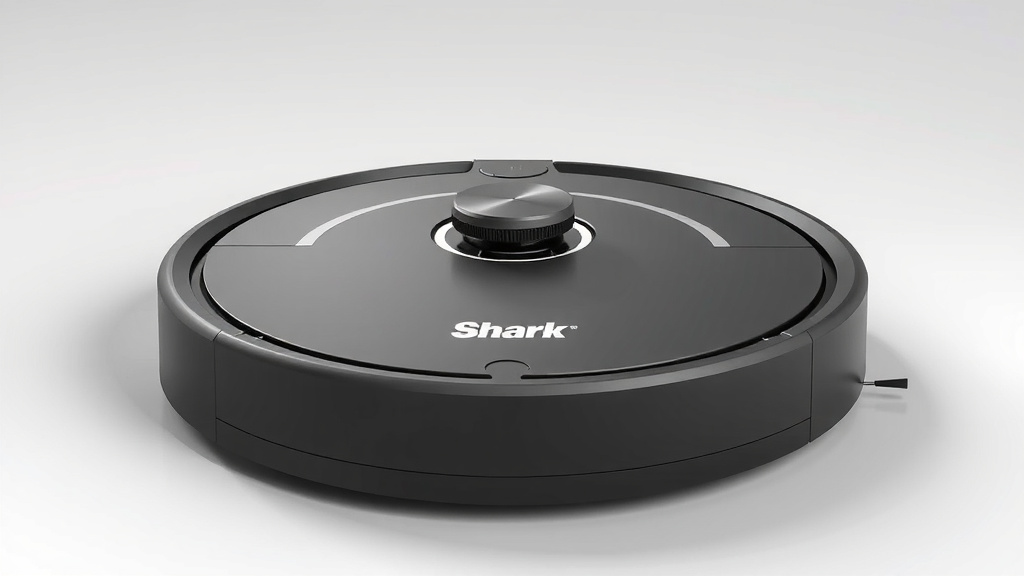
Yes, you can absolutely reprogram your Shark robot vacuum. Reprogramming allows you to customize cleaning schedules and set specific zones. It’s a great way to get your robot vacuum working more effectively for your home. You’ll want to make sure your robot is properly connected to your Wi-Fi first.
Your Shark robot vacuum offers several ways to change its behavior. This includes setting “no-go zones” and cleaning specific rooms. We’ve found that users often want to adjust these settings for different cleaning needs. It’s all about making your cleaning routine as effortless as possible.
- Check Wi-Fi connection.
- Use the SharkClean app.
- Set cleaning schedules.
- Define no-go zones.
- Choose specific rooms to clean.
Let’s walk through exactly how to reprogram your Shark robot vacuum step by step, so you can get back to enjoying a clean home.
Customizing Your Shark Robot Vacuum’s Cleaning Habits
Your Shark robot vacuum is more than just a floor cleaner. It’s a smart device ready to be tailored to your home’s unique needs. Reprogramming it allows you to take control. You can tell it exactly where and when to clean. We’ve found that many users want more than just a basic clean. They want a personalized cleaning experience. This guide will help you make those adjustments easily.
Getting Your Shark Robot Connected
Before you can reprogram anything, your robot needs to be connected to your home Wi-Fi network. This connection is the bridge between you and your robot. It allows you to send commands and receive updates. Without it, you’re limited to the basic functions the robot has onboard.
Using the SharkClean App
The SharkClean app is your command center. It’s available for both iOS and Android devices. You’ll download it from your device’s app store. Once downloaded, you’ll create an account. Then, you’ll follow the app’s prompts to connect your robot vacuum. This usually involves putting the robot in pairing mode and entering your Wi-Fi password.
Pairing Your Robot to Wi-Fi
Make sure your robot is charged and powered on. The app will guide you through the pairing process. You might need to press a specific button on your robot. Follow the on-screen instructions carefully. It’s like introducing your robot to your home network. We found that a stable Wi-Fi signal is key here. If you have trouble, try moving your router closer to the robot.
Troubleshooting Connection Issues
Sometimes, connecting can be a bit tricky. If you’re having problems, double-check your Wi-Fi password. Ensure your robot is within range of your Wi-Fi router. Some older routers use 2.4GHz networks, while newer ones might use 5GHz. Your Shark robot likely needs the 2.4GHz band. Many routers broadcast both. You may need to check your router settings if you can’t connect. We recommend restarting both your router and your robot vacuum. This often resolves minor glitches.
Setting Up a Cleaning Schedule
One of the most powerful ways to reprogram your robot is by setting a cleaning schedule. This automates the cleaning process. You can set it and forget it. Imagine waking up to clean floors every morning! You can customize this to fit your lifestyle perfectly.
Creating a New Cleaning Schedule
Open the SharkClean app. Navigate to the scheduling section. This is usually found in the main menu or under your robot’s settings. You’ll see an option to add a new schedule. Here, you can choose the days of the week you want your robot to clean. You can also select the time of day.
Choosing Your Cleaning Times
Think about when your home is typically empty. This avoids interrupting your daily activities. Early mornings are popular. Some people prefer overnight cleaning. You can set multiple schedules if needed. For instance, a quick sweep on weekdays and a deeper clean on weekends. We found that consistency is key for maintaining cleanliness.
Defining Cleaning Zones Within a Schedule
Some Shark models allow you to assign specific rooms or zones to your scheduled cleanings. This means you can have your robot clean your kitchen every morning at 8 AM. Then, maybe your living room every evening at 7 PM. This level of customization is what makes these robots so useful. You’re telling your robot precisely what to do, and when.
Defining “No-Go Zones” and Virtual Walls
Not every part of your home is meant for your robot. You might have delicate furniture, pet bowls, or areas you want to keep clear. Shark robot vacuums offer ways to prevent your robot from entering these spaces.
What Are No-Go Zones?
A no-go zone is an area you mark within the SharkClean app. Your robot will avoid these areas completely. Think of them as virtual fences. This is incredibly useful for protecting specific items or areas.
Setting Up No-Go Zones in the App
In the SharkClean app, find the “Smart Maps” or “Room Setup” feature. Once your robot has mapped your home, you can edit the map. You’ll see an option to draw no-go zones. Simply tap and drag to outline the area you want your robot to avoid. You can adjust the size and shape of these zones as needed. We found that starting with smaller zones is helpful. You can always expand them if necessary.
When to Use No-Go Zones
These zones are perfect for areas with lots of cords, breakable items, or pet feeding stations. You might also want to create a zone around a child’s play area. If you have stairs, you’ll want to ensure a no-go zone is set up along the edge to prevent falls. Research shows that clear boundaries help robots navigate more efficiently (NIH). This prevents your robot from getting stuck or damaging anything.
Using Virtual Walls (if applicable)
Some Shark robot models also support physical virtual wall accessories. These are small devices you place on the floor. They emit an invisible barrier. Your robot will not cross this barrier. This is a good alternative if you prefer not to draw zones on the app. Check your robot’s manual to see if it supports these accessories.
Selecting Specific Rooms for Cleaning
Sometimes, you only need a specific room cleaned. Perhaps you spilled something in the kitchen, or your pet made a mess in the bedroom. Your Shark robot can handle these targeted cleaning tasks.
How Room Selection Works
Once your robot has completed an initial mapping run, it will divide your home into rooms within the SharkClean app. You can often rename these rooms for easier identification. When you want to clean a specific area, you can select it directly from the map.
Initiating a Room-Specific Clean
Open the SharkClean app and view your robot’s map. You’ll see the different rooms displayed. Simply tap on the room or rooms you want cleaned. Then, select the “Clean Selected” or similar option. Your robot will navigate directly to those rooms and clean them. This is a huge time-saver for spot cleaning.
Creating “Clean Zones” vs. “No-Go Zones”
While no-go zones keep your robot out, clean zones tell it where to go. Some advanced models allow you to define specific rectangular areas within a room for cleaning. This is useful if only a small section of a room needs attention. For example, under the dining table after a meal. You can set these clean zones directly on the map in the app.
Here’s a quick checklist to help you reprogram your Shark robot vacuum:
- Ensure your robot is charged and online.
- Download and open the SharkClean app.
- Verify your Wi-Fi connection is stable.
- Set up your desired cleaning schedules.
- Draw any necessary no-go zones.
- Select specific rooms for immediate cleaning when needed.
Conclusion
You’ve now learned how to take full control of your Shark robot vacuum. Reprogramming it through the SharkClean app lets you set personalized cleaning schedules and define specific areas your robot should avoid or target. This customization ensures your robot works efficiently for your home’s unique needs. It’s about making your cleaning routine smarter and simpler. Your next step is to open the SharkClean app and start setting up your first custom cleaning schedule or no-go zone. Enjoy your effortlessly clean home!
Frequently Asked Questions
Can I schedule my Shark robot to clean specific rooms at different times?
Yes, you can. After your robot has mapped your home, the SharkClean app allows you to select individual rooms. You can then assign these rooms to specific cleaning schedules. This means your kitchen could get cleaned every morning, while your living room is cleaned every evening.
What happens if my Shark robot gets stuck in a no-go zone I set?
You’ve set up a no-go zone specifically to prevent this. Your Shark robot is programmed to recognize and avoid these areas entirely. If it ever encounters an unexpected obstacle within a mapped no-go zone, it should stop and alert you via the app.
How do I update my Shark robot vacuum’s firmware through the app?
While not directly reprogramming, firmware updates are important. Usually, the SharkClean app will notify you when an update is available. You’ll then follow the prompts within the app to download and install the update. Ensure your robot is charged and connected to Wi-Fi during this process.
My Shark robot isn’t mapping my home correctly. What should I do?
A correct map is essential for reprogramming. First, ensure your robot has a clear path for its initial mapping run. Remove any clutter or obstacles that might confuse its sensors. You may need to reset the map in the app and try the mapping run again. Make sure your Wi-Fi signal is strong throughout your home.
Can I use my Shark robot vacuum for spot cleaning without setting a full schedule?
Absolutely. You can initiate a spot clean directly from the SharkClean app. Simply select the room or even a small “clean zone” you want cleaned, and send your robot there. This is perfect for cleaning up spills or messes without affecting your regular cleaning schedule.
![7 Best Robot Vacuum Cyber Monday [2026]](https://robotvacuumfact.com/wp-content/uploads/2026/08/7-best-robot-vacuum-cyber-monday-2026-featured-768x432.jpg)