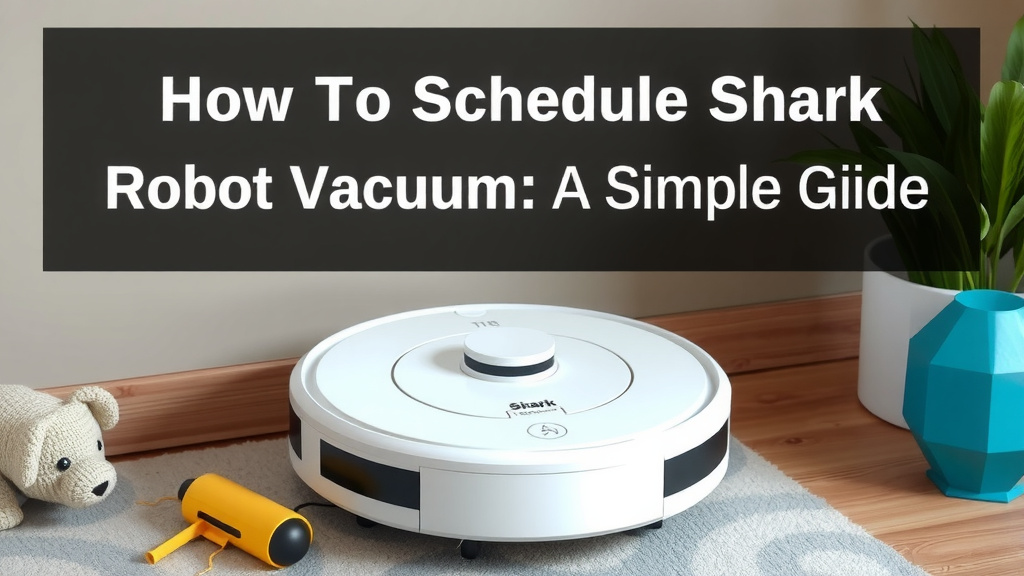
Schedule Your Shark Robot Vacuum: A Simple Guide
Scheduling your Shark robot vacuum is quite simple! You can easily set up automatic cleaning schedules through the SharkClean app on your smartphone, allowing your robot to clean your home even when you’re not there. This feature helps maintain a consistently clean home with minimal effort on your part, ensuring you always come back to spotless floors.
Setting a schedule means you can tell your Shark robot exactly when and where to clean. Imagine waking up to clean floors every morning! We found that many users love this feature for its convenience and time-saving benefits. It’s a smart way to ensure your home stays tidy without adding chores to your busy day.
- Use the SharkClean app for scheduling.
- Set specific days and times for cleaning.
- Allow your robot to clean while you’re away.
- Enjoy a consistently clean home with less effort.
Let’s walk through exactly how to set up your cleaning schedule step by step, so you can get your Shark robot working for you automatically.
Setting Up Automated Cleaning for Your Shark Robot
Scheduling your Shark robot vacuum means you can enjoy clean floors without lifting a finger. We found that setting up a regular cleaning routine is one of the most loved features. It’s like having a tiny cleaning crew that works around your schedule. Let’s get your robot set to clean automatically.
Getting Started with the SharkClean App
The SharkClean app is your command center for scheduling. It’s where you tell your robot when to clean. You’ll need to have your robot connected to your home Wi-Fi network first. This connection allows the app to communicate with your robot.
Downloading and Connecting the App
If you haven’t already, download the SharkClean app from your smartphone’s app store. It’s available for both iOS and Android devices. Once downloaded, open the app and follow the on-screen instructions to create an account. You’ll then need to pair your Shark robot with the app. This usually involves putting your robot into pairing mode and entering your Wi-Fi password.
Understanding the App Interface
Once your robot is connected, you’ll see its status on the app’s main screen. You’ll find options for starting or stopping a clean, sending it back to its base, and most importantly, setting your schedule. We found the app’s layout to be quite intuitive and user-friendly.
Creating Your First Cleaning Schedule
Now for the fun part – telling your robot when to work! Scheduling is straightforward. Think about when you’re typically out of the house or when you’d prefer not to hear the vacuum.
Accessing the Scheduling Feature
In the SharkClean app, look for a tab or button labeled “Schedule” or “Cleaning Schedules”. Tap on it to enter the scheduling area. You might see an option to “Add Schedule” or a similar prompt. This is where you’ll define your robot’s cleaning appointments.
Setting the Cleaning Days and Times
Here, you can select the specific days of the week you want your robot to clean. Do you want it to clean every weekday? Or perhaps just on Tuesdays and Thursdays? You can choose all or just a few. Next, you’ll set the exact time for the cleaning to begin. For example, you could set it for 10:00 AM on Mondays, Wednesdays, and Fridays. Many users found setting it for mid-morning works well, after everyone has left for school or work.
Defining Cleaning Zones or Rooms (If Available)
Some Shark robot models, especially those with advanced mapping technology, allow you to schedule cleanings for specific rooms or zones. If your model supports this, you’ll see an option to select areas on your home map. This is fantastic if you only need certain rooms cleaned on certain days. For instance, you could schedule the kitchen and living room for a daily clean, but only have the bedrooms cleaned twice a week. We found this feature incredibly useful for targeted cleaning.
| Feature | Description | Benefit |
|---|---|---|
| Daily Cleaning | Set the robot to clean every day. | Maintains a consistently spotless home. |
| Weekly Cleaning | Select specific days for cleaning each week. | Flexibility to match your household’s routine. |
| Room-Specific Cleaning | Schedule cleaning for designated areas. | Efficiently targets high-traffic zones or specific needs. |
| Time of Day | Choose the start time for each cleaning session. | Ensures cleaning happens when it’s least disruptive. |
Saving Your Schedule
Once you’ve set your desired days, times, and any specific room selections, be sure to save your schedule. There’s usually a “Save” or “Confirm” button at the bottom of the screen. If you don’t save it, your robot won’t know when to clean!

Tips for Effective Scheduling
To get the most out of your scheduled cleanings, consider a few helpful tips. Think of it like setting your alarm clock; you want it at the right time to be most effective.
Consider Your Household’s Routine
When do people usually leave the house? When is it quietest? Scheduling your robot to clean when there’s less foot traffic helps it move more freely. Many experts suggest scheduling cleanings for mid-morning or early afternoon on weekdays (Cleveland Clinic). This also ensures that pet hair and tracked-in dirt are tackled before you return home.
Allow Enough Cleaning Time
Make sure the scheduled cleaning time is long enough for your robot to complete its job. Your robot’s battery life and the size of your home will determine this. You don’t want it to run out of battery halfway through its route. The app may offer options for cleaning intensity, which can affect run time. We found that a full-home clean typically takes an hour or more for average-sized homes.
Keep Your Robot Charged and Ready
For scheduled cleanings to work, your robot needs to be charged. Always ensure it’s docked and charging when not in use. The app will notify you if the battery is too low to start a scheduled clean. Keeping the dock in an easily accessible spot with plenty of space around it is essential for reliable charging.
Review and Adjust as Needed
Your needs might change. You might move furniture, or a new pet might join the family. It’s a good idea to periodically review your cleaning schedule in the app. Make adjustments if you find certain times aren’t working or if you want to add or remove specific rooms. Flexibility is key, and the app makes it easy to tweak your settings.
Here’s a quick checklist to make sure you’re all set:
- Robot is connected to Wi-Fi.
- SharkClean app is downloaded and synced.
- You’ve located the “Schedule” section in the app.
- You’ve selected the desired cleaning days and times.
- You’ve saved your new schedule settings.
- Robot is docked and charging for its next scheduled run.
Conclusion
You’ve learned how to make your Shark robot vacuum work for you on autopilot. By using the SharkClean app, you can easily set up custom cleaning schedules. This feature saves you time and effort. Imagine your floors staying clean without you having to think about it. Now, take the next step and schedule your first cleaning session. Your robot is ready to help you maintain a tidier home!
Frequently Asked Questions
Can I schedule my Shark robot to clean specific rooms?
Yes, many Shark robot models with advanced mapping capabilities allow you to schedule cleanings for specific rooms or zones. You can select these areas directly within the SharkClean app. This is perfect for targeting high-traffic areas or rooms that need more frequent attention.
What happens if my Shark robot’s battery is low when a scheduled clean is supposed to start?
If your robot’s battery is too low to begin a scheduled cleaning, the SharkClean app will typically notify you. The robot will not start the cleaning until it has sufficient charge. It’s best to ensure your robot is docked and charging regularly.
How do I change or cancel a cleaning schedule I’ve already set?
You can easily modify or cancel your cleaning schedules directly within the SharkClean app. Navigate to the “Schedule” or “Cleaning Schedules” section, and you should see options to edit or delete existing appointments. Making these adjustments is usually quite straightforward.
Does the Shark robot need to be connected to Wi-Fi for scheduled cleanings to work?
Yes, your Shark robot vacuum needs to be connected to your home Wi-Fi network and paired with the SharkClean app for scheduled cleanings. The Wi-Fi connection allows the app to send commands to your robot, including its cleaning schedule.
Can I set different schedules for different days of the week?
Absolutely! The SharkClean app offers flexibility to set different cleaning schedules for each day of the week. You can choose specific days and times that best suit your household’s routine. This allows for a highly customized cleaning plan.


![7 Best Budget Robot Vacuum For Hard Floors [2026]](https://robotvacuumfact.com/wp-content/uploads/2026/08/7-best-budget-robot-vacuum-for-hard-floors-2026-featured-768x432.jpg)