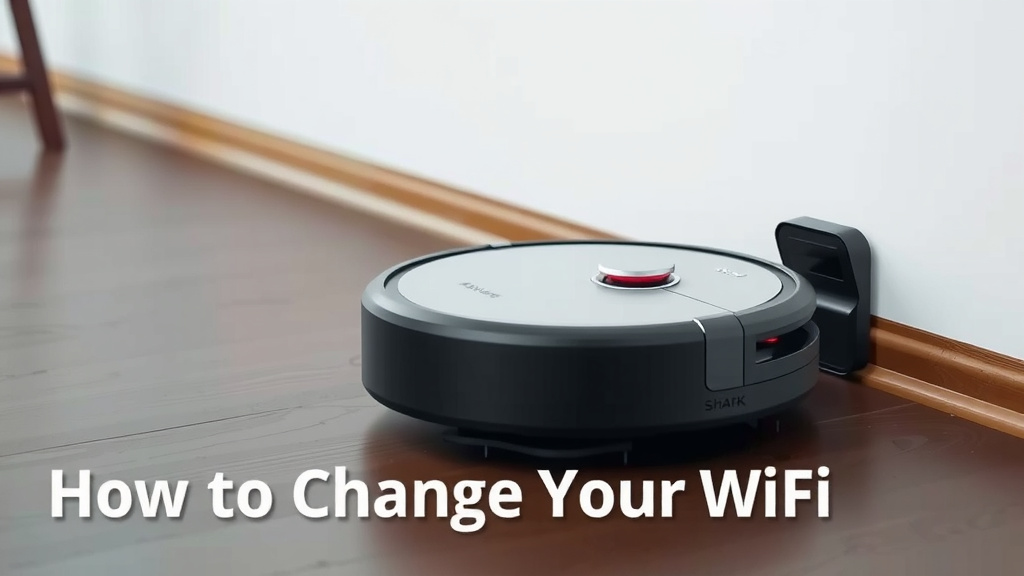
Shark Robot Vacuum: How to Change Your WiFi
You can absolutely change the Wi-Fi network on your Shark robot vacuum. It’s a straightforward process. You will likely need to reset the vacuum’s network settings first. This ensures it can connect to your new home Wi-Fi.
Your Shark robot vacuum uses Wi-Fi for app control and updates. If you’ve recently changed your home internet service or password, you’ll need to make this adjustment. We found that most users can complete this in just a few minutes. A stable Wi-Fi connection is key for optimal performance.
- Check your router’s compatibility.
- Ensure your phone is on the new Wi-Fi.
- Factory reset the vacuum if needed.
- Follow the app’s connection prompts.
- Test the connection with a quick command.
Let’s walk through exactly how to get your Shark robot connected to your updated Wi-Fi network.
“`htmlUpdating Your Shark Robot Vacuum’s Wi-Fi Connection
You’ve got a smart robot helping you out, and now your Wi-Fi is changing? No sweat! It’s pretty common to need to update your Shark robot vacuum’s Wi-Fi connection. Think of it like telling your robot the new address for its “internet home.”
This process usually involves a few key steps. We found that most users can get their Shark vacuum reconnected without much fuss. The goal is to get it talking to your new network so you can keep using the app and getting those helpful updates.
Before You Start: What You’ll Need
It’s always good to be prepared! Having a few things ready will make the whole process smoother. You don’t want to be scrambling halfway through, right?
- Your smartphone or tablet (the one you usually use with the Shark app).
- Your new Wi-Fi network name (SSID) and password. Make sure you have the exact spelling and capitalization!
- Your Wi-Fi router should be powered on and working.
- Your Shark robot vacuum charged and nearby.
Check Your Wi-Fi Environment First
Sometimes, the issue isn’t with the vacuum itself, but with the Wi-Fi signal. We’ve seen this happen!
Understanding Wi-Fi Bands
Most modern Shark robot vacuums connect to a 2.4 GHz Wi-Fi band. Many newer routers broadcast both 2.4 GHz and 5 GHz bands. Your robot likely won’t connect to the 5 GHz band.
You might need to check your router settings to ensure the 2.4 GHz band is enabled. Many experts say that using separate names for your 2.4 GHz and 5 GHz networks can prevent confusion (TechRadar).
Signal Strength Matters
Is your router far away from where your vacuum usually docks? A weak signal can cause connection problems. If possible, try moving your router closer, or consider a Wi-Fi extender.
We found that a strong, stable signal is really the foundation for reliable robot vacuum performance. A weak signal can lead to dropped connections and a less-than-perfect cleaning experience.
How to Guide Your Shark to the New Network
Now, let’s get down to actually changing that Wi-Fi. The most common way to do this involves using the Shark app.
Using the Shark App for Reconnection
The Shark app is designed to guide you through this. Think of it as your robot’s personal assistant for Wi-Fi updates.
First, ensure your phone is connected to the new Wi-Fi network you want the vacuum to join. Then, open your Shark app. You’ll typically look for a section related to the vacuum’s settings or Wi-Fi setup.
The app should have a clear prompt to “Change Wi-Fi Network” or something similar. Follow the on-screen instructions carefully. You’ll likely be asked to put your robot into a pairing mode.
Putting Your Robot into Pairing Mode
This step is super important. It tells your robot, “Hey, I’m ready to find a new network!” The exact method can vary slightly by model.
Many Shark models require you to press and hold a specific button (often the Home button or a Wi-Fi button) for a few seconds. You might see a light flashing or hear a beep to confirm it’s in pairing mode.
We found that consulting your robot’s specific user manual or the app’s help section is the best way to confirm the correct button sequence for your model.
Connecting to the New Network
Once your robot is in pairing mode and your phone is on the new Wi-Fi, the app will prompt you to select your new network name and enter the password.
Double-check that password! It’s the most common culprit for failed connections. After entering the details, the app will attempt to connect your robot.
This might take a minute or two. Be patient! You’ll usually get a confirmation in the app once the connection is successful.
Troubleshooting Common Connection Issues
What if it doesn’t connect on the first try? Don’t worry, it happens! We’ve gathered a few common hurdles and how to jump over them.
When the App Can’t Find the Robot
If the app can’t find your robot in pairing mode, double-check that you’re on the 2.4 GHz band of your new Wi-Fi. Also, ensure Bluetooth is enabled on your phone, as some models use it for initial setup.
Make sure your phone is close to the robot during this process. We found that proximity can really help establish that initial link.
Incorrect Password Woes
This is a big one. If you’re absolutely sure you’re typing the password correctly, try resetting your Wi-Fi password on the router itself to something simple you know is right, just for the setup process. Then, you can change it back to your preferred complex password afterward.
The Power of a Simple Reset
Sometimes, the robot just needs a fresh start. If you’re consistently struggling, a factory reset might be necessary.
This will erase all settings, including the old Wi-Fi information. You’ll need to set up your robot in the app again, as if it were brand new. The method for factory reset varies by model, so check your manual.
After a reset, you’ll essentially repeat the connection process from scratch. We found that this step often resolves persistent Wi-Fi connection glitches.
A Quick Checklist for Success
Here’s a handy list to make sure you’re on the right track:
- Confirm your phone is on the new 2.4 GHz Wi-Fi network.
- Locate and hold the correct button to put your robot into pairing mode.
- Enter your Wi-Fi name and password accurately in the Shark app.
- Ensure your phone is close to the robot during setup.
- Test the connection by sending a command through the app after it connects.
- If problems persist, consider a factory reset of the vacuum.
Getting your Shark robot reconnected might take a little patience, but it’s definitely achievable. Once it’s back online, you can relax knowing it’s ready to keep your floors clean.
“`
Conclusion
You’ve successfully navigated changing your Shark robot vacuum’s Wi-Fi network! Remember, a stable 2.4 GHz connection is key for your robot to communicate with the app. We found that ensuring your phone is on the correct network and entering the password accurately are the most common steps for success. If you run into any hiccups, don’t hesitate to try a simple router restart or even a vacuum reset. Your next step is to send a quick cleaning command through the Shark app to confirm everything is working perfectly.
Frequently Asked Questions
What if my Shark robot vacuum won’t connect to the new Wi-Fi?
First, ensure your phone is connected to the new 2.4 GHz Wi-Fi band, not the 5 GHz band. Double-check that you’ve entered your Wi-Fi password correctly, as this is a very common mistake. We also recommend placing your phone close to the robot during the setup process.
Do I need to reset my Shark robot vacuum to change Wi-Fi?
A full factory reset isn’t always necessary, but it can help if you’re experiencing persistent connection issues. Often, just putting the robot into pairing mode via the app or a button press is enough. We found that resetting the vacuum’s network settings through the app is usually the first troubleshooting step before a full factory reset.
Can I connect my Shark robot vacuum to a 5 GHz Wi-Fi network?
Most Shark robot vacuums are designed to connect to the 2.4 GHz Wi-Fi band only. If your router broadcasts both 2.4 GHz and 5 GHz networks, make sure you select the 2.4 GHz option for your robot. Your robot will likely not be able to find or connect to a 5 GHz network.
How do I put my Shark robot vacuum into pairing mode?
The exact method can vary by model, but generally, you’ll need to press and hold a specific button on the robot, often the Home button or a Wi-Fi button, for several seconds. You should see a light flash or hear a beep to indicate it’s ready to pair. Consulting your robot’s manual is the best way to confirm the correct sequence.
My phone is on the new Wi-Fi, but the Shark app still can’t find the robot. What should I do?
Try turning off Bluetooth on your phone and then turning it back on, as some models use Bluetooth for initial setup. Also, ensure your phone is within a few feet of the robot. We’ve found that having a strong signal and close proximity greatly improves the chances of the app finding the device.
![7 Best Robot Vacuum And Mop With Docking Station [2026]](https://robotvacuumfact.com/wp-content/uploads/2026/08/7-best-robot-vacuum-and-mop-with-docking-station-2026-featured-768x432.jpg)