
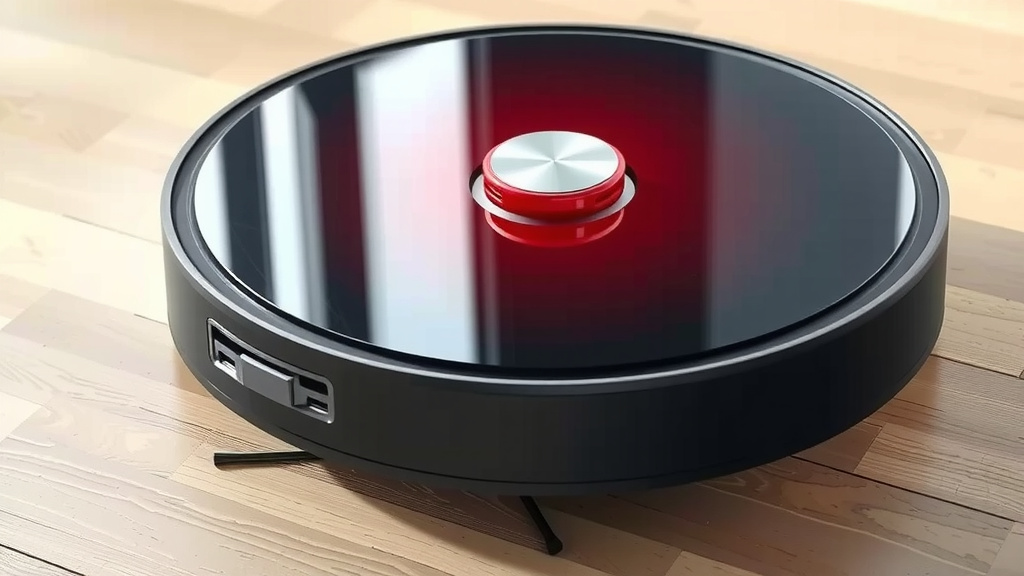
How to Factory Reset Xiaomi Robot Vacuum
You can easily factory reset your Xiaomi robot vacuum to its original settings. This process is helpful if you’re experiencing performance issues or want to connect it to a new Wi-Fi network. A factory reset erases all custom settings and data.
When your Xiaomi vacuum acts up, a reset can often be the simplest solution. We found that this step helps resolve common connectivity problems and stubborn glitches. It’s like giving your robot a fresh start.
- Quickly resets your Xiaomi robot vacuum.
- Solves many common operational problems.
- Erases custom maps and Wi-Fi settings.
- Prepares the robot for a new user or setup.
Let’s walk through exactly how to perform a factory reset on your Xiaomi robot vacuum, step by step.
Restoring Your Xiaomi Robot Vacuum to Factory Settings
When your Xiaomi robot vacuum isn’t performing as expected, a factory reset can often be the fix you need. This process returns the device to its original out-of-the-box state. It’s a bit like hitting the refresh button for your cleaning companion.
Why You Might Need to Reset Your Xiaomi Vacuum
There are several good reasons why you might consider a factory reset. Sometimes, your vacuum might start behaving oddly. It could be struggling with connectivity issues. Perhaps it’s no longer responding to commands from the app. Or maybe it’s getting stuck in peculiar places. Resetting can clear out these glitches.
Another common reason is when you plan to sell your robot or give it to someone else. A factory reset ensures all your personal data and custom settings are removed. This protects your privacy. It also makes it easier for the new owner to set it up from scratch.
Think of it this way: if your computer was acting up, you might consider reinstalling the operating system. A factory reset is similar for your robot vacuum. It wipes the slate clean, helping to resolve software bugs or conflicts.
Understanding What a Factory Reset Does
It’s important to know what happens during a reset. A factory reset will:
- Erase all saved Wi-Fi network information. Your robot will forget its connection to your home network.
- Delete all custom maps it has created. If you’ve set up no-go zones or virtual walls, these will be gone.
- Remove any saved cleaning schedules. You’ll need to set these up again.
- Reset all user preferences and settings. This includes things like suction power modes and water flow levels.
- Return the device’s firmware to its original state. It’s like a fresh installation.
Essentially, you’re returning the vacuum to its default configuration. You will need to set it up again through the Mi Home app, just like when you first got it.
Performing the Factory Reset on Your Xiaomi Robot Vacuum
The exact steps can vary slightly depending on your specific Xiaomi robot vacuum model. However, most models follow a similar procedure. We’ve found that the key is usually a combination of pressing and holding buttons on the device itself.
Step-by-Step Guide to Resetting
Let’s go through the typical process. You’ll need your robot vacuum handy.
Locate the Reset Button (or Combination)
Most Xiaomi robot vacuums have a physical reset function. This is often a small button. Sometimes it’s recessed, requiring a pin or paperclip to press. Other times, it’s a combination of pressing and holding the main power or home buttons.
We found that on many popular models, you’ll need to look for a small hole labeled “reset” or press and hold the “power” and “home” buttons simultaneously. Consult your robot’s manual if you’re unsure. The manual is always the most accurate guide for your specific model.
Initiating the Reset Sequence
Once you’ve found the correct button or button combination, it’s time to start the reset. Here’s what to do:
- Ensure the robot is powered on. Most reset procedures require the device to be active.
- Press and hold the designated reset button(s). This is the most critical part. You usually need to hold them down for a specific duration. We’ve seen durations ranging from 5 to 15 seconds.
- Listen for an indicator. Many robots will emit a sound or a series of beeps to confirm the reset is in progress. The power light might also change or flash.
- Release the button(s) once confirmation is heard or seen. Don’t hold them longer than necessary.
Some users have reported that holding the buttons until you hear a specific confirmation sound is the best method. It’s a good idea to have your robot’s manual nearby just in case your model has unique instructions.
Using the Mi Home App for Reset (If Applicable)
For some Xiaomi robot vacuum models, especially newer ones, you might also be able to perform a factory reset directly through the Mi Home app. This can be a more convenient option if your robot is still connected and functioning within the app.
Here’s how you might do it via the app:
- Open the Mi Home app on your smartphone.
- Select your Xiaomi robot vacuum from your list of devices.
- Navigate to the device’s settings menu. This is usually represented by a gear icon or three dots.
- Look for an option like “Factory Reset,” “Restore Default Settings,” or “Reset Device.” The exact wording can differ.
- Confirm your choice. The app will likely ask you to confirm that you want to proceed with the reset.
We found that using the app is straightforward if your robot is responsive. However, if you’re having app connectivity issues, the physical button method is your reliable fallback. Remember, even if you reset through the app, it’s often good practice to double-check with the physical buttons if the app reset doesn’t seem to fully clear all settings.
What to Do After Resetting Your Robot
After you’ve successfully reset your Xiaomi robot vacuum, it’s essentially a brand-new device from a software perspective. You’ll need to go through the initial setup process again.
Reconnecting to Your Wi-Fi and the App
The first thing you’ll need to do is reconnect your robot to your home Wi-Fi network. This involves:
- Putting the robot into pairing mode. This is often done by pressing and holding specific buttons, similar to the reset process but for a shorter duration. Your manual will specify this.
- Using the Mi Home app to add a new device.
- Selecting your Wi-Fi network and entering the password.
Make sure your phone is connected to the same 2.4GHz Wi-Fi network that you intend to use for the robot. Many smart home devices, including robot vacuums, do not support 5GHz networks.
Re-establishing Your Cleaning Preferences
Once your robot is connected, you’ll want to reconfigure your cleaning settings:
- Allow the robot to map your home again. You might need to place it in a starting position and let it roam to create a new map.
- Set up any desired no-go zones or virtual walls.
- Create or re-establish your cleaning schedules based on your routine.
- Adjust suction power and water flow settings as needed.
This might seem like a lot of work, but it’s crucial for getting your robot back to efficiently cleaning your home. It’s a small price to pay for a fully functional device again.
Troubleshooting Common Reset Issues
What if the reset doesn’t seem to work? Here are a few things to check:
- Did you hold the buttons long enough? This is the most common mistake. Try holding them for a few extra seconds.
- Is the robot powered on? Some resets only work when the unit has power.
- Are you using the correct buttons? Double-check your model’s manual.
- Is the app version up-to-date? Sometimes outdated apps can cause issues.
- Consider a firmware update. If the reset didn’t resolve persistent problems, a firmware issue might be at play. Check the Mi Home app for any available updates after you’ve reconnected.
We found that patience is key. Sometimes, a second attempt at the reset process is all it takes. If you’re still experiencing trouble, reaching out to Xiaomi customer support might be your next best step.
Conclusion
You’ve learned how to give your Xiaomi robot vacuum a fresh start by performing a factory reset. This simple process can resolve many performance and connectivity issues, making it a great troubleshooting step. Remember that a reset erases all custom settings, so be prepared to set up your Wi-Fi, maps, and schedules again. By following the physical button or app-based reset methods, you can easily restore your robot to its original state. If you encounter persistent problems, consider reaching out to Xiaomi support.
Your next step is to perform the reset and enjoy a smoothly functioning robot vacuum once more!
Frequently Asked Questions
Will a factory reset remove my robot’s map?
Yes, a factory reset will erase all saved maps, including any no-go zones or virtual walls you’ve configured. You will need to allow your robot to remap your home after the reset and reconfigure these settings.
Can I reset my Xiaomi robot vacuum using just the app?
For many models, you can initiate a factory reset directly through the Mi Home app. This is convenient if your robot is still connected and responsive. However, if you’re experiencing app connectivity issues, the physical button method is a reliable alternative.
What if my robot vacuum doesn’t respond after the reset?
If your robot doesn’t respond, ensure you held the reset buttons for the correct duration and that the unit was powered on. Double-check your model’s manual for exact instructions. Sometimes, a second reset attempt or checking for firmware updates in the app can resolve issues.
Does a factory reset delete my user account information?
A factory reset removes the robot’s association with your account and Wi-Fi network, effectively preparing it for a new setup. It is designed to clear personal data and custom configurations, protecting your privacy if you’re selling or gifting the device.
How long should I hold the reset buttons on my Xiaomi robot vacuum?
The duration for holding the reset buttons typically ranges from 5 to 15 seconds, but this can vary by model. You’ll usually hear a confirmation sound or see a light indicator when the reset is in progress. Always refer to your robot’s manual for the precise timing.
![7 Best Robot Vacuum Under $600 [2026]](https://robotvacuumfact.com/wp-content/uploads/2026/09/7-best-robot-vacuum-under-600-2026-featured-768x432.jpg)
![7 Best Deebot Robot Vacuum [2026]](https://robotvacuumfact.com/wp-content/uploads/2026/08/7-best-deebot-robot-vacuum-2026-featured-768x432.jpg)