Map Your Robot Vacuum for Smarter Cleaning
Mapping your robot vacuum is surprisingly simple and often automated by the device itself. Most smart robot vacuums create a map of your home during their first few cleaning runs to plan efficient routes and avoid obstacles. This mapping process helps your robot vacuum clean more effectively and allows you to set no-go zones or target specific rooms.
Understanding how your robot vacuum maps your space can save you time and frustration. The technology typically uses sensors like LiDAR or cameras to navigate. This allows it to learn the layout, identify furniture, and remember where it has already cleaned, ensuring a thorough job every time. Many models also allow you to customize the map through their companion app.
- Robot vacuums map your home automatically.
- Sensors like LiDAR help them learn the layout.
- Mapping allows for efficient cleaning and custom zones.
- You can usually adjust the map via a smartphone app.
- This technology prevents them from getting lost or stuck.
Let’s walk through exactly how this works step by step and what you can do with your robot vacuum’s map.
Getting Your Robot Vacuum to Map Your Home
Mapping is how your robot vacuum learns its way around. Think of it like giving your robot a brain for navigation. It needs to understand the layout of your house. This allows it to clean every accessible area. It also helps it avoid getting stuck. Mapping is usually a hands-off process for you.
How Robot Vacuums Understand Your Space
Robot vacuums use a few different technologies. These help them build a map of your home. Most modern vacuums use sensors to see their surroundings. This is similar to how we use our eyes.
Sensors: The Robot’s Eyes and Ears
Your robot vacuum has various sensors. These help it detect walls, furniture, and stairs. Some common types include:
- Infrared Sensors: These help the vacuum detect objects and prevent collisions. They also help it spot drop-offs like stairs.
- Bump Sensors: These are physical sensors. They trigger when the vacuum gently bumps into something. This tells it to change direction.
- Wall Sensors: These keep the vacuum a set distance from walls. This helps it clean along edges effectively.
Mapping Technologies: LiDAR vs. Cameras
Beyond basic sensors, advanced mapping uses more sophisticated tech.
LiDAR (Light Detection and Ranging)
Many smart robot vacuums use LiDAR. This technology spins a laser scanner. It measures distances to objects around the vacuum. This creates a highly accurate 3D map. LiDAR works well in any lighting condition. It’s like a sonar for robots. We found that LiDAR systems are very precise for navigation. (Source: IEEE Spectrum)
vSLAM (Visual Simultaneous Localization and Mapping)
Other vacuums use cameras for mapping. This is often called vSLAM. The camera sees the room. It identifies features like door frames and furniture. The robot then builds a map based on these visual cues. vSLAM can be very effective. However, it might struggle in dark rooms. It relies on good lighting for accurate mapping. (Source: Science Robotics)
The Initial Mapping Run: Let Your Robot Explore
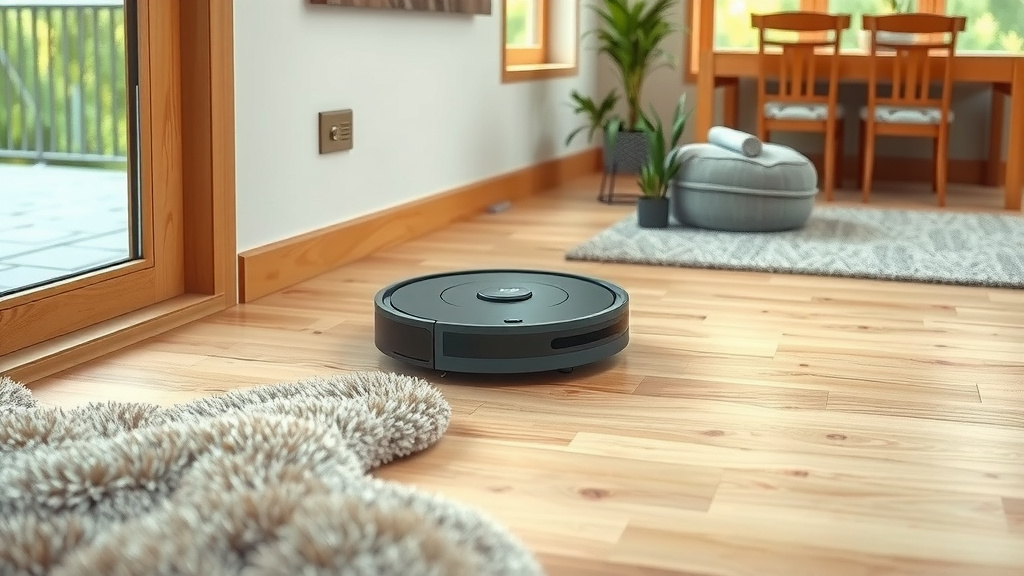
When you first set up your robot vacuum, it needs to map. You don’t typically need to do much. Just start a cleaning cycle. The robot will likely go into a mapping mode. It will move around your home. It will explore every accessible room. This first run might seem a bit random. The vacuum is gathering data. It’s building its first digital blueprint. We found that it’s best to let it complete this process uninterrupted. This ensures the most accurate map.
Preparing for the First Mapping Run
Before you start the mapping process, a little prep helps. Clear away small items from the floor. Think cords, toys, or shoes. These can get tangled. They might confuse the robot. Also, ensure the doors to rooms you want mapped are open. This allows the robot to access those areas. Good lighting is also beneficial, especially for camera-based models. Most experts suggest a clear floor for the initial mapping. (Source: Consumer Reports)
Using Your Robot Vacuum’s Map: Customization and Control
Once the map is created, it becomes a powerful tool. You can usually access it through a smartphone app. This is where the real magic happens. You gain a lot of control over how your vacuum cleans.
Viewing and Editing the Map
The app will display the map it has created. You can often see different rooms clearly outlined. Some apps let you name these rooms. You might call them “Kitchen,” “Living Room,” or “Bedroom 1.” This makes it easy to tell your robot where to clean. You can also see areas the robot identified as obstacles. These could be large furniture pieces. Some apps allow minor edits to the map. You can adjust room dividers if needed.
Setting Up No-Go Zones and Virtual Walls
This is a super useful feature. Have an area you don’t want the robot to clean? Maybe a pet’s food bowls or a delicate rug. You can draw a no-go zone on the map. The robot will avoid these areas entirely. This prevents messes or damage. Virtual walls work similarly. You can draw a line on the map. The robot will not cross this line. It’s perfect for blocking off doorways to rooms you don’t want cleaned sometimes.
Targeting Specific Rooms for Cleaning
Instead of running the vacuum all over the house, you can be specific. Want just the kitchen cleaned today? Select the “Kitchen” room in the app. The robot will navigate there. It will clean only that area. This is great for quick spot cleans. It also saves battery power. You can also set cleaning schedules for specific rooms. For instance, schedule the living room clean for evenings.
Maintaining and Updating Your Robot Vacuum’s Map
Your home isn’t static. You might move furniture. Or maybe you add a new shelving unit. Your robot vacuum’s map might become outdated. Most vacuums will automatically update the map as they clean. If you make significant changes, like adding a large piece of furniture, it’s a good idea to trigger a re-mapping. You can usually find an option for this in the app. Some models might ask if you want to update the map after detecting changes. This keeps its navigation accurate.
Troubleshooting Map Issues
What if the map looks wrong? Or the robot keeps getting lost? Here are a few things to check:
- Lighting: Ensure adequate light during mapping and cleaning, especially for camera models.
- Obstructions: Make sure the robot’s sensors are clean. Remove any debris.
- App Updates: Check if your robot vacuum’s app needs an update.
- Full Re-Map: If problems persist, try initiating a full re-map. Clear the old map and let the robot start fresh.
Most issues are resolved by ensuring a clean environment and a clear path for the robot. We found that regular maintenance is key. (Source: CNET Reviews)
Checklist: Getting the Best Map from Your Robot Vacuum
- Start a full cleaning cycle in a well-lit room.
- Ensure doors to all desired rooms are open.
- Clear the floor of small, loose items.
- Let the robot complete its first mapping run undisturbed.
- Download and explore the companion smartphone app.
- Familiarize yourself with no-go zones and room selection features.
Conclusion
Mapping your robot vacuum is a straightforward process. It allows your smart device to clean your home efficiently. You’ve learned how sensors and advanced tech like LiDAR create a digital blueprint. You also know how to initiate the mapping run and prepare your home for it. Most importantly, you understand how to use the map to control your vacuum’s cleaning habits. Take control of your cleaning routine. Use your robot vacuum’s mapping features to their full potential and enjoy a cleaner home with less effort.
Frequently Asked Questions
How long does it take for a robot vacuum to map my house?
The initial mapping process usually takes one to two cleaning cycles. Your robot vacuum needs time to explore and gather data. It’s best to let it complete this uninterrupted for the most accurate map. You might need to clear small obstacles before it begins.
What should I do if my robot vacuum’s map seems inaccurate?
First, ensure your room has adequate lighting, especially for camera-based models. Check that the robot’s sensors are clean and free of debris. If issues persist, try clearing the old map in the app and initiating a full re-mapping run. This often resolves navigation problems.
Can I edit the map if the robot divides my rooms incorrectly?
Most robot vacuum apps allow you to edit the map. You can often rename rooms, merge them, or split them apart. This helps you create a map that precisely matches your home’s layout. It ensures your robot cleans each area as you intend.
Do I need to keep the doors open for my robot vacuum to map all rooms?
Yes, you should leave the doors open to all rooms you want your robot vacuum to map. This allows it full access to explore and gather data from every area. If a door is closed, the robot won’t be able to enter and map that space.
Will my robot vacuum automatically update the map if I move furniture?
Many robot vacuums can detect changes and update their maps automatically. However, for significant furniture rearrangements, it’s often best to manually trigger a re-mapping. You can usually find this option in your robot vacuum’s smartphone app to ensure accuracy.