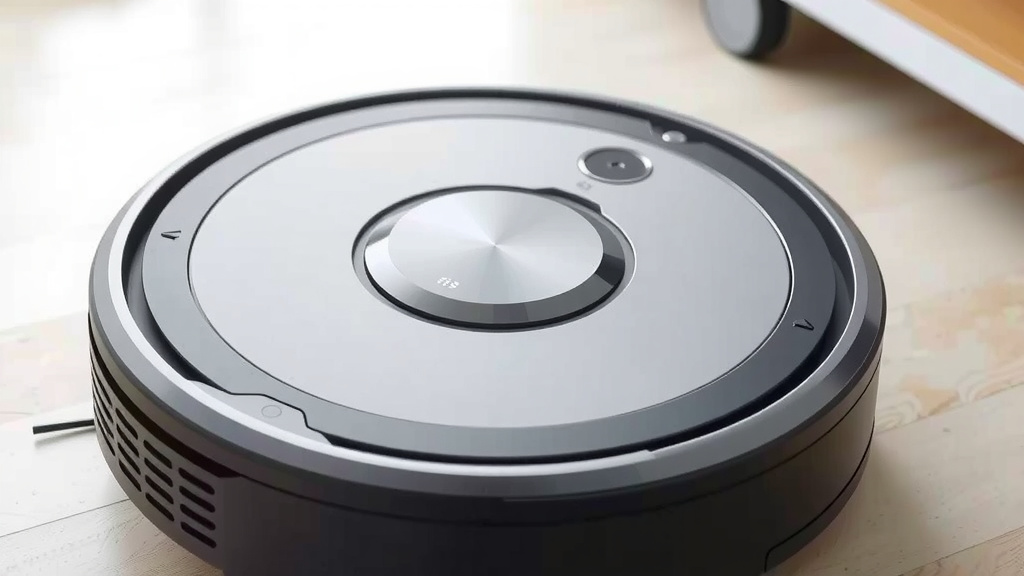
Program Your Robot Vacuum: A Step-by-Step Guide
Yes, you can absolutely program your robot vacuum to clean your home on a schedule. Most modern robot vacuums come with easy-to-use apps that let you set cleaning times and zones. This means you can have your floors cleaned automatically without lifting a finger. It’s a great way to keep your home tidy with minimal effort.
Programming your robot vacuum can save you a lot of time. You can set it to clean while you’re at work or even while you sleep. Many models also allow for customizable cleaning patterns. This ensures your robot vacuum tackles dirt and debris efficiently. You might even discover hidden dust bunnies!
- Set custom cleaning schedules via a smartphone app.
- Define specific cleaning zones or rooms.
- Adjust suction power and cleaning modes.
- Receive notifications about cleaning progress.
- Schedule maintenance like emptying the dustbin.
Let’s walk through exactly how you can program your robot vacuum to fit your lifestyle and get your home sparkling clean.
Getting Your Robot Vacuum to Clean on Command
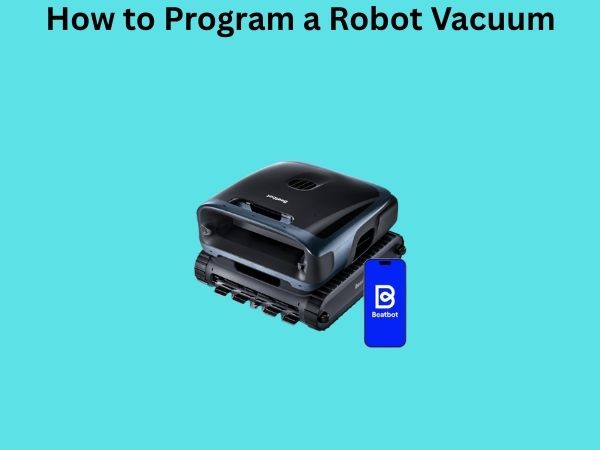
Programming your robot vacuum is simpler than you might think. Most modern vacuums connect to a smartphone app. This app is your command center. You’ll use it to set schedules and customize cleaning. Let’s get your robot working for you!
Connecting Your Robot to Your Home Network
Before you can program anything, your robot vacuum needs to be online. This usually involves connecting it to your home’s Wi-Fi network. It’s a bit like adding a new smart device to your home.
Downloading the Right App
First things first: you’ll need the correct mobile application. Check your robot vacuum’s manual or the manufacturer’s website. They will tell you which app to download. Most are available for both iOS and Android devices. You can find them in the App Store or Google Play Store.
The Initial Setup Process
Once you have the app, open it. You’ll likely need to create an account. Then, the app will guide you through connecting your robot vacuum. This often involves putting the vacuum in pairing mode. Follow the on-screen instructions carefully. It usually requires you to enter your Wi-Fi password.
Troubleshooting Connection Issues
Sometimes, getting connected can be a little tricky. If you run into problems, try restarting your router and your robot vacuum. Make sure your Wi-Fi network is 2.4GHz, as some robots don’t support 5GHz bands. You might also want to check that your robot is close enough to the router during setup.
Setting Up Your Cleaning Schedules
This is where the magic happens. Scheduling allows your robot to clean without you needing to be there. You can set it to run at times that are most convenient for you.
Creating a Basic Cleaning Schedule
Open your robot vacuum’s app. Look for a “Schedule” or “Timer” option. Here, you can usually set specific days and times for cleaning. For example, you might want it to clean every weekday at 10 AM. Or perhaps you prefer it to run on Saturdays and Sundays.
You can often set multiple schedules. This gives you flexibility. Imagine waking up to clean floors every morning! It’s a **wonderful way to maintain a tidy home**.
Advanced Scheduling Options
Some apps offer more detailed scheduling. You might be able to choose which rooms to clean at specific times. Or you could set different cleaning modes for different days. For instance, a quick vacuum on weekdays and a deeper clean on weekends. Research shows that **consistent cleaning reduces allergens** (Cleveland Clinic).
Adjusting Cleaning Modes and Power
Within the schedule settings, you can often select the cleaning mode. Options might include Auto, Edge Cleaning, or Spot Cleaning. You can also usually adjust the suction power. Higher suction is great for carpets. Lower suction is good for hard floors and saves battery life.
Mapping Your Home for Smarter Cleaning
Many newer robot vacuums can map your home. This feature is a game-changer. It allows for more efficient and targeted cleaning.
How Mapping Works
When you first start your robot, it will explore your home. It uses sensors to build a map. This map shows the layout of your rooms, furniture, and obstacles. You’ll typically see this map appear in your app. It helps the robot navigate more intelligently.
Defining Cleaning Zones and No-Go Areas
Once your robot has mapped your home, you can get specific. Apps often let you divide the map into rooms. You can then tell your robot to clean specific rooms at specific times. Want the kitchen cleaned after dinner? No problem.
You can also set “No-Go Zones.” These are areas you want your robot to avoid. Think of a pet’s water bowl or a particularly cluttered corner. This **prevents potential mishaps** and ensures your robot cleans where you want it to.
Virtual Walls vs. Physical Barriers
Some older models might use physical “virtual wall” devices. These create an invisible barrier. Your robot will not cross it. Most modern robots use the app-based mapping for this. It’s far more convenient.
Maintenance Reminders and Notifications
Programming isn’t just about cleaning schedules. Your robot vacuum also needs a little care. Many apps will remind you about maintenance tasks.
Essential Maintenance Tasks
Key tasks include emptying the dustbin, cleaning the brushes, and wiping down sensors. Over time, these parts can get clogged with dust and hair. Keeping them clean ensures your robot works efficiently.
Receiving App Notifications
Your app will likely send you notifications. You’ll be alerted when the dustbin is full. You might also get reminders to clean the filter or brushes. Some apps even notify you when cleaning is complete or if the robot encounters an issue. These alerts are **super helpful for keeping your robot in top shape**.
Tips for Effective Robot Vacuum Programming
Here are a few extra tips to make the most of your programmed robot vacuum.
- Start simple: Don’t try to set up every advanced feature at once. Get a basic schedule running first.
- Observe your robot: Watch how it cleans initially. This helps you identify any potential issues or areas it misses.
- Adjust as needed: Your cleaning needs might change. Don’t be afraid to tweak your schedules and settings.
- Keep it charged: Ensure your robot returns to its dock regularly. A fully charged robot is always ready to go.
- Clear the clutter: While robots are smart, they can get stuck on cords or small objects. Tidy up before scheduled cleanings for best results.
Conclusion
You’ve learned how to program your robot vacuum for a cleaner home with less effort. Connecting to Wi-Fi and using the app are the first steps. Setting custom schedules and defining cleaning zones makes your robot work efficiently. Remember to keep up with maintenance reminders too. Start with basic schedules and adjust as you go. Your robot vacuum can truly simplify your cleaning routine. Try setting up your first schedule today and enjoy your sparkling floors!
Frequently Asked Questions
Can I program my robot vacuum to avoid certain areas?
Yes, most modern robot vacuums with mapping capabilities allow you to set up “No-Go Zones” within their smartphone apps. This is perfect for areas like pet food bowls or fragile decor. You can easily draw these boundaries on the map in the app.
What happens if my robot vacuum gets stuck?
If your robot vacuum gets stuck, it will usually stop and send a notification to your smartphone app. You can then go and free it. Some advanced models can even attempt to navigate themselves out of minor jams.
Do I need a strong Wi-Fi signal for my robot vacuum?
A stable Wi-Fi connection is important, especially for initial setup and receiving commands. While it doesn’t need an ultra-strong signal to operate, it should be within range of your router. Many robots work best on a 2.4GHz network band.
How often should I empty the dustbin?
This depends on your home and how often you run your vacuum. Many apps will notify you when the dustbin is full. For best performance, it’s generally recommended to empty it after each cleaning cycle, especially if you have pets.
Can I control my robot vacuum when I’m not home?
Absolutely! As long as your robot vacuum is connected to your Wi-Fi network and you have the app on your smartphone, you can usually start, stop, and schedule cleanings remotely from anywhere. This is one of the biggest conveniences of these devices.
![7 Best Robot Vacuum For Hardwood Floors Reddit [2026]](https://robotvacuumfact.com/wp-content/uploads/2026/08/7-best-robot-vacuum-for-hardwood-floors-reddit-2026-featured-768x432.jpg)