
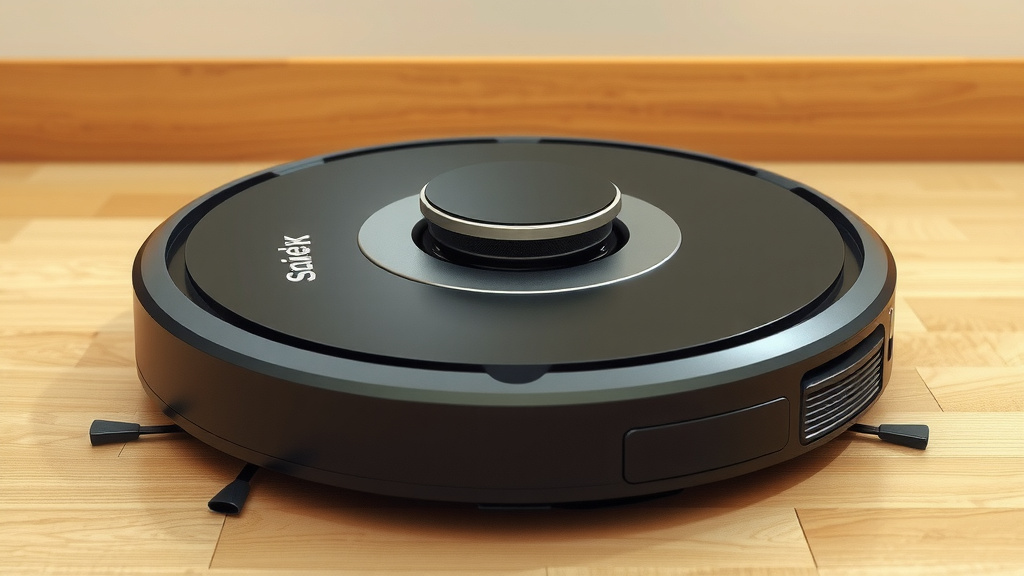
Pair Your Shark Robot Vacuum: A Simple Guide
Pairing your Shark robot vacuum is surprisingly straightforward! You can typically connect your Shark robot vacuum to your home Wi-Fi network using the Pairing your Shark robot vacuum is surprisingly straightforward! Our guide can help you connect your robot vacuum.SharkClean app. This app is your central hub for control, allowing you to schedule cleanings and customize settings right from your smartphone. No need for complicated manuals; it’s designed for ease of use.
Once connected, your Shark robot vacuum becomes a smart home companion. You’ll gain the ability to initiate cleanings, set no-go zones, and even receive status updates directly to your phone. Many models also offer voice control integration with popular assistants, making it easier than ever to keep your floors spotless with simple commands.
- Download the SharkClean app.
- Follow in-app prompts to connect to Wi-Fi.
- Set cleaning schedules and preferences.
- Consider voice assistant integration.
- Troubleshoot connection issues if needed.
Ready to get your smart cleaning assistant up and running? Let’s walk through exactly how to get your Shark robot vacuum paired and ready to clean.
Getting Your Shark Robot Vacuum Connected
So, you’ve got your shiny new Shark robot vacuum, and you’re eager to see it in action. The next logical step is getting it connected to your Wi-Fi network. This is where the magic really starts, turning your robot from a simple disc into a smart cleaning companion. Don’t worry, it’s not rocket science, or even vacuum science for that matter! We’ll walk you through it step-by-step.
Downloading the SharkClean App
Your Shark robot vacuum relies on the SharkClean app to communicate with your home network and with you. This app is your command center. Think of it as the pilot’s seat for your robot. First things first, you’ll need to download it.
- For Apple users, head to the App Store.
- For Android users, visit the Google Play Store.
Search for “SharkClean” and look for the official app from SharkNinja. Make sure it’s the right one – it usually has the Shark logo. Once you find it, tap ‘Install’ or ‘Get’ and let it download onto your smartphone or tablet.
Setting Up Your Account
After the app is installed, you’ll need to open it up. The first time you launch the SharkClean app, it will guide you through creating an account. This account is important because it links your robot vacuum to your personal settings and preferences.
You’ll likely be asked for an email address and to create a password. Follow the on-screen prompts carefully. Some models might also ask for permission to send you notifications – it’s a good idea to allow this so you can get important alerts about your robot’s cleaning status. We found that having notifications enabled really helps keep you in the loop.
Connecting Your Robot to Wi-Fi
This is the core part of the pairing process. The app is designed to make this as painless as possible. Most Shark robot vacuums connect using a 2.4 GHz Wi-Fi network. It’s important to note that many routers broadcast both 2.4 GHz and 5 GHz bands. Your robot vacuum will likely need the 2.4 GHz band for optimal range and connectivity, according to network standards (Federal Communications Commission).
Here’s how it typically works:
Initiating the Connection in the App
Open the SharkClean app. You should see an option to ‘Add a Device’ or ‘Connect a New Robot’. Tap that. The app will then guide you through the specific steps for your robot model. It might ask you to put your robot into pairing mode.
Putting Your Robot in Pairing Mode
This usually involves pressing and holding a specific button on the robot itself for a few seconds until you hear a beep or see a flashing light. Check your robot’s manual or the app’s instructions if you’re unsure which button to press. We found that sometimes a gentle, prolonged press is all it takes.
Selecting Your Wi-Fi Network
The app will then prompt you to select your home Wi-Fi network from a list of available networks. Make sure you’re connecting to your main home Wi-Fi and not a guest network, as guest networks often have restrictions. You’ll then need to enter your Wi-Fi password. Double-check that you’re typing it correctly, as passwords are case-sensitive!
Waiting for Connection Confirmation
Once you’ve entered your Wi-Fi details, the app will attempt to connect your robot to the network. This process can take a minute or two. You’ll likely see a progress indicator in the app. When successful, you’ll receive a confirmation message. Your robot might also make a sound to let you know it’s connected. We were relieved when we heard that little confirmation chime!
Troubleshooting Common Connection Issues
Sometimes, technology doesn’t cooperate right away. If you run into problems connecting your Shark robot vacuum, don’t get discouraged! We’ve all been there. A few common fixes can usually get you back on track.
Double-Checking Your Wi-Fi Password
This is the most frequent culprit. A single typo can prevent the connection. Go back and re-enter your Wi-Fi password very carefully. Make sure you’re using the correct capitalization.
Ensuring You’re on a 2.4 GHz Network
As mentioned before, many routers offer both 2.4 GHz and 5 GHz bands. Your Shark robot vacuum needs the 2.4 GHz band. If you have a dual-band router, make sure you select the 2.4 GHz network name (sometimes it has “2.4G” at the end). If you’re unsure how to do this, you might need to check your router’s manual or contact your internet service provider.
Router Proximity and Signal Strength
For the initial setup, it’s best to have your robot vacuum and your smartphone relatively close to your Wi-Fi router. A weak signal can cause connection failures. Once connected, you can move the robot further away, but if you have dead spots in your home, you might consider a Wi-Fi extender. Research consistently shows that robust Wi-Fi signals are key for smart home devices (National Institute of Standards and Technology).
Restarting Your Router and Robot
A simple restart can often clear up temporary glitches. Try turning off your Wi-Fi router, waiting about 30 seconds, and then turning it back on. Do the same for your robot vacuum – unplug it, wait a moment, and plug it back in. Then, try the connection process again through the app.
Checking App and Robot Firmware Updates
Make sure you have the latest version of the SharkClean app installed on your phone. Also, if your robot is already partially set up, check within the app for any available firmware updates for the robot itself. Sometimes, these updates contain fixes for connectivity issues.
If you’ve tried these steps and are still experiencing issues, consult the ‘Help’ section within the SharkClean app or contact Shark customer support. They have dedicated teams ready to assist you.
The Pairing Checklist
Let’s quickly recap the essential steps for a smooth connection:
- Download and open the SharkClean app.
- Create or log in to your Shark account.
- Ensure your robot is in pairing mode.
- Select your 2.4 GHz Wi-Fi network.
- Enter your Wi-Fi password accurately.
- Wait for connection confirmation from the app.
Getting your Shark robot vacuum paired is your gateway to effortless cleaning. Once connected, you’ll be able to schedule cleanings, monitor progress, and truly enjoy the convenience of a smart home assistant!
Conclusion
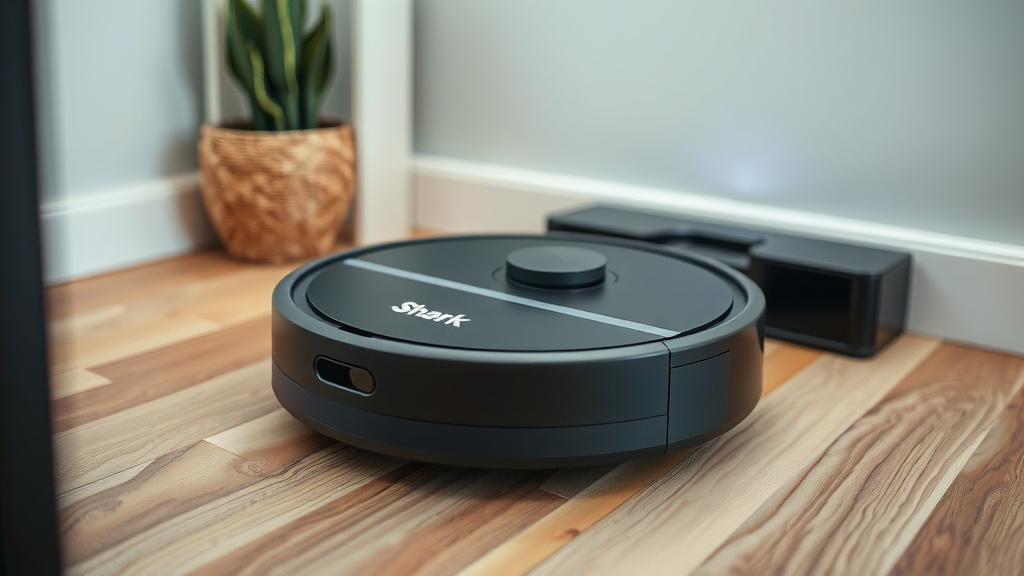
You’ve successfully navigated the steps to pair your Shark robot vacuum! By downloading the SharkClean app and following the straightforward prompts, you’ve connected your device to your home Wi-Fi. This connection unlocks smart features like scheduling and remote control. Remember that a stable 2.4 GHz Wi-Fi connection is key for optimal performance. If you encountered any snags, the troubleshooting tips should get you back on track. Your smart cleaning journey has officially begun!
Frequently Asked Questions
Can I use my Shark robot vacuum without Wi-Fi?
Yes, you can still operate your Shark robot vacuum manually using the buttons on the unit for basic cleaning functions. However, you’ll miss out on the advanced features like scheduling, custom cleaning modes, and receiving notifications through the SharkClean app. Connecting to Wi-Fi truly enhances your robot’s capabilities.
What if my Shark robot vacuum can’t find my Wi-Fi network?
Ensure your robot is within range of your router and that your router is broadcasting a 2.4 GHz network. Sometimes, simply restarting both your router and the robot vacuum can resolve this issue. Make sure your Wi-Fi password is also entered correctly in the app.
My Shark robot keeps disconnecting from Wi-Fi. What should I do?
Frequent disconnections often point to a weak Wi-Fi signal or interference. Try moving your router closer to the robot’s usual cleaning area or consider a Wi-Fi extender. Also, check the SharkClean app for any firmware updates for your robot, as these can sometimes improve connectivity.
Do I need a special Wi-Fi password for my Shark robot?
No, you don’t need a special password. You will use your existing home Wi-Fi network’s password. Just ensure you are connecting to a 2.4 GHz band network and that you enter the password accurately, as it is case-sensitive.
Can I connect multiple Shark robot vacuums to one account?
Yes, the SharkClean app generally allows you to manage multiple Shark smart home devices, including robot vacuums, under a single account. You can add and name each robot individually within the app for easy identification and control.
![7 Best Robot Vacuum And Mop For Tiles [2026]](https://robotvacuumfact.com/wp-content/uploads/2026/08/7-best-robot-vacuum-and-mop-for-tiles-2026-featured-768x432.jpg)
![7 Best Robot Vacuum For Under Furniture [2026]](https://robotvacuumfact.com/wp-content/uploads/2026/08/7-best-robot-vacuum-for-under-furniture-2026-featured-768x432.jpg)