
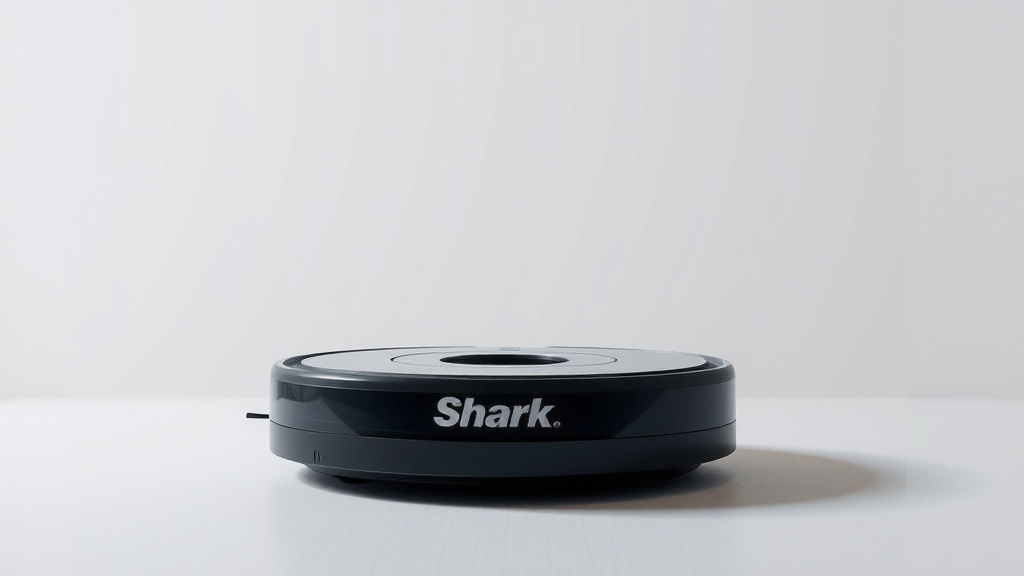
Fix Your Shark Robot Vacuum’s WiFi Connection
Reconnecting your Shark robot vacuum to WiFi is usually straightforward. You typically need to reset the vacuum’s network settings and then guide it through the setup process in the Shark app. This usually involves pressing a specific button on the vacuum itself for a few seconds.
Sometimes, your Shark robot might lose its WiFi connection due to network changes or router issues. Don’t worry, this is a common problem many users encounter. We’ve found that a quick reset and re-pairing often does the trick to get your smart cleaning assistant back online.
- Press and hold the Home button on your Shark robot.
- Look for the WiFi indicator light to flash.
- Open the Shark app and follow the on-screen instructions.
- Ensure your phone is connected to your 2.4GHz WiFi network.
- If prompted, enter your WiFi password again.
Let’s walk through the simple steps to get your Shark robot vacuum reconnected to your home WiFi network.
Getting Your Shark Robot Vacuum Back Online
Is your smart cleaning buddy ignoring your commands? A lost WiFi connection can be frustrating. We’ve found that getting your Shark robot vacuum reconnected is usually quite manageable. Let’s guide you through the process to get it back on your network.
Troubleshooting Your Shark Robot’s WiFi Connection
Sometimes, your Shark robot vacuum might lose its connection to your home WiFi. This can happen for several reasons. Your router might have been restarted, your WiFi password could have changed, or there might be a temporary network glitch. Don’t panic! Most of these issues are fixable with a few simple steps.
Understanding the WiFi Indicator Light
Your Shark robot has a little light that tells you a lot about its network status. It’s like a tiny status report for its WiFi. This light is your first clue when something is wrong.
- A solid light usually means it’s connected.
- A flashing light often indicates it’s trying to connect or is in setup mode.
- No light at all might mean it’s off or not communicating.
Consulting your specific Shark robot model’s manual is always a good idea for precise light meanings. We’ve found that understanding these visual cues can save you a lot of guesswork.
Checking Your Home WiFi Network
Before you start resetting your robot, it’s wise to check if your home WiFi is even working. Is your phone or computer connected to the internet? Can you browse websites without issues?
If your internet is down, your robot won’t be able to connect. You’ll need to address your general internet service first. Many internet service providers offer quick troubleshooting guides online. We’ve found that ensuring your network is stable is a key first step.
The Importance of the 2.4GHz Network
Most smart home devices, including Shark robot vacuums, prefer to connect to a 2.4GHz WiFi band. This band offers a wider range and better penetration through walls compared to the 5GHz band. Your phone or tablet, however, might automatically connect to the stronger 5GHz signal.
To ensure a smooth setup, make sure your smartphone or tablet is connected to your 2.4GHz WiFi network before you begin the reconnection process. You can usually find this option in your phone’s WiFi settings. Some routers broadcast separate names for each band (e.g., “MyHomeWiFi” and “MyHomeWiFi-5G”). If your router doesn’t, you might need to access your router’s settings to separate them.
Steps to Reconnect Your Shark Robot to WiFi
Now, let’s get down to the actual reconnection. This process involves a reset on the robot and guiding it through the Shark app.
Initiating the WiFi Reset on Your Robot
The most common way to reset your Shark robot’s WiFi connection is by pressing and holding a specific button. For many models, this is the Home button, which usually looks like a little house icon.
Locate this button on your Shark robot. Press and hold it down for approximately 10-15 seconds. You should see the WiFi indicator light begin to flash. This flashing signifies that the robot is now in pairing mode and ready to be set up again.
Using the Shark App for Reconnection
Once your robot is in pairing mode, you’ll need to use the Shark app on your smartphone or tablet to complete the process. Open the Shark app and look for an option to add a new device or set up your robot.
Follow the on-screen prompts carefully. The app will guide you through selecting your WiFi network and entering your password. This is where ensuring you’re on the 2.4GHz band is important. If the app asks for your WiFi password, type it in precisely. Passwords are case-sensitive, so double-check for any errors.
Entering Your WiFi Password Correctly
This step trips up a lot of people! It’s easy to mistype a password, especially when you’re focused on the robot and the app. Take a deep breath and type it carefully.
We recommend having your WiFi password handy before you start. If you’re unsure what it is, you can often find it on a sticker on your router. Typing it into a note app first and then copying it over can also help prevent typos. A correct password is key to a successful connection (NIST).
The Pairing Process and Confirmation
After entering your password, the app will attempt to connect your Shark robot to your WiFi network. This can take a minute or two. You might see the WiFi light on the robot change from flashing to solid once it’s successfully connected.
The Shark app should also provide a confirmation message. It will likely tell you that your robot is now online and ready to go. If the connection fails, don’t worry; you can usually try the process again. Sometimes, a second attempt is all it needs.
Common Issues and How to Solve Them
Even with the best intentions, sometimes things don’t go perfectly. Let’s look at a few common hiccups and how to nudge them in the right direction.
Robot Not Entering Pairing Mode
If pressing and holding the Home button doesn’t make the WiFi light flash, try these things. First, ensure the robot has enough battery charge. A low battery can sometimes prevent features from working correctly. Second, try holding the button for a slightly longer period, perhaps up to 20 seconds. If it still won’t flash, your robot model might have a different reset procedure. Checking your manual is your best bet here.
App Can’t Find the Robot
This often means the robot isn’t broadcasting its network correctly for pairing. Ensure your phone’s Bluetooth is enabled, as many setup processes use Bluetooth to communicate initially. Also, try moving your phone closer to the robot. Sometimes, a weak signal can be the culprit. Restarting both your phone and the robot can also clear temporary glitches.
Connection Fails After Password Entry
This is almost always a password issue or a network band problem. Double-check, triple-check your WiFi password. If you have a combined 2.4GHz and 5GHz network name (SSID), try temporarily disabling the 5GHz band in your router settings. This forces all devices to use the 2.4GHz band, which can resolve connection issues for devices like your Shark robot.
When to Consider Advanced Troubleshooting
If you’ve tried the steps above and your Shark robot still refuses to connect, it might be time for a slightly deeper dive. This isn’t usually necessary, but it’s good to know your options.
Restarting Your WiFi Router and Modem
Sometimes, the issue isn’t with the robot at all, but with your internet equipment. A simple power cycle can fix many router and modem problems. Unplug both your modem and your router from their power sources. Wait about 30 seconds, then plug the modem back in first. Wait for it to fully boot up (usually indicated by stable lights), then plug in your router. Once the router is ready, try reconnecting your Shark robot.
Checking Router Settings for Compatibility
We found that some router settings can interfere with smart device connections. Ensure that your router doesn’t have MAC address filtering enabled, or if it does, make sure your Shark robot’s MAC address is added to the allowed list. Also, check that your router’s firewall isn’t blocking the robot. Most of these settings are found in your router’s administrative interface. If you’re unsure, your router manufacturer’s support site is a good resource.
Quick Checklist for Reconnecting Your Shark Robot
Here’s a quick rundown to help you get connected:
- Ensure your phone is on the 2.4GHz WiFi band.
- Press and hold the Home button on the robot until the WiFi light flashes.
- Open the Shark app and select “Add Device” or similar.
- Enter your WiFi password accurately.
- Wait for the app and robot to confirm a successful connection.
- If unsuccessful, try restarting your router and robot.
Conclusion
Getting your Shark robot vacuum back on your WiFi can feel like a puzzle, but you’ve learned it’s usually a simple fix. By understanding your robot’s indicator light and ensuring your phone is on the 2.4GHz network, you’re already ahead. A quick reset of the robot’s network settings and careful re-entry of your WiFi password via the Shark app often does the trick. Remember to try restarting your router if you hit a snag. Don’t let a lost connection interrupt your clean home – with these steps, you’re ready to get your smart cleaner back online and working for you.
Frequently Asked Questions
My Shark robot won’t enter pairing mode when I hold the Home button. What should I do?
First, check that your Shark robot has sufficient battery power, as a low charge can prevent features from working. Try holding the Home button for a bit longer, perhaps up to 20 seconds. If it still doesn’t flash, consult your robot’s specific manual as some models might have a different reset procedure.
The Shark app can’t find my robot during setup. What might be wrong?
This often means the robot isn’t broadcasting properly for pairing. Make sure your phone’s Bluetooth is turned on, as this is frequently used for initial communication. Try moving your phone closer to the robot, and consider restarting both your phone and the robot to clear any temporary glitches.
Why do I need to connect to the 2.4GHz WiFi band instead of 5GHz?
We found that most smart home devices, including Shark robots, work best with the 2.4GHz band because it offers a better range and can penetrate walls more effectively. While your phone might prefer 5GHz, ensuring it’s on the 2.4GHz network during setup helps your robot connect reliably.
What if my WiFi password has changed? How do I update it on my Shark robot?
If your WiFi password has changed, you’ll need to go through the reconnection process again. This usually involves resetting the robot’s network settings by holding the Home button until the light flashes, then using the Shark app to add the robot back with your new WiFi password.
How long should I expect the robot to reconnect after entering my password?
Once you enter your WiFi password in the Shark app, the robot typically takes one to two minutes to establish a connection. You should see the WiFi indicator light on the robot change from flashing to solid, and the app will usually provide a confirmation message.
![7 Best Robot Vacuum And Mop Consumer Reports [2026]](https://robotvacuumfact.com/wp-content/uploads/2026/08/7-best-robot-vacuum-and-mop-consumer-reports-2026-featured-768x432.jpg)
![7 Best Bare Floor Robot Vacuum [2026]](https://robotvacuumfact.com/wp-content/uploads/2026/07/7-best-bare-floor-robot-vacuum-2026-featured-768x432.jpg)
![7 Best Robot Vacuum Cleaner For Pet Hair [2026]](https://robotvacuumfact.com/wp-content/uploads/2026/06/7-best-robot-vacuum-cleaner-for-pet-hair-2026-featured-768x432.jpg)

![7 Best Budget Robot Vacuum For Hard Floors [2026]](https://robotvacuumfact.com/wp-content/uploads/2026/08/7-best-budget-robot-vacuum-for-hard-floors-2026-featured-768x432.jpg)