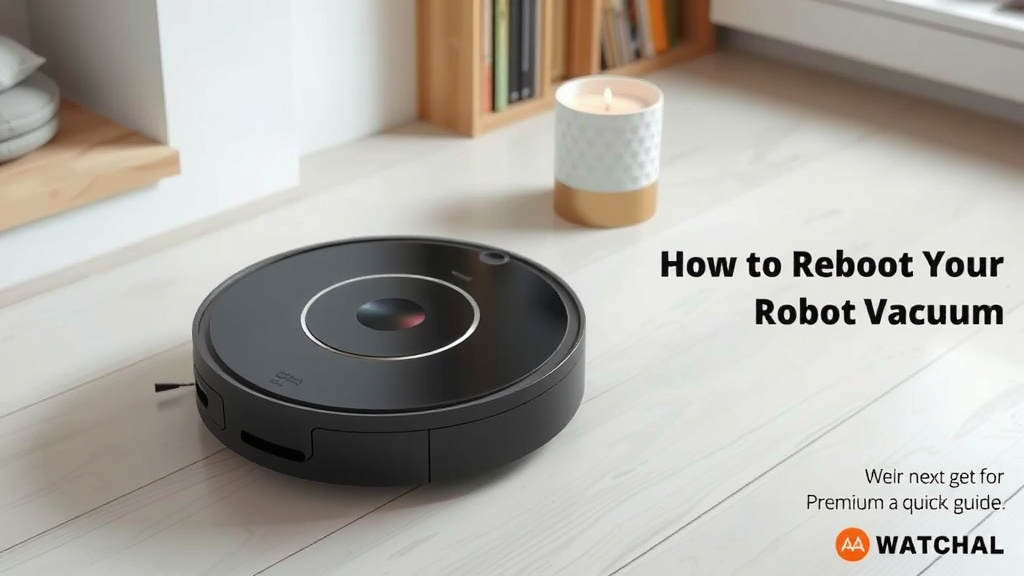
How to Reboot Your Robot Vacuum: A Quick Guide
Yes, you can absolutely reboot your robot vacuum. Most robot vacuums have a simple reset process that can fix common glitches. A quick reboot can often solve performance issues, like your vacuum getting stuck or not responding. It’s a great first step before calling for support.
When your trusty robot cleaner acts up, a simple restart is often the fix. We found that many user issues stem from minor software hiccups. Resetting can clear these up, getting your little helper back to cleaning your floors effectively. It’s a handy trick to know for any robot vacuum owner.
- When to reboot your robot vacuum.
- How to perform a hard reset.
- What a reboot can fix.
- When to seek professional help.
Ready to get your robot vacuum back in action? Let’s walk through the simple steps to give it a fresh start and troubleshoot common problems.
“`htmlGiving Your Robot Vacuum a Fresh Start
When your robot vacuum seems a bit off, like it’s forgetting its way around or acting a little sluggish, a simple restart can often work wonders. Think of it like restarting your computer when it gets confused; it clears out temporary glitches. We found that most minor issues can be resolved with this basic step. A simple restart can often resolve many issues, as detailed in our guide to fixing robot vacuums.
This guide will walk you through how to give your automated cleaning buddy a much-needed reboot. It’s a straightforward process designed to get your vacuum back to diligently cleaning your floors. Let’s get started!
When It’s Time to Reboot Your Robot Cleaner
You might be wondering if your robot vacuum is genuinely “stuck” or just needs a little digital nap. Here are some common signs that a reboot is in order. Paying attention to these can save you a lot of frustration.
Signs Your Robot Vacuum Needs a Restart
- Unresponsive Controls: If the buttons on your vacuum, or the app, aren’t doing anything, a reboot is a good next step.
- Navigation Problems: Is your vacuum bumping into walls repeatedly? Does it seem lost or stuck in a small area? This can indicate a software hiccup.
- Not Docking Properly: Sometimes, vacuums struggle to find their charging base. A restart can help reset its navigation sensors.
- Inconsistent Cleaning: If it’s skipping spots or not cleaning with its usual thoroughness, it might need a refresh.
- App Connectivity Issues: Trouble connecting to the app or seeing the vacuum’s status can often be fixed with a reboot.
The Difference Between Rebooting and Factory Resetting
It’s important to know that rebooting is different from a factory reset. A reboot is like a quick power cycle. It clears temporary memory and restarts the system, but it keeps all your settings and maps intact. A factory reset, on the other hand, wipes everything clean, returning your vacuum to its original state, much like when you first took it out of the box. We recommend trying a reboot first, as it’s less disruptive.
How to Perform a Robot Vacuum Reboot
The exact method for rebooting can vary slightly between brands and models. However, the general principle is usually the same: temporarily cut power to the device and then restore it. We found that this process typically takes just a few minutes.
Locating the Power Button or Reset Mechanism
Your first step is to find how your specific vacuum is powered off or reset. For most models, there’s a physical button on the unit itself. You might need to refer to your vacuum’s manual if you’re unsure. Check the top, sides, or even the underside of the robot.
The Standard Reboot Process
Here’s the most common way to reboot your robot vacuum:
- Turn it Off: Press and hold the power button on the robot vacuum. You might see a light turn off or hear a beep. Some vacuums have a specific “off” switch.
- Wait: Once powered off, unplug it from its charging base if it’s docked. Then, wait for about 60 seconds. This ensures all residual power drains.
- Power it Back On: Press the power button again to turn the vacuum back on. You should see indicator lights illuminate.
- Let it Reconnect: If your vacuum uses an app, give it a minute to reconnect to your Wi-Fi network.
Specific Reboot Instructions for Popular Brands (General Guidance)
While we can’t cover every model, here’s a general idea for some common types:
- iRobot Roomba: Often, you’ll press and hold the CLEAN button for about 10-20 seconds until the light ring around the button spins white. Then release.
- Shark ION Robot: Look for a power button on the unit. Press and hold it until the lights go off. Then press it again to turn it back on.
- Eufy RoboVac: Many Eufy models have a power button on top. Press and hold until it shuts down, then press and hold again to restart.
- Roborock: Similar to others, you’ll typically press and hold the power button until the unit powers down. Then press again to turn it on.
Always check your owner’s manual for the precise instructions for your model. It’s the most reliable source.
What a Reboot Can Help Fix
A simple reboot can resolve a surprising number of common issues that plague robot vacuums. It’s often the first line of defense against minor annoyances.
Common Problems Solved by Rebooting
- Minor Software Glitches: Like any electronic device, your vacuum runs on software. A reboot clears out temporary errors that can cause odd behavior.
- Connectivity Dropouts: If your vacuum frequently loses its Wi-Fi connection, a reboot can help re-establish a stable link.
- Navigation Stalls: When a vacuum gets confused about its location or gets stuck, a restart can reset its mapping and navigation systems.
- Unresponsive Buttons/App: As mentioned before, a reboot often brings unresponsive controls back to life.
- Less Frequent Issues: Sometimes, even problems like the vacuum not returning to its dock correctly can be solved by simply giving it a fresh start.
The Power of a Fresh Start
Think of it this way: when your phone acts up, what’s the first thing you do? Usually, you turn it off and on again. The same logic applies to your robot vacuum. We found that this simple act resets the internal processes, allowing the vacuum to start anew without its previous temporary errors. It’s a surprisingly effective troubleshooting step.
When a Reboot Isn’t Enough
While rebooting is a fantastic first step, it’s not always the magic bullet. If you’ve tried rebooting your robot vacuum and the problems persist, it might be time to consider other solutions.
Troubleshooting Beyond a Reboot
If your vacuum is still acting up after a reboot, you might need to:
- Check Sensors: Dust or debris on sensors can cause navigation issues. Clean them gently with a dry cloth.
- Clean Brushes and Filters: Clogged brushes or filters can impede performance.
- Check for Obstructions: Ensure there are no physical blockages preventing movement.
- Update Firmware: Some vacuums have firmware updates available through their app, which can fix bugs.
Seeking Professional Help
If none of these steps resolve the issue, or if you suspect a hardware problem, it’s best to contact the manufacturer’s customer support. They can offer more advanced troubleshooting or guide you through warranty claims if necessary. For example, if your vacuum is making unusual noises or has stopped charging altogether, it’s likely beyond a simple reboot. Many companies offer excellent support resources, and they are there to help you get your vacuum back in working order.
“`Conclusion
You’ve learned that rebooting your robot vacuum is a simple yet effective way to fix many common problems. From unresponsive controls to navigation glitches, a quick power cycle can often get your automated cleaner back on track. Remember, this process is different from a factory reset and preserves your settings. Always check your manual for brand-specific steps.
If rebooting doesn’t solve the issue, try cleaning sensors and brushes, or updating firmware. If problems persist, don’t hesitate to contact the manufacturer. Give your robot vacuum a fresh start today!
Frequently Asked Questions
How long should I wait after turning off my robot vacuum before turning it back on?
We recommend waiting about 60 seconds after powering off your robot vacuum. This ensures all residual power drains from the device, giving it a truly fresh start. This brief waiting period is key to clearing temporary memory glitches effectively.
Will rebooting my robot vacuum erase my cleaning maps and settings?
No, a standard reboot will not erase your cleaning maps or custom settings. It’s like restarting your computer; it clears temporary glitches without deleting your saved data. A factory reset is what erases your personalized preferences.
My robot vacuum is still not working after a reboot. What else can I try?
If a reboot doesn’t fix the problem, check for physical obstructions around the vacuum or on its brushes. Also, ensure its sensors are clean and free of dust or debris, as this can cause navigation issues. Firmware updates might also resolve persistent bugs.
Can I reboot my robot vacuum using just the app?
Typically, you cannot perform a full reboot using only the app. Most robot vacuums require a physical power cycle by pressing and holding the power button on the unit itself. The app can sometimes restart certain functions, but not a complete system reboot.
What if I can’t find the power button on my robot vacuum?
If you’re having trouble locating the power button or reset mechanism, consult your robot vacuum’s owner’s manual. It will have diagrams and specific instructions for your model. Sometimes the button is integrated into the main control panel or might require a pin to access a reset hole.
![7 Best Robot Vacuum And Mop Under $200 [2026]](https://robotvacuumfact.com/wp-content/uploads/2026/08/7-best-robot-vacuum-and-mop-under-200-2026-featured-768x432.jpg)