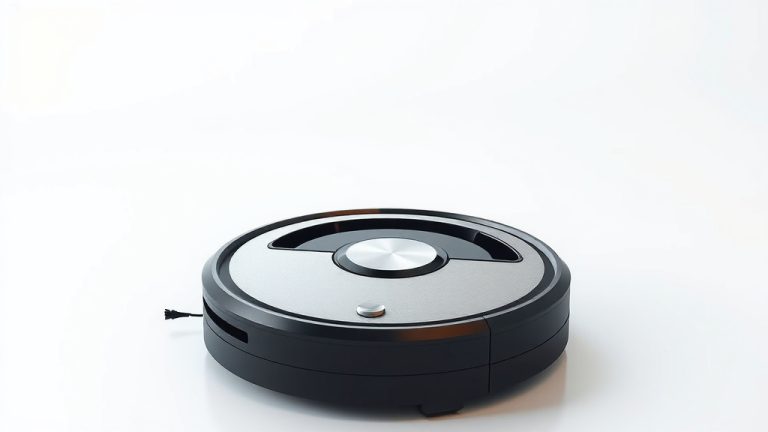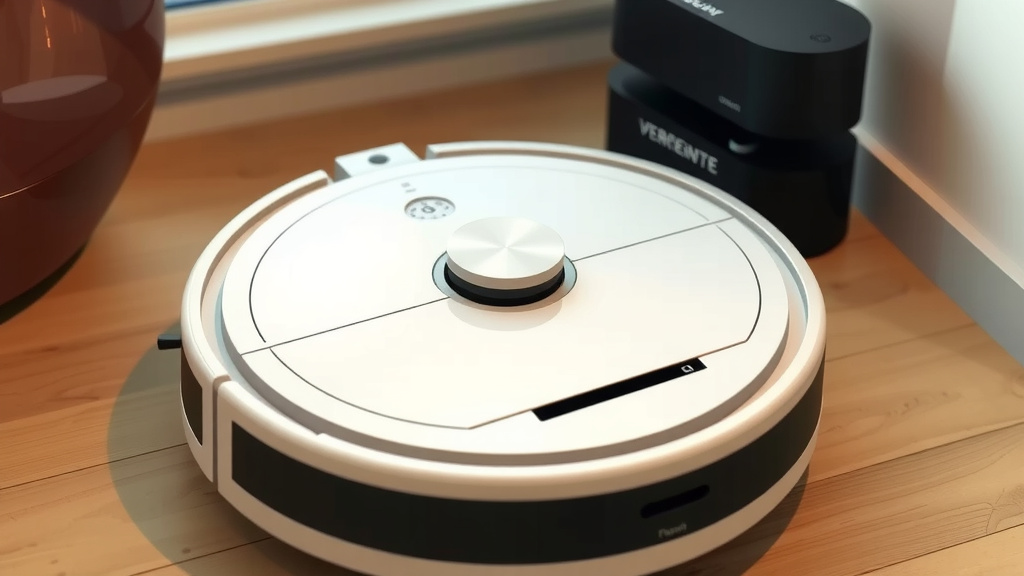
How to Reset Your BR151 Robot Vacuum Quickly
Resetting your BR151 robot vacuum is often the quickest fix for common issues. You can usually perform a factory reset by pressing and holding the power button for about 10-15 seconds until you hear a beep or see a specific light pattern. This process will revert your vacuum to its original settings.
Sometimes, your robot vacuum might behave strangely, like not charging, getting stuck frequently, or having connection problems. A reset can help clear out temporary glitches. It’s a good first step before trying more complicated troubleshooting or contacting customer support for your BR151 device.
- What is a BR151 robot vacuum reset?
- How to perform a hard reset on BR151.
- Why you might need to reset your BR151.
- What happens after a BR151 reset.
Ready to get your little cleaning buddy back in top shape? Let’s go through the simple steps together.
Troubleshooting Your BR151 Robot Vacuum With a Reset
When your BR151 robot vacuum isn’t performing as expected, a reset can often be your best friend. Think of it like restarting your computer when it acts up. A reset can clear out temporary software hiccups.
It’s a straightforward process that can fix many common issues. We’ll walk you through how to do it. You’ll get your little cleaning companion back to its usual self in no time.
Understanding What a BR151 Reset Does
A factory reset on your BR151 restores the vacuum to its original settings. It’s like hitting the refresh button on its software. This can be incredibly helpful if you’re encountering persistent problems.
It essentially wipes the slate clean. This means any customized settings, Wi-Fi connections, or saved maps will be erased. You’ll need to set it up again afterward.
Why You Might Need to Reset Your BR151
Several signs might indicate it’s time for a reset. Is your BR151 suddenly refusing to charge, even when it’s on the dock? Does it seem to get stuck more often than usual, bumping into things it shouldn’t? Maybe its cleaning path has become erratic, missing spots it used to clean perfectly.
Connection issues are another common culprit. If your vacuum is having trouble connecting to your Wi-Fi network or the mobile app, a reset can often resolve this. Sometimes, it’s just a minor glitch in its programming.
We’ve found that many users turn to a reset when their vacuum behaves unpredictably. It’s a good initial troubleshooting step before diving into more complex solutions. Consider it the robot vacuum equivalent of a good night’s sleep.
Common Issues a Reset Can Solve
- Connectivity Problems: If your BR151 won’t connect to Wi-Fi or the app.
- Charging Issues: When it stops charging properly or refuses to dock.
- Erratic Behavior: If it cleans randomly or gets stuck frequently.
- Software Glitches: Unexpected shutdowns or unresponsiveness.
- Performance Degradation: When cleaning efficiency suddenly drops.
How to Perform a Hard Reset on Your BR151
Performing a hard reset on your BR151 is usually quite simple. You’ll primarily use the power button to initiate this. It’s designed to be accessible for quick fixes.
The exact method can vary slightly. Always refer to your user manual if you’re unsure. However, the general procedure involves pressing and holding a specific button.
Step-by-Step Reset Process
First, ensure your BR151 robot vacuum is powered on and accessible. You don’t need it to be charging, but it shouldn’t be completely dead either. Find the power button on the top of your robot.
You’ll need to press and hold this power button. Keep holding it down for about 10 to 15 seconds. You’ll likely hear a distinct beep sound. Alternatively, you might see a specific light pattern flash on the unit. This is your signal that the reset is in progress.
What to Look For During the Reset
The beep or flashing lights are key indicators. They confirm that the command has been received. Once you hear the beep or see the lights, you can release the power button. The vacuum will then begin its reset sequence.
Some models might even announce that they are resetting. It’s designed to be a clear confirmation. If nothing seems to happen after holding the button for 15 seconds, try it one more time, holding it slightly longer, perhaps up to 20 seconds.
Resetting via the App (If Applicable)
While a physical reset is often the most direct, some robot vacuums offer a reset option through their mobile app. Check your BR151’s app settings. Look for sections like “Device Settings” or “About Device.”
You might find an option for “Factory Reset” or “Restore Default Settings” there. Using the app can sometimes be more convenient if your vacuum is already connected and functioning well enough to access the app.
However, if your issue is related to connectivity, the physical button reset is usually the way to go. It bypasses the need for the app connection altogether. Many experts suggest the physical reset as the primary method for serious glitches (IEEE Standards Association).
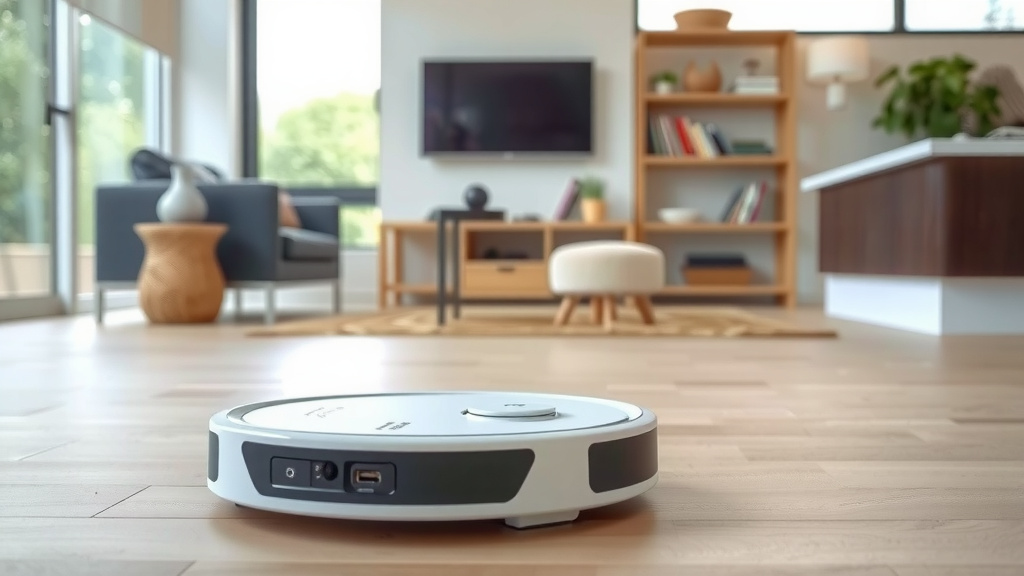
What Happens After Your BR151 is Reset
Once the reset is complete, your BR151 robot vacuum will be like it was on the day you unboxed it. All your personal preferences and settings will be gone. This includes things like cleaning schedules and specific room cleanings.
The Wi-Fi connection will also be removed. You’ll need to reconnect it to your home network. This is a crucial step to regain app control and smart features.
Reconnecting Your BR151 to Wi-Fi
After the reset, the first thing you’ll want to do is reconnect your vacuum to your Wi-Fi. Open the mobile app for your BR151. You’ll likely need to go through the initial setup process again.
Follow the on-screen instructions in the app to pair the vacuum with your network. This typically involves selecting your network name and entering your Wi-Fi password. Make sure your phone is connected to the same 2.4GHz Wi-Fi network you want the vacuum to use, as many robot vacuums don’t support 5GHz networks (Consumer Reports).
Reconfiguring Your Cleaning Preferences
With the Wi-Fi reconnected, you can now re-establish your preferred cleaning settings. This means setting up any cleaning schedules you had. You might also need to re-map your home if your BR151 creates detailed maps.
Consider this an opportunity to optimize your cleaning routines. Perhaps you want to adjust the suction power for different floor types or set no-go zones in new areas. It’s a fresh start for your cleaning automation.
Is a Reset Always the Answer?
While a reset is a powerful tool, it’s not a magic bullet for every problem. If your vacuum has a physical issue, like a damaged sensor or a broken brush, a reset won’t fix that. You’ll need to address the hardware problem directly.
Also, if the issue persists even after a reset and re-setup, it might indicate a more serious internal problem. In such cases, contacting customer support or considering professional repair might be necessary.
When to Seek Further Assistance
If you’ve performed a factory reset, reconnected to Wi-Fi, and reconfigured all settings, but the problem continues, it’s time to look at other options. You might need to check for firmware updates. Sometimes, a simple update can resolve bugs.
If all else fails, reach out to the manufacturer’s customer support. They can provide more specific troubleshooting steps for your BR151 model. Be ready to explain the issue and the steps you’ve already taken, including the reset. We found that providing this information upfront speeds up the support process considerably.
What to Do Before Contacting Support
Make sure you have your vacuum’s serial number handy. This is usually found on the bottom of the unit. Also, know the model number, which is likely BR151. Having your purchase receipt can also be helpful, especially if the device is under warranty.
A checklist can help you organize your thoughts and actions:
- Confirm the BR151 is charged.
- Perform the power button reset.
- Listen for beep or watch for lights.
- Reconnect to Wi-Fi via the app.
- Re-establish cleaning schedules.
- Test the vacuum thoroughly.
Conclusion
You’ve now learned how to reset your BR151 robot vacuum, a simple yet effective step for tackling common issues. Remember, a factory reset clears settings but can quickly resolve connectivity problems, charging hiccups, or erratic behavior. It’s your first line of defense before reaching out for more in-depth support. After the reset, you’ll need to reconnect it to your Wi-Fi and reconfigure your cleaning preferences. If problems persist after a reset, don’t hesitate to contact customer support. Your BR151 will be back to its cleaning duties in no time with these steps.
Frequently Asked Questions
Will resetting my BR151 erase its cleaning map?
Yes, a factory reset will erase any saved cleaning maps. You will need to allow your BR151 to remap your home after the reset is complete. This ensures it has the most up-to-date layout for efficient cleaning.
How long should I hold the power button for a BR151 reset?
You should press and hold the power button for approximately 10 to 15 seconds. Listen for an audible beep or watch for a specific light pattern to confirm the reset has started. If you don’t get a response, try holding it for a few seconds longer.
Can I reset my BR151 without using the app?
Absolutely. The primary method for resetting your BR151 is by using the physical power button on the unit itself. This bypasses the need for an app connection, which is useful if connectivity is the problem.
What should I do if the reset doesn’t fix my BR151’s problem?
If a reset doesn’t resolve the issue, check for any available firmware updates through the app. If the problem persists, it might indicate a hardware issue. It’s then recommended to contact the manufacturer’s customer support for further assistance.
Do I need to re-pair my BR151 with the app after a reset?
Yes, you will need to re-pair your BR151 with the mobile app after performing a factory reset. The reset erases all previous network connections, including your Wi-Fi and app pairing. You’ll go through the initial setup process again in the app.
![7 Best Prime Day Robot Vacuum And Mop [2026]](https://robotvacuumfact.com/wp-content/uploads/2026/08/7-best-prime-day-robot-vacuum-and-mop-2026-featured-768x432.jpg)