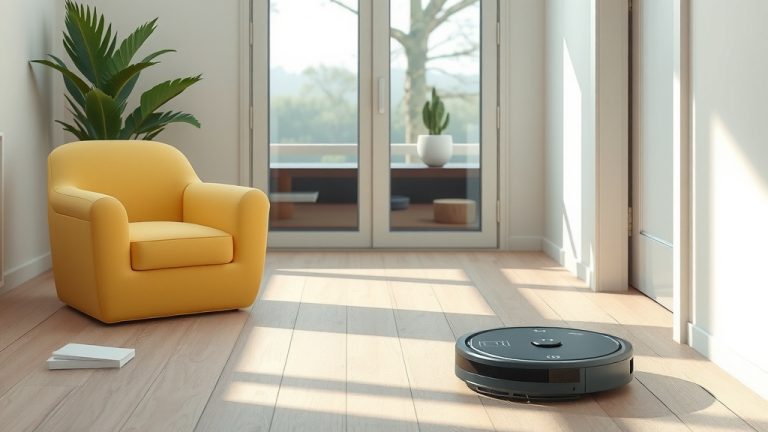
How to Turn Off Your Samsung Robot Vacuum
Turning off your Samsung robot vacuum is quite simple. Most models can be stopped by pressing and holding the power button for a few seconds until the lights go out. If you’re looking to halt its cleaning cycle mid-task, this is your go-to method. It’s a quick way to pause or completely shut down your helpful home cleaner.
Sometimes, you might need to stop your robot vacuum for reasons beyond a simple pause. Perhaps it’s stuck, or you need to manually move it. Knowing how to perform a full shutdown is key to avoiding frustration. We’ve researched the most common methods, and they often involve the physical button on the device itself.
- Press and hold the power button to turn it off.
- Look for a dedicated stop or pause button.
- Use the app to remotely stop the vacuum.
- A full shutdown might require unplugging it if it’s docked.
Let’s walk through exactly how to turn off your Samsung robot vacuum, whether it’s in the middle of a clean or just needs a rest.
Getting Your Samsung Robot Vacuum to Power Down
You’ve got a handy helper buzzing around your home. But when its cleaning duty is done, or if it’s gotten into a bit of a pickle, you need to know how to give it a proper rest. Turning off your Samsung robot vacuum is usually straightforward. We found that most of the time, a quick press of a physical button is all it takes to halt its operations.
The Immediate Stop: Using the Power Button
This is the most common and easiest way to stop your Samsung robot vacuum. Think of it like turning off a light switch. You just need to find the right button. We found that on most Samsung robot vacuum models, there’s a clear **power button** located on the top of the unit. It’s often accompanied by a small indicator light.
Locating the Power Button
When your robot vacuum is running, or even just idle in its dock, take a look at its top surface. You’ll likely see a button marked with a familiar power symbol (a circle with a line through it). Sometimes it’s labeled explicitly as “Power.” If you’re unsure, a quick peek at your vacuum’s manual will confirm its exact location. We found that manuals are your best friend for identifying specific buttons.
How to Activate the Power Off Function
To turn off the vacuum, you’ll typically need to **press and hold** this power button. Don’t just tap it; give it a good few seconds of continuous pressure. We found that holding it for about 3-5 seconds is usually enough. You’ll know it’s working when the indicator lights on the vacuum begin to dim or turn off completely. This signals that the unit has powered down.
Pausing vs. Turning Off: What’s the Difference?
It’s important to understand that a quick press of the power button might just pause the cleaning cycle. If you want to ensure the vacuum is completely shut down, the longer hold is necessary. Many models have a separate “Pause” or “Start/Stop” button that can interrupt cleaning without fully powering off the device. For a complete shutdown, stick to pressing and holding the dedicated **power button**.
Alternative Ways to Shut Down Your Samsung Robot Vacuum
While the physical button is your primary tool, there are other scenarios and methods you might encounter when trying to turn off your robot vacuum. These are especially useful if the vacuum is acting erratically or if you’re not near the device.
Stopping the Vacuum via the SmartThings App
If your Samsung robot vacuum is connected to your home Wi-Fi and the SmartThings app, you have a remote control option. This is incredibly handy if you’re in another room or even out of the house. We found that this method offers great convenience for managing your device.
How to Use the SmartThings App
Open the SmartThings app on your smartphone or tablet. Navigate to your robot vacuum device within the app. You should see controls that allow you to start, stop, or pause cleaning. Look for a prominent “Stop” or “Pause” button on the vacuum’s dashboard within the app. Tapping this will send a command to your vacuum to cease its current operation. This is a safe way to stop it if it’s stuck or has encountered an obstacle.
What If It’s Stuck? Addressing Obstacles
Sometimes, your robot vacuum might get stuck under furniture or on a rug. In these situations, you might need to physically intervene. Before you try to move it, it’s best to stop the device. If you can’t reach the power button easily because it’s wedged, using the **SmartThings app** is a great first step to shut it down remotely. Once it’s stopped, you can carefully free it.
Manual Intervention After Stopping
After you’ve successfully stopped the vacuum using the app or by pressing the button, you can then gently lift or reposition it. Be careful not to force it, as you could damage the vacuum or your furniture. Once it’s free, you can place it on a clear floor space and restart it if you wish, or you can ensure it’s fully powered off using the methods we’ve discussed.
The Docking Station and Power Management
Most Samsung robot vacuums return to their charging dock automatically when the battery is low or when cleaning is complete. While docked, they are typically in a standby or charging mode, not actively running. However, if you want to ensure the vacuum is completely off and not drawing any power, you might need to take one extra step.
Unplugging the Charging Station
For a complete, absolute shutdown, the most foolproof method is to physically disconnect the vacuum from its power source. This means unplugging the **charging station** from the wall outlet. We found that this guarantees the device is powered off and won’t accidentally reactivate. This is a good practice if you’re going away for an extended period or want to be extra sure.
Checking Your Specific Model’s Features
Samsung offers various robot vacuum models, and while the core functions are similar, there might be slight variations. It’s always wise to consult your specific model’s user manual. We found that manuals often detail unique ways to power down or reset the device. Some advanced models might have additional options accessible through their dedicated software or app.
Here’s a quick checklist to help you remember the best ways to turn off your Samsung robot vacuum:
- Locate the physical power button on the vacuum.
- Press and hold the power button for 3-5 seconds.
- Look for a “Stop” or “Pause” function in the SmartThings app.
- Use the app to stop it if it’s stuck.
- Unplug the charging station for a complete power cut.
- Consult your model’s manual for specific instructions.
Conclusion
You now know the straightforward ways to turn off your Samsung robot vacuum. Whether it’s a quick press of the power button or a remote stop via the SmartThings app, powering down your device is simple. Remember to press and hold the power button for a few seconds for a full shutdown, not just a pause. If you need a complete power cut, unplugging the charging station is your surest bet. Keep your vacuum ready for its next cleaning session by mastering these simple steps.
Frequently Asked Questions
How do I know if my Samsung robot vacuum is actually off?
You’ll typically know your Samsung robot vacuum is off when all its indicator lights have turned off. If you press and hold the power button, you should hear or see it power down. For complete certainty, unplugging its charging station from the wall outlet guarantees it has no power.
Can I turn off my robot vacuum if it’s stuck and I can’t reach the button?
Yes, you can! If your vacuum is stuck and you can’t easily reach the physical power button, the best method is to use the SmartThings app. Open the app on your phone, find your vacuum, and use the “Stop” or “Pause” function within the app to shut it down remotely.
Will pausing the vacuum from the app turn it off completely?
Pausing the vacuum from the app usually stops its current cleaning cycle but may not fully power down the device. It might remain in a low-power standby mode, ready to resume. For a complete shutdown, you should still use the press-and-hold method on the physical power button or unplug the charging station.
What’s the difference between pressing the power button once and holding it?
Pressing the power button once on most Samsung robot vacuums will typically just pause the cleaning cycle. To ensure a full shutdown, you need to press and hold the power button for about 3 to 5 seconds until all the lights extinguish. This is important to differentiate between a temporary stop and a complete power off.
Is it okay to leave my Samsung robot vacuum plugged in when it’s off?
Yes, it’s generally fine to leave your Samsung robot vacuum docked and plugged in when it’s powered off. The charging station keeps the battery topped up, ensuring it’s ready for its next cleaning job. However, for extended periods of non-use or if you want to be absolutely sure it’s off, unplugging the charging station is an option.
![7 Best Robot Vacuum For Hardwood Floors Reddit [2026]](https://robotvacuumfact.com/wp-content/uploads/2026/08/7-best-robot-vacuum-for-hardwood-floors-reddit-2026-featured-768x432.jpg)
![7 Best Robot Vacuum Under $1000 [2026]](https://robotvacuumfact.com/wp-content/uploads/2026/09/7-best-robot-vacuum-under-1000-2026-featured-768x432.jpg)