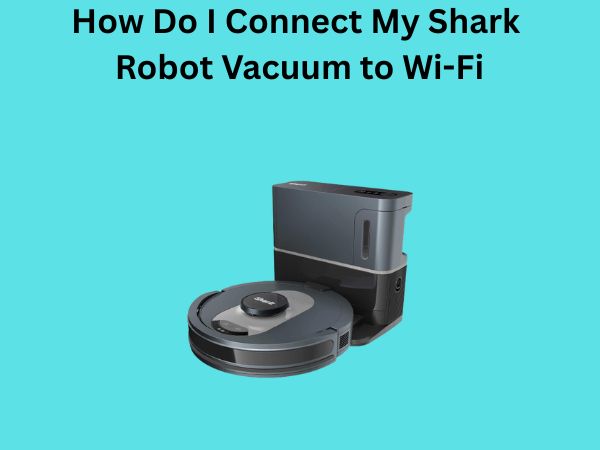
How Do I Connect My Shark Robot Vacuum to Wi-Fi? A Complete Guide
So you’ve just unboxed your shiny new Shark robot vacuum, and now you’re staring at it wondering: how exactly do I get this thing connected to my home Wi-Fi? I get it. The thought of syncing a robotic cleaning device to your network might seem intimidating at first, but trust me, it’s actually much simpler than you think. In this guide, I’m going to walk you through every single step of connecting your Shark robot vacuum to Wi-Fi, troubleshooting common issues, and making sure you can control it from your smartphone whenever you want.
Understanding Why Wi-Fi Connection Matters for Your Shark Robot Vacuum
Before we jump into the nitty-gritty of connecting your device, let’s talk about why this matters. Think of your Shark robot vacuum without Wi-Fi like a car without a GPS—it works, but you’re missing out on all the convenience. When your Shark is connected to Wi-Fi, you gain the ability to start cleaning sessions remotely, schedule cleaning times automatically, receive alerts when the vacuum needs emptying, and even map out your home layout through the app. It’s basically giving your vacuum a brain that can communicate with your smartphone.
What You’ll Need Before Getting Started
Let me be honest with you: connecting your Shark robot vacuum to Wi-Fi requires a few basic things, and if you’re missing any of them, you’ll be stuck at the starting line. Here’s what you absolutely need:
- Your Shark robot vacuum (obviously)
- A functional home Wi-Fi network with a strong signal
- A smartphone with the Shark Clean app installed
- Your Wi-Fi network name and password
- The original documentation that came with your vacuum
- A compatible smartphone (iOS or Android)
Without these items, you won’t be able to complete the connection process. Make sure your Wi-Fi network is operational and that your smartphone can already connect to it before you proceed.
Step-by-Step Instructions for Connecting Your Shark Vacuum to Wi-Fi
Step One: Download and Install the Shark Clean App
Your journey begins on your smartphone. You need to download the official Shark Clean app, which is the control center for everything related to your robot vacuum. Head to either the Apple App Store if you’re using an iPhone, or the Google Play Store if you’re on Android. Search for “Shark Clean” and look for the app with the official Shark branding. Once you find it, tap the download button and wait for the installation to complete. This usually takes just a minute or two.
Step Two: Create or Sign Into Your Shark Account
When you open the Shark Clean app for the first time, you’ll be prompted to either create a new account or log into an existing one. If this is your first time using Shark’s app ecosystem, you’ll need to create an account. Provide your email address, create a strong password, and fill in any other required information. This account is what ties all your Shark devices together, so keep your login credentials somewhere safe. If you already have a Shark account from another device or previous purchase, just log in with those credentials.
Step Three: Prepare Your Shark Robot Vacuum
Now it’s time to get your vacuum ready. Place it on its charging dock and make sure it’s fully charged or at least has enough battery to complete the setup process. Some Shark models have a Wi-Fi button on the device itself, while others have Wi-Fi connectivity built into the control panel. Check your documentation to locate where the Wi-Fi button or feature is located on your specific model. You want the vacuum to be in pairing mode, which is usually indicated by a blinking light.
Step Four: Initiate the Wi-Fi Pairing Mode
Here’s where things get interesting. In the Shark Clean app, look for an option that says “Add Device” or “Connect New Device.” Tap that button, and the app will start searching for nearby Shark devices that are in pairing mode. On your vacuum itself, you’ll need to hold down the Wi-Fi button or navigate to the Wi-Fi settings through the device’s display panel. Different Shark models have slightly different procedures, so check your manual if you’re unsure. You’ll know it’s in pairing mode when you see a blinking light or hear a notification sound.
Step Five: Select Your Vacuum from the App
After you’ve put the vacuum into pairing mode, the app should detect it within about 30 seconds to a minute. When it appears in your list of available devices, tap on it to select it. The app will then ask you to confirm that you want to pair with this specific device. Make sure you’re selecting the right vacuum if you have multiple Shark devices, as the app will display them all.
Step Six: Enter Your Wi-Fi Network Credentials
This is the crucial step where you connect your Shark vacuum to your home Wi-Fi. The app will ask you to select your Wi-Fi network from a list of available networks in your area. Find your network name (SSID) in the list and tap it. Then you’ll be prompted to enter your Wi-Fi password. Double-check that you’re typing it correctly, as Wi-Fi passwords are case-sensitive. Make sure you’re using a 2.4GHz network rather than 5GHz, as many Shark models work better with the older standard.
Step Seven: Wait for Confirmation
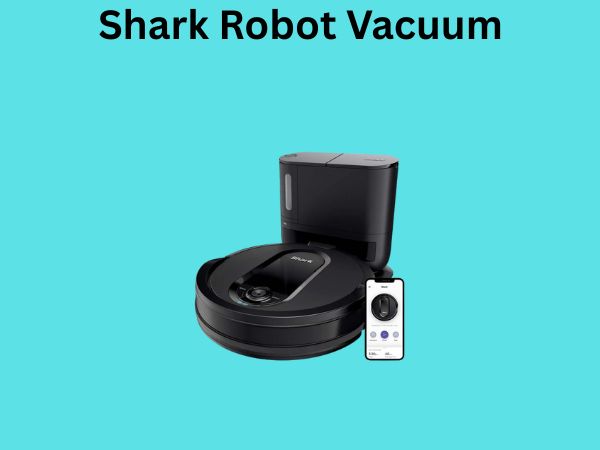
After you’ve entered your password, the app will attempt to connect your vacuum to the network. This process typically takes between 30 seconds and two minutes. You’ll see a loading screen, and the app might display messages like “Connecting” or “Configuring.” Don’t touch the vacuum or close the app during this time. If everything goes smoothly, you’ll eventually see a success message indicating that your Shark robot vacuum is now connected to your Wi-Fi network.
Troubleshooting Common Wi-Fi Connection Problems
What to Do If Your Vacuum Won’t Connect to Wi-Fi
Let’s face it—sometimes technology doesn’t cooperate on the first try. If your Shark vacuum refuses to connect to your Wi-Fi network, don’t panic. Here are the most common issues and how to fix them:
Problem: The app can’t find your vacuum in pairing mode. Solution: Make sure the vacuum is actually in pairing mode by checking for the blinking Wi-Fi light. Some models require you to hold the Wi-Fi button for three to five seconds. Try restarting the app and initiating the pairing process again. If that doesn’t work, restart the vacuum completely by turning it off and back on.
Problem: Your vacuum connects but then disconnects immediately. Solution: This usually means your Wi-Fi signal is too weak. Try moving your router closer to where the vacuum operates, or position your vacuum closer to the router during setup. Also check that you’re not using a 5GHz network, as many Shark models don’t support this frequency.
Problem: The app says “Incorrect Password.” Solution: Wi-Fi passwords are tricky because they’re case-sensitive and might contain special characters. Make sure you’re typing it exactly as it appears in your router settings. If you’ve changed your Wi-Fi password recently, make sure you’re using the current password. You might want to copy and paste your password from your router settings to avoid typing errors.
Resetting Your Shark Vacuum’s Wi-Fi Connection
Sometimes the best solution is to start fresh. If you’ve tried everything and your Shark vacuum still won’t connect, you can reset its Wi-Fi settings. To do this, locate the reset button on your vacuum—it’s usually a small button that requires a paperclip or similar tool to press. Hold it down for about ten seconds until you hear a beep or see lights flash. This will clear all stored Wi-Fi information. Then you can go through the connection process again from the beginning.
Checking Your Wi-Fi Network Compatibility
Not all Wi-Fi networks are created equal, especially when it comes to connecting smart home devices. Shark robot vacuums typically work best with standard home Wi-Fi networks on the 2.4GHz band. If your router broadcasts both 2.4GHz and 5GHz networks with the same name, your phone might connect to the 5GHz network while your vacuum tries to use 2.4GHz, causing confusion. Some routers allow you to set up a separate network name for the 2.4GHz band. If you’re having persistent issues, consider doing this so your vacuum always connects to the right frequency.
Maximizing Your Connected Shark Vacuum Experience
Using the Shark Clean App Effectively
Once your vacuum is connected, you’re unlocking a whole new level of convenience. The Shark Clean app gives you remote control over your vacuum from anywhere you have internet access. You can start cleaning immediately, stop it mid-session, or schedule it to run at specific times. The app also provides real-time updates about your vacuum’s cleaning status, battery level, and maintenance needs. Some models even include mapping features that show you exactly where your vacuum has cleaned.
Setting Up Automatic Cleaning Schedules
One of the best features of a connected Shark vacuum is the ability to schedule cleaning sessions automatically. You can tell your vacuum to start cleaning every Monday and Friday at 10 AM, for example, and it will do exactly that. This is perfect for maintaining a consistently clean home without lifting a finger. The vacuum will automatically dock and charge when finished, ready for the next scheduled session.
Receiving Maintenance Alerts and Notifications
Your connected Shark vacuum will send you notifications when something needs attention. Maybe the dustbin is full, the filters need cleaning, or the brush needs maintenance. These push notifications ensure you never miss important maintenance tasks, which keeps your vacuum running efficiently and prolongs its lifespan. Think of it as having a personal assistant that reminds you when your cleaning machine needs care.
Security Considerations for Your Connected Vacuum
Protecting Your Data and Privacy
Because your vacuum connects to the internet and communicates with the Shark servers, it’s worth thinking about security and privacy. Always use a strong, unique password for your Shark account. Don’t share your login credentials with anyone you don’t trust completely. Check the app’s privacy settings to understand what data Shark is collecting and how it’s being used. Most legitimate companies like Shark have robust security measures in place, but it’s always good practice to stay informed about what information your devices are transmitting.
Keeping Your App and Firmware Updated
To maintain security and ensure your vacuum functions optimally, regularly update both the Shark Clean app and your vacuum’s firmware. Updates often include security patches that protect against potential vulnerabilities. Most apps have automatic update settings, but you can also manually check for updates in your phone’s app store. Similarly, the Shark app will notify you when firmware updates are available for your vacuum.
Advanced Features for Connected Shark Vacuums
Voice Control Integration
Some Shark robot vacuums can integrate with voice assistants like Amazon Alexa or Google Assistant. This means you can tell your voice assistant to start your vacuum without even looking at your phone. To set this up, you typically need to enable the Shark skill or action in your voice assistant’s app, then link it to your Shark account. After that, simple voice commands like “Alexa, start my Shark vacuum” will work seamlessly.
Multi-Room Mapping and Zoning
Premium Shark models with Wi-Fi connectivity offer sophisticated mapping capabilities. These vacuums create digital maps of your home and allow you to designate specific zones for cleaning. You can tell the vacuum to clean only your kitchen, or to avoid the nursery, or to focus extra attention on high-traffic areas. This level of control transforms your robot vacuum from a simple cleaning tool into a customizable cleaning system tailored to your specific needs.
Conclusion
Connecting your Shark robot vacuum to Wi-Fi might seem daunting at first glance, but as you’ve learned throughout this guide, it’s actually a straightforward process that most people can complete in about ten minutes. By following the steps we’ve outlined—downloading the app, creating your account, putting the vacuum in pairing mode, and entering your Wi-Fi credentials—you’ll have your vacuum connected and ready to revolutionize how you approach home cleaning. Remember that if you run into any issues, troubleshooting is usually just a matter of checking your Wi-Fi signal strength, verifying your password, or resetting the device. Once you’re connected, you’ll gain access to remote control, scheduling, notifications, and potentially voice control and advanced mapping features. The investment of a few minutes upfront to get everything connected properly is absolutely worth the convenience you’ll enjoy for years to come. Your future self, relaxing while your Shark vacuum cleans automatically, will thank you for taking the time to set this up correctly.
Frequently Asked Questions
Can I connect my Shark robot vacuum to Wi-Fi if my home doesn’t have a router?
Unfortunately, no. Your Shark robot vacuum requires an existing Wi-Fi network to connect to. If you don’t have a router, you’ll need to purchase one first. However, if you’re using mobile hotspot from your phone, you could theoretically use that as a network, though it’s not recommended for long-term use since it would drain your phone’s battery and use your cellular data.
Why does my Shark vacuum keep disconnecting from Wi-Fi?
This typically happens when the Wi-Fi signal is weak or unstable. Try moving your router closer to where your vacuum operates, or place a Wi-Fi extender in the area. Also ensure you’re using a 2.4GHz network rather than 5GHz, as most Shark models have better compatibility with the older standard. If the problem persists, try resetting both your router and your vacuum.
Is it necessary to connect my Shark vacuum to Wi-Fi for it to work?
No, your Shark robot vacuum will still function without Wi-Fi connection. You can operate it manually using the buttons on the device itself or the remote control that comes with it. However, connecting to Wi-Fi unlocks convenient features like remote control, scheduling, and maintenance notifications, which most users find worthwhile.
What should I do if I forgot my Wi-Fi password?
You’ll need to recover your Wi-Fi password from your router. Most routers have a label on the back or bottom with the network name and password. Alternatively, you can log into your router’s admin panel using a web browser to view or reset your Wi-Fi password. Consult your router’s documentation if you’re unsure how to do this, as the process varies by manufacturer.
Can I use a guest Wi-Fi network to connect my Shark vacuum?
Yes, you can use a guest Wi-Fi network, but it’s not always recommended. Guest networks sometimes have different security settings or connectivity limitations that might affect your vacuum’s ability to connect reliably. If possible, use your primary home network instead. However, if you do use a guest network, make sure it’s set to a 2.4GHz frequency for best compatibility.
“`
![7 Best Bagless Robot Vacuum For Pet Hair [2026]](https://robotvacuumfact.com/wp-content/uploads/2026/07/7-best-bagless-robot-vacuum-for-pet-hair-2026-featured-768x432.jpg)