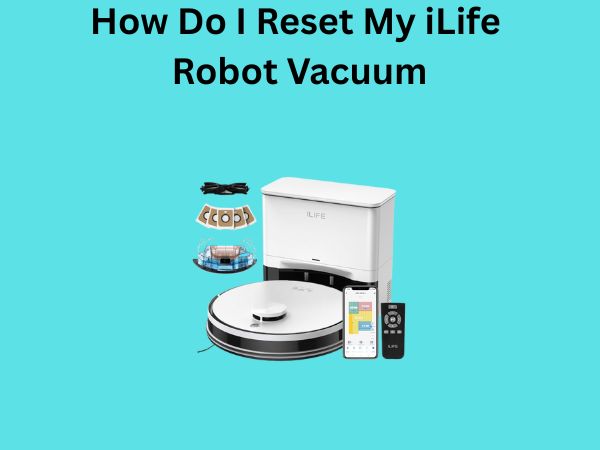
How Do I Reset My iLife Robot Vacuum? A Complete Guide to Getting Your Cleaner Back on Track
If you’re standing in your living room wondering why your trusty iLife robot vacuum isn’t behaving like it used to, you’re not alone. Robot vacuums are fantastic little helpers, but sometimes they need a fresh start—just like we all do. Maybe it’s acting sluggish, refusing to connect to your app, or simply seems confused about where it is in your home. Whatever the issue, a reset might be exactly what you need. In this guide, I’m going to walk you through everything you need to know about resetting your iLife robot vacuum, from simple soft resets to complete factory resets. Let’s get started.
Understanding Your iLife Robot Vacuum and Why Resets Matter
Before we dive into the how, let’s talk about the why. Think of your robot vacuum like a small computer. Over time, it accumulates data, learns patterns, and stores information about your home’s layout. While this is normally helpful, sometimes this data gets corrupted or the vacuum’s software encounters a glitch. When that happens, the vacuum might behave erratically, lose connection to your smartphone app, or forget how to navigate your home properly.
A reset is like giving your vacuum a chance to start fresh. It’s not something you should do casually, but it’s also not something to fear. Understanding when and how to reset your iLife vacuum can save you time, frustration, and potentially the cost of replacement.
Different Types of Resets Explained
Not all resets are created equal. There are actually several different types of resets you can perform on your iLife robot vacuum, and understanding the differences is crucial before you proceed.
What Is a Soft Reset?
A soft reset is the gentlest form of reset you can do. It’s like turning your vacuum off and back on again, but with a bit more intention behind it. During a soft reset, your vacuum loses its temporary data and clears any minor glitches from its memory, but it retains your home map, schedules, and app connection settings. This is the first thing you should try if your vacuum is acting up.
Understanding a Hard Reset
A hard reset is more thorough than a soft reset. When you perform a hard reset, you’re clearing more of the vacuum’s temporary data and forcing it to reinitialize many of its systems. However, it still typically keeps your home map and connected app settings intact. Think of it as closing down all the background processes on your computer but keeping your files and settings.
What Does a Factory Reset Do?
A factory reset is the nuclear option. It wipes absolutely everything from your iLife vacuum’s memory and returns it to the state it was in when it first rolled off the assembly line. Your home map disappears, your schedules vanish, your app connection is severed, and all personalized settings are erased. You’ll need to set everything up again from scratch, but this type of reset solves nearly every software-related issue.
Step-by-Step Guide to Performing a Soft Reset
Let’s start with the easiest option. If your iLife vacuum is experiencing minor issues, a soft reset might be all you need.
Method One: The Power Button Approach
This is the simplest method you can try first:
- Locate your iLife robot vacuum and turn it on if it isn’t already running
- Press and hold the power button on top of the vacuum for approximately three to five seconds
- Release the button and allow the vacuum to turn off completely
- Wait for about thirty seconds to one minute
- Press the power button again to turn the vacuum back on
That’s it! Your vacuum should now restart with a cleared temporary memory cache. Listen for the startup sounds and observe whether the issue you were experiencing has resolved itself.
Method Two: The App-Based Soft Reset
If your iLife vacuum is still connected to your smartphone app, you can perform a soft reset directly from there:
- Open the iLife app on your smartphone
- Navigate to the settings or device menu
- Look for an option labeled “Reboot” or “Restart Device”
- Tap this option and confirm when prompted
- Wait for the app to show that the device is reconnecting
This method is particularly useful if you’re away from home and your vacuum needs a quick restart. The app sends a signal to your vacuum telling it to restart its system.
How to Execute a Hard Reset on Your iLife Vacuum
If a soft reset didn’t solve your problem, it’s time to try a hard reset. This is where things get slightly more involved, but still manageable.
The Standard Hard Reset Procedure
Here’s the most common method for performing a hard reset on iLife vacuums:
- Ensure your iLife vacuum is powered on
- Locate the reset button on your vacuum—this is typically found on the bottom of the unit or inside the dustbin compartment
- Using a small object like a paperclip or the tip of a ballpoint pen, press and hold the reset button
- Continue holding for ten to fifteen seconds until you hear a beep or see the lights flash
- Release the button and wait for the vacuum to restart
- Your vacuum will likely announce the reset completion with a series of beeps
After a hard reset, your vacuum should function more smoothly. However, remember that while it retains your home map in most cases, some settings might need reconfiguration.
Troubleshooting Hard Reset Issues
Can’t find the reset button on your particular model? Different iLife vacuum models place the reset button in different locations. Check these areas:
- Underneath the vacuum on the main body
- Inside the charging contacts area
- Within the dustbin compartment
- Behind a small panel on the top of the unit
If you’re still struggling to locate it, consult your user manual or visit the iLife customer support website for your specific model number.
The Complete Factory Reset Process
When nothing else works, or when you’re preparing to sell or give away your vacuum, a factory reset is necessary. Here’s what you need to know.
Step-by-Step Factory Reset Instructions
Performing a factory reset requires a bit more patience, but it’s still straightforward:
- Power on your iLife robot vacuum
- Locate the reset button (same location as the hard reset method)
- Press and hold the reset button for twenty to thirty seconds—this is longer than a hard reset
- You should hear multiple beeps and see the lights blink rapidly, indicating the factory reset is in progress
- Continue holding until the sounds and lights stop
- Release the button and allow the vacuum to complete its restart cycle
- The vacuum will announce when the factory reset is complete
Once your iLife vacuum has completed the factory reset, it will be in the same state as when you first unboxed it. You’ll need to reconnect it to your Wi-Fi network, download and set up the app again, and create new cleaning schedules.
What to Expect After a Factory Reset
Your vacuum will feel like a brand new device. The home map is completely gone, so the vacuum will need to relearn your floor plan. The first few cleaning sessions might be less efficient as it explores your home, but this is completely normal and temporary. Within a few runs, your vacuum should have reestablished its mapping and return to optimal performance.
Important Precautions Before Resetting Your Vacuum
Before you jump into a reset, consider these important factors that could affect your decision and timing.
Backing Up Your Data First
While iLife vacuums don’t store massive amounts of data like computers do, you might want to note down any custom settings, cleaning schedules, or room-specific instructions you’ve configured. Although a hard reset keeps the home map, a factory reset erases everything, so taking screenshots or notes beforehand saves you from having to remember all your preferences later.
Ensuring Your Vacuum Is Charged
Never attempt a reset when your iLife vacuum has low battery. Ideally, your vacuum should be at least fifty percent charged before you start the reset process. If the battery dies during a reset, you could end up with a vacuum that won’t turn on properly. Place your vacuum on its docking station and let it charge fully before proceeding.
Clearing the Area Around Your Vacuum
Remove any objects that might interfere with the reset process. Make sure the area immediately around your vacuum is clear of cables, cords, small objects, or anything else that could potentially cause issues during the restart.
Common Problems and Their Reset Solutions
Different issues might require different approaches. Let me break down some common problems and how resetting can help.
App Connectivity Issues
If your iLife vacuum won’t connect to the app or keeps disconnecting, a soft reset often solves this issue. The problem usually stems from a temporary Wi-Fi communication glitch, and restarting clears these cached connection errors. If the app issue persists after a soft reset, try a hard reset next.
Erratic Navigation Patterns
When your vacuum starts moving in strange patterns, bumping into walls repeatedly, or going in circles instead of covering your floor methodically, it often indicates a mapping issue. A hard reset can clear corrupted mapping data and allow your vacuum to start fresh with a new map of your home.
Unresponsive or Frozen Vacuum
If your iLife vacuum seems completely unresponsive to commands, won’t start, or appears frozen, a soft or hard reset is usually your first troubleshooting step. This clears whatever temporary system malfunction is causing the lockup.
Charging Problems
Interestingly, sometimes charging issues can be resolved through a hard reset. If your vacuum isn’t docking properly or isn’t charging when it reaches the dock, resetting the charging logic might restore normal functionality. However, if charging issues persist after a reset, you might have a hardware problem that requires professional service.
When to Reset Versus When to Seek Professional Help
Resetting is a powerful troubleshooting tool, but it’s not a cure for everything. Knowing when to try a reset and when to contact support is important.
Reset First for These Issues
Try resetting your iLife vacuum if you’re experiencing software glitches, app connectivity problems, unusual behavior patterns, sluggish performance, or scheduling issues. These software-related problems respond well to resets.
Contact Support for These Problems
If your vacuum has physical damage, strange grinding noises, fails to charge even on the dock, isn’t picking up dirt despite functioning normally, or shows persistent hardware error codes even after resetting, you probably need professional help. These indicate mechanical or electrical failures that resetting cannot fix.
Tips for Preventing Future Issues That Would Require Resetting
An ounce of prevention is worth a pound of cure. Here are some habits that keep your iLife vacuum running smoothly and reduce the likelihood of needing frequent resets.
Regular Maintenance Practices
- Empty the dustbin after every cleaning cycle to prevent overflow and sensor confusion
- Clean the brush rollers weekly to ensure they spin freely
- Wipe the sensors gently with a soft cloth every two weeks
- Check the wheels for tangled hair or debris regularly
Software Care and Updates
Keep your iLife app updated on your smartphone. Developers release updates that improve compatibility and fix bugs. An outdated app might cause connection issues that seem to require a reset when the real problem is simply that your app needs updating.
Environmental Optimization
Ensure your home’s Wi-Fi network is strong and stable. A weak Wi-Fi signal can cause app connectivity problems and update failures. Position your router centrally in your home or consider a mesh network system if you have a large living space.
FAQ Section About iLife Vacuum Resets
Will Resetting My iLife Vacuum Erase My Home Map?
The answer depends on which type of reset you perform. A soft reset will definitely keep your home map intact. A hard reset typically keeps your map as well, though this can vary by model. However, a factory reset will completely erase your home map, and your vacuum will need to create a new one on its next cleaning cycle. If preserving your home map is important, start with a soft reset and only progress to harder resets if the soft reset doesn’t solve your problem.
How Often Should I Reset My iLife Robot Vacuum?
Ideally, you shouldn’t need to reset your vacuum very often. Most iLife vacuums run smoothly for months without requiring any reset at all. If you find yourself resetting your vacuum more than once every few months, there might be an underlying hardware issue or environmental problem—such as Wi-Fi interference—that’s worth investigating. In that case, contact customer support to discuss persistent problems.
Can I Reset My iLife Vacuum While It’s Docking?
Technically yes, but I don’t recommend it. It’s better to remove your vacuum from the dock before attempting a reset. This ensures that the reset process isn’t interrupted by dock-related communications and gives your vacuum a clean slate to work with. Remove the vacuum from the dock, wait a minute, and then perform your reset.
What Should I Do If My Vacuum Won’t Turn On After a Reset?
If your vacuum won’t turn on after a reset attempt, first ensure the battery isn’t completely dead by placing it on the dock to charge for at least two hours. If it still won’t power on after a full charge, try pressing the power button for longer—sometimes it takes a few extra seconds. If it remains unresponsive, you likely have a hardware issue and should contact iLife customer support with your model number and purchase information.
Do I Need to Reconnect My Vacuum to Wi-Fi After a Soft or Hard Reset?
After a soft reset, your Wi-Fi connection usually remains intact, so you shouldn’t need to reconnect. However, sometimes the connection is temporarily disrupted and reestablishes itself automatically. If you notice the app shows the vacuum as disconnected after a soft reset, try opening and closing the app. After a hard reset, you’ll typically need to reconnect to Wi-Fi, though it depends on your specific model. A factory reset definitely requires a complete reconnection process. Always refer to your user manual for your specific model’s post-reset behavior.
Conclusion
Resetting your iLife robot vacuum doesn’t have to be intimidating or confusing. Whether you’re dealing with a minor glitch that a soft reset can fix or facing a more stubborn issue that requires a hard reset or factory reset, you now have the knowledge to tackle the problem. Remember to start with the gentlest reset option and only escalate if necessary. Keep in mind that each type of reset—soft, hard, and factory—serves a different purpose, and understanding these differences helps you choose the right approach for your specific situation. By following the step-by-step instructions provided in this guide, maintaining your vacuum

![7 Best Overall Robot Vacuum And Mop [2026]](https://robotvacuumfact.com/wp-content/uploads/2026/08/7-best-overall-robot-vacuum-and-mop-2026-featured-768x432.jpg)