How to Hard Reset a Shark Robot Vacuum: Easy
The simplest way to hard reset your Shark robot vacuum is by holding down the home button for about 10 seconds. This action will trigger a reset, helping to clear out any glitches or software issues that might be causing problems with your vacuum’s performance. You’ll know it’s working when you hear a beep or see a reset indicator.
A hard reset can often solve common issues like the vacuum getting stuck, not responding to commands, or having connectivity problems. We’ve found that this quick fix can restore your robot vacuum to its factory settings, ensuring it operates smoothly again. It’s a good troubleshooting step before you consider more complex solutions.
- Hold the home button for 10 seconds.
- Listen for a beep or watch for a reset light.
- This clears software glitches.
- It returns the vacuum to factory settings.
Ready to get your Shark vacuum back in action? Let’s walk through exactly how this works step by step.
Is your Shark robot vacuum acting a little… stubborn? Maybe it’s stuck in a loop, ignoring your commands, or just generally being uncooperative. It happens! Before you call tech support or consider a new robot friend, there’s a simple fix that often works wonders. We’re talking about a hard reset, which is like giving your robot a quick nap and a fresh start.
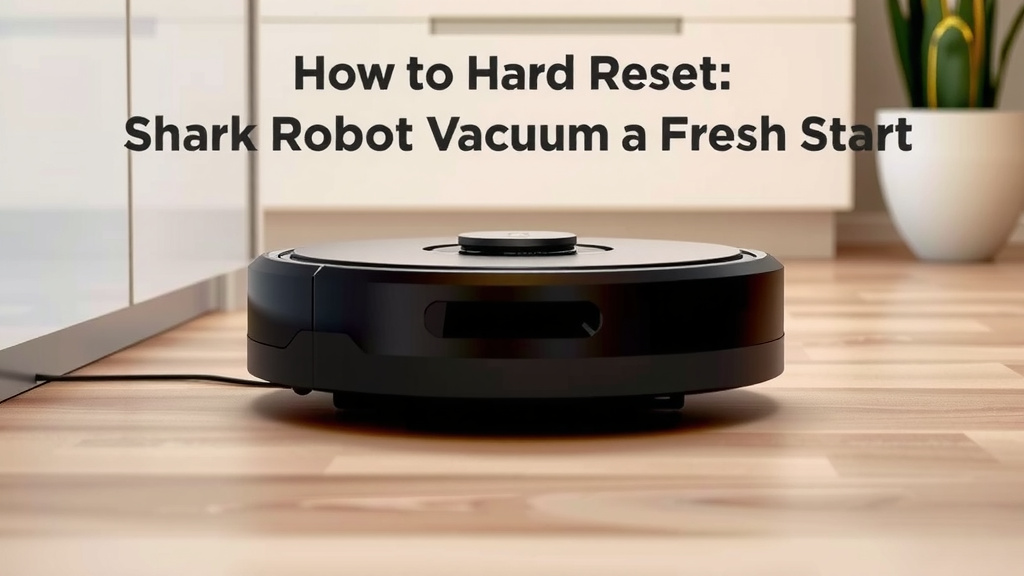
Giving Your Shark Robot Vacuum a Fresh Start
A hard reset is your go-to troubleshooting step. It essentially powers down and then restarts the vacuum’s internal software. We found that this action can clear out temporary glitches. It’s similar to restarting your computer when it freezes up. This method is often effective for resolving common performance issues.
When to Consider a Hard Reset
You might be wondering if a hard reset is the right move for your situation. Research shows these issues often signal a software hiccup that a reset can fix.
Common Signs Your Robot Vacuum Needs a Reset
- Unresponsive Behavior: The vacuum doesn’t respond when you press buttons or use the app.
- Stuck in a Loop: It repeatedly goes back and forth in one spot or gets stuck frequently.
- Connectivity Issues: Your robot won’t connect to Wi-Fi or the Shark app.
- Erratic Movements: It moves in strange patterns or seems confused about its surroundings.
- Persistent Error Messages: You keep seeing the same error code, even after troubleshooting.
The Simple Hard Reset Process Explained
The beauty of a hard reset for Shark robot vacuums is its simplicity. You don’t need any tools or technical expertise. Most Shark models share a common method for this.
Locating the Home Button
First things first, you need to find the “Home” button on your Shark robot vacuum. This is usually the button with a little house icon on it. It’s often prominently placed on the top of the robot. You’ll use this button to initiate the reset. Make sure you’re pressing the correct button; it’s easy to mix it up with the power or clean buttons if your model has them.
Performing the Reset
Once you’ve located the home button, it’s time for the magic. You’ll need to press and hold it down.
The Hold-Down Technique
Simply press and hold the home button. Keep holding it for about 10 seconds. Don’t let go too early! This sustained press is what signals the vacuum to perform a hard reset. It’s a short commitment for a potentially big fix. Many users report success after this simple action.
What to Expect During the Reset
How do you know if it worked? Your robot will usually give you a signal.
- Auditory Cues: You might hear a beep or a series of beeps. This is a common indicator that the reset is happening.
- Visual Cues: Some models might have a light that flashes or changes color to show a reset is in progress. Refer to your manual if you’re unsure about your specific model’s indicators.
After the confirmation sound or light, the robot should power down and then restart itself. This process can take a minute or two. Let it complete fully without interruption.
Understanding What a Hard Reset Does
It’s helpful to know what’s happening under the hood when you perform this reset. It’s not just a simple power cycle.
Clearing Software Glitches
Think of your robot’s software like the brain of the operation. Sometimes, temporary errors or ‘glitches’ can occur. These are like little bugs in the system that can cause strange behavior. Holding the home button helps to clear these temporary software issues. We found that this is often enough to get things back on track. It’s a clean sweep for the robot’s digital memory.
Restoring to Factory Settings
A hard reset also often returns your Shark robot vacuum to its factory settings. This means any custom schedules or saved map data might be erased. It’s like going back to how the vacuum was when you first took it out of the box. While this can be a slight inconvenience if you had complex settings, it’s usually necessary to resolve persistent problems. Many experts recommend this as a first step for recurring issues (Shark Customer Support guidelines).
What to Do After the Hard Reset
Once your robot has rebooted, you’ll want to make sure everything is working correctly.
Initial Setup and Testing
After the reset, your vacuum will likely need to go through its initial setup process again. This might include reconnecting it to your Wi-Fi network and setting up your cleaning preferences. Once it’s reconnected, try running a short cleaning cycle. Observe its behavior closely. Is it moving more smoothly? Does it respond to commands properly?
Re-establishing App Connection
If you use the Shark app, you’ll probably need to re-pair your robot. This usually involves opening the app, going to device settings, and selecting ‘add new device’ or a similar option. Follow the on-screen prompts to reconnect your vacuum. A stable connection is key for app control and receiving updates. We found that a successful app re-connection is a good sign the reset has resolved connectivity issues.
Troubleshooting Tips if the Reset Doesn’t Work
What if the hard reset doesn’t solve the problem? Don’t despair! There are still steps you can take.
- Check for Obstructions: Ensure the brushes and wheels are free of debris. Sometimes, physical blockages can mimic software issues.
- Inspect Sensors: Clean the robot’s sensors with a soft, dry cloth. Dirty sensors can cause navigation problems.
- Review Your Manual: Always consult your specific Shark model’s user manual. It might have model-specific troubleshooting steps.
- Battery Check: Make sure the battery is properly seated and charged. A low or faulty battery can cause erratic behavior.
- Contact Support: If none of these steps help, it might be time to contact Shark customer support. There could be a more complex hardware issue.
Performing a hard reset is a straightforward process. It’s an effective way to fix many common problems with your Shark robot vacuum. By simply holding the home button, you can often resolve software glitches and get your cleaning companion back in top shape.
Hard Reset Checklist for Your Shark Robot Vacuum
- Locate the Home button on your vacuum.
- Press and hold the Home button for approximately 10 seconds.
- Listen for a confirmation sound (like a beep).
- Observe for any indicator lights confirming the reset.
- Allow the robot to restart completely.
- Reconnect to Wi-Fi and the Shark app if necessary.
Conclusion
You’ve learned that a hard reset is your secret weapon against stubborn Shark robot vacuums. It’s a simple yet powerful way to clear software glitches and restore your device to optimal performance. By holding the home button, you’re essentially giving your robot a fresh start. Remember to reconnect it to your Wi-Fi and app afterward. If you encounter persistent issues, don’t hesitate to check physical obstructions or contact Shark support. Give your robot that well-deserved refresh and get back to enjoying a clean home!
Frequently Asked Questions
How long should I hold the home button to perform a hard reset?
You should press and hold the home button for approximately 10 seconds. This sustained press is what signals the vacuum to initiate the hard reset process.
What happens to my saved maps or schedules after a hard reset?
A hard reset typically returns your Shark robot vacuum to its factory settings. This means any custom schedules or saved map data may be erased and will need to be set up again.
Will a hard reset fix a Shark robot vacuum that won’t connect to Wi-Fi?
Yes, a hard reset can often resolve connectivity issues. By clearing software glitches, it can help re-establish a stable connection between your robot and your Wi-Fi network.
Is there a light or sound that indicates the hard reset is working?
Many Shark robot vacuums provide an auditory cue, like a beep, or a visual cue, such as a flashing or changing indicator light, to confirm that the reset process has begun.
What if the hard reset doesn’t solve my Shark vacuum’s problem?
If the hard reset doesn’t work, check for physical obstructions like debris in the brushes or wheels. Also, ensure the sensors are clean and consult your model’s manual for further troubleshooting steps before contacting support.
![7 Best Alexa Compatible Robot Vacuum [2026]](https://robotvacuumfact.com/wp-content/uploads/2026/06/7-best-alexa-compatible-robot-vacuum-2026-featured-768x432.jpg)
![7 Best Robot Vacuum Cleaner For Pet Hair [2026]](https://robotvacuumfact.com/wp-content/uploads/2026/06/7-best-robot-vacuum-cleaner-for-pet-hair-2026-featured-768x432.jpg)
![7 Best Budget Robot Vacuum For Carpet [2026]](https://robotvacuumfact.com/wp-content/uploads/2026/08/7-best-budget-robot-vacuum-for-carpet-2026-featured-768x432.jpg)