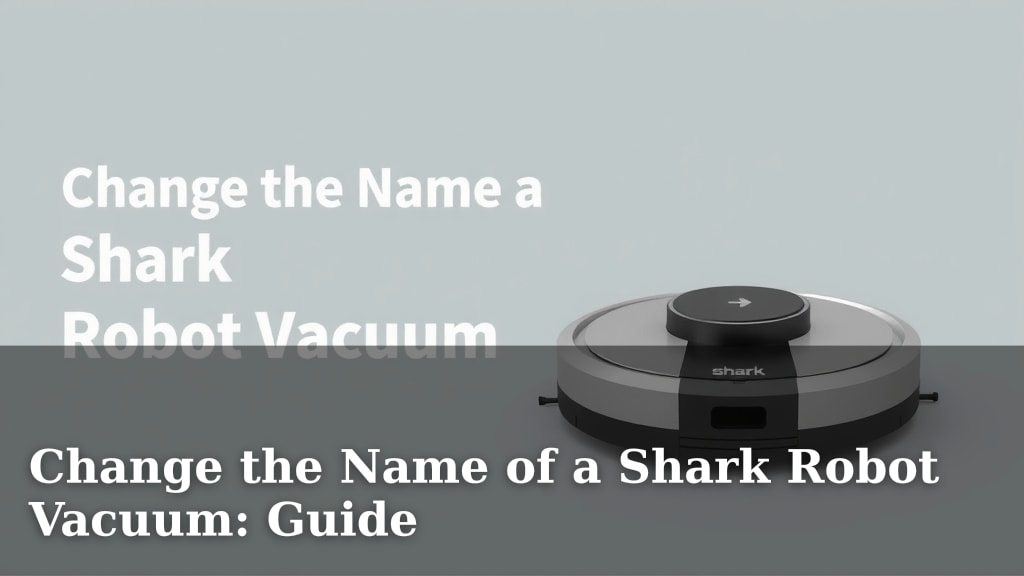
Change the Name of a Shark Robot Vacuum: Guide
Yes, you absolutely can change the name of your Shark robot vacuum. It’s a simple process that helps you easily identify your robovac, especially if you have more than one. Many users find it helpful to give their Shark a unique, fun, or even practical name.
Giving your Shark a personalized name makes it feel more like a part of your home. It also helps when you’re using voice commands with smart home assistants. You’ll want to make sure you can clearly tell Alexa or Google Assistant which robot to send on its cleaning mission. We’ve found this makes managing multiple smart devices much easier.
- You can easily rename your Shark robot.
- This is done through the SharkClean app.
- A custom name helps with voice commands.
- It’s especially useful if you own multiple robots.
- The process is quick and straightforward.
Let’s walk through exactly how to change your Shark robot vacuum’s name step by step.
Personalizing Your Shark Robot Vacuum’s Name
You can easily give your Shark robot vacuum a new, custom name. This small change makes managing your smart home devices much simpler. It’s particularly helpful if you own more than one robot. You’ll be able to tell which one you’re talking to when using voice commands. We’ve found this makes controlling your home much more convenient.
Why Change Your Shark Robot’s Name?
Giving your Shark robot a unique name is more than just a fun idea. It serves a very practical purpose, especially in today’s smart homes. Many of us have multiple smart devices that respond to voice commands. Imagine having two Shark robots, or perhaps a Shark and another brand. Without distinct names, your voice assistant might get confused.
Easier Voice Command Control
When you tell your smart speaker to start the cleaning, you need to be clear. Saying “Start cleaning” might not be enough if your assistant doesn’t know which robot you mean. By giving each robot a specific name, like “Dusty” or “Sparky,” you can say, “Alexa, tell Dusty to clean the living room.” This specificity prevents errors and ensures the right robot gets to work.
Identifying Multiple Robots
If your household has multiple Shark robot vacuums, renaming them is almost essential. You might have one for the upstairs and another for downstairs, or perhaps a high-performance model and a basic one. Naming them helps you quickly differentiate their functions and locations. You can even give them names that reflect their purpose or the area they primarily clean.
A Touch of Personality
Let’s be honest, a robot vacuum is a piece of technology. But it’s a piece of technology that works hard for you. Giving it a name can make it feel like a more integrated part of your home. It’s a little way to add personality to your space. Many users enjoy picking names that are funny, cute, or even a bit quirky. It can make the chore of vacuuming feel a little less mundane.
How to Change Your Shark Robot’s Name Using the App
The process for changing your Shark robot’s name is quite straightforward. It all happens within the SharkClean app on your smartphone or tablet. You won’t need any special tools or technical skills. Just follow these simple steps, and you’ll have your robot named in no time.
Step 1: Open the SharkClean App
First, make sure you have the SharkClean app downloaded and installed on your mobile device. If you haven’t set up your robot in the app yet, you’ll need to do that first. Once the app is open, log in to your account. You should see your connected Shark robot vacuum listed on the main screen.
Step 2: Select Your Robot
Tap on the name of the Shark robot vacuum you wish to rename. This will open up the specific control screen for that particular robot. Here, you’ll find various settings and options related to your robovac’s operation.
Step 3: Access Robot Settings
Look for an icon or a menu option that typically represents settings. This is often a gear icon or labeled as “Settings” or “Robot Settings.” Tap on this to access the detailed configuration options for your Shark robot.
Locating the Name Field
Within the robot settings menu, you should see an option for the robot’s name. It might be clearly labeled as “Robot Name,” “Device Name,” or something similar. This is where your robot’s current name is displayed. You can usually tap directly on this field to edit it.
Step 4: Enter the New Name
Once you’ve tapped on the name field, a keyboard should appear, allowing you to type. Delete the old name and enter your desired new name. Keep it relatively short and easy to say for voice commands. Remember that some voice assistants have character limits or specific ways they process names.
Step 5: Save Your Changes
After typing in the new name, look for a “Save,” “Done,” or “Confirm” button. Tap this to apply your changes. The app will likely confirm that the name has been updated. Your Shark robot vacuum now has its new, personalized name!
Tips for Choosing a Good Robot Name
Picking the perfect name for your robot vacuum can be fun. Here are a few ideas to get you started. Consider what makes a name easy to remember and use, especially with voice commands.
- Keep it simple: Short, one or two-syllable names are often easiest for voice assistants to recognize.
- Make it memorable: Choose a name you won’t forget, so you can easily recall it when needed.
- Consider personality: Does your robot have a funny quirk? Does it move with impressive speed? Let that inspire its name.
- Avoid confusion: If you have other smart devices, try not to pick a name that sounds too similar to them.
- Have fun with it: This is your chance to be creative! Names like “Sir Reginald,” “Dust Bunny,” or “Clean Machine” can add a touch of humor.
Troubleshooting Common Issues
While renaming your Shark robot is usually smooth sailing, you might occasionally run into a snag. We’ve found that most issues are easily resolved with a few quick checks.
| Problem | Solution |
|---|---|
| Name won’t save. | Ensure you have a stable Wi-Fi connection. Try closing and reopening the app. A device restart might also help. |
| Voice assistant doesn’t recognize the new name. | Wait a few minutes after renaming, as it can take time to sync. Try retraining your voice assistant to recognize the new name. |
| App is unresponsive. | Force close the SharkClean app and reopen it. Ensure your phone’s operating system and the app are up to date. |
If you continue to experience difficulties, don’t hesitate to check the Shark support website or contact their customer service. They can offer more specific assistance.
Checklist for Renaming Your Shark Robot
Ready to give your robot a new identity? Use this quick checklist to make sure you’ve got everything covered:
- SharkClean app is installed and updated.
- Your robot is connected to your Wi-Fi network.
- You’ve logged into your SharkClean account.
- You know the current name of your robot.
- You have a new name in mind!
- You’re ready to save your changes in the app.
Following these steps will have your Shark robot vacuum sporting a fresh new name in no time. Enjoy your personalized cleaning assistant!
Conclusion
You’ve learned that personalizing your Shark robot vacuum’s name is a simple yet effective way to manage your smart home. It makes controlling your device with voice commands much easier and helps differentiate between multiple robots. By following the steps in the SharkClean app, you can quickly assign a new name. This small change can make your robot feel more like a true part of your household. Now, go ahead and give your Shark the perfect name that fits its personality and your needs!
Frequently Asked Questions
Do I need the SharkClean app to rename my robot?
Yes, you absolutely need the SharkClean app to change your robot vacuum’s name. The app is where all your robot’s settings are managed. You won’t be able to rename it directly on the robot itself.
Can I use any name I want for my Shark robot?
Generally, yes, you can use most names. However, it’s a good idea to avoid names that are too long or too similar to other commands your voice assistant uses. Keep it simple for the best results.
Will renaming my robot affect its cleaning performance?
No, renaming your Shark robot has no impact on its cleaning performance whatsoever. The name is purely an identifier for you and your smart home system. Your robot will continue to clean just as effectively.
How long does it take for the new name to sync with my voice assistant?
It can sometimes take a few minutes for the new name to sync completely. If your voice assistant isn’t recognizing it immediately, try waiting a bit or retraining the assistant to recognize the new name.
What if I forget the name I gave my robot?
If you forget the name you assigned, simply open the SharkClean app and navigate to your robot’s settings. The current name will be clearly displayed there, allowing you to easily recall it.

![7 Best Robot Vacuum And Mop For The Money [2026]](https://robotvacuumfact.com/wp-content/uploads/2026/08/7-best-robot-vacuum-and-mop-for-the-money-2026-featured-768x432.jpg)