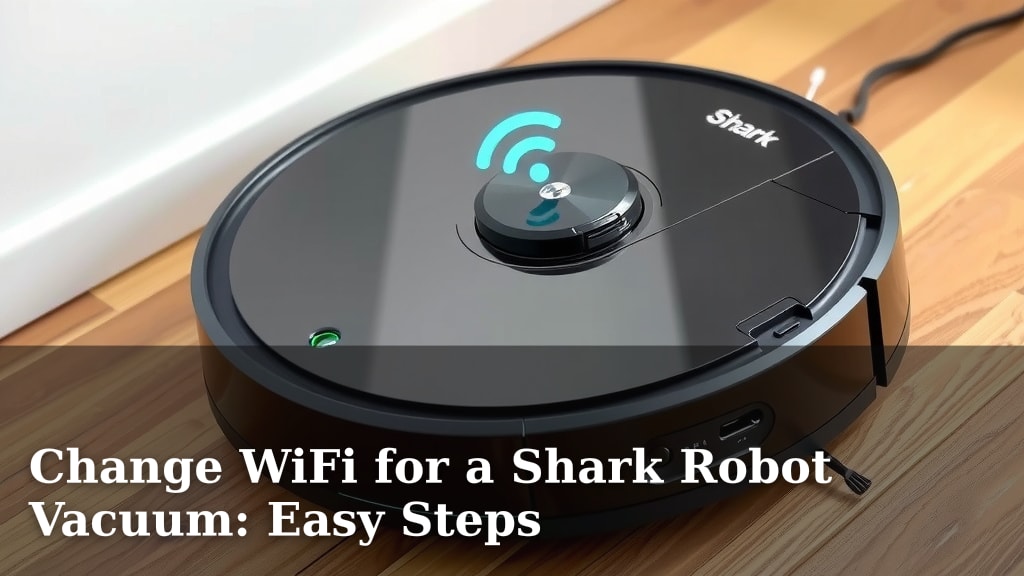
Change WiFi for a Shark Robot Vacuum: Easy Steps
Yes, you can absolutely change the WiFi network for your Shark robot vacuum. This is often necessary if you get a new router or change your home WiFi password. We’ve found it’s a fairly straightforward process, and you don’t need to be a tech wizard to do it.
When your Shark vacuum can’t connect to your WiFi, it’s usually because the network settings have changed. Thankfully, the Shark app makes it easy to update your vacuum’s connection. This ensures your robot can continue to receive software updates and be controlled remotely.
- If you change your WiFi name or password, you’ll need to update your Shark robot.
- The process is done through the Shark app on your smartphone.
- Make sure your phone is connected to the new WiFi network first.
- Your robot vacuum needs to be near the router for a strong connection.
Let’s walk through exactly how to reconnect your Shark robot vacuum to your new WiFi network.
Getting Your Shark Robot Back Online: Reconnecting to WiFi
You’ve got a new WiFi network, or maybe just a new password, and now your trusty Shark robot vacuum is giving you the silent treatment. Don’t worry, this is a super common situation! Luckily, getting your Shark vacuum back on the network is usually a pretty straightforward process. We’ve found that the Shark app is your best friend here. It’s designed to make this kind of update as simple as possible.
Why Your Shark Vacuum Needs WiFi
Think of your Shark robot vacuum’s WiFi connection as its lifeline to you and its own brain. Without it, it can’t do a lot of the smart things you bought it for. It’s not just about remote control, although that’s a big part of it. A stable connection allows your robot to receive important software updates. These updates can improve its cleaning performance, fix bugs, and even add new features over time. It also needs WiFi to send you notifications, like when a cleaning cycle is complete or if it gets stuck.
Common Reasons for Reconnecting
You’ll most likely need to reconnect your Shark vacuum when one of a few things happens. The most common reason is changing your home’s WiFi name (SSID) or password. If you’ve upgraded to a new router, or simply decided to give your network a fresh name and a stronger password, your robot won’t know how to find it anymore. It’s like trying to tune into a radio station that’s changed its frequency – you just can’t find it!
Another reason could be if your robot was previously connected to a public or temporary network that is no longer available. Sometimes, network settings on your router can change automatically, especially if you have an internet service provider that manages some aspects of your equipment. Whatever the cause, the solution involves guiding your Shark vacuum to its new digital home.
Preparation Steps Before You Start
Before you dive into the app, there are a couple of quick things you should do to make the process smoother. These steps help ensure your robot can successfully find and connect to your new network without any hiccups.
Ensure Your Phone is Connected to the New Network
This is probably the most critical first step. Your smartphone acts as the bridge between your WiFi and your robot vacuum. For the Shark app to tell your robot which network to join, your phone absolutely must be connected to that same new WiFi network. If your phone is still trying to connect to your old network, the app won’t be able to communicate the correct information to the robot.
Double-check your phone’s WiFi settings. You should see the name of your new network listed as the connected network. If you’re unsure of your new network’s name or password, now’s the time to look it up. It’s usually on a sticker on your router or in documentation provided by your internet service provider.
Bring Your Robot Closer to the Router
This might sound obvious, but a strong WiFi signal is key. If your router is on a different floor or across the house from where your Shark vacuum is currently located, the connection might be weak or unstable. This can lead to errors during the setup process. We’ve found that moving your robot vacuum to a location near your WiFi router significantly increases the chances of a successful connection. Even if you plan to have it clean rooms far from the router later, getting it connected in a strong signal area is the priority. Once it’s successfully reconnected, you can move it back to its usual charging base.
Check Your WiFi Band (2.4 GHz vs. 5 GHz)
Shark robot vacuums typically connect to a 2.4 GHz WiFi band. This is a common standard for many smart home devices because it offers a wider range and better penetration through walls compared to the 5 GHz band. If your router broadcasts both bands, and they have different names (like “MyHomeWiFi” for 2.4 GHz and “MyHomeWiFi_5G” for 5 GHz), make sure your phone is connected to the 2.4 GHz band before you start the reconnection process in the app. Some routers combine these bands under a single name; in such cases, the router usually manages the connection automatically, and you generally don’t need to worry about it.
The Step-by-Step Process in the Shark App
Now that your preparation is complete, it’s time to get your Shark vacuum reconnected. The Shark app is designed to guide you through this, but here’s a clear breakdown of what you can expect.
Initiating the Reconnection in the App
Open the Shark app on your smartphone. Navigate to your robot vacuum’s device settings. You’ll typically find an option related to network settings, WiFi connection, or device setup. Look for something like “Change WiFi Network” or “Reconnect to WiFi.” The exact wording can vary slightly depending on your app version, but it will be clearly labeled.
Following the App’s Prompts
Once you initiate the WiFi change, the app will likely guide you through a series of steps. It will confirm that your phone is connected to the correct network. Then, it will prompt you to put your Shark vacuum into pairing mode. This usually involves pressing and holding a specific button on the robot itself until you hear a chime or see an indicator light flash in a particular way. The app will tell you exactly which button and how long to press it.
Entering Your New WiFi Credentials
After your robot is in pairing mode, the app will ask you to select your new WiFi network from a list and enter the password. This is where having your network name (SSID) and password ready comes in handy. Enter them carefully, as a single typo will prevent the connection. The app will then attempt to send these details to your Shark vacuum.
Confirmation and Testing
The app will indicate when it’s trying to connect the robot to your network. You might see a progress bar or a status update. Once successful, the app will confirm that your robot is connected. Your robot may also make a sound or have a light indicator change to show it’s online. To be sure, try sending a command from the app, like starting a cleaning cycle, or check the robot’s status within the app to see if it’s reporting correctly. Many users find this connection step takes just a few minutes once they start.
Troubleshooting Common Connection Issues
Even with the best preparation, sometimes things don’t go perfectly the first time. If you encounter problems, don’t get discouraged! Here are a few common issues and how to address them.
Robot Not Found or Pairing Failed
If the app can’t find your robot or the pairing fails, double-check that your phone is connected to the 2.4 GHz band of your new WiFi network. Also, ensure your robot is still in pairing mode and is close enough to the router. Sometimes, simply restarting the app and trying again can resolve temporary glitches. A full power cycle of both your router and your robot vacuum might also be necessary. To do this, unplug your router for 30 seconds, then plug it back in. Do the same for your robot vacuum if it has a power switch or a removable battery that can be disconnected.
Connection Drops After Setup
If your Shark vacuum connects initially but then frequently drops the connection, it could still be a signal strength issue. Try moving your router to a more central location if possible, or consider a WiFi extender. You might also want to check your router’s settings. Some advanced router features, like MAC address filtering, can sometimes interfere with new device connections. We found that ensuring your robot’s firmware is up-to-date is also important, as updates often include network stability improvements.
App Isn’t Responding
If the Shark app itself seems unresponsive or is causing errors, try force-closing the app and reopening it. Make sure you have the latest version of the app installed from your phone’s app store. If problems persist, clearing the app’s cache (on Android) or uninstalling and reinstalling the app can often resolve software-related issues. A quick reboot of your phone can also help clear out temporary problems.
Quick Checklist for Reconnecting Your Shark Vacuum
Here’s a handy checklist to ensure you’ve covered all the bases:
- Confirm new WiFi name and password.
- Connect your phone to the *new* 2.4 GHz WiFi network.
- Move robot vacuum near the router.
- Open Shark app and select “Change WiFi.”
- Put robot in pairing mode when prompted.
- Enter new network credentials carefully.
Conclusion
Changing your Shark robot vacuum’s WiFi network is an accessible task. You’ve learned that this process is managed smoothly through the Shark app. By preparing your phone and ensuring a strong signal, you pave the way for a successful reconnection. Remember to connect your phone to the new 2.4 GHz network first and bring your robot close to the router. If you encounter issues, a quick check of these steps or a router reboot often does the trick. Now that your vacuum is back online, you can resume effortless cleaning!
Frequently Asked Questions
What if my Shark robot vacuum won’t connect after I changed my WiFi password?
This is the most common reason for disconnection. Your robot doesn’t automatically know the new password. You’ll need to go through the app to update its network settings with the correct new password, just as if it were a new setup.
Can I use my Shark robot vacuum on a 5 GHz WiFi network?
Most Shark robot vacuums are designed to connect to the 2.4 GHz band. While some routers combine bands, it’s best to ensure your phone is connected to the 2.4 GHz network before starting the reconnection process in the app for optimal results.
Do I need to reset my Shark robot vacuum to change WiFi?
Generally, no. A full factory reset is usually not required just to change your WiFi network. The Shark app provides a direct option to update the WiFi credentials without erasing your robot’s other settings or cleaning history.
My robot is far from the router, will it still connect?
A weak signal can cause connection failures. For the initial reconnection process, it’s highly recommended to move your robot closer to the WiFi router. Once successfully connected, you can move it back to its base, and it should maintain the connection.
How long does it typically take to reconnect my Shark robot to new WiFi?
The actual connection process within the app usually takes just a few minutes once you’ve entered the correct network information and put the robot in pairing mode. The preparation steps are often what take the most time.
![7 Best Reviewed Robot Vacuums [2026]](https://robotvacuumfact.com/wp-content/uploads/2026/08/7-best-reviewed-robot-vacuums-2026-featured-768x432.jpg)