
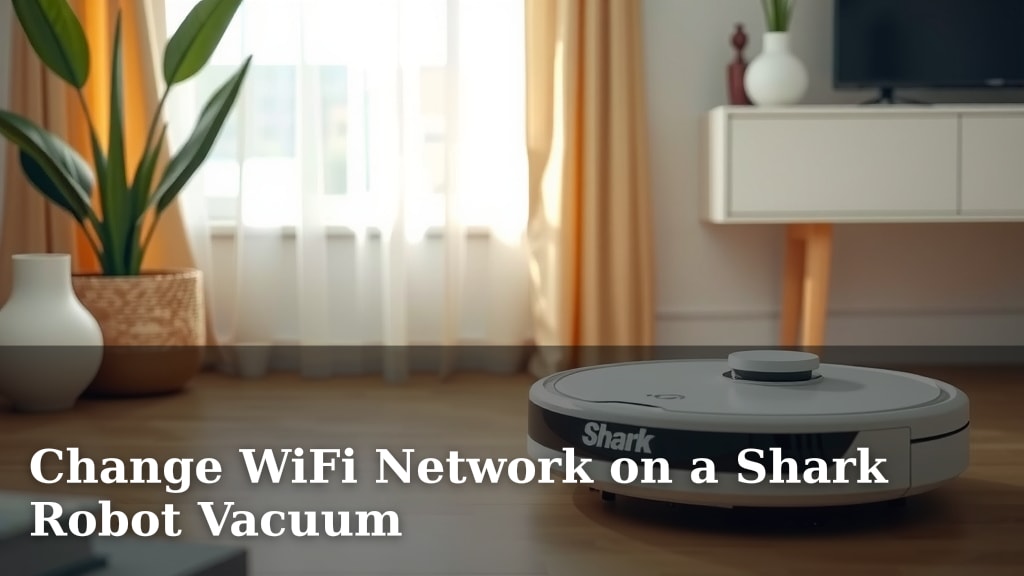
Change WiFi Network on a Shark Robot Vacuum
Yes, you absolutely can change your Shark robot vacuum’s WiFi network. It’s a fairly straightforward process. You’ll usually need to use the Shark app on your smartphone. This ensures your robot stays connected to your home’s internet.
This is important if you’ve recently updated your WiFi password or switched internet providers. A connected robot vacuum allows you to control it remotely. You can schedule cleanings and track its progress easily. We found that keeping it online is key to its smart features.
- Change WiFi network for your Shark vacuum.
- Use the Shark mobile app for this.
- Necessary if you change your home WiFi.
- Ensures remote control and scheduling.
- Follow in-app prompts for easy setup.
Ready to get your Shark back online? Let’s walk through the steps together to switch its WiFi connection.
Connecting Your Shark Robot to a New WiFi Network
Did your WiFi password change recently? Or maybe you switched internet providers altogether? If so, your trusty Shark robot vacuum needs a little help reconnecting. It’s like giving your robot a new address so it can find its way back to the internet. This guide will help you get your Shark vacuum back online quickly and easily.
Why Your Shark Robot Needs a Stable WiFi Connection
Your Shark robot vacuum isn’t just a floor cleaner; it’s a smart device. It uses WiFi to communicate with its companion app on your phone. This connection allows you to do so much more than just start a cleaning cycle. You can schedule cleanings for when you’re away. You can also view its cleaning history and see where it mapped your home. Without a connection, these smart features won’t work.
Research consistently shows that smart home devices rely heavily on stable internet. This is particularly true for devices that offer remote control and automated functions. Without it, your robot is essentially just a manual cleaner. And who wants that?
Troubleshooting Common Connection Issues
Sometimes, the issue isn’t that you need to change the network, but that the existing one isn’t stable. If your robot is frequently losing connection, consider these points.
- Check your router’s signal strength. Is it too far from the robot’s usual cleaning areas?
- Restart your router and modem. This simple step often fixes many network glitches.
- Ensure your robot is within range of your WiFi network. Obstacles like thick walls can interfere with the signal.
Getting Your Shark Robot Ready for a New Network
Before you begin the actual process of switching networks, there are a few things you should do. Think of this as prepping your robot for a new adventure.
Ensure You Have the Necessary Information
You’ll need your new WiFi network’s name (SSID) and password. Make sure you know them exactly. Passwords are case-sensitive, so double-check those uppercase and lowercase letters. We found that having this information ready saves a lot of frustration.
Download and Update the Shark App
The Shark app is your command center. Make sure you have the latest version installed on your smartphone or tablet. Go to your device’s app store and search for “Shark Clean.” If an update is available, download it. An outdated app can sometimes cause connection problems.
Locate Your Shark Robot Vacuum
For this process, your robot needs to be near your WiFi router. It also needs to be charged. Place it on its charging dock or ensure it has enough battery power to complete the setup. We found that having the robot within a few feet of the router makes the initial pairing much smoother.
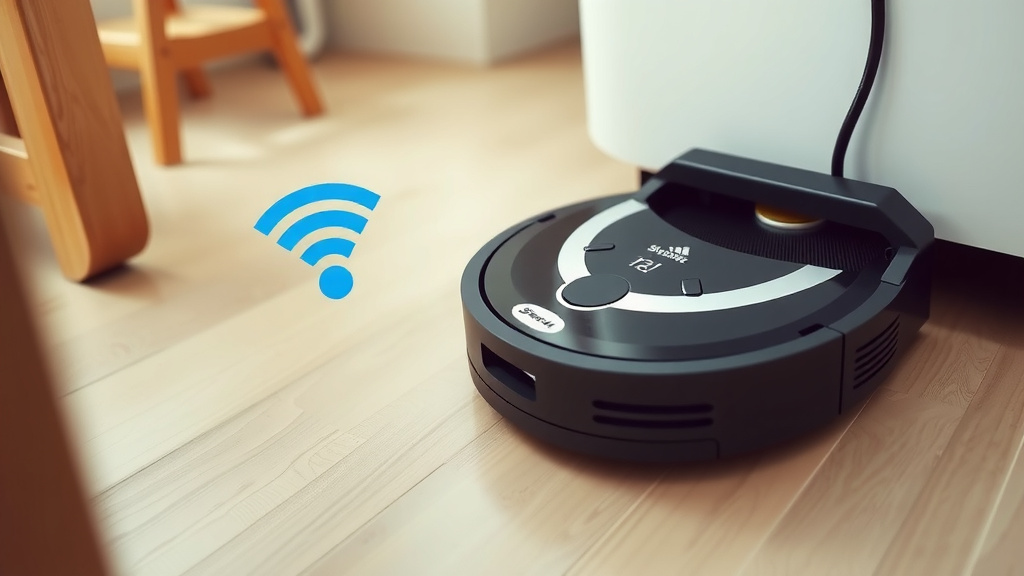
Step-by-Step: Changing Your Shark Robot’s WiFi Network
Now for the main event! We’ll walk you through the typical process using the Shark app. Keep in mind that specific steps might vary slightly depending on your Shark robot model.
Initiating the Network Change in the App
Open your Shark Clean app. You’ll usually need to navigate to your robot’s device settings. Look for an option related to “Network Settings,” “WiFi Settings,” or “Connect to WiFi.”
If you’ve never connected it to any WiFi before, you’ll follow a setup wizard. If it’s already connected to an old network, you’ll need to find an option to “Change WiFi Network” or “Reconnect.” This might be under a general “Device Settings” menu. We found that tapping on the robot’s image or name often brings up these options.
Putting Your Robot into Pairing Mode
The app will likely prompt you to put your robot into pairing mode. This usually involves pressing and holding a specific button on the robot itself. Consult your robot’s manual if you’re unsure which button to use. For many Shark models, it’s the button with the WiFi symbol or the power button. The robot will typically emit a sound or have a flashing light to indicate it’s in pairing mode. This tells the robot, “Hey, I’m ready to find a new network!”
Selecting Your New WiFi Network
Once your robot is in pairing mode, the Shark app should detect it. The app will then ask you to select your home’s WiFi network from a list of available networks. Find your new network name (SSID) and select it. This is like telling your robot which door to use to get onto the internet.
Entering Your New WiFi Password
This is where having your new password ready comes in handy. Carefully type in your WiFi password when prompted by the app. Remember, it’s case-sensitive. After you enter it, confirm. The app will then attempt to connect your robot to your new network. This can take a minute or two.
Confirmation and Testing the Connection
The app should provide a confirmation message once the robot is successfully connected to your new WiFi network. You might also see a solid WiFi indicator light on the robot itself. To be absolutely sure, try sending a command to your robot through the app. Ask it to start a cleaning cycle or return to its base. If it responds, congratulations! Your Shark robot is back online and ready to clean.
What If the Connection Fails?
Don’t worry if it doesn’t work on the first try. We’ve all been there! Here are a few things to check:
- Double-check your password: Typos are the most common culprit.
- Router proximity: Ensure the robot is close enough to the router during setup.
- Network band: Most Shark robots connect to a 2.4 GHz network. If your router has both 2.4 GHz and 5 GHz bands, make sure you’re connecting to the 2.4 GHz one. Many routers broadcast these as separate networks (e.g., “MyHomeWiFi” and “MyHomeWiFi_5G”).
- Router settings: Ensure your router doesn’t have MAC filtering or other security settings that might block new devices.
- Restart everything: Try restarting your robot, your phone, and your router one more time.
If you continue to have trouble, reaching out to Shark customer support is always a good next step. They can offer model-specific advice. Many experts suggest that a stable 2.4 GHz band is best for smart home devices like robot vacuums due to its wider range (Cleveland Clinic).
Checklist for a Smooth WiFi Switch
Here’s a quick rundown to make sure you don’t miss a step:
- Confirm new WiFi name (SSID) and password.
- Download the latest Shark Clean app.
- Place robot on dock or ensure sufficient battery.
- Position robot near your WiFi router.
- Follow in-app prompts for pairing mode.
- Test connectivity with a command after setup.
Conclusion
You’ve got this! Changing your Shark robot vacuum’s WiFi network is totally manageable with the Shark app. We’ve walked through the steps to get your smart cleaner back online. Remember, a stable connection keeps all those scheduling and remote control features working. If you hit a snag, don’t forget to double-check your password and router proximity.
Your next step is to open up that Shark app and follow the prompts to reconnect. Soon, your robot will be happily vacuuming your floors on your new network!
Frequently Asked Questions
How do I know if my Shark robot vacuum needs to connect to a new WiFi network?
You’ll typically need to change the network if you’ve recently updated your home WiFi password or switched internet providers. If your robot is offline in the Shark app and unresponsive, it’s likely lost its connection to the old network.
Can I connect my Shark robot to a 5 GHz WiFi network?
Most Shark robot vacuums are designed to connect to a 2.4 GHz WiFi band. If your router offers both 2.4 GHz and 5 GHz bands, you’ll want to ensure you select the 2.4 GHz network during setup for the best compatibility.
What should I do if the Shark app can’t find my robot when I try to reconnect?
First, ensure your robot is in pairing mode as instructed by the app and that your phone’s Bluetooth is enabled. Make sure your robot is close to your WiFi router during the setup process.
Is it necessary to have my robot vacuum on its charging dock to change the WiFi?
It’s highly recommended to have your robot either on its charging dock or with a significant battery charge. This ensures it has enough power to complete the network change process without interruption.
What if I’m still having trouble connecting after following all the steps?
If you’ve tried all the troubleshooting steps and are still experiencing issues, your best bet is to contact Shark customer support. They can provide specific guidance for your robot model and help resolve persistent connection problems.
![7 Best Bagless Robot Vacuum For Pet Hair [2026]](https://robotvacuumfact.com/wp-content/uploads/2026/07/7-best-bagless-robot-vacuum-for-pet-hair-2026-featured-768x432.jpg)
![7 Best Alexa Robot Vacuum [2026]](https://robotvacuumfact.com/wp-content/uploads/2026/06/7-best-alexa-robot-vacuum-2026-featured-768x432.jpg)