Connect Shark Robot Vacuum to New WiFi: Steps
Connecting your Shark robot vacuum to a new WiFi network is usually a straightforward process. You’ll typically need to use the SharkClean app on your smartphone and follow the on-screen prompts. The main goal is to re-establish the connection between your robot and your home’s wireless internet.
When you change your WiFi name or password, your Shark robot vacuum will lose its connection. This means it won’t be able to receive commands from the app or send back status updates. We found that most users can get their robot back online within a few minutes by simply guiding it through the setup again.
- Reset your Shark robot’s WiFi connection.
- Open the SharkClean app on your phone.
- Follow the app’s instructions to connect to the new network.
- Ensure your phone is connected to the new WiFi network.
- Have your new WiFi password ready.
Let’s walk through exactly how to get your Shark robot vacuum connected to your new WiFi network, step by step.
Getting Your Shark Robot Vacuum Reconnected to WiFi
Did your WiFi password change? Did you get a new router? It happens to the best of us! When you update your home WiFi network, your trusty Shark robot vacuum suddenly feels a bit lost. It can’t talk to the SharkClean app anymore. But don’t worry, getting it back online is usually pretty simple. We’ll walk you through the process to reconnect your Shark to your new WiFi.
Why Your Shark Robot Needs a WiFi Connection
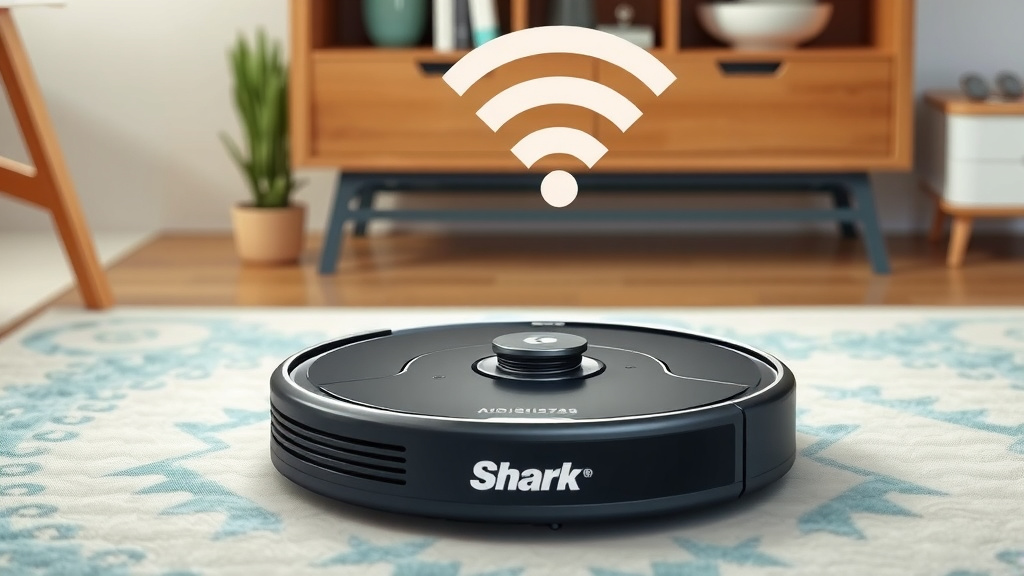
Your Shark robot vacuum isn’t just a fancy disc that bumps around. It relies on WiFi to receive commands from your smartphone. Without it, you can’t start a cleaning cycle remotely. It also can’t send back important updates. Think of it like a smart home device; it needs that internet connection to be smart. Many features depend on this link. This includes scheduling cleanings or checking its status. We found that a stable WiFi connection is key to a good user experience.
Understanding the Connection Process
When you change your WiFi details, your robot essentially forgets the old network. It’s like forgetting a password you used to know. The SharkClean app is your main tool here. It guides your robot through the setup again. You’ll be telling your robot the new network’s name and password. It’s important to have your phone connected to the same new network you’re trying to connect the robot to. This makes the process smoother. Experts suggest ensuring your phone is on the 2.4GHz band if your router offers both 2.4GHz and 5GHz. Some older robot models may not support 5GHz networks.
Preparing for the WiFi Reconnection
Before you dive into the app, gather a few things. First, make sure your smartphone is connected to your new WiFi network. Double-check that you have the exact network name (SSID) and password handy. Typos happen, and they can cause frustration. You’ll need this information for the setup. Also, ensure your Shark robot vacuum is charged and powered on. It’s a good idea to place it near your WiFi router if possible during the setup. This can help ensure a strong signal from the start. We found this simple step often prevents connection hiccups.
Resetting Your Shark Robot’s WiFi Settings
Sometimes, you need to clear the robot’s memory of the old network. Most Shark robot vacuums have a way to reset their WiFi settings. The exact method can vary slightly by model. However, it often involves pressing and holding a specific button or combination of buttons on the robot itself. You’re looking for a signal that indicates the WiFi is ready to be set up again. This might be a blinking light or an audible cue. You can usually find the precise steps in your robot’s user manual. If you can’t find your manual, a quick search online for your specific Shark model and “reset WiFi” should do the trick. We’ve seen users get stuck here if they skip this crucial step.
Finding the Reset Button(s)
Look on the top or side of your Shark robot. You might see buttons like “Home,” “Clean,” or “Power.” For many models, you’ll need to press and hold the “Home” button for a set amount of time, usually around 10-15 seconds. Some models might require a different button combination. Always consult your manual for the most accurate instructions for your particular device. You want to see a clear indication that the robot is ready for a new connection. This is often a blinking WiFi icon or a voice prompt.
Using the SharkClean App for Setup
Once your robot’s WiFi is reset, it’s time to open the SharkClean app. If you don’t have the app installed, you’ll need to download it from your smartphone’s app store. Log in to your existing account or create a new one if necessary. Inside the app, look for an option to “Add a New Device” or “Set Up a New Robot.” The app will then guide you through the steps. It will ask you to confirm the robot is ready for setup and then prompt you to select your new WiFi network from a list. This is where having your WiFi password ready really pays off. The app will then attempt to connect your robot to your home network.
Step-by-Step App Guidance
- Open the SharkClean app on your smartphone.
- Navigate to the section for adding a new device.
- Follow the on-screen prompts to select your new WiFi network.
- Enter your new WiFi password carefully.
- Wait for the app to confirm the connection is successful.
If the app asks for location services or Bluetooth permissions, it’s usually to help it find and connect to the robot more easily. Allowing these can streamline the process. We’ve found that most connection issues are resolved by following these app-driven steps closely. Remember, your phone must be connected to the same WiFi network you are trying to connect the robot to. This is a common point of confusion.
Troubleshooting Common Connection Issues
What if it doesn’t connect on the first try? Don’t panic! Connection problems are common, especially with new networks. One frequent culprit is an incorrect WiFi password. Double-check it for case sensitivity. Another issue can be the distance between the robot and your router. If the signal is weak, the connection might fail. Try moving the robot closer to the router for the initial setup. Sometimes, simply restarting your router and modem can resolve network issues. We’ve found that toggling your phone’s WiFi off and back on can also help. It forces your phone to re-establish a fresh connection to the network.
When to Contact Support
If you’ve tried the reset process, confirmed your password, and ensured a strong signal, and your Shark robot still won’t connect, it might be time for a little extra help. Your Shark robot’s support page or user manual should have a troubleshooting section. If you’re still stuck, reaching out to Shark customer support is your next best step. They can offer model-specific advice and help diagnose more complex problems. Many manufacturers provide detailed guides for specific error codes or connection failures.
A Quick Checklist for Success
Here’s a handy list to make sure you’ve covered all your bases:
- Your phone is connected to the new WiFi network.
- You have the correct new WiFi name and password.
- Your Shark robot is charged and powered on.
- You’ve performed a WiFi reset on the robot (if needed).
- The SharkClean app is up to date.
- You’re trying to connect to a 2.4GHz network (if applicable).
Getting your Shark robot vacuum back online might seem like a hurdle, but by following these steps methodically, you should have it cleaning your floors again in no time. It’s all about guiding that little robot back to its digital home.
Conclusion
You’ve successfully navigated the process of connecting your Shark robot vacuum to a new WiFi network. We know it can seem a bit daunting at first, but by following the steps of resetting the robot’s WiFi and carefully using the SharkClean app, you’ve brought your smart cleaning companion back online. Remember, a stable connection means you can keep enjoying remote control and all the smart features your robot offers. Now that your robot is reconnected, schedule your next cleaning cycle and enjoy a spotless home!
Frequently Asked Questions
What if my Shark robot won’t connect after resetting?
If your robot is still having trouble connecting, try restarting your WiFi router and modem. Ensure your phone is connected to the correct 2.4GHz band of your new network, as some older models don’t support 5GHz. Double-check that your WiFi password is entered exactly as it is, paying close attention to capitalization.
Do I need to download a new app for my Shark robot?
No, you typically don’t need a new app. You should continue to use the existing SharkClean app that you used with your previous WiFi network. Just ensure you have the latest version installed from your smartphone’s app store. The app will guide you through adding your robot to the new network within your existing account.
How do I know if my Shark robot’s WiFi is reset and ready to connect?
When you successfully reset your Shark robot’s WiFi settings, you’ll usually see a visual or audible indicator. This often involves a blinking WiFi icon on the robot itself. Some models may also provide a voice prompt confirming that the robot is in setup mode and ready to pair with a new network.
Can I connect my Shark robot to a 5GHz WiFi network?
This depends on your specific Shark robot vacuum model. Many Shark robot vacuums are designed to connect to 2.4GHz networks, which offer better range. If your router broadcasts both 2.4GHz and 5GHz bands, try connecting your robot to the 2.4GHz network first. Consult your robot’s manual for exact compatibility information.
My phone is on the new WiFi, but the SharkClean app can’t find the robot. What should I do?
Make sure your phone’s Bluetooth is turned on, as the app often uses Bluetooth for initial discovery. Also, check that location services are enabled for the SharkClean app. If the issue persists, try closing the app completely and reopening it, or even restarting your phone.
![7 Best Robot Vacuum Under $100 [2026]](https://robotvacuumfact.com/wp-content/uploads/2026/09/7-best-robot-vacuum-under-100-2026-featured-768x432.jpg)
![7 Best Bagless Self Emptying Robot Vacuum [2026]](https://robotvacuumfact.com/wp-content/uploads/2026/07/7-best-bagless-self-emptying-robot-vacuum-2026-featured-768x432.jpg)