
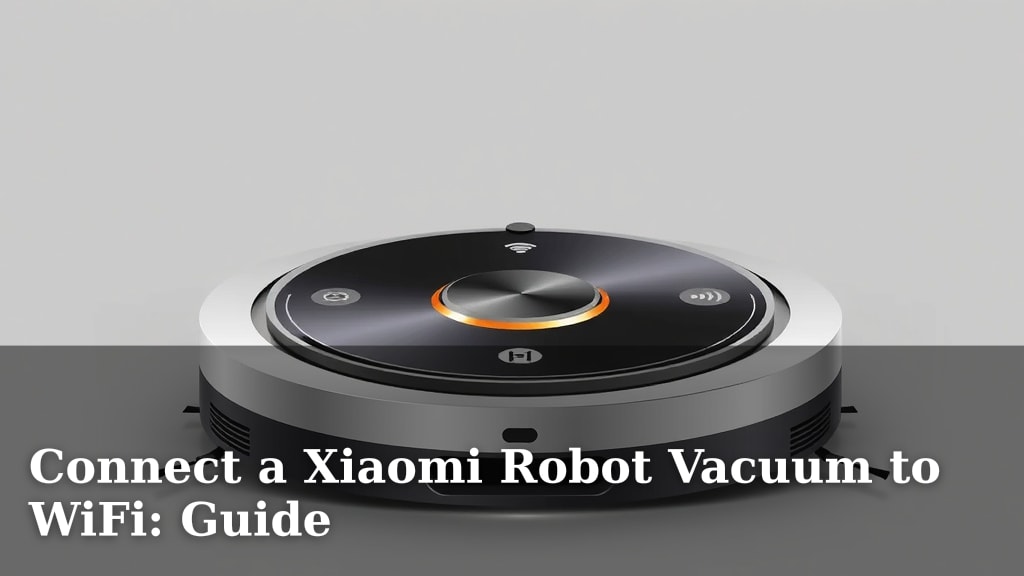
Connect a Xiaomi Robot Vacuum to WiFi: Guide
Yes, you can absolutely connect your Xiaomi robot vacuum to WiFi. This allows you to control it remotely using your smartphone app, making cleaning schedules and starting/stopping jobs a breeze. We found that getting your Xiaomi vacuum online is usually quite straightforward.
Connecting your robot vacuum to your home network unlocks its smartest features. You can often customize cleaning zones, view cleaning history, and even get real-time notifications directly on your phone. Many users appreciate the convenience this connectivity brings to their daily routines.
- Make sure your phone is connected to the 2.4GHz WiFi band.
- Have your WiFi password ready.
- Download the correct Xiaomi Home app.
- Follow the in-app instructions carefully.
Let’s walk through the simple steps to get your Xiaomi robot vacuum connected to your WiFi network so you can start enjoying its smart features.
So, you’ve got a new Xiaomi robot vacuum, and you’re ready to make it a smart part of your home. Connecting it to your WiFi is the key to doing just that. It transforms your little cleaning buddy into a remote-controlled assistant. You’ll be able to schedule cleanings while you’re at work, check its progress from the couch, and generally make your life a whole lot easier. We found that this process is usually pretty straightforward.
Getting Your Xiaomi Vacuum Online for Smart Control
Connecting your Xiaomi robot vacuum to WiFi unlocks its full potential. You can manage it from anywhere using the Mi Home app. This means no more remembering to press buttons before you leave the house. Your vacuum can clean on its own schedule. We found that most users can get connected in just a few minutes.
Before You Start: Essential Preparations
Before you dive into the connection process, a little prep work goes a long way. Having everything ready will save you time and frustration. Think of it like getting your ingredients lined up before you cook a fancy meal. You want everything within reach.
Check Your WiFi Network Band
This is a common stumbling block for many. Xiaomi robot vacuums, like many smart home devices, typically connect to a 2.4GHz WiFi band. Most modern routers broadcast both 2.4GHz and 5GHz bands. You’ll need to ensure your phone is connected to the 2.4GHz network when you’re trying to pair your vacuum. If you’re unsure which band you’re on, check your phone’s WiFi settings. You can usually tell by the network name. Sometimes it will have “2.4” or “5” in it.
Have Your WiFi Password Handy
This sounds obvious, right? But you’d be surprised how many people can’t recall their WiFi password when they need it most. Make sure you know it. You’ll need to enter it into the app during the setup process. If you’ve changed it recently, try to remember the current one. It’s a small detail, but it’s absolutely critical for a successful connection.
Download the Correct App
Xiaomi uses a central app for most of its smart home devices. You’ll need to download the Xiaomi Home app. You can find it on both the Apple App Store and the Google Play Store. Make sure you download the official app. Sometimes, third-party apps might claim to work, but they can cause issues. The official app is designed to work perfectly with your vacuum.
Step-by-Step Connection Guide
Now that you’re prepared, let’s get your robot vacuum connected. We’ve broken it down into simple, actionable steps. Just follow along, and you’ll have your vacuum online in no time.
Step 1: Power On and Reset Your Vacuum
First, make sure your Xiaomi robot vacuum is charged and powered on. You’ll typically need to place it on its charging dock. Once powered on, you might need to reset its WiFi connection. How you do this can vary slightly by model. Many models require you to press and hold a specific button combination (like the “Home” button and another button) for a few seconds until you hear a sound or see a light indicating it’s in pairing mode. Consult your vacuum’s manual if you’re unsure. This step is vital; it makes the vacuum discoverable by the app.
Step 2: Open the Xiaomi Home App and Add Device
Launch the Xiaomi Home app on your smartphone. If you’re a new user, you’ll need to create an account and log in. Once logged in, look for an option to “Add Device” or a plus (+) icon, usually located in the top right corner of the main screen. Tap on it. The app will then likely ask you to select the type of device you’re adding. You should see an option for robot vacuums. Sometimes, it might even auto-detect the vacuum if it’s in pairing mode and close by.
Step 3: Select Your Vacuum Model and Enter WiFi Details
If the app doesn’t auto-detect, you’ll need to manually select your specific Xiaomi robot vacuum model from the list. Once selected, the app will prompt you to enter your WiFi network name (SSID) and password. Remember, this should be your 2.4GHz network. Double-check that you’ve entered the password correctly. Typos here are a common reason for connection failures. After entering the details, the app will attempt to connect to the vacuum.
Step 4: Wait for Connection Confirmation
This is the waiting game. Your phone will now communicate with the vacuum through your router. You might hear your vacuum make a sound or see lights change on the device itself. The app will also show a progress indicator. This process can take a minute or two. If it fails, don’t panic! It’s often a minor issue like a wrong password or being on the wrong WiFi band. You can always try again.
Troubleshooting Common Connection Issues
Even with the best preparation, sometimes things don’t go perfectly. If you’re struggling to connect, don’t worry. Many users encounter similar hiccups. We’ve found that most problems can be resolved with a few simple checks.
Are You on the 2.4GHz Band?
We can’t stress this enough! If your phone is connected to the 5GHz band, the vacuum won’t be able to connect. Go back into your phone’s WiFi settings and make sure you’re connected to the 2.4GHz network. Sometimes, routers have separate names for each band, making it easy to choose. If your router uses the same name for both, you might need to temporarily disable the 5GHz band in your router settings during the setup process. Many experts recommend this for smart home device setup (NIST).
Router Distance and Signal Strength
Is your vacuum or your router too far away? Try moving your vacuum closer to the router, at least for the initial setup. A weak WiFi signal can prevent a stable connection. Once it’s connected, you can usually move it further away, depending on your home’s WiFi coverage. Think of it like trying to have a conversation in a noisy, crowded room versus a quiet one.
Check Router Settings (Advanced)
For most users, this isn’t necessary. However, if you’ve tried everything else, you might want to check your router’s settings. Ensure that MAC filtering isn’t enabled, or if it is, make sure your vacuum’s MAC address is allowed. Also, ensure your router firmware is up-to-date. These are more advanced steps, so only try them if you’re comfortable navigating your router’s administration page.
Post-Connection Checklist
Once your vacuum is successfully connected, take a moment to confirm everything is working as it should. A quick check ensures you can fully enjoy its smart capabilities.
- Confirm the vacuum appears in your Xiaomi Home app.
- Try starting a cleaning cycle remotely through the app.
- Check if you can access its settings or view its status.
- Ensure you receive notifications if you’ve set them up.
Conclusion
You’ve now learned how to connect your Xiaomi robot vacuum to your WiFi. Getting it online transforms it into a truly smart home device. You can enjoy remote control and automated cleaning schedules. We found that with a little preparation, the setup is usually quite simple. Following these steps should get your vacuum connected and ready for action. Your next step is to open the Mi Home app and start exploring all the smart features your vacuum now offers!
Frequently Asked Questions
What if my Xiaomi vacuum won’t connect to WiFi?
Don’t worry, this is a common issue! First, double-check that your phone is connected to the 2.4GHz WiFi band, not 5GHz. Also, ensure you’ve entered your WiFi password correctly, as typos are frequent culprits. Try restarting your vacuum and router, then attempt the connection process again.
Why does my Xiaomi vacuum only connect to 2.4GHz WiFi?
Most robot vacuums, including Xiaomi models, are designed for the 2.4GHz band because it offers a longer range and better penetration through walls compared to 5GHz. This wider coverage is helpful for devices that move around your home. Your vacuum likely can’t “see” or communicate on the 5GHz frequency. We found that many smart home devices have this limitation.
Can I connect my Xiaomi robot vacuum to my phone’s hotspot?
While technically possible, we don’t recommend it for regular use. Phone hotspots can be unstable, and they might use mobile data, which could incur charges. For reliable performance and consistent access to smart features, it’s best to connect your vacuum to your home’s dedicated 2.4GHz WiFi network.
What should I do if the Xiaomi Home app doesn’t find my vacuum?
Ensure your vacuum is in pairing mode. This usually involves pressing and holding a button until you hear a confirmation sound or see a specific light pattern. If it’s still not found, try moving your phone closer to the vacuum and your router. Also, make sure location services and Bluetooth are enabled on your phone, as the app sometimes uses these to discover devices.
How do I update my Xiaomi robot vacuum’s firmware?
Once your vacuum is connected to WiFi and recognized in the Xiaomi Home app, firmware updates are usually handled automatically. You should receive a notification within the app when an update is available. We found that it’s important to keep your vacuum on its charging dock and connected to WiFi during the update process to ensure it completes successfully.
![7 Best Robot Vacuum Under $1000 [2026]](https://robotvacuumfact.com/wp-content/uploads/2026/09/7-best-robot-vacuum-under-1000-2026-featured-768x432.jpg)
![7 Best Quality Robot Vacuum [2026]](https://robotvacuumfact.com/wp-content/uploads/2026/08/7-best-quality-robot-vacuum-2026-featured-768x432.jpg)