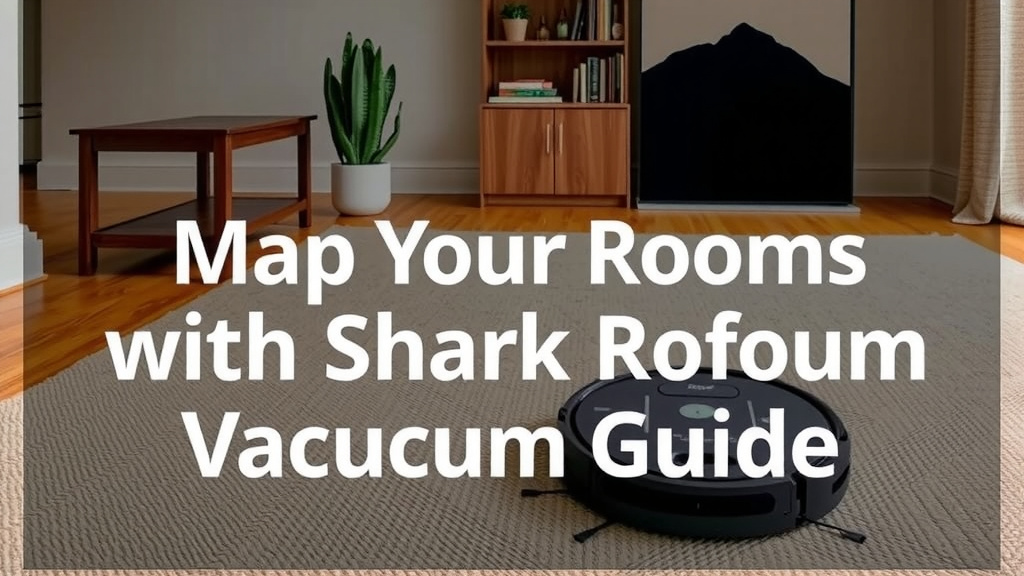
Map Your Home: Shark Robot Vacuum Guide
Mapping rooms with your Shark robot vacuum is surprisingly simple. You can easily set up your Shark robot to clean specific rooms or create no-go zones directly through its mobile app. This feature helps your vacuum learn your home’s layout for more efficient cleaning, saving you time and effort. It’s a This feature helps your vacuum learn your home’s layout for more efficient cleaning, and our guide explains how robot vacuums navigate.smart way to get the most out of your cleaning robot.
Your Shark vacuum’s mapping technology is designed to make cleaning smarter. It builds a map of your home so you can direct it where you need it most. This means you can tell it to clean just the kitchen or avoid the pet’s food bowls. Think of it as giving your robot a custom cleaning plan for every part of your house. It makes tidying up much more personalized and effective.
- Set specific cleaning zones.
- Create no-go areas for your robot.
- Use the mobile app for easy control.
- Your robot learns your home’s layout.
Let’s walk through how to get your Shark robot vacuum mapping your rooms like a pro, step by step. Let’s walk through how to get your Shark robot vacuum mapping your rooms like a pro, and explore budget mapping options.
Getting Your Shark Robot Vacuum to Understand Your Home’s Layout
Mapping your home with your Shark robot vacuum is a key step. It helps your robot clean more efficiently. You can guide it to specific areas. You can also tell it where not to go. This feature makes cleaning much more personalized. It’s like giving your robot a smart map of your house.
The Initial Mapping Run: Your Robot’s First Exploration
Before you can set up specific rooms or zones, your Shark robot needs to learn your home. This happens during its first cleaning cycles. Think of it as your robot taking a guided tour. It needs to get a feel for the space.
Preparing Your Home for the First Map Creation
To help your robot map effectively, a little preparation goes a long way. You want to give it a clear path. Remove any small items from the floor. This includes toys, shoes, or charging cables. These can get in the way. They might confuse the sensors.
Clear pathways are essential. Make sure doors are open to rooms you want mapped. If a door is closed, the robot won’t be able to enter. It won’t include that room in its map. This is especially important for hallways. They connect different areas.
Consider the lighting. Most robot vacuums rely on sensors. Good lighting helps these sensors work their best. Avoid mapping in very dark or very bright conditions. Natural daylight is usually ideal.
Starting the Mapping Process
Once your home is prepped, it’s time to start the mapping run. You typically initiate this through the SharkClean app. Look for an option like “Start Mapping” or “Create Map.” Your robot will then begin its journey.
During this first run, let the robot complete its cycle without interruption. It will systematically explore each accessible area. It uses its sensors to detect walls, furniture, and other obstacles. It’s building a digital blueprint of your home.
What Happens During the Mapping Run
Your Shark robot is equipped with various sensors. These include LiDAR or camera-based navigation systems. These technologies allow it to ‘see’ and record its surroundings. It logs the layout and identifies key features. This data creates the foundation for its smart mapping.
The robot moves methodically. It will cover your floors, noting where walls are. It also identifies larger furniture pieces. The goal is to create an accurate representation of your floor plan. This map will be saved in the app.
Using the SharkClean App to View and Edit Your Map
After the initial mapping run, your Shark robot’s map will appear in the SharkClean app. This is where you truly bring the mapping to life. You can now interact with the map.
Viewing Your Home’s Map
Open the SharkClean app. You should see an option to view your robot’s map. It will display the layout of your home. You’ll see rooms and open spaces outlined. It’s quite satisfying to see your home appear digitally.
Take a moment to look it over. Does it look accurate? Are the main areas visible? If not, don’t worry. Sometimes a second mapping run is needed. Or it might just need a little tweaking.
Dividing and Naming Rooms
The app usually allows you to divide the general floor plan into specific rooms. Your robot might detect these automatically. If not, you can manually draw lines. These lines create the boundaries for each room. Think of it like drawing on a blueprint.
Once divided, you can name each room. This is super helpful. You can name them things like “Kitchen,” “Living Room,” or “Master Bedroom.” This makes it easy to tell your robot where to clean later. It’s a small step that makes a big difference in usability.
Creating No-Go Zones and Cleaning Zones
This is where the smart mapping really shines. You can define specific areas on the map.
- No-Go Zones: These are areas you want your robot to avoid completely. For example, you might have a pet’s food and water bowls. Or perhaps a delicate rug you don’t want the robot to touch. Simply draw a boundary around these areas in the app. Your robot will steer clear.
- Cleaning Zones: These allow you to designate smaller areas for targeted cleaning. Perhaps you only need the entryway cleaned today. You can select that specific zone. Your robot will go there and clean only that spot. This is great for quick spot cleaning.
Setting Up a No-Go Zone Example
Let’s say your dog has a favorite spot on the rug. You don’t want the robot to clean there. Open the app, select “No-Go Zones,” and draw a small box around the area. The robot will then actively avoid it. You can adjust the size of these zones as needed.
Setting Up a Cleaning Zone Example
Spilled some crumbs in the kitchen? Instead of running the whole robot, select “Cleaning Zones.” Draw a box around the crumb-covered area. Send your robot to clean just that spot. It’s incredibly convenient for quick messes.

Tips for Maintaining an Accurate Map
Your home isn’t static. Furniture gets moved. Things change. Your robot’s map might need updates. Keeping it accurate ensures your robot cleans effectively.
Regularly Reviewing Your Map
Periodically check the map in the app. Did you move a piece of furniture? Did you add a new room feature? If so, you might need to edit the map. This ensures the robot’s understanding is current.
Remapping When Necessary
Sometimes, a significant change occurs. You might rearrange furniture extensively. Or perhaps a new, large object has been added. In such cases, it’s best to have your robot remap the area. You can usually find an option to “Remap” or “Create New Map” in the app settings. This ensures optimal navigation.
Ensuring Clear Sensors and Base Station
For the robot to navigate and map properly, its sensors must be clean. Dust and debris can obscure its view. Gently wipe the sensors regularly with a soft, dry cloth. Also, ensure the charging base is in a clear spot. It needs to be easily accessible for your robot.
A Quick Checklist for Map Accuracy
- Clear floor space before mapping runs.
- Ensure all relevant doors are open.
- Check map accuracy in the app after initial runs.
- Name rooms for easy zone selection.
- Set No-Go Zones for problem areas.
- Remap if major furniture changes occur.
Conclusion
You’ve now got a clear path to making your Shark robot vacuum a true cleaning assistant. By taking the time to map your home, you’re setting yourself up for smarter cleaning and less hassle. Remember, a little preparation during the initial mapping run goes a long way. Use the app to divide rooms, set no-go zones, and create targeted cleaning areas. This personalized approach means your robot works exactly how you need it to. Ready to get started? Open your SharkClean app and begin mapping your home today!
Frequently Asked Questions
How long does the initial mapping run usually take?
The first mapping run can take anywhere from 30 minutes to over an hour. This depends on the size and layout of your home. Just let your robot complete its cycle without interruption for the best results.
What should I do if my Shark robot misses a room during mapping?
If a room was missed, ensure the door was open during the mapping run. You may need to manually draw the room boundaries in the app or initiate a new mapping run after checking access.
Can I edit the map after the initial run?
Yes, you can! The SharkClean app allows you to edit room divisions and boundaries after the initial map is created. You can also adjust the size and location of no-go zones.
How do I update the map if I move furniture?
For minor furniture changes, the robot may adapt. For significant rearrangements, it’s best to initiate a new mapping run through the app. This ensures your robot has the most accurate representation of your home’s layout.
Why is my Shark robot not respecting the no-go zones I set?
Ensure the no-go zones are correctly drawn and saved in the app. Also, check that your robot’s sensors are clean, as dirt can sometimes interfere with navigation. A software update might also be needed if the issue persists.
![7 Best Robot Vacuum And Mop Self Cleaning [2026]](https://robotvacuumfact.com/wp-content/uploads/2026/08/7-best-robot-vacuum-and-mop-self-cleaning-2026-featured-768x432.jpg)
![7 Best Robot Vacuum And Mop Under $400 [2026]](https://robotvacuumfact.com/wp-content/uploads/2026/08/7-best-robot-vacuum-and-mop-under-400-2026-featured-768x432.jpg)