
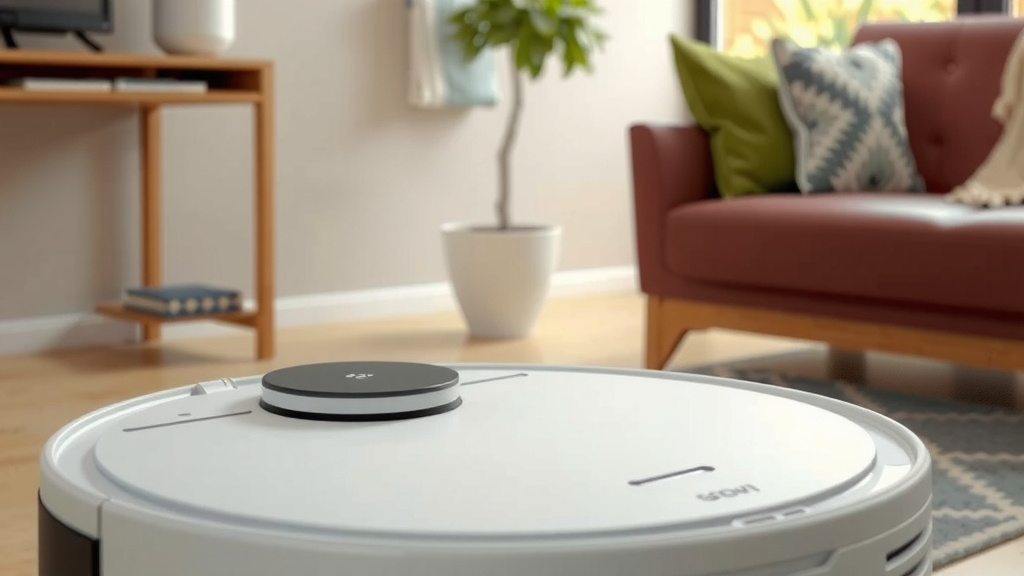
Master Your Goovi Robot Vacuum: Setup & Programming Guide
Programming your Goovi robot vacuum is simpler than you might think. You can usually program it directly through its dedicated mobile app. This allows you to set cleaning schedules, choose cleaning modes, and even direct it to specific rooms. Don’t worry if you’re not a tech whiz; the process is designed to be straightforward.
Getting your Goovi vacuum on a schedule means cleaner floors with less effort from you. Think of it as your little cleaning buddy that knows when to get to work. We found that many users appreciate the convenience of setting it and forgetting it. Plus, understanding the different cleaning modes can optimize your cleaning experience.
TL;DR:
- Program your Goovi vacuum using its mobile app.
- Set cleaning schedules for automated cleaning.
- Choose different cleaning modes for best results.
- Direct the robot to specific rooms if needed.
Ready to make your Goovi vacuum work smarter for you? Let’s walk through exactly how to program it step by step.
Setting Up Your Goovi Vacuum Schedules
Programming your Goovi robot vacuum is largely done through its dedicated mobile app. This app acts as your central hub for all things scheduling and customization. You’ll find it to be your best friend for automating your cleaning routine.
Downloading and Connecting the Goovi App
First things first, you need the app. Search for “Goovi Home” (or the specific name for your model’s app) in your smartphone’s app store. It’s available for both iOS and Android devices. Once downloaded, open the app and follow the prompts to create an account or log in. You’ll then need to connect your Goovi vacuum to your home Wi-Fi network. Make sure your phone is connected to the same 2.4GHz Wi-Fi network you want your vacuum to use. Many routers broadcast both 2.4GHz and 5GHz bands, but robot vacuums typically prefer the 2.4GHz band for its wider range. This connection is essential for remote control and scheduling.
Creating Your First Cleaning Schedule
Inside the app, look for a section labeled “Schedule” or “Timer.” This is where the magic happens. You can typically set multiple cleaning schedules per day or week. For instance, you might want your Goovi to clean every weekday morning while you’re at work. Or perhaps you prefer a quick tidy-up every evening after dinner.
To create a new schedule, you’ll usually tap a “+” icon or a “Add Schedule” button. You’ll then be prompted to select:
- Days of the week: Choose specific days or set it to repeat daily.
- Time of day: Pick the exact time you want cleaning to start.
- Cleaning Mode: Select the type of cleaning you want (more on this below).
- Suction Power: Adjust how strong you want the vacuum to be.
- Cleaning Area (if applicable): Some advanced models allow you to designate specific rooms or zones for scheduled cleanings.
Once you’ve configured these settings, just save the schedule. Your Goovi vacuum will now automatically start cleaning at the times you’ve specified. It’s like having a personal cleaning assistant that never complains!
Understanding Goovi Cleaning Modes
Your Goovi vacuum isn’t just a one-trick pony. It comes with various cleaning modes designed for different situations. Knowing these modes helps you get the most efficient clean for your home.
Common Cleaning Modes Explained
While the exact names might vary slightly between Goovi models, here are the most common modes you’ll encounter:
Auto Mode
This is the standard, everyday cleaning mode. When you select “Auto,” your Goovi vacuum will intelligently navigate around your home. It uses its sensors to map out rooms, avoid obstacles, and cover as much floor area as possible. It’s the perfect setting for regular maintenance cleaning. We found that Auto mode is ideal for most open floor plans and general dirt and dust.
Edge Cleaning Mode
Got dusty baseboards? Edge cleaning is your go-to. In this mode, the Goovi vacuum will focus its efforts along the walls and corners of your rooms. It uses its side brushes more actively to sweep debris from those hard-to-reach edges. If you have pets that tend to shed near the walls, this mode is especially helpful.
Spot Cleaning Mode
Accidentally spilled some cereal? Or maybe the dog tracked in some mud? Spot cleaning is designed for concentrated messes. When you activate this mode (often by placing the robot on the mess and selecting the mode), it will clean in a tight, spiral pattern. It will then move outwards in a larger spiral pattern to cover a wider area around the initial spot. This ensures that spills and stubborn dirt are thoroughly tackled.
Max/High Suction Mode
Sometimes, your floors just need a little extra oomph. Max or High suction mode increases the vacuum’s power. This is great for carpets or areas with heavier debris. While it provides a deeper clean, it can also use more battery power. We found that using this mode sparingly, for specific tasks, helps conserve battery life for the whole house.
Selecting Modes in the App and on the Remote
You can usually switch between these cleaning modes directly in the Goovi app. Look for icons or text options that represent each mode. Some Goovi models also come with a physical remote control. This remote often has dedicated buttons for selecting different cleaning modes, giving you quick access without needing your phone.
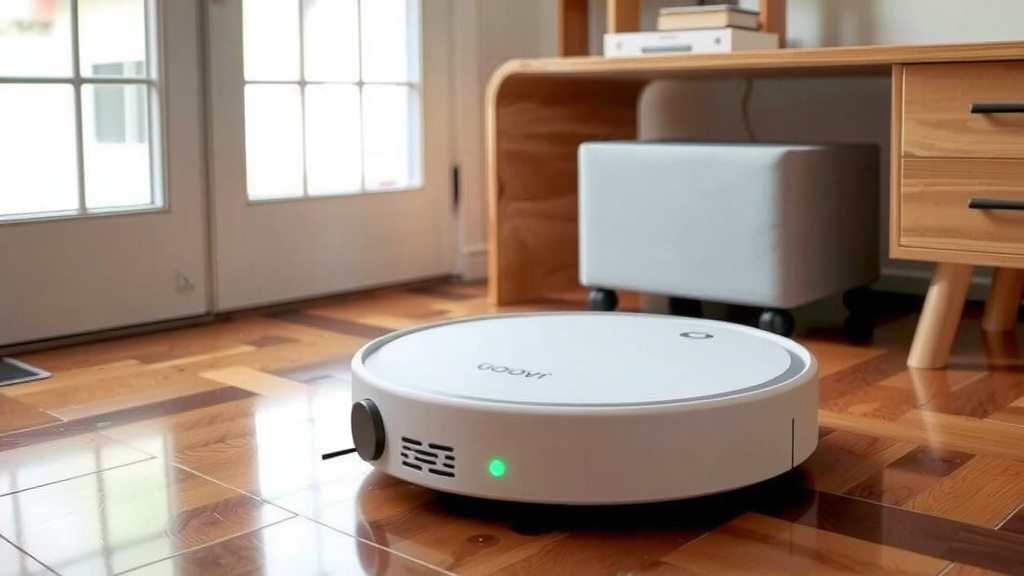
Advanced Scheduling and Customization Features
Beyond basic schedules, your Goovi app might offer more advanced options to tailor the cleaning experience even further. These features can make your robot vacuum feel truly personalized to your household needs.
Room-Specific Cleaning and No-Go Zones
Higher-end Goovi models often feature smart mapping technology. This allows the vacuum to create a map of your home. With this map, you can often do two very cool things:
- Target Specific Rooms: Want only the kitchen cleaned today? You can select just that room in the app. This is perfect for spot cleaning after cooking or for areas that get messy frequently.
- Set No-Go Zones: Is there an area where your Goovi tends to get stuck, or a pet’s water bowl you want it to avoid? You can draw virtual “no-go” lines or boxes on the map in the app. The vacuum will automatically steer clear of these designated areas. This prevents it from getting tangled or bumping into things it shouldn’t.
These mapping features require the robot to complete a few initial mapping runs. During these runs, it’s best to let the vacuum explore freely to build an accurate map. You can then refine these areas in the app.
Adjusting Suction Power and Water Flow (for mopping models)
If your Goovi model also has a mopping function, the app will offer controls for that too. You can typically adjust the water flow level (low, medium, high) to suit your floor type and the level of dirt. You can also usually adjust the suction power separately for vacuuming, as we discussed earlier. This level of control ensures you’re not over-wetting your floors or missing dirt.
Voice Control Integration
Many Goovi vacuums are compatible with voice assistants like Amazon Alexa or Google Assistant. After linking your Goovi account to your voice assistant app, you can use simple voice commands. For example, you could say, “Alexa, tell Goovi to start cleaning,” or “Hey Google, ask Goovi to send it back to the charging base.” This offers a hands-free way to manage your robot. It’s incredibly convenient when you’re busy or your hands are full.
What to Do If Your Schedule Isn’t Running
If you’ve set a schedule and it’s not activating, here are a few things to check. First, ensure the vacuum is charged and powered on. It needs to be ready to go when the scheduled time arrives. Also, double-check that the schedule is enabled and not accidentally turned off in the app. A weak Wi-Fi signal can sometimes disrupt communication, so ensure your robot has a stable connection to your network. Finally, a simple reboot of the vacuum and your router can often resolve minor glitches.
Here’s a quick checklist to ensure your programming is set up for success:
- Confirm your Goovi vacuum is connected to your 2.4GHz Wi-Fi network.
- Verify the schedule is enabled and correctly set in the app.
- Ensure the vacuum has sufficient battery life before the scheduled start time.
- Check for any new firmware updates for the vacuum or the app.
- If using mapping, ensure no-go zones aren’t blocking the entire cleaning path.
- Test a manual start from the app to confirm app-to-robot communication.
Conclusion
You’ve now learned how to program your Goovi robot vacuum for a cleaner home with minimal fuss. By using the Goovi Home app, you can easily set cleaning schedules, select the best cleaning modes for different messes, and even fine-tune settings like suction power. We’ve seen how these features transform your Goovi from a simple cleaner into a smart home assistant. Ready to get started? Your next step is to open the Goovi app, create your first schedule, and let your robot do the work!
Frequently Asked Questions
Can I set different schedules for different days of the week?
Yes, the Goovi app typically allows you to create custom schedules for specific days. You can set your vacuum to clean on weekdays while you’re at work and perhaps a different schedule for weekends. This flexibility ensures your home is cleaned exactly when you need it.
What happens if my Wi-Fi goes out while the robot is scheduled to clean?
If your Wi-Fi connection is lost when a schedule is set to run, the vacuum usually won’t start. It needs a stable connection to the app and your network to receive the command. Once your Wi-Fi is back online, the scheduled cleaning should resume as normal if it’s still within the designated time frame.
How do I know if my Goovi robot has a working schedule set?
You can always check the “Schedule” section within the Goovi Home app. It will list all your set schedules and usually has a toggle switch to enable or disable them. If you see your desired schedule active, your robot is all set to go.
Can I change the cleaning schedule on the fly from my phone?
Absolutely! The beauty of the app is that you can make changes anytime, anywhere. If your plans change, you can pause, delete, or edit an existing schedule directly from your smartphone, even if you’re not home.
Is it possible to schedule spot cleaning for a specific area?
While you can schedule general cleaning modes like “Auto” or “Edge,” spot cleaning typically requires manual activation. This is because spot cleaning is designed for immediate, concentrated messes. You’ll usually need to initiate spot cleaning yourself when you see a spill.



![7 Best Affordable Robot Vacuum Mop [2026]](https://robotvacuumfact.com/wp-content/uploads/2026/06/7-best-affordable-robot-vacuum-mop-2026-featured-768x432.jpg)