
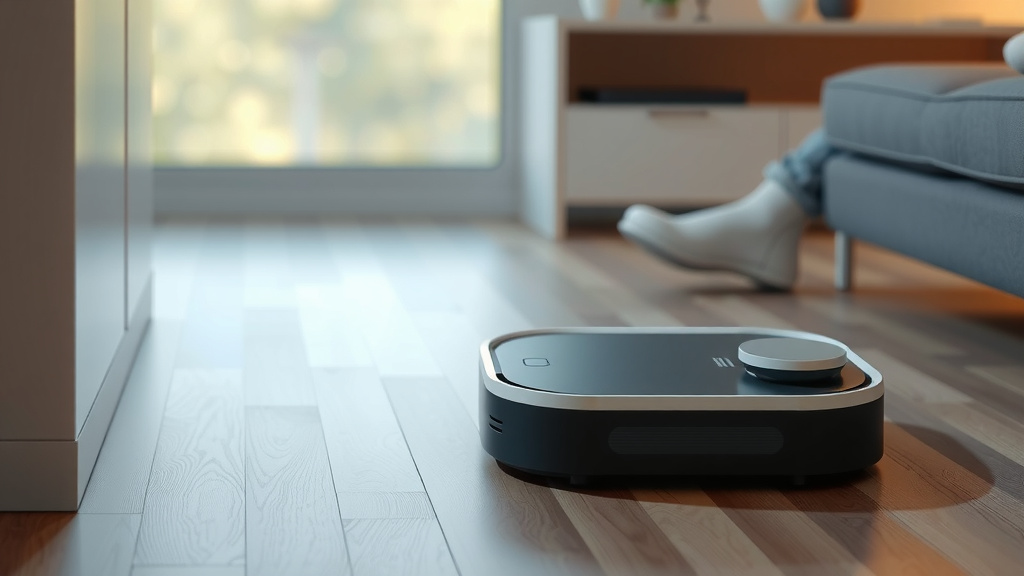
Program Your iLife Robot Vacuum: A Simple Guide
Programming your iLife robot vacuum is actually quite straightforward. You can easily set a cleaning schedule and choose different cleaning modes directly from the remote control or the iLife app. This means you can have your robot vacuum work its magic while you’re out and about, coming home to perfectly clean floors.
Understanding your iLife’s programming options helps you get the most out of its automatic cleaning capabilities. Beyond just scheduling, you can customize cleaning paths and designate specific areas. This ensures a thorough clean tailored to your home’s unique layout and your personal preferences.
TL;DR:
- Set cleaning schedules for automated vacuuming.
- Use the remote or app for programming.
- Customize cleaning modes and paths.
- Designate specific areas for focused cleaning.
Ready to get your iLife robot vacuum on a regular cleaning routine? Let’s walk through exactly how to program it step by step.
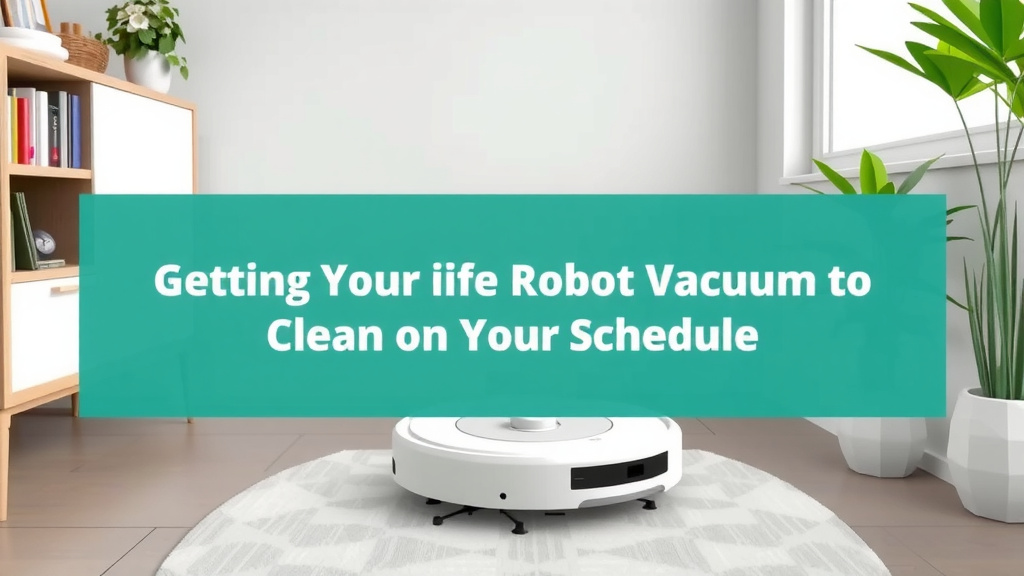
Getting Your iLife Robot Vacuum to Clean on Your Schedule
Programming your iLife robot vacuum is simpler than you might think. You can set it up to clean automatically. This way, your floors stay tidy without you lifting a finger. Let’s get started with the basics.
Using the Remote Control: Your Direct Link to Programming
Most iLife robot vacuums come with a remote control. This is your primary tool for programming. It’s like having a personal assistant for your vacuum. You can set cleaning times and choose modes easily. Think of it as telling your robot when to wake up and get to work.
Setting the Clock and Schedule
Before you can schedule a cleaning, you need to set the correct time on the remote. This ensures your vacuum starts cleaning at the right moment. Look for a clock icon or a “SET CLOCK” button. Press and hold it, then use the arrow buttons to adjust the hours and minutes. Make sure to set it to AM or PM correctly!
Once the clock is set, you can program the cleaning schedule. Find the “SCHEDULE” or “TIMER” button on your remote. Press it to enter scheduling mode. You’ll typically see options to set a daily cleaning time. You can often set different times for different days of the week.
Some models allow you to set multiple schedules. This is handy if you want a quick clean on weekdays and a more thorough one on weekends. Consult your specific iLife model’s manual. It will show you the exact button sequence.
Choosing Cleaning Modes with the Remote
Your iLife robot isn’t a one-trick pony. It has different cleaning modes. You can select these using the remote. Common modes include Auto, Edge, Spot, and Max. Auto mode is for general cleaning. Edge mode focuses on baseboards and walls. Spot mode is for concentrating on a small, messy area. Max mode increases suction power for tougher jobs.
Leveraging the iLife App: Smart Control at Your Fingertips
If your iLife model supports app control, you’re in for a treat. The app offers more advanced features. It gives you control from anywhere with an internet connection. It’s like having a remote control that fits in your pocket and works from miles away.
Connecting Your Robot to Wi-Fi
First, download the iLife Home app from your device’s app store. Create an account or log in. Then, follow the app’s instructions to connect your robot vacuum to your home Wi-Fi network. This usually involves putting the robot in pairing mode. You might need to press and hold a button on the robot or the remote.
A stable Wi-Fi connection is key. Ensure your router is within range of your robot. Having a strong signal helps prevent connection drops. This ensures commands reach your robot without issues.
Scheduling Cleanings via the App
The app makes scheduling a breeze. Navigate to the scheduling section within the app. You can usually set daily or weekly schedules. Some apps let you choose specific rooms or zones for cleaning. You can also set the desired cleaning mode for each scheduled session. This offers fantastic flexibility for managing your cleaning routine.
Advanced App Features
Beyond scheduling, the app often provides more. You might get a cleaning history. This shows where your robot has cleaned and for how long. Some models offer virtual boundaries or no-go zones. These allow you to tell your robot which areas to avoid. This is perfect for keeping it away from pet bowls or fragile decorations. You can also control suction power and water flow (for mopping models) through the app.
Understanding Different Cleaning Modes and Their Use
Knowing your iLife’s cleaning modes helps you achieve the best results. Each mode is designed for a specific cleaning task. Using the right mode saves time and energy.
General Cleaning (Auto Mode)
Auto mode is your robot’s default setting. It cleans in a systematic pattern. The robot navigates around furniture and walls. It covers most of your floor space. This mode is ideal for daily or regular cleaning. It keeps your home looking neat consistently.
Edge Cleaning
For those stubborn dust bunnies along walls, use Edge mode. Your iLife will hug the walls and baseboards. It uses its side brushes to sweep debris into its path. This mode is excellent for preventing dust buildup where it’s often missed.
Spot Cleaning for Concentrated Messes
Accidentally spilled some cereal? Or maybe your pet had a little mishap? Spot mode is your hero. Activate it, and your robot will spiral outwards from its current location. It focuses all its cleaning power on that one small area. Once done, it usually returns to its base or stops. Many experts suggest using this for targeted spills (Cleveland Clinic).
Maximum Suction (Max Mode)
When you need a deeper clean, Max mode is the answer. This setting boosts the suction power significantly. It’s perfect for carpets or areas with embedded dirt. If your floors are particularly grimy, this mode will tackle it head-on. Be aware that Max mode can use more battery power.
Programming for Different Floor Types
While not a direct programming mode, you can strategize. If you have both carpets and hard floors, consider scheduling Edge mode for hard floors and Auto or Max mode for carpets. You can often do this by setting different schedules for different days or by manually changing modes before a scheduled run. This ensures optimal cleaning for every surface.
Tips for Effective iLife Robot Vacuum Programming
To get the most out of your iLife, a little planning goes a long way. Here are some tips to make your programming efforts even more effective.
- Clear the Floor: Before a scheduled cleaning, pick up small items. Things like charging cables, small toys, or socks can get tangled. This prevents errors and ensures a smoother run.
- Maintain the Robot: Regularly empty the dustbin. Clean the brushes and filters. A well-maintained robot performs better.
- Understand Your Layout: Know where your furniture is. Identify potential obstacles. This helps you set schedules when the robot has clear paths.
- Test Your Schedules: Run a manual clean first. Then try a scheduled clean. Make sure the timings and modes work for your home.
- Charge Fully: Ensure your robot is fully charged before a scheduled cleaning. This maximizes its runtime and cleaning coverage. Ensure your robot is fully charged before a scheduled cleaning; our easy guide explains how long to charge a robot vacuum.
Programming your iLife robot vacuum is a fantastic way to save time. It ensures your home remains clean with minimal effort. By understanding the remote, the app, and the different cleaning modes, you can tailor your robot’s performance to your exact needs. Happy cleaning!
Conclusion
You’ve learned how to program your iLife robot vacuum to clean on your schedule. Using either the remote or the iLife app gives you control. You can set specific times and choose the best cleaning modes for your home. Remember to prepare your space by clearing clutter. Proper maintenance also ensures your robot runs smoothly. Take a moment to set your first cleaning schedule now. Your future self will thank you for the effortless clean floors!
Frequently Asked Questions
How do I set a cleaning schedule if my iLife robot doesn’t have an app?
If your iLife model only uses a remote control, you’ll program it directly through that. First, ensure the clock on the remote is set correctly. Then, use the “SCHEDULE” or “TIMER” button to input your desired cleaning times. Refer to your manual for the exact button sequence for your specific model.
Can I set different cleaning schedules for weekdays and weekends?
Yes, many iLife models allow for this flexibility. You can often set one schedule for certain days of the week and a different one for others. This means you can have your robot clean more often when you’re busy and less often when you’re home. Check your remote or app settings for these advanced scheduling options.
What should I do if my iLife robot vacuum misses spots when cleaning on a schedule?
If your robot is missing spots, first ensure the floor is clear of small obstacles before it starts. You might also need to experiment with different cleaning modes. For instance, using “Edge” mode more frequently or selecting “Max” suction for carpets can help. A clean robot with clear brushes also performs better.
Is it okay to leave my iLife robot vacuum charging all the time?
Yes, it’s generally safe to leave your iLife robot vacuum on its charging dock when not in use. Most modern robot vacuums have battery management systems that prevent overcharging. This ensures your robot is always ready for its next scheduled cleaning.
How often should I perform maintenance on my iLife robot vacuum for optimal programming?
For best performance and reliable scheduled cleaning, aim to empty the dustbin after each use. Clean the brushes and filters at least once a week. Regular maintenance ensures your robot can effectively execute its programmed cleaning tasks without issues.
![7 Best Robot Vacuum Under $150 [2026]](https://robotvacuumfact.com/wp-content/uploads/2026/09/7-best-robot-vacuum-under-150-2026-featured-768x432.jpg)