Robot Vacuum Reset: Step-by-Step Guide
You can easily reset your robot vacuum by locating the reset button or performing a power cycle. This often fixes common issues like connection problems or unresponsiveness. A factory reset returns your robot vacuum to its original settings, which can be a lifesaver when troubleshooting.
Sometimes, your trusty robot helper just needs a fresh start. We found that a simple reset can often resolve glitches and get your floors clean again. It’s a common fix that many owners overlook, especially when dealing with persistent errors.
- Locate the reset button or perform a power cycle.
- A reset returns the vacuum to its original settings.
- This can fix connectivity and responsiveness issues.
- It’s a great first step for troubleshooting.
Let’s walk through how to reset your robot vacuum step by step, so you can get back to enjoying spotless floors!
Getting Your Robot Vacuum Back on Track
Robot vacuums are amazing helpers. They keep your floors looking sharp. But sometimes, even these smart devices can get a little confused. You might notice yours acting a bit strange. Maybe it’s not connecting to Wi-Fi. Or perhaps it’s just stopped responding altogether. Don’t worry! A reset can often fix these quirks. It’s like giving your robot a quick refresh.
Why Reset Your Robot Vacuum?
Think of a reset as a digital “have you tried turning it off and on again?” It’s a common troubleshooting step. We found that many issues can be resolved with this simple action. Resetting can clear out temporary software glitches. It can also help re-establish connections. Sometimes, your vacuum might be stuck in a loop. A reset breaks that cycle. It’s a great way to start when you’re facing unexpected behavior from your cleaning companion.
Types of Resets
There are generally two main ways to reset your robot vacuum. One is a soft reset, often called a power cycle. The other is a hard reset, which restores the vacuum to its factory default settings. The method you choose depends on the problem you’re experiencing.
The Soft Reset: Power Cycling
A power cycle is the easiest reset. It involves disconnecting the vacuum from its power source. This allows the internal components to discharge any residual power. It’s a gentle way to clear minor errors. Many users find this resolves simple connectivity issues or unresponsiveness.
Here’s how it typically works:
- Turn off your robot vacuum completely.
- If it’s not built-in, remove the battery.
- Unplug the charging dock from the wall.
- Wait for about 5-10 minutes. This gives it time to fully discharge.
- Reconnect everything and turn the vacuum back on.
We found that this simple process can often get things working smoothly again. It’s a good first step before trying anything more involved.
The Hard Reset: Factory Defaults
A factory reset is more drastic. It wipes all custom settings and preferences. Your vacuum will return to the state it was in when you first bought it. This is usually done when a soft reset doesn’t solve the problem. It can fix deeper software issues that a simple power cycle can’t reach.
When might you need a factory reset?
- Persistent Wi-Fi connection problems.
- The vacuum is unresponsive even after a power cycle.
- You’re selling or giving away the vacuum.
- The app shows continuous errors that won’t clear.
Locating the Reset Button
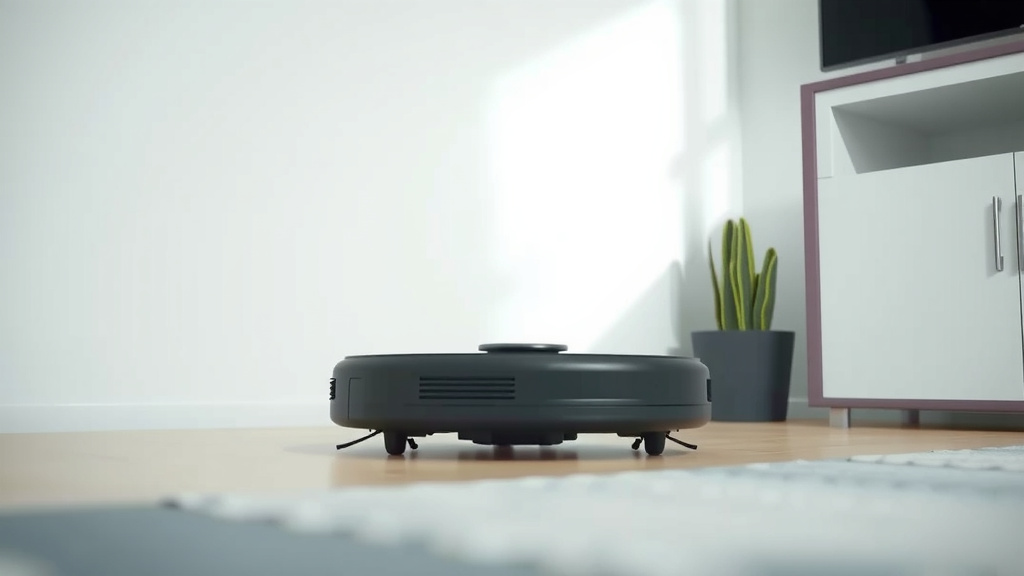
The exact location of the reset button varies by brand and model. You’ll often find it hidden. Look for a small, recessed button. Sometimes it requires a pin or paperclip to press. Common places include:
- Underneath the top lid of the vacuum.
- On the underside of the unit.
- Near the dustbin compartment.
- Behind a small panel that might need unscrewing.
Consult your robot vacuum’s user manual. It will pinpoint the exact location for your specific model. Many manufacturers also have this information on their websites. We found that the manual is your best friend here.
Performing a Factory Reset Step-by-Step
While procedures differ slightly, here’s a general guide to performing a factory reset:
1. Power Down Your Robot
Make sure your robot vacuum is turned off. If possible, remove the battery. This ensures no power is flowing during the reset process.
2. Locate the Reset Button
As mentioned, check your manual. Once found, you’ll need something thin and pointed. A straightened paperclip or a pen tip often works well.
3. Press and Hold the Button
Carefully insert your tool into the reset button’s opening. Press and hold it down. You might need to hold it for 10 to 30 seconds. Keep holding until you see a change. This could be a light indicator flashing or the unit beeping. Some models will simply restart after holding the button.
4. Wait for the Process to Complete
Once you release the button, the vacuum will likely restart. It might make a startup sound. Allow it to go through its startup sequence completely. Do not interrupt this process.
5. Reconnect and Reconfigure
After the reset, your vacuum is back to its original factory settings. You’ll need to reconnect it to your Wi-Fi network. You’ll also need to re-pair it with its charging dock. If you use a mobile app, you’ll likely need to set up your cleaning schedules and preferences again.
When to Seek Further Help
If you’ve tried both a soft and a hard reset, and your robot vacuum still isn’t working correctly, it might be time for more advanced troubleshooting. There could be a hardware issue. Many manufacturers offer support resources. You can often find troubleshooting guides on their websites. Don’t hesitate to contact their customer service. They can provide model-specific advice. Some experts suggest checking for firmware updates too. These can sometimes resolve bugs. Keeping your vacuum’s software up-to-date is good practice (iRobot Support).
Checklist: Quick Reset Steps
Here’s a quick rundown for when you need to reset:
- Identify the issue: Is it connectivity or unresponsiveness?
- Try a power cycle first: Turn off, unplug, wait, turn on.
- If that fails, locate the factory reset button.
- Use a pointed object (like a paperclip) to press and hold.
- Note any indicator lights or sounds.
- Reconfigure settings and app connections after the reset.
Resetting your robot vacuum is often a simple fix for complex problems. It’s a powerful tool in your maintenance kit.
Conclusion
You’ve learned that resetting your robot vacuum is a straightforward process. Whether it’s a quick power cycle or a full factory reset, this action can solve many common issues. We found that these methods often restore connectivity and responsiveness. Don’t forget to consult your user manual for the specific button location and procedure for your model. If troubleshooting persists after a reset, reaching out to customer support is your best next step. Give your robot vacuum a fresh start and get back to enjoying clean floors!
Frequently Asked Questions
How do I know if I need a soft reset or a hard reset?
Start with a soft reset, or power cycle, for minor glitches like temporary unresponsiveness. If that doesn’t fix the problem, or if you’re dealing with persistent connectivity issues or app errors, a hard (factory) reset is usually the next best step.
Will a factory reset delete my cleaning history?
Yes, a factory reset will erase all custom settings, including cleaning schedules, map data, and Wi-Fi configurations. You’ll need to re-establish these settings and reconnect the vacuum to your app and network afterward.
Can I reset my robot vacuum without the user manual?
While it’s best to use your manual, you can often find reset instructions on the manufacturer’s website by searching for your specific model number. Look for common reset button locations like under the lid or on the underside.
What if the reset button is hard to find or press?
Many reset buttons are recessed and require a thin object like a straightened paperclip or a toothpick. Be gentle when pressing. If it still seems inaccessible, double-check the manual or manufacturer’s website for alternative reset methods.
Will resetting my robot vacuum void its warranty?
Generally, performing a standard reset, whether soft or hard, will not void your robot vacuum’s warranty. These are considered normal maintenance procedures. However, always check your warranty documentation or contact the manufacturer if you have concerns.
![7 Best Bagless Robot Vacuum And Mop [2026]](https://robotvacuumfact.com/wp-content/uploads/2026/07/7-best-bagless-robot-vacuum-and-mop-2026-featured-768x432.jpg)