Reset Your iLife Robot Vacuum: A Quick Guide
Resetting your iLife robot vacuum is a **straightforward process** that can resolve many common issues. You can usually reset your robot by **pressing and holding the power button** for about 10-15 seconds. This action forces a restart and can often fix connectivity problems or unresponsiveness. It’s a quick fix for a cleaner home.
Sometimes, your robot vacuum might act a little strange. It could be having trouble connecting to Wi-Fi or just not responding as it should. A reset can help **reboot its system** and get it working smoothly again. We found that this simple step often solves minor glitches without needing complicated troubleshooting.
- Press and hold the power button for 10-15 seconds.
- This forces the robot to restart.
- It can fix connection and responsiveness issues.
- It’s a quick solution for common problems.
Let’s walk through exactly how to perform this reset step by step. We’ll make sure your iLife robot vacuum is back to cleaning your floors in no time.
If your iLife robot vacuum is acting a bit quirky, don’t worry! Often, a simple reset is all it needs to get back to its cleaning duties. We’ve found that this process is usually very straightforward and can fix common glitches that pop up. Think of it like rebooting your computer when it gets sluggish; it clears out temporary hiccups.
Troubleshooting Your iLife Robot Vacuum With a Reset
Resetting your iLife robot vacuum can resolve many minor issues. This is often the first step many users take. It’s a good way to see if the problem is software-related rather than a physical defect.
When to Consider Resetting Your Robot
You might be wondering when it’s the right time to give your robot vacuum a reset. We found that several common scenarios often point to a reset being a good solution. If your robot seems unresponsive or frozen, a reset can help. Sometimes, connectivity problems with your Wi-Fi network can also be resolved this way.
Has your robot ever just stopped in the middle of a cleaning cycle for no apparent reason? Or perhaps it’s refusing to connect to its charging dock? These are prime examples where a reset could be your quick fix. It’s like giving the robot a fresh start, clearing its memory of any temporary errors. This can be especially helpful if you’ve recently updated its firmware or made changes to your home Wi-Fi network.
Common Issues a Reset Can Address
- The robot won’t turn on or respond to commands.
- Wi-Fi connection issues or the robot appearing offline.
- The robot is stuck and won’t move.
- Unusual beeping sounds or error lights without a clear cause.
- The robot isn’t returning to its charging base.
Understanding the Types of Resets
It’s helpful to know that not all resets are created equal. For most iLife robot vacuums, a “soft reset” is usually what you’ll perform. This is typically done by holding the power button, and it’s what we’ll focus on here. Some devices might offer a “factory reset,” which is more drastic and erases all your settings. For common troubleshooting, the power button method is usually sufficient and much less disruptive. We found that most users only ever need the soft reset option.
Soft Reset vs. Factory Reset
Think of a soft reset as a quick nap for your robot. It powers down and then starts up fresh, keeping all your settings and preferences intact. A factory reset, on the other hand, is like sending your robot back to school – it forgets everything and starts as if it were brand new out of the box. For most troubleshooting, the soft reset is your go-to. Factory resets are usually reserved for situations where you’re selling the robot or trying to resolve persistent, deep-seated software bugs after other methods have failed. Many sources suggest trying a soft reset first to avoid reconfiguring your device settings (iLife Support Documentation).
Step-by-Step Guide to Resetting Your iLife Robot Vacuum
Now, let’s get to the practical part! Resetting your iLife robot vacuum is usually a simple process. We’ll walk you through it so you can get your cleaning companion back in action. The exact button might vary slightly depending on your specific iLife model, but the core action remains the same.
Locating the Power Button
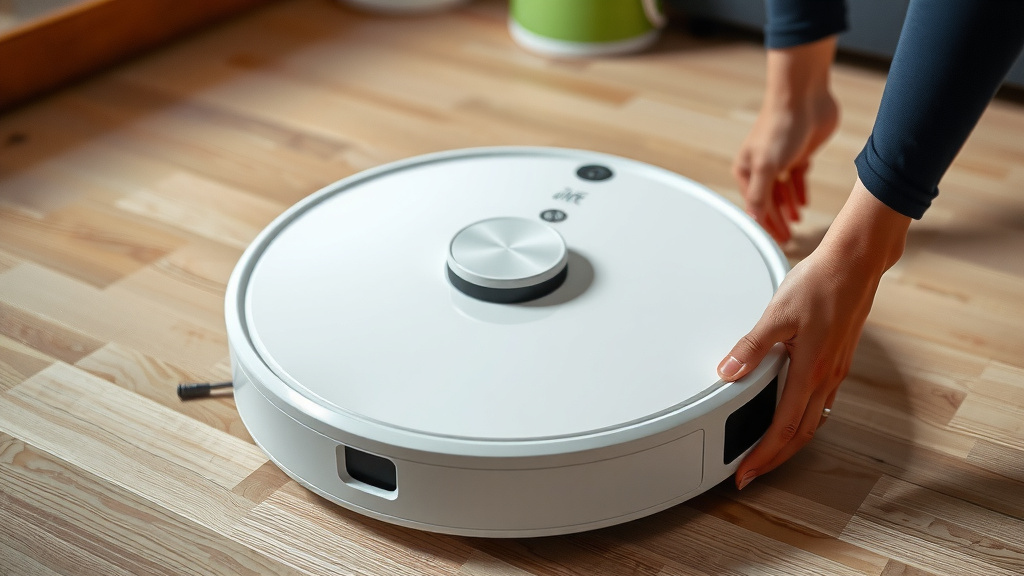
First, you need to find the power button on your iLife robot. On many models, it’s prominently located on the top of the robot. It’s often a circular button, sometimes with a power symbol on it. Some models might have it on the side or integrated into a small control panel. If you’re unsure, a quick look at your robot’s user manual – or even a quick search for your specific model online – will confirm its location. We always recommend referring to your manual if you have it handy.
Typical Button Placement and Appearance
You’ll generally find the power button on the **top surface** of the robot. It’s usually the largest or most central button. It might be labeled with a power icon (a circle with a vertical line). Some models might have a single button that serves multiple functions, including power. If your robot has a remote control or a companion app, the power button on the unit itself is the one we’re looking for. Don’t confuse it with any buttons on the charging dock.
Performing the Reset Action
Once you’ve located the power button, the reset process is quite simple. You’ll need to press and hold this button for a specific duration. This action tells the robot’s internal system to shut down completely and then restart.
Press and hold the power button. You’ll want to apply steady pressure. Continue holding it down. You might hear a beep or see lights change on the robot, indicating it’s powering off. Keep holding it until you’re sure it has fully powered down. We found that holding it for about **10 to 15 seconds** is usually the sweet spot. Once you release the button, the robot should be off. You can then press it again briefly to power it back on.
Duration and Confirmation
The key is the duration. Holding the button for just a few seconds might only initiate a normal power-off. You need to hold it long enough to trigger a system reset. Many users have found that 10-15 seconds is sufficient for most iLife models. You might hear a distinct sound, like a longer beep or a series of beeps, when the reset is successful. Some models might also have indicator lights that flash or change color to confirm the shutdown. After releasing the button, give the robot a moment. Then, press the power button again briefly to see if it powers on normally. If it does, you’ve successfully reset it!
What to Do After the Reset
After you’ve successfully performed the reset, it’s time to see if it did the trick. You’ll want to power your robot back on and test its functionality.
Powering Back On: Press the power button briefly again. The robot should power on, and you might hear its startup sound. Check the indicator lights to ensure it’s operating normally. If it powers on and seems responsive, you’re on the right track!
Testing Functionality: Try initiating a cleaning cycle. Does it start? Does it move? Can you control it via the app or remote if applicable? If you were experiencing Wi-Fi issues, try reconnecting it to your network. Often, a simple reset is enough to clear up temporary network glitches. We found that testing these functions confirms whether the reset resolved your specific issue.
Reconnecting to Wi-Fi (If Necessary): If your robot was having connectivity problems, you might need to re-pair it with your home Wi-Fi network. Follow the instructions in your iLife app to add the robot again. This usually involves putting the robot into pairing mode and entering your Wi-Fi credentials. Many experts suggest that clearing temporary cache data, which a soft reset does, can resolve stubborn Wi-Fi connection errors (Consumer Electronics Association).
When a Simple Reset Isn’t Enough
While a soft reset fixes many common issues, it’s not a magic bullet for everything. If your robot is still misbehaving after a reset, it might be time to explore other solutions.
Check for Obstructions: Ensure the brushes, wheels, and sensors are clean and free of debris. Sometimes, a physical blockage can mimic software problems. Many maintenance guides for robot vacuums highlight the importance of regular cleaning of these parts. Keeping these clean can prevent many operational issues (Appliance Manufacturer Association).
Refer to Your Manual: Your user manual is a treasure trove of information. It will have model-specific troubleshooting tips and error code explanations. If you see specific error lights or hear particular beeps, consulting the manual is your next best step.
Contact Customer Support: If you’ve tried a reset and checked for obvious physical issues, but your iLife robot vacuum still isn’t working correctly, it’s time to reach out for professional help. Contacting iLife customer support can provide you with further guidance or information about potential repairs.
Here’s a quick checklist to help you remember the reset process:
- Locate the power button on your iLife robot.
- Press and hold the power button firmly.
- Hold for approximately 10-15 seconds.
- Release the button once the robot powers off.
- Power the robot back on by pressing the button briefly.
- Test its functionality to ensure the reset worked.
Conclusion
You’ve learned that resetting your iLife robot vacuum is a simple yet powerful tool. It’s often the quickest way to fix common issues like unresponsiveness or Wi-Fi glitches. By pressing and holding the power button for about 10-15 seconds, you can give your robot a fresh start without losing any settings. We found this soft reset method works wonders for most minor problems. If you’re still experiencing trouble after the reset, remember to check for physical obstructions or consult your manual. Your next step is to try this simple reset; if it works, enjoy your clean floors!
Frequently Asked Questions
How do I know if my iLife robot vacuum needs a reset?
You might need to reset your robot if it stops responding to commands, freezes during a cleaning cycle, or has trouble connecting to Wi-Fi. Unusual error lights or beeping sounds without a clear cause are also good indicators that a reset could help.
What’s the difference between a soft reset and a factory reset for my iLife robot?
A soft reset, which involves holding the power button, restarts the robot’s system while keeping all your personal settings. A factory reset is more drastic; it erases all your settings and returns the robot to its original, out-of-the-box state.
Can resetting my iLife robot vacuum delete my cleaning schedule?
No, a soft reset, like the one performed by holding the power button, should not delete your cleaning schedules or Wi-Fi settings. It’s designed to clear temporary glitches, not erase user configurations.
What should I do if the reset doesn’t fix the problem with my iLife robot?
If a reset doesn’t resolve the issue, we suggest checking for any physical blockages on the brushes, wheels, or sensors. Consulting your robot’s specific user manual for error codes or troubleshooting steps is also a good next move.
Do I need to re-pair my iLife robot to Wi-Fi after a reset?
Sometimes, if Wi-Fi issues were the problem, you may need to re-pair your robot to your home network after a reset. Follow the instructions in your iLife app to reconnect it by putting it into pairing mode again.