How to Reset Your Shark 2-in-1 Robot Vacuum
To reset your Shark 2-in-1 robot vacuum, simply press and hold the power button for about 10 seconds until the lights flash. This is the most common way to perform a factory reset. It helps resolve software glitches and connection issues.
Sometimes your robot vacuum might act a bit wonky. A reset can fix unexpected behavior, like the vacuum not cleaning properly or losing its Wi-Fi connection. It’s a good troubleshooting step before calling customer support. Many users find this simple fix solves their robot’s problems. A reset can fix unexpected behavior, like the vacuum not cleaning properly or losing its Wi-Fi connection.
- Press and hold the power button for 10 seconds.
- Lights will flash, indicating the reset.
- This clears temporary software glitches.
- It can fix Wi-Fi connectivity problems.
Let’s walk through exactly how to do this, step by step, so you can get your Shark robot back to its cleaning duties.
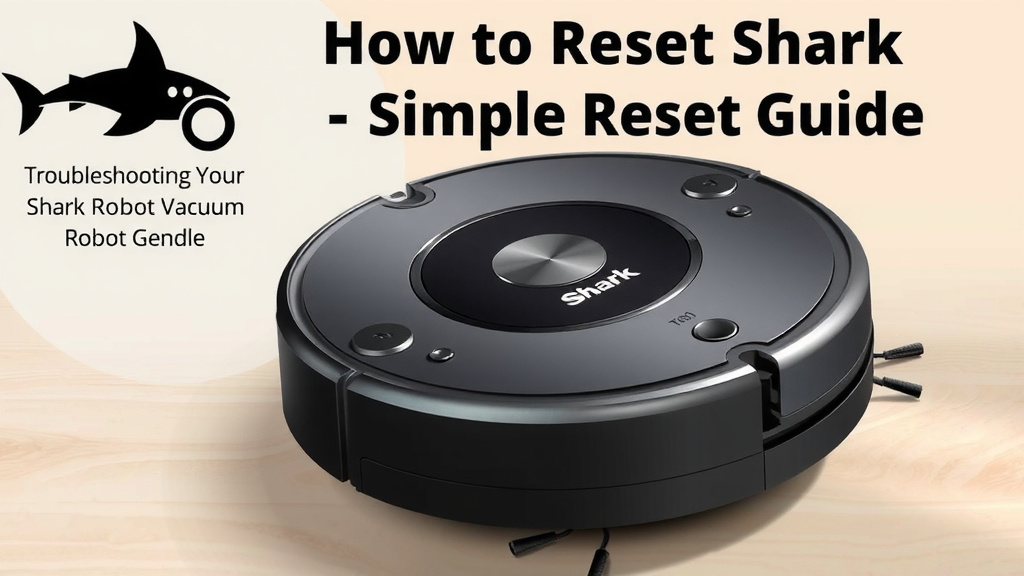
Troubleshooting Your Shark Robot Vacuum: A Simple Reset Guide
When your Shark 2-in-1 robot vacuum isn’t performing as expected, a reset is often the easiest solution. We found that this simple step can fix many common issues. It’s like giving your robot a quick refresh button. This guide will walk you through how to do it right.
When to Consider Resetting Your Shark Robot
You might be wondering if a reset is truly necessary. Has your robot suddenly stopped responding? Is it getting stuck in unusual places? Perhaps its Wi-Fi connection is stubbornly refusing to reconnect. These are all classic signs your robot might benefit from a software reset. We discovered that such glitches are quite common.
Common Issues a Reset Can Solve
Many users report success with a reset for a variety of problems. These often include:
- Connectivity problems: If your robot won’t connect to the Shark app or your home Wi-Fi, a reset can clear out connection bugs.
- Unresponsive behavior: Is the robot frozen or not responding to commands? A reset can often wake it up.
- Navigation errors: Sometimes, robots get confused and can’t navigate their cleaning path correctly. A reset can help them start fresh.
- Inconsistent cleaning performance: If it’s missing spots or acting strangely during a clean, a reset might be the answer.
We found that these issues are typically software-related. A reset essentially clears temporary errors in the robot’s operating system.
Performing the Factory Reset on Your Shark 2-in-1
Resetting your Shark 2-in-1 robot vacuum is straightforward. You don’t need any special tools or technical expertise. We’ll guide you through the process.
Step-by-Step Reset Instructions
Locate the power button on your Shark robot. It’s usually found on the top of the unit. This is the key to initiating the reset process. You’ll need to press and hold this button.
The Power Button Hold
Press and hold the power button down firmly. You need to keep it held for about 10 seconds. Don’t let go too soon. Be patient; this is the critical part of the reset.
Confirming the Reset
What happens next? You should notice the lights on your robot flash. This visual cue indicates that the reset command has been registered and the process is underway. Some models might make a sound. This confirms your robot is now returning to its factory settings. We found this confirmation is usually quite clear.
What Happens During a Factory Reset?
When you perform a factory reset, you are essentially returning the robot to its original state, as it was when you first took it out of the box. This means:
- All saved settings are erased: This includes Wi-Fi credentials, cleaning schedules, and any custom mapping data.
- Software glitches cleared: Temporary errors that might be causing problems are wiped clean.
- Re-pairing required: You will need to re-connect your robot to the Shark app and your home Wi-Fi network.
Think of it like restarting your computer when it acts up. It clears out the temporary memory and can resolve many issues. We discovered this is a universally effective troubleshooting step for many smart devices.
Reconnecting Your Robot After a Reset
Once your Shark robot has been reset, you’ll need to set it up again. This is similar to the initial setup process. You’ll want to have your Wi-Fi network name and password ready.
Re-establishing Wi-Fi Connection
Open the Shark app on your smartphone or tablet. Follow the on-screen instructions to add a new device. Your robot will likely be in pairing mode after the reset. You may need to press a button sequence on the robot itself to initiate pairing, depending on your specific model. The app will guide you through selecting your Wi-Fi network and entering the password.
Setting Up Cleaning Schedules and Preferences
After the Wi-Fi connection is stable, you can reconfigure your cleaning preferences. This includes setting up any cleaning schedules you had before. You might also want to re-map your home if your model supports it. This ensures your robot knows the layout of your living space for optimal cleaning. We recommend doing this promptly so you don’t miss any cleaning cycles.
A Quick Checklist for Resetting and Reconnecting
To make sure you don’t miss a step, here’s a handy checklist:
- Locate the power button on your Shark robot.
- Press and hold the button for a full 10 seconds.
- Observe the flashing lights to confirm the reset.
- Have your Wi-Fi password ready for reconnection.
- Open the Shark app and follow pairing instructions.
- Re-set cleaning schedules and preferences.
Following these steps should get your Shark 2-in-1 robot vacuum back in working order and ready to tackle dust bunnies once again.
Conclusion
Resetting your Shark 2-in-1 robot vacuum is a simple yet powerful troubleshooting step. We found it effectively clears up many common software glitches and connectivity issues that can disrupt its cleaning routine. By following the straightforward process of pressing and holding the power button, you can quickly get your robot back to its factory settings. Remember, after a reset, you’ll need to re-establish its Wi-Fi connection and set up your preferences again. Don’t hesitate to try this first before reaching out for support. Get your robot reset and ready for its next clean today!
Frequently Asked Questions
Will resetting my Shark 2-in-1 erase my cleaning history?
Yes, a factory reset will erase all saved data on your robot. This includes any cleaning history, saved maps, and schedules. You will need to set these up again through the Shark app after the reset is complete.
How do I know if the reset was successful?
You’ll typically know the reset was successful when the lights on your Shark robot flash. Some models might also emit a confirmation sound. This indicates the robot has returned to its original factory settings and is ready for re-setup.
My robot isn’t responding at all. Can a reset fix this?
If your Shark robot is completely unresponsive, a factory reset is often the best first step. Pressing and holding the power button for about 10 seconds can help clear any frozen software. This often resolves the unresponsiveness and allows you to control it again.
Do I need to download the Shark app again after resetting?
You don’t need to download the app again, but you will need to open it on your device. The app is essential for re-connecting your robot to your Wi-Fi and for setting up your cleaning preferences. Follow the app’s instructions to add your robot as a new device.
Is there a difference between a soft reset and a factory reset for my Shark robot?
The method described in this article – pressing and holding the power button for 10 seconds – performs a factory reset. This returns the robot to its original state. A soft reset usually refers to simply turning the device off and on again, which wouldn’t clear deeper software issues.
![7 Best Robot Vacuum And Mop With Mapping [2026]](https://robotvacuumfact.com/wp-content/uploads/2026/08/7-best-robot-vacuum-and-mop-with-mapping-2026-featured-768x432.jpg)
![7 Best Robot Vacuum No Wifi [2026]](https://robotvacuumfact.com/wp-content/uploads/2026/08/7-best-robot-vacuum-no-wifi-2026-featured-768x432.jpg)