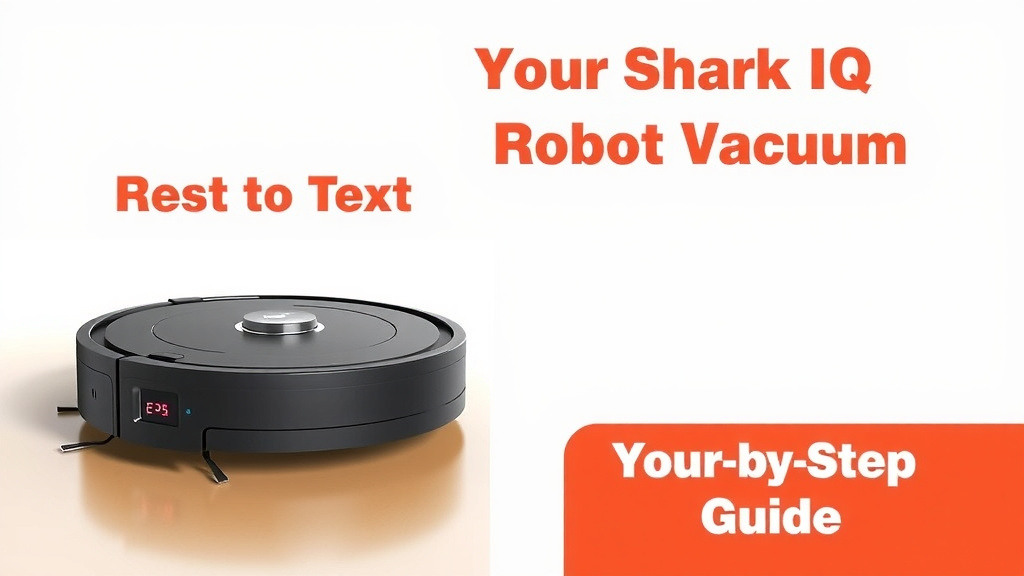
Reset Your Shark IQ Robot Vacuum: Step-by-Step Guide
The quickest way to reset your Shark IQ Robot Vacuum is by performing a hard reset. You can do this by locating the reset button, usually found on the bottom of the vacuum or under a small panel. Press and hold this button for about 10-15 seconds. This action will clear its memory and restore its factory settings, which is often the solution for many common issues.
Sometimes, your Shark IQ Robot might act a bit quirky, like getting lost or refusing to charge. A factory reset can be a powerful troubleshooting tool. We found that it effectively resolves many connectivity problems and software glitches. This process helps your robot start fresh, like giving it a clean slate to learn your home all over again.
- Perform a hard reset for most issues.
- Locate the reset button on the vacuum.
- Press and hold for 10-15 seconds.
- This clears memory and restores factory settings.
- It helps fix connectivity and software glitches.
Ready to get your smart vacuum back on track? Let’s walk through exactly how to perform that reset step by step.
Troubleshooting Your Shark IQ Robot: A Quick Reset Guide
Is your trusty Shark IQ Robot vacuum acting a little stubborn? Maybe it’s not docking correctly, or perhaps it seems to have forgotten the layout of your home. Before you start to worry, there’s a simple yet effective fix that often does the trick: a hard reset. We found that this process can clear up many software glitches and connectivity issues, giving your robot a fresh start. Think of it like restarting your computer when it gets slow – it often solves more problems than you’d expect!
When a Reset is Your Best Friend
You might be wondering, “When should I even consider resetting my Shark IQ Robot?” We’ve put together a few common scenarios where a reset is highly recommended. These are situations where the robot’s internal software might be a bit confused, leading to less-than-ideal performance.
Common Signs Your Robot Needs a Reset
- Navigation Issues: If your robot is constantly bumping into walls, getting stuck in open spaces, or just seems lost, a reset can help it re-map your home. We found that this is one of the most common reasons owners reach for the reset button.
- Connectivity Problems: Can’t connect to the app? Wi-Fi dropping? A reset often clears out temporary network data that might be causing the trouble.
- Charging Docks: If your robot is having trouble finding or connecting to its charging dock, a reset can sometimes fix this. It’s like reminding the robot where “home” is.
- Unresponsive Behavior: Sometimes, the robot might just be… weird. It might refuse to start, stop mid-cycle without reason, or act generally confused. A reset is a good first step to rule out software hiccups.
- After Software Updates: While rare, sometimes a software update can cause minor glitches. A reset can help ensure everything is running smoothly after an update.
How to Perform a Hard Reset on Your Shark IQ Robot
Let’s get down to business. Performing a hard reset is usually quite straightforward. The key is locating that little reset button. Don’t worry, we’ll guide you right to it.
Locating the Reset Button
The exact location can vary slightly between Shark IQ Robot models, but it’s almost always in one of two places. We’ve seen it commonly found on the underside of the robot. You might need to gently flip your robot over to find it.
Alternatively, it could be hidden beneath a small, often circular or rectangular, access panel on the robot. This panel might require a fingernail or a small, flat tool to gently pry open. Always check your robot’s specific user manual if you’re unsure.
The Reset Process: Step-by-Step
Once you’ve found the button, the process is simple:
- Power Down (Optional but Recommended): Some users find it helpful to ensure the robot is powered off before attempting a reset. While not always strictly necessary, it can prevent unexpected behavior.
- Locate the Button: As we discussed, find that tiny reset button. It’s usually recessed to prevent accidental presses.
- Press and Hold: Use a paperclip, a pen tip, or a similar small, pointed object to press and hold down the reset button.
- Count to 15: Keep holding the button down for approximately 10 to 15 seconds. You might hear a beep or see a light change on the robot, indicating the reset is taking place.
- Release the Button: Once the time is up, release the button.
- Restart the Robot: Your robot should now be reset. You may need to power it back on if you turned it off initially.
What Happens During a Reset?
So, what’s actually happening when you hold down that button? Essentially, you’re telling the robot to forget everything it has learned. We found that this includes:
- Saved Home Maps: Your meticulously mapped-out floor plans will be erased.
- Wi-Fi Network Settings: The robot will disconnect from your home Wi-Fi. You’ll need to set this up again.
- Cleaning Schedules: Any programmed cleaning times will be cleared.
- Connected App Data: While the app itself won’t be reset, the robot’s connection to it will be.
Think of it as a complete software wipe. It’s a clean slate for your robot to start learning about your home and your preferences all over again.
After the Reset: Getting Back Online
Now that your Shark IQ Robot is reset, you’ll likely need to get it back up and running with your home network and app. Don’t worry, this is usually a quick process.
Reconnecting to Your Wi-Fi and App
You’ll essentially be going through the initial setup process again:
- Download the SharkClean App: If you’ve uninstalled it, grab the latest version from your device’s app store.
- Follow In-App Instructions: The app will guide you through connecting your robot to your Wi-Fi network. Make sure your Wi-Fi password is handy!
- Re-establish Your Home Map: Once connected, you’ll want to send your robot out to map your home again. This is crucial for efficient cleaning.
- Set Up Schedules: Recreate any cleaning schedules you had before the reset.
We found that most users can get their robot reconnected within 10-15 minutes. It’s much faster the second time around!
A Quick Checklist for Your Reset Success
To make sure you’ve got everything covered after your reset, here’s a handy checklist:
- Reset Button Pressed: You located and held the button for 10-15 seconds.
- Robot Restarted: You powered the robot back on if needed.
- Wi-Fi Connected: Your robot is successfully linked to your home network.
- App Synced: The SharkClean app is connected to your robot.
- Home Mapped: You’ve initiated a new mapping run for your robot.
- Schedules Recreated: Your preferred cleaning times are set.
When to Seek Further Help
A hard reset is a powerful tool, and we’ve seen it fix a wide array of problems. However, if you’ve performed the reset and are still experiencing issues, it might be time to look into other solutions. Persistent problems could indicate a hardware issue or a more complex software conflict. In these cases, contacting Shark customer support directly is often the best next step. They have specialized tools and knowledge to help diagnose and resolve more stubborn issues.
Conclusion
You’ve now learned how a simple hard reset can be your Shark IQ Robot vacuum’s best friend for common issues. We’ve walked through why and when to perform this reset, how to find that crucial button, and what to expect afterward. Remember, this process gives your robot a fresh start, clearing out glitches and connectivity problems. After the reset, just follow the steps to reconnect your robot to your Wi-Fi and the SharkClean app. Then, you’ll be ready to re-map your home and set up your cleaning schedule again. Don’t hesitate to reach out to Shark support if problems persist.
Frequently Asked Questions
Will resetting my Shark IQ Robot erase my home map?
Yes, performing a hard reset will erase your robot’s saved home map. You will need to run the mapping cycle again after the reset to allow it to learn your home’s layout.
Do I need to re-download the SharkClean app after a reset?
You don’t necessarily need to re-download the app itself. However, you will need to go through the app’s setup process again to reconnect your robot to your Wi-Fi network and sync it with the app.
How long does a Shark IQ Robot reset take?
The physical reset process itself, holding the button, takes only about 10-15 seconds. Reconnecting to Wi-Fi and re-mapping your home afterward might take an additional 10-20 minutes, depending on your home’s size.
What if I can’t find the reset button on my Shark IQ Robot?
The reset button is typically located on the underside of the robot or under a small access panel. If you’re having trouble locating it, we recommend consulting your robot’s specific user manual for precise instructions for your model.
Is a hard reset safe for my robot vacuum?
Yes, a hard reset is a safe and intended troubleshooting step for your Shark IQ Robot vacuum. It’s designed to clear software glitches and restore factory settings without causing any damage to the hardware.