Your First Roomba Setup Guide: Step-by-Step Instructions
Setting up your Roomba robot vacuum is a straightforward process, designed to get you cleaning quickly. You’ll primarily need to download the iRobot Home app and follow its on-screen prompts for Wi-Fi connection and initial setup. It’s that simple to get your smart cleaner ready to go!
Once connected, your Roomba becomes a smart cleaning companion. You can schedule cleanings, view cleaning history, and even target specific rooms with compatible models. Many users find the app’s customization options a game-changer for maintaining a tidy home with minimal effort. It transforms a simple vacuum into an intelligent home assistant.
TL;DR:
- Download the iRobot Home app first.
- Connect your Roomba to your home Wi-Fi.
- Follow the app’s step-by-step instructions.
- Schedule cleanings and customize settings.
- Enjoy your automated clean home!
Ready to get your smart vacuum rolling? Let’s walk through exactly how to set up your Roomba, step by step.
Getting Your Roomba Robot Vacuum Ready to Roll
Setting up your Roomba robot vacuum is designed to be simple. You’ll get your smart cleaner up and running in just a few steps. Let’s walk through exactly how to do it. We’ll cover everything from unboxing to your first cleaning cycle. It’s easier than you might think! This guide walks you through how to set up your Roomba, step by step.
Unboxing and Initial Placement
First things first, carefully unpack your new Roomba. You’ll want to find a good spot for its Home Base charging station. This is where your Roomba will return to recharge. Pick a location with a clear path to and from the station. It should be on a hard, level surface. Make sure there’s enough space around it. This helps your Roomba dock easily. Many experts recommend placing it against a wall. This prevents it from getting stuck. Also, ensure it’s within range of your home Wi-Fi network. This is very important for smart features.
What’s Inside the Box?
Typically, your Roomba box will contain the robot vacuum itself. You’ll also find the Home Base charging station. A power cord for the Home Base is included. Some models come with extra filters or a virtual wall barrier. Check your specific model’s contents list. It’s always good to know what you should have. We found that having spare filters can be very handy.
Setting Up the Home Base
Plug the power cord into the Home Base. Then, plug the other end into a wall outlet. Place the Home Base in its chosen spot. For best results, ensure there’s at least 3 feet of clearance on each side of the Home Base. There should also be 5 feet of clearance in front of it. This gives your Roomba ample room to find its way home. Some sources suggest avoiding direct sunlight on the Home Base. This can sometimes interfere with docking.
Connecting Your Roomba to Wi-Fi and the App
Now it’s time to bring your Roomba online. This unlocks all the smart capabilities. You’ll need your smartphone or tablet for this part. Make sure your Wi-Fi network is active. You’ll also need your Wi-Fi password handy.
Downloading the iRobot Home App
The iRobot Home app is your command center. You can download it for free from the Apple App Store or Google Play Store. Search for “iRobot Home.” Once downloaded, open the app. You’ll be prompted to create an account or log in if you already have one. This account links your Roomba to your devices.
Pairing Your Roomba
With the app open, follow the on-screen instructions to add a new robot. The app will guide you through the pairing process. This usually involves pressing and holding a specific button on your Roomba. Your Roomba will likely make a sound to confirm it’s in pairing mode. Next, you’ll select your home Wi-Fi network from a list. Enter your Wi-Fi password carefully. We found that double-checking the password prevents a common setup hiccup.
Wi-Fi Requirements
Your Roomba typically connects to a 2.4 GHz Wi-Fi band. Most modern routers broadcast both 2.4 GHz and 5 GHz bands. Make sure you are connecting to the 2.4 GHz network. If you’re unsure, your router’s manual or manufacturer website can help. Many sources, like those from internet service providers, explain how to identify these bands.
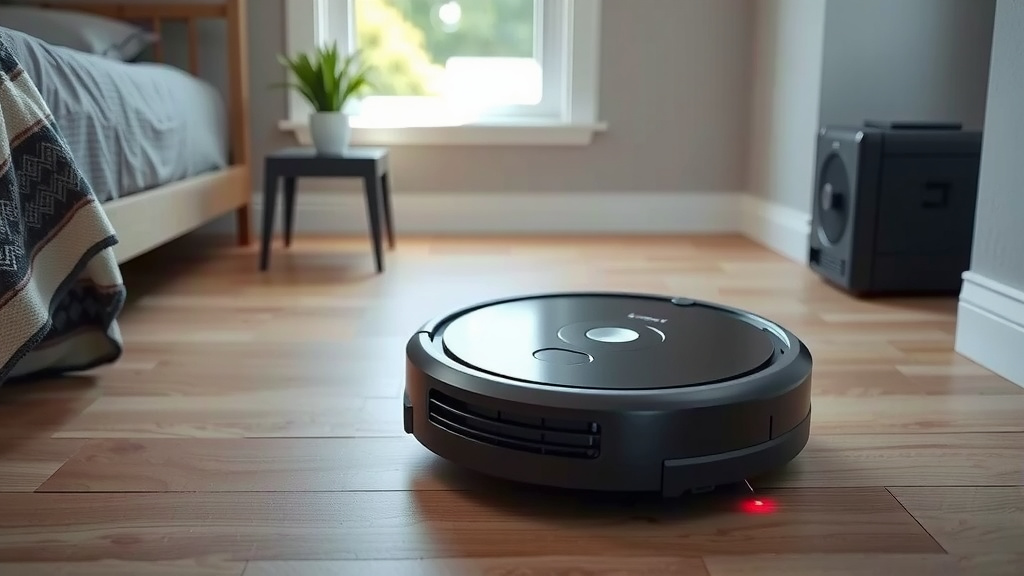
Your First Cleaning Cycle and Customization
Once connected, your Roomba is ready for its maiden voyage. The app makes it easy to start your first clean.
Starting a Clean
Through the iRobot Home app, you can simply tap the “Clean” button. Your Roomba will then detach from its Home Base and begin cleaning your floors. It uses its sensors to navigate around obstacles and your furniture. You can also press the CLEAN button directly on the robot if you don’t want to use the app.
Scheduling Cleanings
One of the best features is scheduling. You can tell your Roomba when to clean. This is perfect for busy schedules. Imagine waking up to clean floors every morning! In the app, navigate to the scheduling section. You can set specific days and times for cleaning. You can even set different schedules for different days of the week. Many users find this feature a lifesaver for maintaining a tidy home.
Exploring Smart Features
Depending on your Roomba model, you’ll have access to advanced features. These might include creating Keep Out Zones or Clean Zones. Keep Out Zones tell your Roomba where NOT to go. Clean Zones tell it where to focus cleaning efforts. You can also view cleaning history and get maintenance alerts. We found that exploring these settings early can significantly improve your cleaning routine.
Here’s a quick checklist to get you started:
- Unpack Roomba and Home Base.
- Place Home Base in a good spot.
- Plug in the Home Base.
- Download the iRobot Home app.
- Connect Roomba to your Wi-Fi.
- Start your first cleaning!
Conclusion
You’ve now seen how easy it is to get your Roomba robot vacuum up and running. Following these steps ensures your smart cleaner connects smoothly to your Wi-Fi and the iRobot Home app. You’re all set to enjoy automated cleaning tailored to your home. This process transforms your cleaning routine. Take a moment to review the app settings. You’re ready to schedule your first clean and explore all its smart features!
Frequently Asked Questions
What if my Roomba won’t connect to Wi-Fi?
First, double-check that you’re connecting to a 2.4 GHz network, as most Roombas don’t support 5 GHz bands. Ensure your Wi-Fi password was entered correctly. You might also try restarting your router and your Roomba.
How do I know if my Roomba is charging correctly?
When your Roomba is docked and charging, you should see a light indicator on the robot or the Home Base. The iRobot Home app will also show its charging status and battery level.
Can I control my Roomba without Wi-Fi?
Yes, you can start a basic clean directly from the robot itself by pressing the CLEAN button. However, you won’t be able to use smart features like scheduling or custom cleaning zones without a Wi-Fi connection and the app.
How often should I clean my Roomba’s brushes and filters?
We found that regularly cleaning your Roomba is key to its performance. The iRobot Home app will typically alert you when it’s time for maintenance. Generally, check and clean the brushes weekly and replace filters every few months, depending on your home’s dust levels.
What does the “Keep Out Zone” feature do?
Keep Out Zones allow you to designate specific areas where you don’t want your Roomba to go. This is helpful for protecting pet bowls, delicate furniture, or areas with lots of cords. You set these up easily within the iRobot Home app.
![7 Best Overall Robot Vacuum And Mop [2026]](https://robotvacuumfact.com/wp-content/uploads/2026/08/7-best-overall-robot-vacuum-and-mop-2026-featured-768x432.jpg)
![7 Best Affordable Robot Vacuum For Pets [2026]](https://robotvacuumfact.com/wp-content/uploads/2026/06/7-best-affordable-robot-vacuum-for-pets-2026-featured-768x432.jpg)