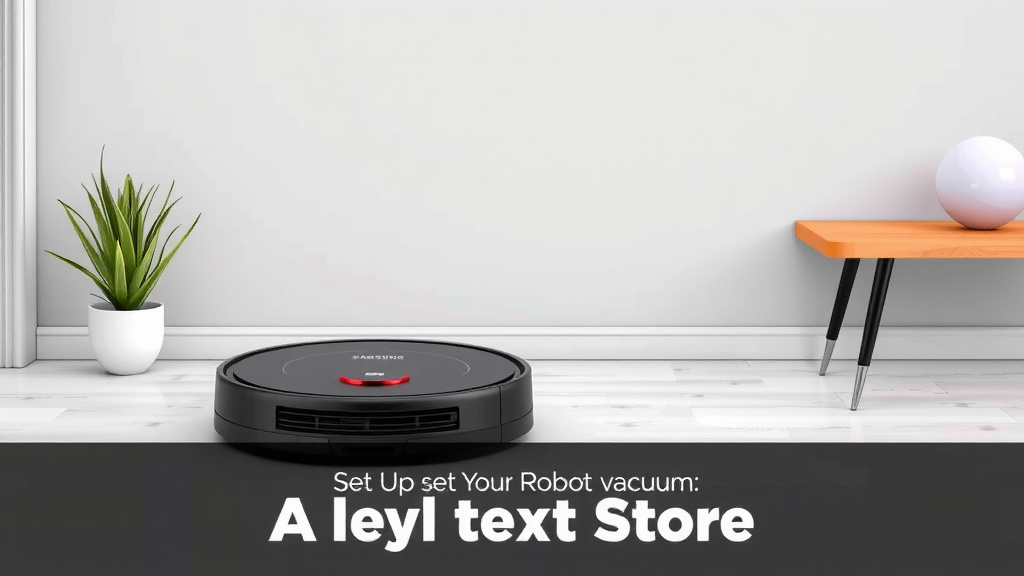
Set Up Your Samsung Robot Vacuum: A Simple Guide
Setting up your new Samsung robot vacuum is straightforward. You’ll want to charge the vacuum and connect it to your home Wi-Fi network. This lets you control it with the SmartThings app for the best cleaning experience.
Getting your Samsung robot vacuum connected is the first step to a cleaner home. Many users find the app control makes scheduling and customizing cleaning routines much easier. It’s designed to integrate smoothly into your smart home setup for convenient operation.
- Unbox and charge your vacuum.
- Download and open the SmartThings app.
- Connect the vacuum to your Wi-Fi.
- Follow in-app setup steps.
- Start your first clean!
Let’s walk through exactly how to get your Samsung robot vacuum up and running, step by step.
Getting Your Samsung Robot Vacuum Ready to Roll
So, you’ve got your shiny new Samsung robot vacuum! Exciting stuff. Let’s get it hooked up so it can start tackling that dust. We’ll walk you through everything from that initial charge to getting it connected to your home Wi-Fi. This process is designed to be pretty user-friendly, so don’t sweat it.
Your Vacuum’s First Steps: Charging and Physical Setup
Before your little cleaning buddy can hit the floor, it needs a good **power-up**. Think of it like giving your phone its first charge before you really start using it. This ensures it has enough juice for the initial setup and its first cleaning mission. We recommend you let it charge completely before you attempt any setup or cleaning.
Unboxing and Initial Inspection
First things first, carefully unbox your Samsung robot vacuum. You’ll typically find the vacuum itself, a charging dock, a power cord, and maybe some extra brushes or filters. Take a quick look at everything to make sure it all arrived safely. Check for any obvious damage. You want your new helper to be in tip-top shape!
Connecting the Charging Dock
Find a good spot for your charging dock. It’s best to place it against a wall with some **clearance** on either side and in front. This helps your robot vacuum dock smoothly without bumping into things. Plug the power cord into the dock and then into a wall outlet. You should see a light indicator on the dock turn on.
Giving Your Vacuum a Full Charge
Now, place your robot vacuum onto the charging dock. Make sure it’s seated correctly. You’ll likely see some lights on the vacuum itself indicating it’s charging. We recommend letting it **charge completely** before you attempt any setup or cleaning. This usually takes a few hours. A fully charged battery ensures a better initial experience and prevents interruptions during the setup process.
The Smart Way to Connect: Using the SmartThings App
Your Samsung robot vacuum is designed to work with the SmartThings app. This app is your command center, allowing you to control, schedule, and customize your vacuum’s cleaning sessions. If you don’t have it yet, you’ll need to download it.
Downloading and Installing the SmartThings App
Head over to your smartphone’s app store (either the Apple App Store or Google Play Store). Search for “SmartThings” by Samsung. Download and install the app. It’s a pretty standard app installation process. Once it’s on your phone, open it up.
Setting Up Your SmartThings Account
If this is your first time using SmartThings, you’ll need to create an account. Follow the on-screen prompts to sign up. You’ll likely need to agree to their terms and conditions. Having an account allows you to manage your devices remotely and access all of SmartThings’ features. This is **essential** for full control of your robot vacuum.
Adding Your Robot Vacuum to the App
Once you’re logged into the SmartThings app, you’ll want to add your new robot vacuum. Look for an option like “Add device” or a plus (+) icon. The app should then guide you through the discovery process. Make sure your phone’s Bluetooth and Wi-Fi are turned on, as the app might use these to find the vacuum. Your vacuum should be on the charging dock and powered on (or in pairing mode, which the app will explain).
Connecting Your Vacuum to Your Home Wi-Fi
This is where the magic happens, allowing you to control your vacuum from anywhere. Connecting to Wi-Fi is a **key step** for smart functionality.
Selecting Your Wi-Fi Network
During the app setup, you’ll be prompted to select your home Wi-Fi network from a list of available networks. Choose your network name (SSID). Make sure you’re connecting to a 2.4GHz network, as many robot vacuums, including Samsung models, aren’t compatible with 5GHz bands for initial setup (we found this is common across many smart home devices).
Entering Your Wi-Fi Password
Carefully enter your Wi-Fi password. Double-check it for typos, as this is the most common reason for connection failures. Passwords are case-sensitive, so be precise. If you’re unsure, you can often find your Wi-Fi password on a sticker on your router.
Confirmation and Finalizing the Connection
The app will then attempt to connect your robot vacuum to your Wi-Fi network. This might take a minute or two. You should see a confirmation message in the app once the connection is successful. Your robot vacuum might also make a sound or have indicator lights change to show it’s connected.
Your First Clean: Getting Started with Operation
Congratulations! Your Samsung robot vacuum is now set up and ready to go. It’s time to let it do its thing.
Basic Cleaning with the App
Open the SmartThings app and navigate to your robot vacuum’s device page. You should see options to start cleaning, pause, stop, and send the vacuum back to its charging dock. For your **first clean**, it’s a good idea to just hit the “Start cleaning” button and observe how it navigates your home.
Setting Up a Cleaning Schedule
One of the best features is scheduling. Within the SmartThings app, you can set specific times and days for your vacuum to clean automatically. Imagine coming home to freshly vacuumed floors without lifting a finger! This is a **huge convenience** for busy households.
Customizing Cleaning Preferences
Depending on your specific Samsung model, you might have options to customize cleaning modes, suction power, or even set up no-go zones or virtual walls through the app. Take some time to **explore these settings** to tailor the cleaning experience to your home and your needs.
Checklist: Quick Setup Recap
- Unbox and inspect all parts.
- Place charging dock in an accessible area.
- Fully charge the robot vacuum.
- Download and install the SmartThings app.
- Connect the vacuum to your home Wi-Fi (2.4GHz).
- Initiate your first cleaning cycle via the app.
Conclusion
You’ve successfully set up your Samsung robot vacuum! You’ve charged it, connected it to your Wi-Fi via the SmartThings app, and are ready for your first automated clean. Remember, the app is your command center for scheduling and customization, making cleaning truly hands-off. Take a moment to explore the app’s features further. Now, enjoy the convenience of a cleaner home with minimal effort. Your next step is to experiment with cleaning schedules and modes to perfectly suit your lifestyle.
Frequently Asked Questions
What if my Samsung robot vacuum won’t connect to Wi-Fi?
Often, the issue is with the Wi-Fi password or network band. Double-check that you’re entering your password correctly, as it’s case-sensitive. Also, ensure you’re connecting to a 2.4GHz network, as most Samsung robot vacuums require this for initial setup.
Do I really need the SmartThings app to use my robot vacuum?
While you can typically start a basic clean with a button on the vacuum itself, the SmartThings app is essential for advanced features. You’ll need it for scheduling, customizing cleaning modes, and setting virtual boundaries for a truly smart cleaning experience.
How often should I charge my Samsung robot vacuum?
Your vacuum should automatically return to its charging dock when its battery is low. It’s designed to stay charged and ready for its next scheduled cleaning. You only need to manually ensure the charging dock is powered and accessible.
Can I use my robot vacuum on different floor types?
Yes, most Samsung robot vacuums are designed to work on a variety of floor surfaces, including carpet, hardwood, and tile. Some models offer specific cleaning modes that adapt suction power or brush speed for different floor types.
What maintenance does my robot vacuum need?
Regular maintenance is key to optimal performance. You’ll want to clean the dustbin after each use, check the brushes for tangled hair or debris, and clean the filter periodically. The SmartThings app often provides reminders for these tasks.
![7 Best Rated Shark Robot Vacuum [2026]](https://robotvacuumfact.com/wp-content/uploads/2026/08/7-best-rated-shark-robot-vacuum-2026-featured-768x432.jpg)
![7 Best Robot Vacuum And Mop Pet Hair [2026]](https://robotvacuumfact.com/wp-content/uploads/2026/08/7-best-robot-vacuum-and-mop-pet-hair-2026-featured-768x432.jpg)