Program Your Samsung Robot Vacuum: Step-by-Step Guide
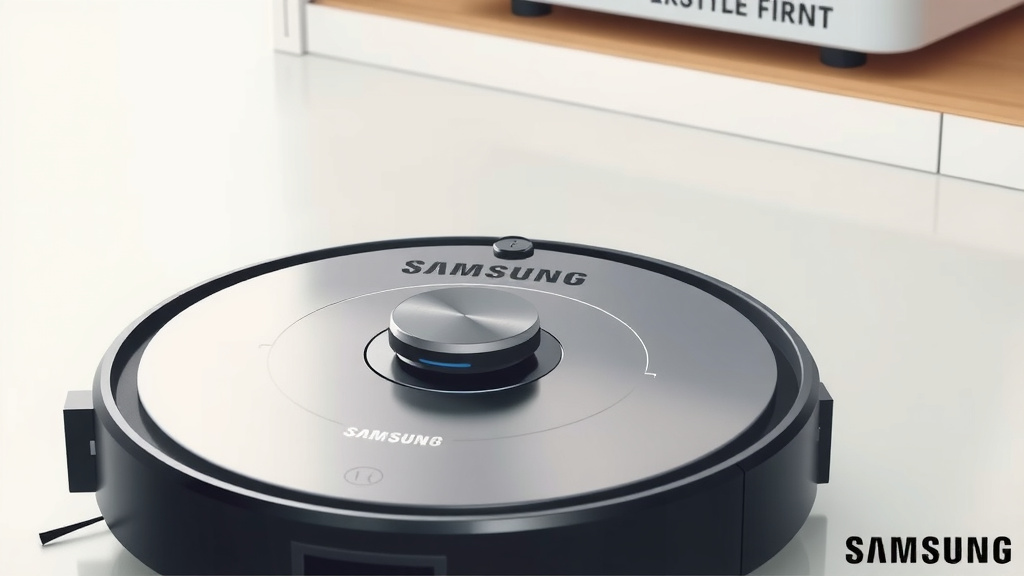
Programming your Samsung robot vacuum is easier than you might think! You can schedule cleanings and set custom zones right from the SmartThings app on your phone. This lets you tell your vacuum exactly when and where to clean, so you can enjoy a spotless home without lifting a finger. Getting your Samsung robot vacuum to work for you is all about setting it up correctly through its mobile app.
Beyond basic scheduling, the app allows for advanced customization. You can create no-go zones to protect delicate furniture or specific areas you don’t want cleaned. You can also designate target clean zones for quick touch-ups. Many users find that mastering these app features is key to getting the most out of their robotic cleaning assistant and ensuring a truly automated clean.
- Use the SmartThings app for scheduling and control.
- Set up custom cleaning zones and no-go areas.
- Schedule daily or weekly cleaning routines.
- Customize suction power and cleaning modes.
- Easily manage your robot vacuum from anywhere.
Let’s walk through exactly how to get your Samsung robot vacuum programmed to fit your life perfectly. We’ve broken it down step-by-step to make it super simple.
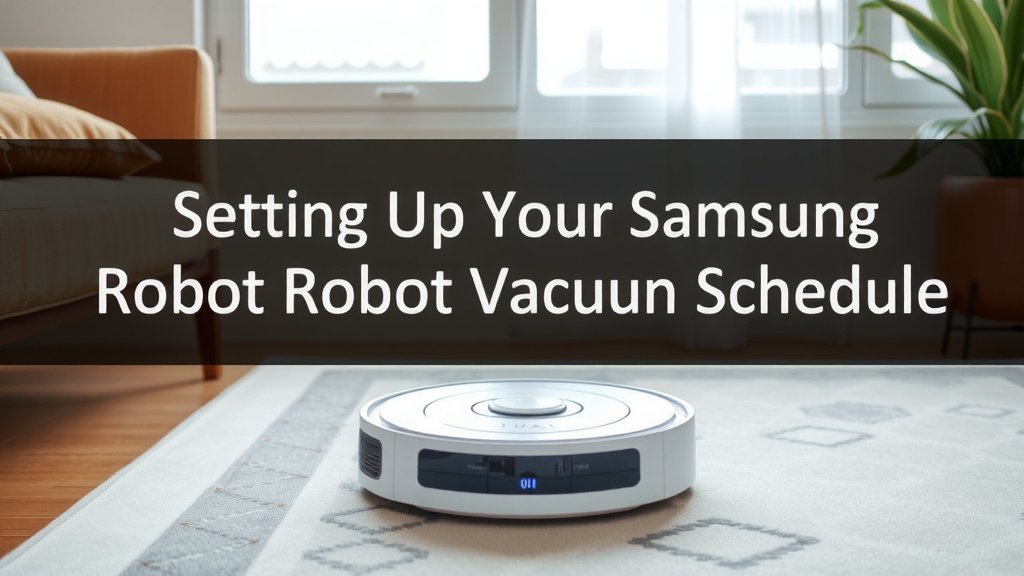
Setting Up Your Samsung Robot Vacuum Schedule
Programming your Samsung robot vacuum means telling it exactly when and where to clean. You can easily do this using the SmartThings app on your smartphone. This app acts as your central control panel. It lets you set up cleaning routines that fit your busy life. No more manual vacuuming! Your Samsung robot will handle the chores on its own.
Getting Started with the SmartThings App
First, you’ll need to download the SmartThings app from your phone’s app store. Once installed, open it and follow the on-screen instructions to connect your Samsung robot vacuum. This usually involves putting your vacuum in pairing mode and letting the app find it. It’s a pretty straightforward process, much like connecting a new Bluetooth speaker.
Connecting Your Robot to Wi-Fi
Your robot vacuum needs to be connected to your home Wi-Fi network to be controlled by the app. During the initial setup in the SmartThings app, you’ll be prompted to select your Wi-Fi network and enter the password. Make sure your Wi-Fi signal is strong where you plan to keep your robot. A stable connection is key for reliable scheduling and remote control.
Creating Cleaning Schedules
Once your robot is connected, you can start setting up cleaning schedules. Think about when you’re typically away from home or when you won’t be disturbed by the vacuum’s noise. A common strategy is to schedule it for when you’re at work or while you’re asleep. This ensures your floors are clean without interrupting your day.
Daily vs. Weekly Cleaning
You have the flexibility to set up daily cleaning routines or specific weekly schedules. For instance, you might want your robot to clean the living room every weekday at 10 AM. Or perhaps you prefer a deeper clean on Saturdays, targeting multiple rooms. The app allows you to customize each day of the week with different times and rooms.
Setting Specific Times and Days
Within the SmartThings app, navigate to the scheduling section for your robot vacuum. You can select specific days of the week and input the desired start time for each cleaning session. It’s like setting alarms, but for your vacuum! You can add multiple schedules if needed, covering different areas at different times.
Customizing Your Robot’s Cleaning Zones
Beyond just scheduling, you can tell your Samsung robot vacuum exactly where to clean and where to avoid. This feature is incredibly useful for maximizing efficiency and protecting your belongings. We found this level of control really helps users get the most out of their device.
Defining No-Go Zones
Every home has areas that need special attention or areas to avoid. Maybe you have delicate furniture, pet food bowls, or areas where cords tend to gather. The SmartThings app allows you to draw “No-Go Zones” directly on a map of your home. Your robot will steer clear of these marked areas, preventing it from bumping into things or getting tangled. This feature is a lifesaver for preventing accidental messes.
Mapping Your Home
For the “No-Go Zone” feature to work, your robot vacuum usually needs to map your home first. During its initial runs, the robot will create a floor plan. You can access this map in the SmartThings app and then define your custom zones. Ensure your robot has a clear path during these mapping runs for the best results. Some experts recommend letting it map on a day when the house is relatively clear (Mayo Clinic).
Setting Target Clean Zones
On the flip side, you might have specific areas that need more frequent cleaning. Perhaps a high-traffic area in the kitchen or a spot where your pet often naps. The “Target Clean Zones” feature lets you designate these specific spots for a quick clean. You can activate a targeted clean directly from the app whenever needed, sending your robot straight to that area.
Spot Cleaning vs. Full House Cleaning
Think of “No-Go Zones” and “Target Clean Zones” as different tools in your cleaning arsenal. No-Go Zones are for avoidance, ensuring safety. Target Clean Zones are for focused action, tackling specific messes or areas. You can combine these with your general schedules for a truly customized cleaning experience. For example, you might schedule a full house clean daily, but set a “Target Clean Zone” for the entryway that runs an hour before you get home.
Adjusting Cleaning Settings for Optimal Performance
Your Samsung robot vacuum isn’t a one-size-fits-all cleaner. The SmartThings app gives you control over various settings to tailor the cleaning to your specific needs and floor types. Getting these settings right can make a big difference in how clean your home gets.
Suction Power Levels
Different floor surfaces require different levels of suction. For plush carpets, you’ll want maximum power. For hard floors like tile or wood, a lower setting might be sufficient and save battery life. You can adjust the suction power for each scheduled cleaning or set a default. Many users find that using the auto-detect feature works well for most situations.
Cleaning Modes
Samsung robot vacuums often come with different cleaning modes. These might include “Auto,” “Edge Cleaning,” “Spot Cleaning,” or specific modes for different floor types. Selecting the right mode for the job ensures efficiency. For instance, “Edge Cleaning” is perfect for tackling dust bunnies along baseboards.
| Setting | Description | When to Use |
|---|---|---|
| Auto Mode | The robot cleans the entire accessible area. | Daily cleaning, general upkeep. |
| Edge Mode | Focuses on cleaning along walls and corners. | When you notice dirt buildup along edges. |
| Spot Clean | Cleans a small, concentrated area intensely. | For spills or concentrated messes. |
| Quiet/Eco Mode | Reduces suction power and noise. | When you need a quieter clean or want to save battery. |
Maintenance Reminders
Keeping your robot vacuum in top condition is essential for performance. The SmartThings app often provides maintenance reminders. These alerts will let you know when it’s time to clean the dustbin, brushes, or filters. Staying on top of maintenance ensures your robot runs smoothly and effectively for years to come. We found that these reminders are quite helpful for forming good habits.
- Empty the dustbin regularly.
- Clean the main brush and side brushes.
- Check and clean or replace the filter.
- Wipe down sensors to ensure accurate navigation.
- Keep the charging contacts clean.
Conclusion
You’ve now learned how to take full control of your Samsung robot vacuum using the SmartThings app. By setting up customized schedules, you can ensure your home is cleaned automatically. You can also define no-go zones and target clean zones for precise control over where your robot goes. Don’t forget to adjust cleaning settings like suction power and modes for optimal performance on different surfaces. Start by opening the SmartThings app and exploring the scheduling and zone customization options for your robot today!
Frequently Asked Questions
Can I control my Samsung robot vacuum without the SmartThings app?
No, the SmartThings app is essential for programming and controlling your Samsung robot vacuum. It provides the interface for setting schedules, defining zones, and adjusting cleaning modes. Without the app, you’ll only be able to start or stop basic cleaning cycles manually from the robot itself.
How do I set up a recurring cleaning schedule for specific rooms?
Within the SmartThings app, you can select your robot vacuum and navigate to the scheduling feature. There, you can choose specific days and times for cleaning sessions. You can also often select which rooms or areas you want cleaned during that scheduled time, allowing for room-specific routines.
What happens if my Wi-Fi goes down while the robot is scheduled to clean?
If your Wi-Fi connection is lost during a scheduled cleaning time, the robot typically will not be able to start the programmed routine. It requires a stable connection to the app and your network to receive commands and mapping data. Once your Wi-Fi is back online, it should resume its scheduled tasks.
Is it possible to set different schedules for weekdays and weekends?
Yes, the SmartThings app allows for flexible scheduling. You can create one set of cleaning times and days for weekdays and a different set for weekends. This lets you tailor cleaning to your usual routine, ensuring your home stays clean no matter what your week looks like.
My robot isn’t cleaning effectively in certain areas, what can I do?
First, ensure the area is not marked as a “No-Go Zone.” Check if the brushes and dustbin are clean and free of debris. You might also want to use the “Target Clean Zone” feature to send the robot specifically to that area for a more intense clean. Sometimes, re-mapping your home within the app can also help improve navigation.
![7 Best Robot Vacuum With No Go Zones [2026]](https://robotvacuumfact.com/wp-content/uploads/2026/09/7-best-robot-vacuum-with-no-go-zones-2026-featured-768x432.jpg)