Remap Your Shark Robot Vacuum: A Step-by-Step Guide
Yes, you can remap your Shark robot vacuum’s cleaning zones. Reprogramming the cleaning paths lets you customize your vacuum’s routes. You can set specific no-go zones or target areas for focused cleaning. This is a great way to improve efficiency.
Many robot vacuums, including some Shark models, offer app-based controls for this. You can often draw these areas directly on a map of your home. This helps your robot avoid obstacles or skip rooms you don’t want cleaned. It’s all about making your cleaning experience easier.
- Remapping lets you draw no-go zones.
- You can create targeted cleaning areas.
- Use your robot’s app for these changes.
- Customize cleaning to fit your needs.
Let’s walk through how you can remap your Shark robot vacuum to better suit your home and cleaning habits.
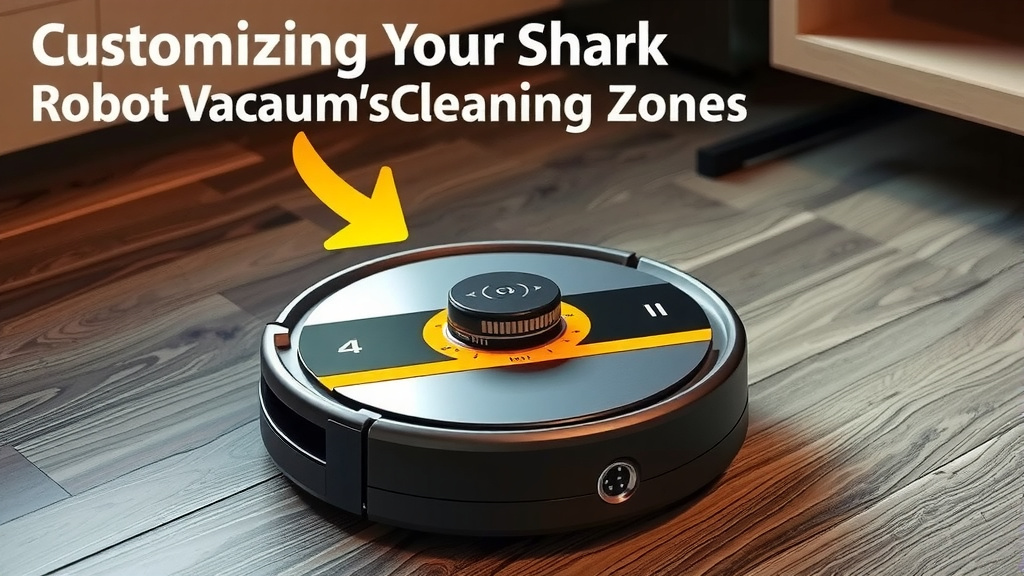
Customizing Your Shark Robot Vacuum’s Cleaning Zones
Your Shark robot vacuum is more than just a floor cleaner. It’s a smart home helper. You can truly make it work for you. Remapping its cleaning routes is a powerful feature. It lets you tailor its performance to your specific home layout and needs. This guide will show you how to get the most out of this capability.
Understanding How Your Shark Robot Maps Your Home
Most modern Shark robot vacuums use advanced sensors and cameras. These tools help them build a map of your home. They navigate by understanding walls, furniture, and open spaces. This mapping is the foundation for all smart features, including remapping zones.
The Importance of a Good Initial Map
For remapping to work well, your robot needs a clear first map. Ensure your home is well-lit during the initial mapping run. Remove any temporary clutter that might confuse the robot. A solid base map makes it easier to set up specific zones later.
How Sensors Contribute to Mapping
Your Shark robot uses a variety of sensors. These include LiDAR or vSLAM technology. They help it detect obstacles like walls and stairs. These sensors create a detailed picture of your environment. This allows for precise navigation and zone creation (ResearchGate).
Steps to Remap Your Shark Robot Vacuum
Remapping is typically done through the SharkClean app on your smartphone or tablet. You’ll need to have the app downloaded and your robot connected to your home Wi-Fi network. Once set up, you can start customizing.
Accessing the Map Feature in the App
Open the SharkClean app. You should see an option to view your robot’s map. This map is generated from its cleaning runs. If you haven’t run your robot yet, you may need to do so to create the first map. Look for an icon or menu item labeled “Map,” “Home Map,” or “Cleaning Zones.”
Creating “No-Go Zones”
A “no-go zone” is an area you want your robot to avoid. This is perfect for places with delicate items, pet bowls, or areas you don’t want cleaned regularly. To create one, simply select the “No-Go Zone” tool in the app. Then, draw a rectangle or shape around the area you want to block off. Your robot will steer clear of these marked areas.
Why Use No-Go Zones?
Think about areas like a playroom with lots of small toys. Or perhaps a corner where your pet tends to leave a mess. Setting up no-go zones ensures your robot doesn’t get stuck or spread things around. It saves you from having to constantly supervise it.
Setting Up “Targeted Cleaning Areas”
Sometimes, you need a spot cleaned more thoroughly. Maybe you spilled something in the kitchen, or your entryway gets a lot of foot traffic. “Targeted Cleaning Areas” allow you to designate specific spots for your robot to focus on. Select the “Targeted Cleaning” or “Spot Clean” option in the app. Draw a box around the area you want cleaned. Your robot will then go to that spot and clean it thoroughly.
When to Use Targeted Cleaning
This feature is a lifesaver for quick cleanups. Instead of running the whole vacuum, you can send it to a single room or a small section of a room. It’s an efficient way to deal with spills or high-traffic zones without wasting time or battery power.
Saving and Editing Your Customizations
After drawing your zones, be sure to save your changes. Most apps will prompt you to do this. Your customized map is then stored. If you need to adjust a zone later, simply go back to the map feature in the app. You can usually drag the corners of the zones to resize them or delete them entirely.
Troubleshooting Common Mapping Issues
Sometimes, your robot might not map perfectly. This can affect your ability to create accurate zones. Here are a few common issues and how to fix them.
Inaccurate Room Recognition
If your robot doesn’t recognize rooms correctly, try running it again in a cleaner, well-lit environment. Ensure doors between rooms are open during the initial mapping. Sometimes, a factory reset and re-mapping can resolve persistent issues.
Obstacles Affecting the Map
Furniture that is moved frequently can confuse the robot. Try to keep larger pieces of furniture in consistent locations. Very dark or highly reflective surfaces can also sometimes interfere with sensors. If you notice a pattern of avoidance, check those areas.
Here’s a quick checklist to help you get started with remapping:
- Download and open the SharkClean app.
- Ensure your robot is charged and connected to Wi-Fi.
- Run your robot to generate an initial home map.
- Locate the map editing or zone creation feature.
- Draw your desired no-go zones.
- Define any targeted cleaning areas.
- Save your customized map settings.
By taking a few minutes to set up these custom zones, you can significantly improve your robot vacuum’s efficiency. It ensures it cleans where you want it to and avoids areas that don’t need attention.
Conclusion
You now have the power to truly customize your Shark robot vacuum’s cleaning routine. By understanding how to remap your home and set up specific zones, you’re making your robot work smarter, not harder. This means fewer interruptions and cleaner spaces exactly where you need them. Take a moment to open your SharkClean app and explore the mapping features. Your first step is to save your current map. Then, you can start creating no-go zones or targeted cleaning areas that fit your lifestyle perfectly.
Frequently Asked Questions
How do I update my Shark robot vacuum’s map if I move furniture?
If you rearrange your furniture, your Shark robot might get confused. You’ll want to rerun the mapping or update the existing map within the SharkClean app. Look for an option to “update map” or “rerun mapping.” This helps your robot adjust to the new layout.
Can I create multiple “no-go zones” on my map?
Yes, absolutely. The SharkClean app usually allows you to create multiple “no-go zones.” You can block off various areas, such as pet feeding stations or spots with lots of cords. Just keep drawing new zones for each area you want your robot to avoid.
What if my Shark robot vacuum isn’t creating a map at all?
If your robot isn’t mapping, first ensure it’s properly connected to your Wi-Fi. Also, check that the room is well-lit and free of excessive clutter during its initial cleaning run. Sometimes, a simple restart of the robot and the app can resolve mapping issues.
How often should I remap my Shark robot vacuum’s cleaning zones?
You don’t need to remap your zones constantly. It’s best to update your map or redraw zones when you make significant changes to your home’s layout. For instance, after a big furniture rearrangement or if you add new rugs. Otherwise, your saved zones should remain effective.
Does remapping affect the robot’s ability to clean the rest of my house?
No, remapping should not negatively affect its cleaning performance elsewhere. “No-go zones” only tell the robot where *not* to go. “Targeted cleaning areas” focus its attention on a specific spot. The rest of your home will still be cleaned according to its usual programming.

![7 Best Alexa Compatible Robot Vacuum [2026]](https://robotvacuumfact.com/wp-content/uploads/2026/06/7-best-alexa-compatible-robot-vacuum-2026-featured-768x432.jpg)