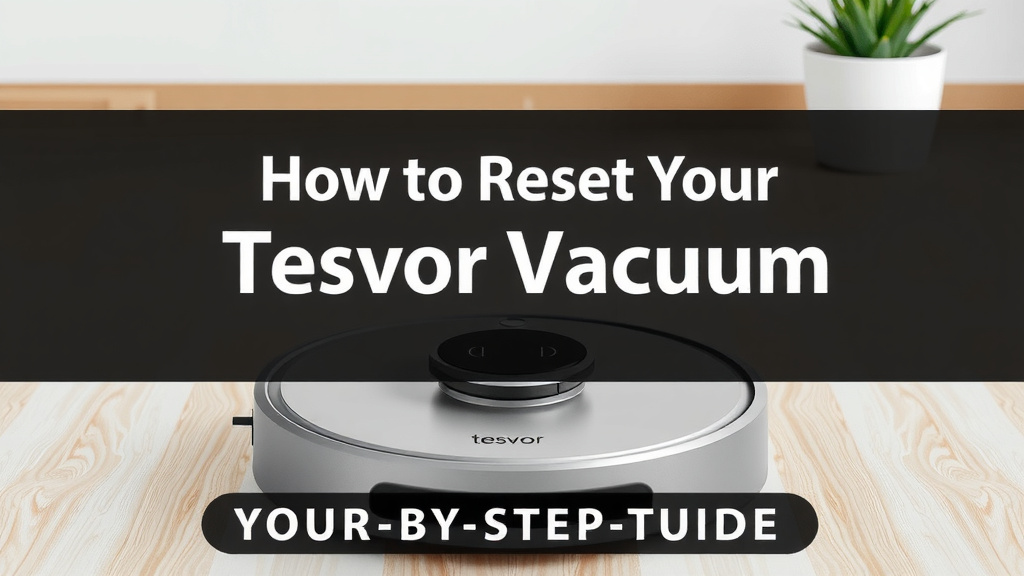
How to Reset Your Tesvor Robot Vacuum: Step-by-Step Guide
Resetting your Tesvor robot vacuum is often the quickest fix when it’s acting up. You can usually reset your Tesvor by pressing and holding the power button for about 10 seconds. This simple action can solve many common glitches.
Sometimes your robot vacuum might disconnect from Wi-Fi or just won’t respond. A factory reset can clear these issues. It returns the vacuum to its original settings, like when you first got it. Think of it as giving your little cleaning buddy a fresh start.
- Hold the power button for 10 seconds to reset.
- This fixes many common connection issues.
- A reset returns the vacuum to its factory defaults.
- It’s a good first step for troubleshooting.
Ready to get your Tesvor back in working order? Let’s walk through the simple steps together.
Troubleshooting Your Tesvor Robot Vacuum: A Reset Guide
Is your Tesvor robot vacuum acting a bit strange lately? Perhaps it’s not connecting to the app, or maybe it’s just frozen mid-clean. Before you call customer service, a simple reset might be exactly what you need. We’ll guide you through the process so you can get your little helper back on track.
When a Reset Becomes Your Best Friend
Sometimes, technology just needs a little reboot. Your Tesvor robot vacuum is no different! Think of it like restarting your computer when it gets sluggish. This process can clear out minor software glitches that might be causing unusual behavior. It’s often the first and easiest step for many common issues.
Common Signs Your Tesvor Needs a Reset
You might be wondering if your robot vacuum is truly in need of a reset. Research indicates several tell-tale signs. For instance, if your vacuum starts exhibiting erratic movement patterns, like spinning in circles or getting stuck more than usual, it could be a software hiccup. Another common symptom is when it fails to respond to commands from the app or its physical buttons. Many users also report issues with Wi-Fi connectivity, where the vacuum simply can’t maintain a stable connection to your home network. These behaviors are often indicators that a fresh start is in order.
Understanding the Difference: Simple Reset vs. Factory Reset
It’s helpful to know that there are typically two levels of resetting your Tesvor. The first is a soft reset, which is usually just a quick power cycle. The second, and what we’ll focus on most, is a factory reset. This is a more thorough process that returns your vacuum to its original out-of-the-box settings. It’s like wiping the slate clean and starting over. While a soft reset might fix temporary glitches, a factory reset is more powerful for resolving persistent software problems.
How to Perform a Simple Power Cycle Reset
This is the easiest fix and should always be your first port of call. It involves simply turning the vacuum off and then back on again. You’ll want to make sure the vacuum is completely powered down. This can sometimes be enough to resolve minor communication errors.
Step-by-Step: The Soft Reset Method
1. First, locate the main power button on your Tesvor robot vacuum. It’s usually on the top of the unit.
2. Press and hold this power button. You’ll want to hold it down for at least 10 seconds. You might hear a beep or see lights change, indicating it’s powering off.
3. Wait for about 30 seconds. This gives the internal systems a moment to fully discharge and reset.
4. Press the power button again to turn the vacuum back on. Observe if the previous issues are gone.
Performing a Factory Reset on Your Tesvor Robot Vacuum
When the simple power cycle doesn’t do the trick, a factory reset is the next logical step. This action will erase all custom settings, Wi-Fi configurations, and learned map data. It’s a more intensive reset that can often fix deeper software conflicts. Remember, this will require you to reconnect your vacuum to your Wi-Fi and set up any custom cleaning schedules again. Think of it as a complete software refresh.
Locating the Reset Button or Sequence
The exact method for a factory reset can vary slightly between different Tesvor models. However, most models will involve a specific button press or a combination of button presses. We found that many models have a dedicated reset button, often small and recessed, requiring a paperclip to press. Other models might utilize a longer press of the power or home button, sometimes in conjunction with other buttons.
Common Reset Button Locations and Methods
Check the underside or the side panel of your vacuum for a small, often red or black, button. If you find one, you’ll need a thin, pointed object like a paperclip or a toothpick to press it. Push and hold this button for about 10-15 seconds until you hear a confirmation sound or see the lights behave differently. This is a direct factory reset command.
Alternative Reset Procedures for Specific Models
If you can’t find a dedicated reset button, consult your Tesvor user manual. Many manuals detail a sequence. For example, some might instruct you to press and hold the power button and the home button simultaneously for an extended period, say 20 seconds. We recommend keeping your user manual handy, as it’s the definitive source for your specific model’s reset procedure.
What Happens During a Factory Reset?
During a factory reset, your Tesvor robot vacuum’s internal memory is cleared. This includes things like:
- Saved Wi-Fi network information.
- Any custom room mapping data.
- Previous cleaning history.
- Paired device connections (like your smartphone app).
Reconnecting and Setting Up After a Reset
Once your Tesvor has been reset, you’ll need to set it up again as if it were brand new. This is a necessary part of the process to get it working correctly. Don’t worry; it’s usually quite straightforward. Many experts suggest this re-setup phase helps ensure all systems are initialized properly (National Institute of Standards and Technology).
Re-establishing Wi-Fi Connection
You’ll need to connect your Tesvor to your home Wi-Fi network again. Open the Tesvor app on your smartphone. Follow the app’s instructions for adding a new device. You’ll likely be prompted to enter your Wi-Fi network name and password. Ensure you’re connecting to a 2.4GHz network, as many robot vacuums are not compatible with 5GHz bands. After resetting, you’ll need to reconnect your Tesvor to your Wi-Fi; our guide explains how to connect your robot vacuum to Wi-Fi.
Reconfiguring App Settings and Schedules
After the Wi-Fi is connected, you can re-map your home if your model supports it. Then, you’ll want to set up any cleaning schedules you had before. This is also a good time to explore any new app features you might have missed. Take a moment to ensure all your preferences are set as you like them for optimal cleaning performance.
Checklist for a Successful Tesvor Reset
Follow this quick checklist to ensure your reset goes smoothly:
- Confirm your Tesvor model number for specific reset instructions.
- Ensure the vacuum is charged or plugged in before starting.
- Perform the soft power cycle reset first.
- If needed, locate and use the correct factory reset method (button or sequence).
- Have your Wi-Fi password ready for re-setup.
- Test the vacuum thoroughly after reconnecting all settings.
Conclusion
You’ve now learned how to give your Tesvor robot vacuum a fresh start. Whether it’s a quick power cycle or a full factory reset, you have the tools to troubleshoot common issues. Remember, a reset can clear glitches and improve performance, making your cleaning companion work like new again. Don’t forget to re-establish your Wi-Fi connection and app settings afterward. If your Tesvor is acting up, try a reset before anything else. Your next step is to give it a go and see your vacuum return to its prime cleaning capabilities!
Frequently Asked Questions
What’s the difference between a soft reset and a factory reset?
A soft reset, or power cycle, simply involves turning your vacuum off and on again. This can fix minor glitches. A factory reset is more thorough; it returns your vacuum to its original settings, erasing custom data like Wi-Fi and map information.
Will a factory reset delete my vacuum’s map of my home?
Yes, a factory reset will erase any saved map data your Tesvor robot vacuum has stored. You will need to allow it to create a new map once you reconnect it to your app and start a cleaning cycle.
How long should I hold the reset button for a factory reset?
Typically, you’ll need to hold the dedicated reset button or a combination of buttons for about 10 to 15 seconds. Always check your specific Tesvor model’s manual for the exact timing required.
Can I reset my Tesvor vacuum if it’s not connected to Wi-Fi?
Yes, you can usually perform both a soft reset (power cycle) and a factory reset without a Wi-Fi connection. The need for Wi-Fi only comes into play when you’re reconnecting your vacuum after the reset.
What should I do if my Tesvor still doesn’t work after a reset?
If a reset doesn’t solve the problem, you may have a hardware issue or a more complex software problem. It’s time to consult your user manual for further troubleshooting or contact Tesvor customer support for assistance.