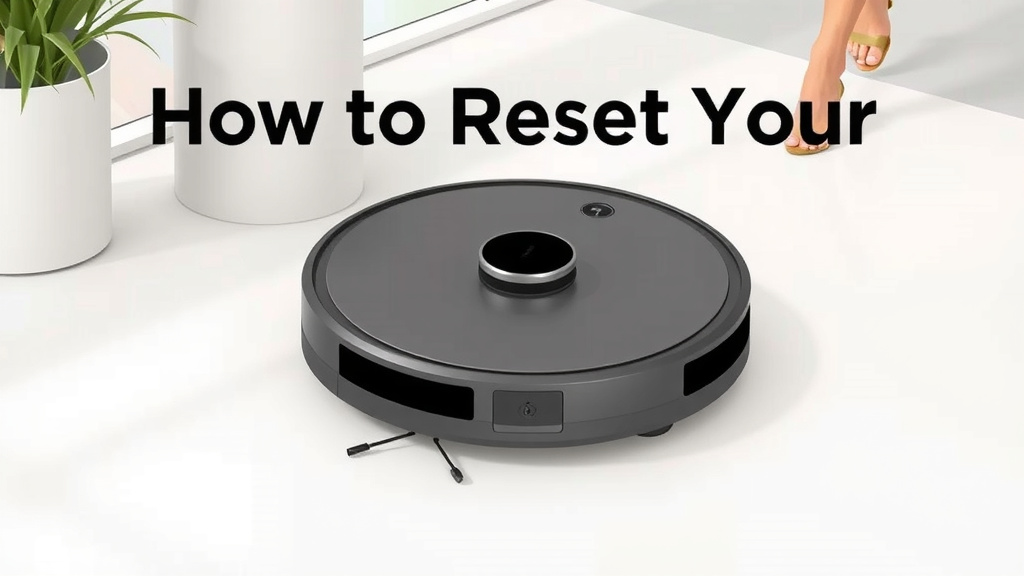
How to Reset Your Xiaomi Robot Vacuum: A Quick Guide
Your Xiaomi robot vacuum might need a reset sometimes. To reset it, you usually need to press and hold a specific button for a few seconds. This clears its memory and settings. A factory reset can fix many common issues.
When your robot vacuum acts up, a reset is often the first step. It’s like giving your device a fresh start. This process can resolve connectivity problems or strange behavior. We found that resetting your device often brings it back to normal operation quickly.
- A factory reset usually involves holding down a button.
- This action clears the robot’s memory and settings.
- It’s a great way to fix common glitches.
- Always check your model’s manual for exact steps.
Let’s walk through the common ways to reset your Xiaomi robot vacuum step by step.
Refreshing Your Xiaomi Robot Vacuum: A Reset Guide
Sometimes your smart home helpers need a little nudge. Your Xiaomi robot vacuum is no different. If you’re experiencing odd behavior, connectivity issues, or your vacuum just isn’t cleaning right, a reset can often be the simplest solution. Think of it as a quick reboot to clear its digital slate.
Understanding the ‘Why’ Behind a Reset
Why would you need to reset your Xiaomi robot vacuum? There are several common reasons. Often, it’s the first troubleshooting step recommended by manufacturers for many electronic devices. We’ve seen that this can fix a surprising number of minor glitches.
Common Scenarios Requiring a Reset
- Your vacuum is stuck in a loop, repeatedly cleaning the same small area or getting lost.
- It’s failing to connect to your Wi-Fi network or the Mi Home app, even after trying other fixes.
- The vacuum seems unresponsive to app commands or button presses.
- It’s performing erratic cleaning patterns or not covering the entire floor area.
- You’re experiencing repeated error messages that don’t seem to resolve themselves.
The Difference Between a Soft and Hard Reset
It’s good to know there are usually two types of resets. A soft reset is like closing and reopening an app. A hard reset, often called a factory reset, is more drastic. It wipes out all saved data and settings.
We found that for most issues, a factory reset is what people are looking for when their robot vacuum needs a refresh. This guide will focus on that more thorough approach.
Performing a Factory Reset on Your Xiaomi Robot Vacuum
The exact method can vary slightly depending on your specific Xiaomi robot vacuum model. However, the core process is generally the same. We recommend always checking your device’s user manual first. It will have the precise instructions for your model.
Locating the Reset Button
The reset button is usually not in an obvious place. You’ll often need to look for a small, sometimes recessed, button. Many models hide it on the side, underneath a flap, or on the bottom of the unit.
Common Button Locations
- On the Top: Some models have a main power or dock button that also serves as a reset function when pressed and held.
- On the Side: Look for a small pinhole or button, sometimes near the charging contacts.
- Underneath a Cover: You might need to gently lift a panel or cover to access the reset button.
- On the Bottom: Some designs place it on the underside of the vacuum.
The Step-by-Step Reset Process
Once you’ve found the reset button, the next step is to perform the reset action. This usually involves a combination of powering the device on and holding the button.
- Ensure the vacuum is powered off or unplugged. This is a safety precaution and helps ensure a clean reset.
- Locate the reset button. If it’s a pinhole, you’ll need a thin, pointed object like a paperclip or a SIM card tool.
- Press and hold the reset button. You’ll typically need to hold it down for anywhere from 5 to 15 seconds. The exact duration will be in your manual.
- Listen or look for confirmation. You might hear a beep, see lights flash, or get a voice prompt indicating the reset is in progress or complete.
- Release the button.
- Power the vacuum back on or plug it back in. It should now boot up with its factory default settings.
What Happens After a Factory Reset?
After a successful factory reset, your Xiaomi robot vacuum will return to its original state. This means:
- All saved maps will be deleted. Your vacuum won’t remember your home’s layout.
- Wi-Fi settings will be cleared. You’ll need to reconnect it to your network.
- App pairings will be removed. You’ll have to re-add the vacuum to your Mi Home app.
- Custom cleaning schedules will be gone.
It’s like getting a brand-new vacuum out of the box, software-wise. You’ll need to go through the initial setup process again.
Reconnecting to Your Mi Home App and Wi-Fi
Resetting your vacuum means you’ll need to reconnect it to your smart home ecosystem. This is a critical step to regain control via the app.
The Re-Pairing Process
Generally, this involves:
- Opening the Mi Home app on your smartphone or tablet.
- Adding a new device. Look for a “+” icon or an “Add Device” option.
- Selecting your Xiaomi robot vacuum model from the list.
- Following the on-screen prompts. This usually includes putting the vacuum back into pairing mode (often by pressing and holding another button, like the power button, for a few seconds) and entering your Wi-Fi password.
Many experts suggest using a 2.4GHz Wi-Fi network for initial setup, as some robot vacuums can have trouble with 5GHz networks during the pairing process (Xiaomi Support).
Rebuilding Your Cleaning Map
Once reconnected, you’ll likely need to initiate a full cleaning cycle for the vacuum to create a new map of your home. This is essential for efficient navigation and custom cleaning zone settings.
Troubleshooting Common Reset Issues
What if the reset doesn’t seem to work? Don’t panic! Here are a few things to check.
Potential Roadblocks and Solutions
- Did you hold the button long enough? Try holding it for a few extra seconds.
- Is the vacuum charged? Make sure it has sufficient battery power before attempting a reset.
- Are you using the right button? Double-check your model’s manual to confirm you’re pressing the correct button.
- Is the button damaged? If the button feels stuck or unresponsive, there might be a physical issue with the vacuum.
- Did you forget to reconnect to Wi-Fi? The vacuum might seem ‘reset’ but won’t function properly without network connectivity.
When to Seek Further Assistance
If you’ve tried the factory reset multiple times and are still experiencing issues, it might be time to contact Xiaomi customer support. There could be a more complex hardware or software problem that a simple reset can’t fix. Keep your vacuum’s serial number handy when you call.
Checklist: Getting Your Vacuum Back on Track
Here’s a quick rundown to ensure you’ve covered all your bases:
- Confirmed your specific model’s reset procedure.
- Located the correct reset button.
- Held the button for the required duration.
- Confirmed the reset with an audible or visual cue.
- Reconnected the vacuum to your Wi-Fi network.
- Re-added the vacuum to your Mi Home app.
Conclusion
You’ve learned how to give your Xiaomi robot vacuum a fresh start through a factory reset. We’ve covered why you might need one, how to find that hidden reset button, and the steps to get it done. Remember, a reset clears its memory, so you’ll need to reconnect it to your Wi-Fi and the Mi Home app afterward. This process is often the quickest way to solve common issues and get your robot cleaning efficiently again. If problems persist after a reset, don’t hesitate to reach out to Xiaomi support.
Frequently Asked Questions
How do I know if my Xiaomi robot vacuum needs a factory reset?
You should consider a factory reset if your vacuum is behaving strangely. This includes getting stuck, failing to connect to Wi-Fi, or acting unresponsive to app commands. We’ve found these are strong indicators that a reset might clear the issue.
What’s the difference between a soft reset and a factory reset?
A soft reset is like restarting a device, often done by just turning it off and on. A factory reset, which this guide focuses on, wipes all your custom settings, maps, and network information, returning the vacuum to its original state.
Do I need a special tool to press the reset button?
For many Xiaomi robot vacuum models, the reset button is a small pinhole. You’ll likely need a thin, pointed object like a paperclip, a needle, or a SIM card ejector tool to press it effectively.
Will resetting my robot vacuum delete its cleaning map?
Yes, a factory reset will erase any saved cleaning maps. You’ll need to let your vacuum create a new map of your home once it’s reconnected to the app and ready to clean again.
What if the reset button doesn’t seem to do anything?
If pressing and holding the button doesn’t produce any response, ensure the vacuum has sufficient battery charge. Double-check that you’re pressing the correct button for your model, and try holding it for a few seconds longer than you initially did.
![7 Best Budget Mapping Robot Vacuum [2026]](https://robotvacuumfact.com/wp-content/uploads/2026/08/7-best-budget-mapping-robot-vacuum-2026-featured-768x432.jpg)
![7 Best Robot Vacuum And Mop Pet Hair [2026]](https://robotvacuumfact.com/wp-content/uploads/2026/08/7-best-robot-vacuum-and-mop-pet-hair-2026-featured-768x432.jpg)