How to Turn On Your Shark Robot Vacuum: Simple Steps
Turning on your Shark robot vacuum is generally quite simple. Most models activate automatically when you press the “Clean” button on the robot itself or when you initiate a scheduled cleaning through the Shark app. You don’t usually need a complex startup process.
Getting your robot vacuum ready for its first clean involves a few key steps. This includes ensuring it’s properly charged and connected to your home Wi-Fi if you plan to use the app features. Many users find the app offers the most control for scheduling and customization.
- Press the Clean button on the robot.
- Use the Shark mobile app to start.
- Ensure the robot is fully charged.
- Connect to your home Wi-Fi network.
Let’s walk through exactly how to get your Shark robot vacuum cleaning your floors in no time.
“`htmlGetting Your Shark Robot Vacuum Ready to Go
So, you’ve unboxed your new Shark robot vacuum, and you’re eager to see it zip around your home. It’s exciting to get a helping hand with the cleaning! Let’s make sure you know exactly how to power it up and get it started. It’s designed to be super straightforward, so you’ll be enjoying cleaner floors in no time.
Most Shark robot vacuums have a simple button right on the unit to get things rolling. If you’re planning to use the advanced features, like setting schedules or picking specific cleaning zones, you’ll want to get it connected to your Wi-Fi. This opens up a whole new world of convenience through the Shark app.
The Primary Way: Using the Robot’s Controls
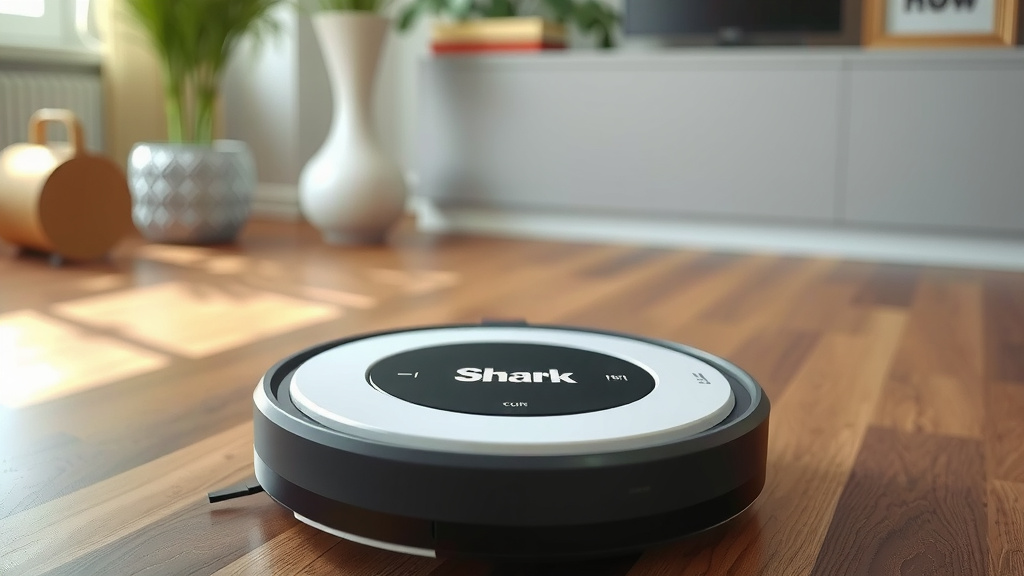
Your Shark robot vacuum comes with a prominent button that signals it’s ready for action. This is usually labeled “Clean” or might have a familiar play/pause symbol. Pressing this button is the most direct way to start a cleaning cycle.
Before you press that button, a quick check can save you a future headache. Is the robot properly seated on its charging dock? A flashing light on the dock or the robot itself often indicates it’s still charging. You don’t want it to run out of juice halfway through its first mission!
Understanding the Charging Lights
The charging lights are your best friends when figuring out if your robot is ready. When it’s charging, you’ll typically see a pulsing or flashing light. Once it’s fully charged, the light will usually turn solid or switch to a different color, like green. It’s a good idea to let it charge completely before its very first run. Most manufacturers recommend this for optimal battery health (Consumer Reports). It’s a good idea to let it charge completely before its very first run, and our guide explains how long to charge a robot vacuum.
What to Do If It Doesn’t Start
If you press the “Clean” button and nothing happens, don’t panic. First, double-check that the robot is indeed charged. If it’s been on the dock for a while and the light indicates it’s full, try pressing and holding the button for a few seconds. Some models might require a slightly longer press to initiate startup.
Leveraging the Shark App for Smart Cleaning
For those who love the idea of a smart home, the Shark app is your gateway to advanced control. This is where you can set cleaning schedules, send your robot to specific rooms, or even set no-go zones.
Getting the app set up involves a few simple steps. You’ll need to download the Shark app from your smartphone’s app store. Then, you’ll follow the prompts to create an account or log in.
Connecting Your Robot to Wi-Fi
This is often the most technical part, but Shark makes it pretty user-friendly. You’ll need to ensure your home Wi-Fi is working well. Your robot will connect to your 2.4 GHz Wi-Fi network. Most routers have this band available.
During the app setup, you’ll usually be asked to put your robot into pairing mode. This often involves pressing a specific button or combination of buttons on the robot itself. The app will then guide you through selecting your Wi-Fi network and entering your password. Many sources suggest having your robot close to your Wi-Fi router during this initial setup for a stronger connection (tech review sites).
Starting a Clean Through the App
Once connected, the app becomes your command center. You’ll see a big, clear button to “Start Cleaning” or something similar. Tapping this button sends the signal to your robot, and it will begin its cleaning cycle.
You can also schedule cleanings for when you’re not home. Imagine waking up to clean floors without lifting a finger! You set the day, time, and even which rooms you want cleaned. It’s all about making your life a little bit easier.
A Quick Checklist for Your First Run
Before you hit that “Clean” button or tap “Start” in the app, run through this quick list:
- Ensure your robot is firmly on its charging dock.
- Confirm the charging light indicates a full battery.
- Check that the dustbin is empty and properly installed.
- Remove any obvious obstacles from the floor in the cleaning area.
- If using the app, confirm your Wi-Fi is working and the robot is connected.
- Decide if you want to start immediately or schedule a clean.
Troubleshooting Common Startup Issues
Sometimes, things don’t go as smoothly as planned. If your Shark robot vacuum isn’t turning on, a few common culprits might be at play.
Power and Charging Concerns
The most frequent reason a robot won’t start is simply a lack of power. Double-check that the charging dock is plugged into a working outlet. Try plugging a different small appliance into the same outlet to be sure it has power.
If the robot is on the dock but not charging, ensure there’s good contact between the robot’s charging points and the dock’s. Sometimes, a little dust can interfere. Gently wipe both sets of contacts with a dry cloth. If your robot has a physical on/off switch, make sure it’s in the “on” position.
App Connectivity Problems
If you’re trying to start it via the app and it’s unresponsive, the issue might be with the connection. Your home Wi-Fi could be temporarily down. Try loading a webpage on your phone to see if your internet is working. Restarting your router can often fix minor connectivity glitches.
Another common fix is to restart the robot vacuum itself. This can sometimes clear temporary software issues. Consult your robot’s manual for the exact procedure, but it usually involves holding down a power button for a set amount of time.
When to Seek Further Help
If you’ve gone through these steps and your robot still won’t power on or respond, it might be time to contact Shark customer support. They can provide specific troubleshooting steps for your model. It’s always best to have your model number handy when you call.
“`Conclusion
You’ve learned how easy it is to get your Shark robot vacuum cleaning your home. Whether you prefer the simplicity of pressing the “Clean” button on the unit or the convenience of the Shark app for scheduling and customization, your robot is ready to help. Remember to ensure it’s fully charged and properly connected for the best experience. Now, take a moment to set up your robot according to the steps we’ve covered. You’re just a button press or app tap away from enjoying cleaner floors with minimal effort!
Frequently Asked Questions
Do I have to charge my Shark robot vacuum before the first use?
Yes, it’s highly recommended to fully charge your Shark robot vacuum before its very first cleaning cycle. This ensures optimal battery performance and longevity from the start. Allow it to remain on the charging dock until the indicator lights show a full charge.
What does the flashing light on my Shark robot vacuum mean?
A flashing light on your Shark robot vacuum or its charging dock typically indicates that the robot is currently charging. Once it’s fully charged, the light will usually become solid or change to a different color, signifying it’s ready to clean.
Can I start my Shark robot vacuum without using the app?
Absolutely! Most Shark robot vacuums have a prominent “Clean” button directly on the unit. Pressing this button will initiate a standard cleaning cycle without needing to use the mobile app at all.
My Shark robot vacuum won’t turn on, what should I check first?
The most common reason a robot won’t turn on is a lack of power. First, check that the charging dock is plugged into a working outlet and that the robot is making good contact with the charging points on the dock. Ensure the battery light indicates it’s charging or fully charged.
What kind of Wi-Fi network does my Shark robot vacuum need to connect to?
Your Shark robot vacuum typically needs to connect to a 2.4 GHz Wi-Fi network. Most home routers offer this band, so you likely won’t need to change your network settings. Ensure your Wi-Fi is stable during the initial setup process for a smooth connection.
![7 Best Robot Vacuum No Wifi [2026]](https://robotvacuumfact.com/wp-content/uploads/2026/08/7-best-robot-vacuum-no-wifi-2026-featured-768x432.jpg)