Master Your iLife Robot Vacuum: Simple Setup and Use
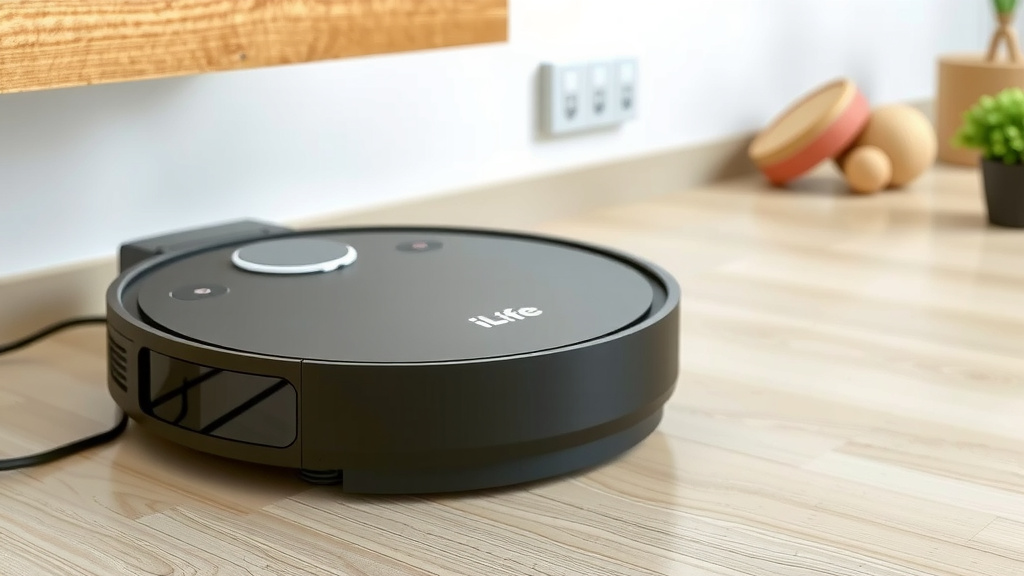
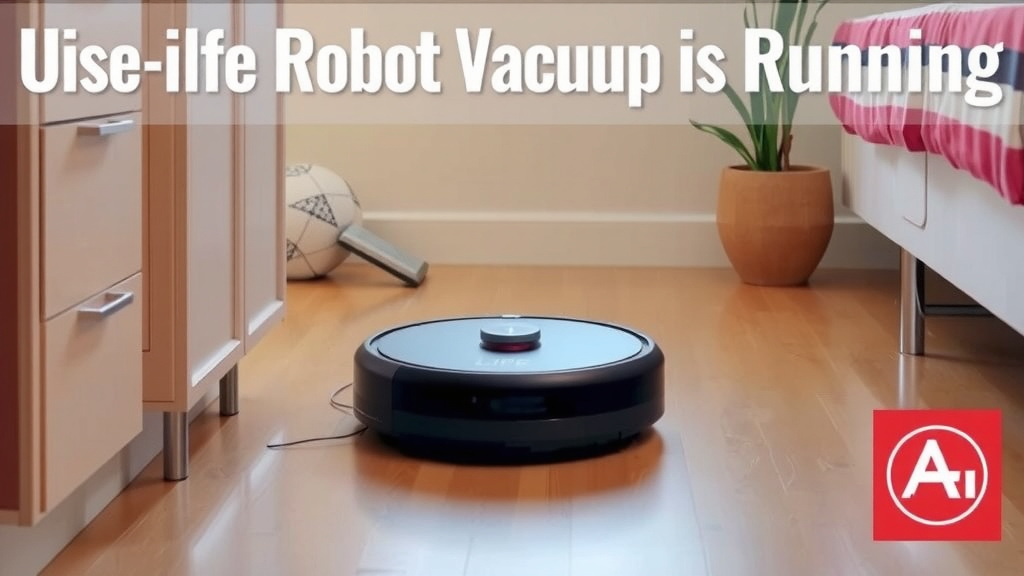
Getting your iLife robot vacuum ready to clean is pretty simple! You can usually start it with the remote control or by pressing the clean button directly on the device. It’s designed to be user-friendly right out of the box.
Understanding your iLife vacuum’s basic functions can really save you time. Many models also connect to a smartphone app for advanced scheduling and control, giving you total command over your cleaning routine.
- Press the clean button or use the remote.
- Consider the app for more control.
- Ensure it’s charged for best performance.
- Keep an eye out for error lights.
- Enjoy your newfound free time!
Let’s walk through exactly how to get your iLife robot vacuum cleaning your floors, step by step.
Getting Your iLife Robot Vacuum Up and Running
Ready to ditch the broom and let your new iLife robot vacuum do the heavy lifting? It’s exciting to get a new gadget! We’ll guide you through its setup and daily use. You’ll be enjoying cleaner floors in no time. Let’s dive in!
Unboxing and Initial Charging
First things first, let’s get your robot vacuum charged up. Take everything out of the box. You’ll usually find the robot, a charging dock, a power adapter, and maybe some extra brushes or filters. Find a good spot for the charging dock. It needs to be against a wall with clear space around it. Think of it as giving your robot a comfy garage.
Plug in the power adapter and connect it to the dock. Now, place your robot vacuum onto the charging contacts. Make sure they line up. You should see a light on the robot indicating it’s charging. Most iLife models recommend a full charge before the first use. This typically takes a few hours. Patience is key here; you want a fully powered cleaner for its debut!
Understanding Your Robot’s Buttons and Lights
Your iLife robot vacuum has a simple control panel, usually right on top. This is where you’ll find the main Clean button. Pressing this button once will typically start an automatic cleaning cycle. Pressing it again will pause the cleaning. Holding it down for a few seconds usually sends the robot back to its charging dock.
Beyond the main button, pay attention to the indicator lights. These lights are like your robot’s way of talking to you. A solid green light often means it’s ready and charged. A blinking light might indicate an error or that it’s searching for its dock. Different models have slightly different light patterns, so it’s worth checking your specific manual if you’re unsure.
Basic Cleaning Modes and How to Use Them
Your iLife robot vacuum comes with several cleaning modes. The most common one is the Auto mode. This is what you’ll use for everyday cleaning. Just press the Clean button, and it will navigate your home, cleaning room by room. It uses sensors to avoid obstacles and drops.
Some models also have Spot Cleaning. This is perfect for dealing with a small, concentrated mess, like spilled cereal. You’ll usually activate this mode using the remote control. The robot will then focus its cleaning efforts on a small area, spiraling outwards. Once it’s done, it will stop or return to its dock.
Another useful mode is Edge Cleaning. This mode directs the robot to concentrate on cleaning along walls and around furniture legs. It’s great for getting those hard-to-reach places where dust bunnies love to hide. You’ll typically select this mode via the remote as well.
Using the Remote Control
The remote control is your command center for manual operation. It usually has buttons for starting/stopping cleaning, returning to the dock, and selecting different cleaning modes. You can also often control the robot’s direction manually with the arrow keys on the remote. This is handy if you want to guide it to a specific spot or help it out of a tricky situation.
Connecting to the iLife Home App (If Applicable)
Many newer iLife models offer smartphone app connectivity. This is where things get really smart! The app, often called iLife Home, lets you control your vacuum from anywhere. You can start and stop cleanings, change modes, and even schedule cleanings for specific times and days. Imagine waking up to clean floors without lifting a finger!
To connect, you’ll first need to download the app from your smartphone’s app store. Then, follow the in-app instructions to pair your robot with your Wi-Fi network. This usually involves putting the robot into pairing mode. It can sometimes be a little fiddly, but it’s well worth the effort for the convenience it offers. Many experts say app control significantly enhances the user experience (iLife Support).
Scheduling Cleanings Through the App
One of the biggest benefits of the app is scheduling. You can set up a cleaning routine that fits your life. For instance, you could schedule it to clean the living room every weekday morning while you’re at work. Or perhaps you want it to tackle the kitchen after dinner. The app gives you precise control over when and where your robot cleans. This proactive cleaning helps maintain a consistently tidy home.
Maintenance for Optimal Performance
To keep your iLife robot vacuum running smoothly, a little regular maintenance goes a long way. Think of it like giving your car an oil change. The most common tasks involve cleaning the brushes and emptying the dustbin.
Emptying the Dustbin: After each cleaning cycle, or when the indicator light shows it’s full, you’ll need to empty the dustbin. Most iLife models have a simple release mechanism. Just detach the dustbin, empty it into the trash, and reinsert it. Keeping the dustbin clear ensures strong suction power. This is a basic but vital step for effective cleaning (iLife User Manual).
Cleaning the Brushes: Over time, hair and debris can get tangled around the main brush and side brushes. You’ll want to clean these regularly. Most models come with a small cleaning tool. Use this to cut away any tangled hair. Make sure the brushes can spin freely. This prevents the robot from struggling and improves its cleaning ability.
Cleaning the Filters: Your robot likely has one or more filters to trap fine dust. These filters can get clogged. Check your manual for specific instructions, but generally, you can rinse them under water. Make sure they are completely dry before putting them back into the robot. A clean filter means cleaner air, too.
Troubleshooting Common Issues
Even the best robots can run into little hiccups. Don’t worry if your iLife vacuum gets stuck or doesn’t seem to be cleaning properly. Most issues are easily fixed.
Robot Gets Stuck: If your robot frequently gets stuck under furniture or on rug fringes, try adjusting the furniture placement or using magnetic strips or virtual walls (if your model supports them). Sometimes, a simple repositioning of its charging dock can help it find its way home better.
Weak Suction: If you notice weak suction, it’s almost always a dustbin or filter issue. Empty the dustbin and clean or replace the filter. Also, check the main brush and side brushes for blockages.
Error Lights: If you see an error light flashing, consult your iLife user manual. It will usually tell you exactly what the light pattern means and how to resolve the specific problem. Many errors are related to something simple like a jammed brush or a full dustbin.
A Quick Checklist for Daily Use
Here’s a simple checklist to help you get the most out of your iLife robot vacuum:
- Ensure the robot is fully charged before starting a clean.
- Clear the floor of small objects and cords that could tangle the brushes.
- Empty the dustbin after cleaning or when the indicator shows it’s full.
- Check and clean the main brush and side brushes regularly.
- Keep the charging dock area clear so the robot can return easily.
- If using the app, check for any software updates.
Conclusion
You’ve now learned the essentials for getting your iLife robot vacuum up and running! We covered everything from initial charging and understanding its buttons to using different cleaning modes and even connecting to the iLife Home app for smart control. Remember that consistent maintenance, like cleaning brushes and emptying the dustbin, is key to keeping your robot performing its best. Don’t forget to check your manual for any specific error light meanings. Your floors will thank you for it. Now, go ahead and schedule your first automated cleaning!
Frequently Asked Questions
How do I make sure my iLife robot vacuum is charging correctly?
Place your robot directly onto the charging dock, ensuring the charging contacts align. Look for an indicator light on the robot, which should show it’s actively charging. It’s generally recommended to give it a full charge before its very first use.
What should I do if my iLife robot vacuum stops in the middle of a cleaning cycle?
First, check if the dustbin is full or if any brushes are tangled. Also, look for any flashing error lights on the robot, as these indicate specific issues. Your user manual will help you decipher these lights and find solutions.
Can I use my iLife robot vacuum on all floor types?
Yes, iLife robot vacuums are designed for most common household floor types, including hardwood, tile, and carpet. However, very high-pile carpets or delicate surfaces might require caution. Always check your specific model’s capabilities.
How often should I clean the robot’s brushes and filters?
For optimal performance, it’s good practice to check and clean the brushes after each major cleaning session, especially if you have pets. Filters should typically be cleaned weekly and replaced every few months, depending on usage and air quality.
What if I lose the remote control for my iLife robot vacuum?
Many iLife models can be fully controlled via the iLife Home smartphone app, which can be a great alternative. If your model doesn’t have app connectivity, you may be able to order a replacement remote directly from the manufacturer’s website.
![7 Best Robot Vacuum And Mop Under $200 [2026]](https://robotvacuumfact.com/wp-content/uploads/2026/08/7-best-robot-vacuum-and-mop-under-200-2026-featured-768x432.jpg)
![7 Best Robot Vacuum For Home Assistant [2026]](https://robotvacuumfact.com/wp-content/uploads/2026/08/7-best-robot-vacuum-for-home-assistant-2026-featured-768x432.jpg)