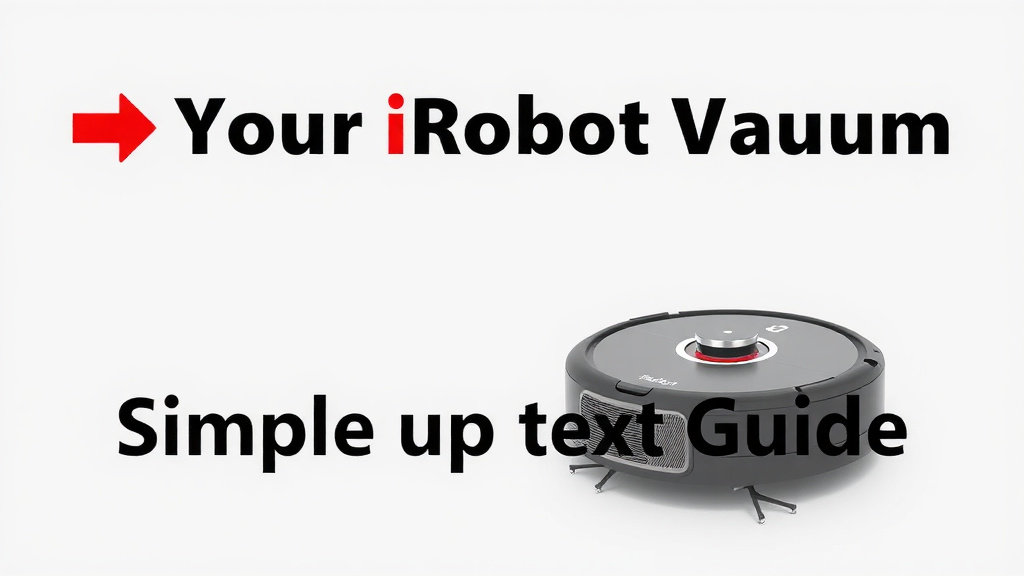
Your iRobot Vacuum: A Simple Setup Guide
Using your iRobot vacuum is simple, even if it feels a bit like magic at first. The easiest way to get started is to charge it fully and then press the Clean button. Your robot will then automatically begin mapping your home and cleaning. You can also use the iRobot Home app for more advanced controls.
Getting your iRobot to work its cleaning magic involves a few key steps. You’ll want to make sure it has a clear path and is properly docked for charging. Many people find setting up schedules via the app makes keeping floors clean a set-it-and-forget-it task. It’s designed to handle everyday dirt and dust efficiently.
- Charge your robot fully before the first use.
- Press the Clean button to start cleaning.
- Use the iRobot Home app for schedules and advanced settings.
- Ensure the robot has a clear path to clean.
- Keep the robot docked when not in use.
Let’s walk through exactly how to get your iRobot vacuum running smoothly and efficiently in your home. We’ll cover everything from setup to advanced features.
Getting Your iRobot Vacuum Up and Running
So, you’ve got your shiny new iRobot, and you’re ready for it to tackle that dust bunny army. That’s awesome! Let’s get it set up so it can do its thing without a hitch. It’s really not complicated, and soon you’ll be wondering how you ever lived without it.
First Steps: Charging and Docking
Before you even think about pressing that clean button, your iRobot needs a good drink of power. We recommend charging it fully before its very first cleaning mission. This helps the battery get ready for action. You’ll usually see a light indicating it’s charging. Once it’s ready, it’s a good idea to place the Home Base (its charging station) in a spot where the robot can easily find it. Think of it like a dog’s bed – a comfy, accessible place where it can recharge its batteries.
Where to Place the Home Base
Finding the right spot for the Home Base is important. It needs a bit of open space around it. Imagine giving your robot a clear runway. iRobot suggests about 1.5 feet of clearance on each side and 4 feet in front. Also, make sure the area is relatively clear of cables or other things that could trip it up. A good wall location, away from doors or busy walkways, is usually best. This helps your robot get back to its charger after cleaning.
Starting Your First Clean
With your robot fully charged and its Home Base in a good spot, you’re ready for the main event! The simplest way to start is by pressing the Clean button right on the robot itself. This button is usually prominently displayed. Press it, and your iRobot will undock itself and begin its cleaning cycle. It will start mapping your home and navigating around furniture as it goes.
What Happens When It Cleans?
When you press Clean, your robot uses its sensors to navigate. It doesn’t just bump randomly into things. Instead, it builds a map of your home as it cleans. This map helps it cover the area efficiently and learn where it’s been. It’s pretty smart about avoiding stairs, too, thanks to its cliff detection sensors. It’s like giving your floors a thorough, systematic sweep.
Introducing the iRobot Home App
While pressing the Clean button is super easy, the real magic happens when you connect your iRobot to the app. The iRobot Home app is your command center. You can download it from your smartphone’s app store. It’s available for both iOS and Android devices. Connecting your robot usually involves following a few simple prompts in the app.
Key App Features You’ll Love
Once connected, you gain a whole new level of control. Scheduling is a big one. You can tell your robot exactly when to clean – maybe every weekday at 10 AM while you’re at work. You can also select specific rooms to clean. If your kitchen floor is a disaster zone after dinner, just tell your robot to clean only the kitchen! Many models can also create “Keep Out Zones” or “Clean Zones” on the map. This means you can tell it to avoid certain areas or focus more on others. It’s like having a personalized cleaning assistant.
Understanding Your Robot’s Map
The app shows you a map of the areas your robot has cleaned. Over time, this map becomes more detailed. You can see how your robot navigates and where it has access. Some advanced models even let you edit these maps. You can label rooms or adjust cleaning preferences for each space. It’s a fascinating way to see your home from your robot’s perspective.
Keeping Your iRobot Maintained
Your iRobot is built to be tough, but like any machine, it needs a little TLC. Regular maintenance ensures it runs smoothly and lasts longer. The most important tasks involve cleaning its brushes and emptying its dustbin. Your app will often let you know when these things are needed.
Cleaning the Brushes
Hair, especially pet hair, can get tangled around the brushes. If you notice your robot isn’t picking up as much dirt, check the brushes. Most models come with a small cleaning tool to help you remove tangled debris. It’s a quick job that makes a big difference. We found that cleaning the brushes weekly, especially if you have pets, keeps performance high.
Emptying the Dustbin
The dustbin collects all the dirt your robot picks up. It needs to be emptied regularly. If you have a standard model, you’ll simply detach the bin and empty it into your trash. Some newer iRobot models come with a self-emptying base. This base automatically empties the robot’s dustbin after each clean. This is a huge time-saver for many users. Our guide to the best robot self-cleaning vacuums covers models with a self-emptying base.
Troubleshooting Common Issues
Even the smartest robots can run into hiccups. If your iRobot isn’t behaving as expected, don’t worry. Most issues are easily fixed. Sometimes, it’s as simple as a stuck wheel or a full dustbin. Check the iRobot Home app for specific error messages. It often provides guidance on what might be wrong and how to fix it.
When Your Robot Gets Stuck
If your robot gets stuck, it will usually stop and alert you. This often happens if it encounters a particularly tricky cord or a rug fringe. Simply free the robot and place it back in the area it was cleaning, or even back on its Home Base. Then, try starting a new cleaning cycle. You might also want to tidy up the area a bit before its next run.
Connectivity Problems?
Sometimes, connecting your iRobot to Wi-Fi can be a bit finicky. Ensure your Wi-Fi network is working correctly. You may need to restart your router or your robot. If you’re still having trouble, consulting the iRobot support pages or the app’s troubleshooting section can provide specific steps. Many experts suggest checking that your Wi-Fi password is entered correctly within the app.
Checklist for a Smooth Operation
- Charge your robot fully before the first use.
- Ensure the Home Base has adequate space around it.
- Press the Clean button or schedule through the app.
- Regularly clean the brushes and empty the dustbin.
- Keep the iRobot Home app updated.
- Tidy up floor areas with cords or small objects.
Conclusion
You’ve learned how to get your iRobot vacuum up and running, from its initial charge to advanced app features. Remember, a little bit of preparation and regular maintenance go a long way. By keeping its brushes clean and dustbin empty, you’ll ensure your robot cleans your home efficiently every time. Don’t hesitate to use the iRobot Home app for personalized cleaning schedules and room selection. Your next step? Schedule your first cleaning cycle using the app to experience the full potential of your smart cleaning companion!
Frequently Asked Questions
How do I know when my iRobot is fully charged?
Your iRobot will typically have a light indicator that changes when charging is complete. Many models will also show a full battery icon on the robot itself or in the iRobot Home app. Refer to your specific model’s manual for exact light indicators.
Can I use my iRobot on different floor types?
Yes, most iRobot vacuums are designed to work on a variety of floor surfaces, including carpets, hardwood, tile, and laminate. The robot will automatically adjust its cleaning settings as it transitions between different floor types.
What should I do if my iRobot gets stuck frequently?
If your robot gets stuck often, check its path for potential obstacles like loose cords, rug fringes, or high thresholds. Ensure the Home Base is placed in an open area. You can also use the Keep Out Zones feature in the app to block off problem areas.
How often should I clean the robot’s brushes and filter?
It’s recommended to clean the brushes weekly, especially if you have pets, to remove tangled hair and debris. The filter should typically be cleaned or replaced every 1-2 months, depending on usage and the environment. Your app might provide maintenance reminders.
Is it okay to leave my iRobot plugged in all the time?
Yes, it is generally safe and recommended to leave your iRobot on its Home Base when not in use. This keeps the battery charged and ready for its next cleaning mission. The robot is designed to manage its battery level effectively.
![7 Best Robot Vacuum That Doesn'T Get Stuck [2026]](https://robotvacuumfact.com/wp-content/uploads/2026/09/7-best-robot-vacuum-that-doesn-t-get-stuck-2026-featured-768x432.jpg)